> For the complete documentation index, see [llms.txt](https://captivatehelp.newbluelive.com/llms.txt). Markdown versions of documentation pages are available by appending `.md` to page URLs; this page is available as [Markdown](https://captivatehelp.newbluelive.com/set-up-your-production/position-and-fit-items-in-program.md).
# Move and resize items for Program
Use the **Preview panel** to quickly move, resize, and reset a graphic, live video source, media clip, or other visual Project List item before it goes to Program. For exact values, fit behavior, or repeatable placement, use the **Transform** tab in the Properties panel. Both change playout behavior only — they do not edit the original title design.
Project settings define the canvas; Preview and Transform place items on that canvas.
## Drag in the Preview panel
Dragging an item in the [Preview panel](/get-started/chapter-index-2/preview-panel.md) canvas is the fastest way to place it: drag to move, and use the handles to resize. The canvas and the **Transform** tab are two ways to change the same playout positioning — drag in the canvas and the Transform rows update; edit the rows and the item moves in the canvas.
## The Transform tab
The Transform tab lives in the [Properties panel](/get-started/chapter-index-2/properties-panel.md) for the items that support it. Use it for exact values, fit behavior, or repeatable placement.
## Which items show which controls
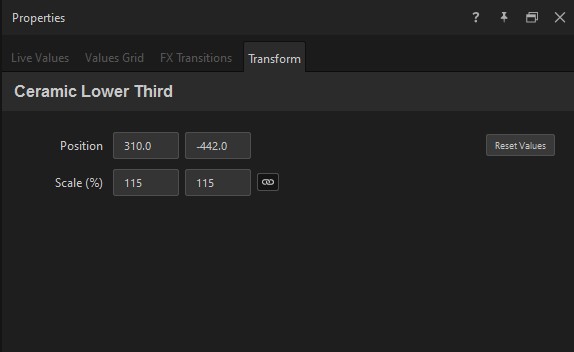
* **Graphics** show **Position** and **Scale**.
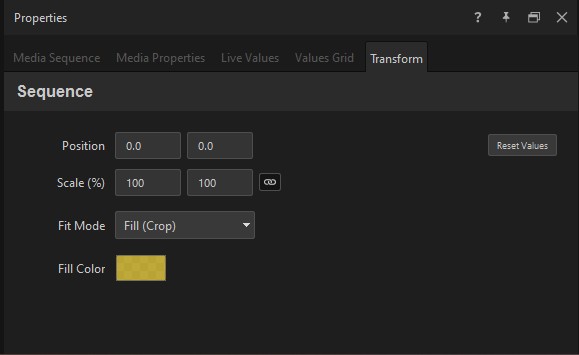
* **Media** shows **Position**, **Scale**, **Fit Mode**, and **Fill Color**.
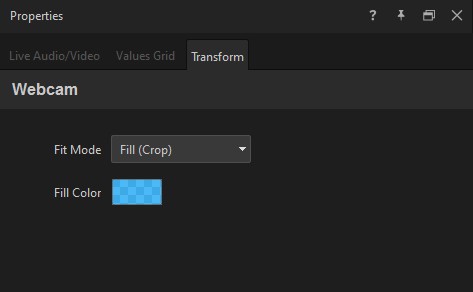
* **Live inputs** show **Fit Mode** and **Fill Color** only.
* Some item types — Shot Layouts among them — have no Transform tab at all.
## Position and Scale
* **Position** — pixel offset from the item’s designed position. Default is **(0, 0)**, which preserves the design. Positive X moves right; positive Y moves down.
* **Scale (%)** — independent X and Y scale factors. Default is **(100, 100)**. Each axis is set separately.
There is no rotation field on this tab. Rotation is set in the [Designer](/design-and-customize-graphics/chapter-index-1.md), not in playout.
## Fit Mode
When the project supports content zones, the **Fit Mode** selector chooses how the item scales inside its assigned zone:
* **Fill (Crop)** — the item fills the zone, cropping anything that does not fit.
* **Stretch** — the item is stretched to the zone’s dimensions, distorting the aspect ratio.
* **Fit** — the item fits inside the zone without cropping, leaving margins where the aspect ratios differ.
* **-** — the project’s default behavior.
## Fill Color
When **Fit** leaves margins around an item, **Fill Color** sets the color drawn behind it to fill those margins. The default is opaque white. The picker supports alpha — set the alpha to 0 to leave the margins transparent.
## Zone Assignment
When the project supports content zones, the **Zone Assignment** row shows the current zone for the item. The default is **Unassigned**. Click the button to open the zone selection dialog; pick a zone and click **OK**.
## Reset Values
**Reset Values** resets only Position and Scale, back to **(0, 0)** and **(100, 100)**. It does not reset **Fit Mode**, **Fill Color**, or **Zone Assignment** — those keep their current values. Reset each one separately if needed.
## Bake the transform into the design
Playout Position and Scale live with the Project List item — the original design is untouched. To make them part of the design itself, open the graphic in the Designer and choose **Alignment** → **Apply Global Scale and Position**. The design geometry absorbs the current playout Transform, and Position and Scale reset to their defaults — the Designer now shows exactly what plays out. If you discard the Designer session instead of saving, the previous Position and Scale are restored.
## After Effects items
When the item is rendered through the After Effects renderer, a **Scale to fit project dimensions** checkbox appears. Check it to scale the AE composition to your project’s frame size — for example, a 3840x2160 composition into a 1920x1080 project. When checked, the Scale rows are disabled and the item is locked to the comp-to-project ratio.
## Related
* [Properties panel](/get-started/chapter-index-2/properties-panel.md)
* [Preview panel](/get-started/chapter-index-2/preview-panel.md)
* [Use live video sources](/set-up-your-production/chapter-index-2/play-live-video-source-layers.md)
* [Create a media sequence](/design-and-customize-graphics/chapter-index-7/create-a-media-sequence.md)
---
# Agent Instructions
This documentation is published with GitBook. GitBook is the documentation platform designed so that both humans and AI agents can read, navigate, and reason over technical content effectively. Learn more at gitbook.com.
## Querying This Documentation
If you need additional information that is not directly available in this page, you can query the documentation dynamically by asking a question.
Perform an HTTP GET request on the current page URL with the `ask` query parameter, and the optional `goal` query parameter:
```
GET https://captivatehelp.newbluelive.com/set-up-your-production/position-and-fit-items-in-program.md?ask=&goal=
```
`ask` is the immediate question: it should be specific, self-contained, and written in natural language.
`goal` is optional and describes the broader end goal you are ultimately trying to accomplish on behalf of the user. GitBook uses it to tailor the answer towards what is most useful for that goal.
The response will contain a direct answer to the question and relevant excerpts and sources from the documentation.
Use this mechanism when the answer is not explicitly present in the current page, you need clarification or additional context, or you want to retrieve related documentation sections.