> For the complete documentation index, see [llms.txt](https://captivatehelp.newbluelive.com/llms.txt). Markdown versions of documentation pages are available by appending `.md` to page URLs; this page is available as [Markdown](https://captivatehelp.newbluelive.com/set-up-your-production/chapter-index-5/automate-audio-with-shot-layouts.md).
# Automate audio with Shot Layouts
Beyond the live [Audio Mixer](/set-up-your-production/chapter-index-5/the-audio-mixer.md) panel, Captivate can change the audio mix automatically as you move from shot to shot. A Shot Layout stores audio settings — level, mute, and pan — for the sources in the shot, and applies them when you take that shot. Different shots can carry different mixes: a camera shot brings up that camera’s audio, while a replay or graphics shot lowers or mutes it.
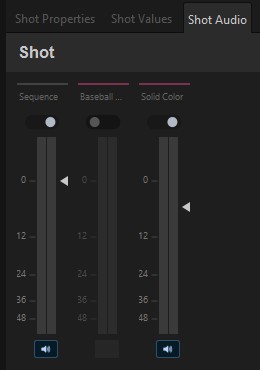
You author these settings on the **Shot Audio** tab as you build a Shot Layout — a separate place from the live Audio Mixer panel, which mixes the current Program by hand.
## Set levels and mutes for the shot
The **Shot Audio** tab shows a fader for each audio source in the shot:
* **Faders** — drag a source’s fader to set the level it plays at when this shot is taken. The value is stored with the shot.
* **Mute button** — the speaker icon at the bottom of a fader mutes that source for this shot. The source stays in the project but isn’t heard while the shot is on air.
These levels and mutes take effect automatically when you take the shot — for the sources whose **Override** is on.
## The Override button
Each source’s fader in the [Audio Mixer](/set-up-your-production/chapter-index-5/the-audio-mixer.md) has an **Override** button that decides whether a Shot Layout drives that source:
* **Override on** — the shot’s stored audio settings (level, mute, pan) take effect on this source when the shot plays, and adjusting the controls sets the levels stored with the live shot.
* **Override off** — the shot leaves this source alone; your manual mixer setting stays in place as shots change.
## Related
* [Audio Mixer panel](/set-up-your-production/chapter-index-5/the-audio-mixer.md) — the live mixing surface.
* [Shot Layouts & Shot Launcher](/control-your-show/chapter-index-1.md) — building and running shots.
---
# Agent Instructions
This documentation is published with GitBook. GitBook is the documentation platform designed so that both humans and AI agents can read, navigate, and reason over technical content effectively. Learn more at gitbook.com.
## Querying This Documentation
If you need additional information that is not directly available in this page, you can query the documentation dynamically by asking a question.
Perform an HTTP GET request on the current page URL with the `ask` query parameter, and the optional `goal` query parameter:
```
GET https://captivatehelp.newbluelive.com/set-up-your-production/chapter-index-5/automate-audio-with-shot-layouts.md?ask=&goal=
```
`ask` is the immediate question: it should be specific, self-contained, and written in natural language.
`goal` is optional and describes the broader end goal you are ultimately trying to accomplish on behalf of the user. GitBook uses it to tailor the answer towards what is most useful for that goal.
The response will contain a direct answer to the question and relevant excerpts and sources from the documentation.
Use this mechanism when the answer is not explicitly present in the current page, you need clarification or additional context, or you want to retrieve related documentation sections.