> For the complete documentation index, see [llms.txt](https://captivatehelp.newbluelive.com/llms.txt). Markdown versions of documentation pages are available by appending `.md` to page URLs; this page is available as [Markdown](https://captivatehelp.newbluelive.com/set-up-your-production/chapter-index-2/browser-input.md).
# Browser as a live source
Browser source lets Captivate render any web page as a live video input. Point it at a URL and the rendered page becomes a layer in the project — useful for web-based scoreboards, lower thirds from a web app, social widgets, or any page you’d otherwise screen-capture. Browser sources are **project presets**: their URL, name, and settings save with the project rather than being discovered each session.
## Before you start
* If the **Browser** option is not in the **Live Audio/Video** submenu, your Captivate license does not include the Browser source — contact NewBlue support to add it.
* Decide whether you want a transparent background. Web pages designed as broadcast overlays should set `body { background: transparent; }` (or leave the body background unset) so they composite cleanly over other layers.
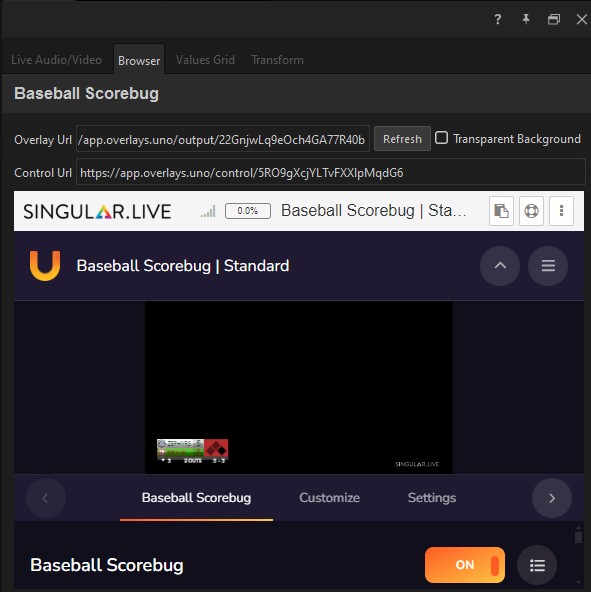
* If the page needs operator interaction during the show (a control dashboard for a web scoreboard, for example), have its **control URL** ready. This is a separate page rendered inside the Browser tab’s preview area for the operator to click around.
## Add a browser source
1. From the top menu, choose **File** > **New** > **Live Audio/Video** > **Browser**, or right-click in the Project List and choose **New** > **Live Audio/Video** > **Browser**.
2. Pick **Add Browser**. A dialog titled **Add Browser Source** appears.
3. Enter the URL in the **Url** field and click **OK**. The source is created and opens on the current channel; the URL is saved as a preset automatically.
{% hint style="info" %}
After the page loads and reports its title, Captivate renames the saved preset to that title — so the Browser submenu shows the meaningful page name (e.g. "Sports Scoreboard") rather than "Browser 1" the next time you add it.
{% endhint %}
The preset persists with the project. If you reopen the project on another machine, the same Browser source is available — no need to re-create it.
On the Browser tab of the Properties panel, the editable fields are **Overlay Url** (the primary URL — what becomes the layer’s video) and, if you set one, **Control Url** (the optional operator dashboard).
## The interactive preview
The panel below the URL fields is a live, fully interactive view of the actual page — not a thumbnail. The whole page is shown scaled to fit the panel, and clicks, drags, scrolling, and typing all land exactly where you point, at any scale. Use it to log in to services, dismiss cookie banners, navigate, or press play — without leaving Captivate. The scaling is display-only; the frames going to the video pipeline are unaffected.
## Show the mouse pointer on air
The **Show Mouse Pointer** checkbox draws the pointer into the video output while your cursor is over the preview — useful for navigating a page on air, in teaching or demo productions. It is off by default so overlay graphics are never contaminated, and the setting persists with the input.
## Transparent background
When the source’s **Transparent Background** checkbox is on, Captivate injects a stylesheet that makes the page body transparent. Web overlay graphics (lower thirds, animated tickers) then composite cleanly over the camera or other live source beneath them.
1. Select the browser source layer.
2. On the **Browser** tab of the Properties panel, tick the **Transparent Background** checkbox.
3. The setting takes effect immediately; no page reload required.
The injection sets the `body` background transparent. If the page sets a solid background higher up the cascade (`html { background: white; }` or an opaque body background in its own CSS), that wins and the result is not transparent. Author your overlay pages with this in mind.
## Control URL — the operator dashboard
A browser source can carry a second URL, the **Control Url**. When set, the Browser tab’s preview area in the Properties panel renders the control URL instead of the overlay video — so the operator interacts with the control page directly inside Captivate, without leaving the application. This is the typical pattern for web-based scoreboards: the **Overlay Url** renders the on-screen graphic, while the **Control Url** renders a button-and-input control panel only the operator sees.
The control page is interactive — clicks, key presses, and form input work as in a regular browser. Anything you type in the control page that updates the rendered page (via WebSockets, server push, or shared state) is reflected on the source.
The control page is rendered inline in the Properties panel; it does not appear in the Switcher, and it does not have its own tally.
## Play YouTube videos
Paste any YouTube link into **Overlay Url** — a `watch` URL, a `youtu.be` short link, an `/embed/`, `/live/`, or `/shorts/` link, or a playlist — and it plays as a clean, chrome-free video source. Captivate handles the embedding automatically; a start time (`t=1m30s`) or loop parameter in your URL is honored.
How playback is cued depends on how you use the source:
* **As a live video layer** — the video starts from the beginning when the layer plays on, and stops when it plays off. It’s pre-buffered, so the start is instant.
* **As a switcher source** — the page is fully interactive and never cued: click the player to start it, click to pause, like a plain web page.
{% hint style="info" %}
Some videos refuse to embed — their owners disable it, and the player shows **"Video unavailable — Watch on YouTube."** There is no workaround. Quick test: open the video on youtube.com and click **Share** — if there’s no **Embed** option, it won’t play in Captivate either. Also, rebroadcasting embedded YouTube content may have terms-of-service implications for your production.
{% endhint %}
## Audio
Audio that the page plays — embedded video, WebRTC, HTML5 audio — is captured directly from the page and routed into the project’s Audio Mixer. This is the cleanest way to bring a web page’s audio into your show.
If you’ve been screen-capturing a web page to get its audio, switch to a Browser source instead. Windows screen capture does not carry audio at all; Browser source delivers both video and audio in one source.
## Page reload, auto-reconnect, static pages
If the page fails to load (network blip, server hiccup), Captivate retries automatically. You don’t need to re-open the source. For a deliberate reload to pick up edits on a hosted page, click **Refresh** on the **Browser** tab of the Properties panel (tooltip: "Reload the overlay page"). **Refresh** only reloads the overlay page; it does not reload the control page.
A page that paints once and stops (a static graphic, a finished animation) does not produce new frames. Captivate keeps the source marked live during these idle periods so a finished overlay is not flagged as disconnected.
## Edge cases
* **Each browser source runs its own browser process.** Memory and CPU scale with the number of open Browser sources. Use them deliberately on modest hardware.
* **Browser audio beats screen-capture audio.** If you need a web page’s sound, always use Browser. On Windows this is the only option.
* **Page title overrides the preset name.** When the loaded page reports its title, Captivate renames the source’s preset to that title — that’s the name that shows up in the Browser submenu of saved presets and in the Project List. The name you type when you first add the source is only the initial label.
## Related
* [How live video inputs work](/set-up-your-production/chapter-index-2/live-video-input-pipeline.md) — the input pipeline overview.
* [Screen as a live source](/set-up-your-production/chapter-index-2/screen-capture-input.md) — when the page is in a separate browser app and you can’t change that.
* [The Audio Mixer](/set-up-your-production/chapter-index-5/the-audio-mixer.md) — routing browser audio.
---
# Agent Instructions
This documentation is published with GitBook. GitBook is the documentation platform designed so that both humans and AI agents can read, navigate, and reason over technical content effectively. Learn more at gitbook.com.
## Querying This Documentation
If you need additional information that is not directly available in this page, you can query the documentation dynamically by asking a question.
Perform an HTTP GET request on the current page URL with the `ask` query parameter, and the optional `goal` query parameter:
```
GET https://captivatehelp.newbluelive.com/set-up-your-production/chapter-index-2/browser-input.md?ask=&goal=
```
`ask` is the immediate question: it should be specific, self-contained, and written in natural language.
`goal` is optional and describes the broader end goal you are ultimately trying to accomplish on behalf of the user. GitBook uses it to tailor the answer towards what is most useful for that goal.
The response will contain a direct answer to the question and relevant excerpts and sources from the documentation.
Use this mechanism when the answer is not explicitly present in the current page, you need clarification or additional context, or you want to retrieve related documentation sections.