> For the complete documentation index, see [llms.txt](https://captivatehelp.newbluelive.com/llms.txt). Markdown versions of documentation pages are available by appending `.md` to page URLs; this page is available as [Markdown](https://captivatehelp.newbluelive.com/reference/program-monitor-audio-controls.md).
# Program Monitor audio controls
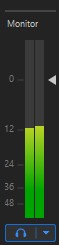
Reference for the audio monitor strip in the [Program Monitor panel](/get-started/chapter-index-2/program-monitor-panel.md). Everything here affects only what you hear locally — none of it changes the audio sent to Program.
## The dB scale
Two meter bars draw the left and right channels side by side. The scale runs from **-64 dB** at the bottom to **+7 dB** at the top. Zero dB sits in the upper third of the meter, not at the top.
**❗ IMPORTANT**
The scale extends above 0 dB because Captivate processes audio in floating point, which does not clip internally. Levels above 0 dB will distort if the downstream signal path cannot handle them — treat 0 dB as the practical ceiling for what you send.
Tick labels appear every **6 dB**, widening automatically to **12 dB** when the panel is too short for the labels to stay legible.
## Fader and mute
A small triangle next to the meter bars marks the monitor gain. Drag the triangle up or down to change it.
* **Scroll wheel over the meter** — adjusts the gain in 1 dB increments. The wheel range extends below the visible scale to **-72 dB**, so the triangle can exit the bottom of the meter and the audio is effectively muted.
* **Right-click the meter** — choose **Reset to 0 dB** to return the gain to unity.
Captivate remembers the fader’s value between sessions. The default is **-10 dB**.
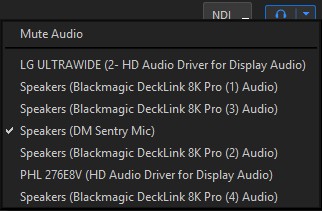
**Mute Audio** in the monitor button menu (below) silences the monitor without changing the fader value.
## Monitor audio device
Click the monitor button at the bottom of the strip to open the monitor menu, then pick the sound card or output the Program Monitor sends its audio to. The same menu holds **Mute Audio**. Captivate remembers the choice for the next session.
This menu is the only place to choose the monitor output device — there is no equivalent setting in the application preferences. If you cannot find the "audio output device" setting elsewhere, this is where it is.
## Zoom Mix strip
When a project includes a Zoom Mix audio source, a second audio strip appears next to the regular one, labeled for the Zoom Mix. It has its own fader and mute, remembered separately between sessions. The strip disappears automatically when the Zoom Mix source is removed.
## Related
* [Program Monitor panel](/get-started/chapter-index-2/program-monitor-panel.md)
* [The Audio Mixer](/set-up-your-production/chapter-index-5/the-audio-mixer.md)
---
# Agent Instructions
This documentation is published with GitBook. GitBook is the documentation platform designed so that both humans and AI agents can read, navigate, and reason over technical content effectively. Learn more at gitbook.com.
## Querying This Documentation
If you need additional information that is not directly available in this page, you can query the documentation dynamically by asking a question.
Perform an HTTP GET request on the current page URL with the `ask` query parameter, and the optional `goal` query parameter:
```
GET https://captivatehelp.newbluelive.com/reference/program-monitor-audio-controls.md?ask=&goal=
```
`ask` is the immediate question: it should be specific, self-contained, and written in natural language.
`goal` is optional and describes the broader end goal you are ultimately trying to accomplish on behalf of the user. GitBook uses it to tailor the answer towards what is most useful for that goal.
The response will contain a direct answer to the question and relevant excerpts and sources from the documentation.
Use this mechanism when the answer is not explicitly present in the current page, you need clarification or additional context, or you want to retrieve related documentation sections.