> For the complete documentation index, see [llms.txt](https://captivatehelp.newbluelive.com/llms.txt). Markdown versions of documentation pages are available by appending `.md` to page URLs; this page is available as [Markdown](https://captivatehelp.newbluelive.com/reference/change-default-library-location.md).
# Change the default Library location (advanced, Windows only)
**⚠️ WARNING**\
This is an **advanced-support** procedure. It edits the Windows Registry; a wrong key name or path leaves Captivate unable to find its Library and looks like a broken install. Contact NewBlue support before changing this. The single supported use case is pointing several Captivate computers on the same LAN at a shared Library folder; for any other reason, leave this setting alone.
Captivate reads its Library content path from a registry value. Repointing the value lets you share one Library folder across multiple computers on the same network so every operator sees the same designs.
The registry key and value are unchanged from the Titler Pro / Titler Live era, so they still read "Titler" — that’s an artifact of the key name, not a sign you’re in the wrong place.
## Before you start
* You must be on Windows. The Library location is a per-user Windows registry value; there is no macOS equivalent of this procedure.
* You must have a network share that every computer can reach at the same UNC or mapped-drive path, and you must have read access (write, if operators will save back to the Library).
* If you are sharing the Library over a wide-area connection, set up a VPN first. NewBlue does not endorse any particular VPN product; pick what fits your organization.
## Procedure
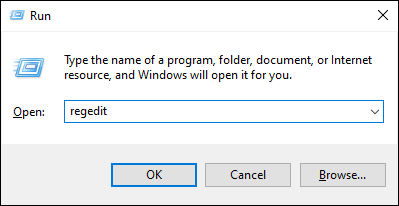
1. Press **Windows Key + R** to open the **Run** dialog.
2. Type `regedit` and press **Enter**. If Windows asks *Allow this app to make changes to your device*, click **Yes**.
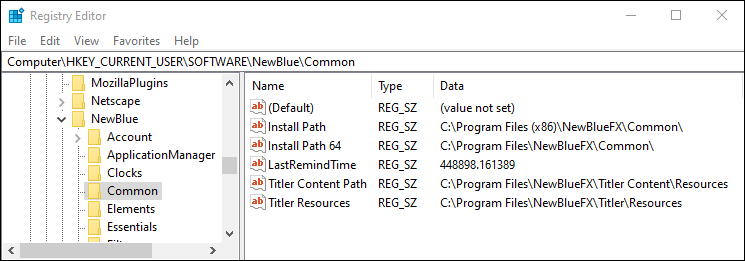
3. In the registry tree, navigate to `HKEY_CURRENT_USER\SOFTWARE\NewBlue\Common`.
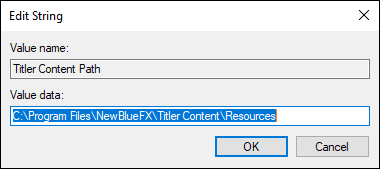
4. Double-click **Titler Content Path**.
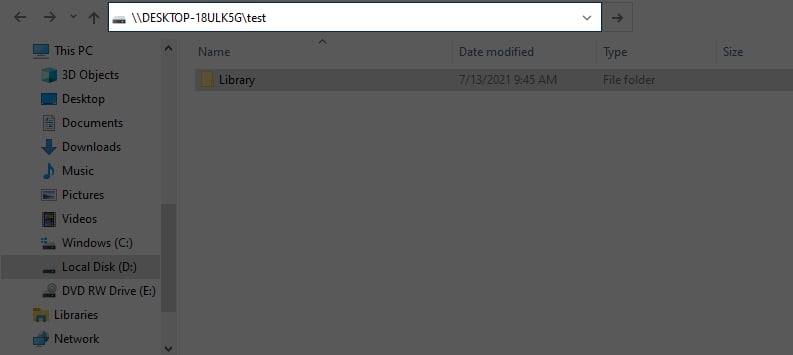
5. Replace the **Value Data** with the absolute path to your shared Library root. The easiest way to capture the path is to open the target folder in File Explorer and copy it from the address bar.
6. Click **OK**. Close the Registry Editor.
7. Repeat on every computer that should share the Library.
## Required folder structure
After Captivate reads the new path, it still looks for templates at `\Library\Project Templates`. Make sure that subfolder structure already exists at the new location **before** you launch Captivate again; do not include `\Library\Project Templates` in the registry value.
## Seeding the new Library
The factory Library is installed under `Program Files\NewBlueFX\Titler Content\Resources\`. If your new shared Library should start with the same content, copy the contents of that folder into your shared root before launching Captivate.
If the shared location is empty when Captivate first reads it, the Library panel will be blank. That is expected — drop content into the shared folder, restart Captivate, and the Library populates.
## If something goes wrong
* **Library panel blank or showing the wrong files** — the most common cause is a typo or extra subfolder segment in the registry value. Verify the path actually exists in File Explorer.
* **Library shows the factory content again** — Windows did not write the registry value (registry editor was not run elevated, or a security policy blocked the write). Re-run **regedit** and confirm the value persists.
* **Designs save to the wrong place** — saves go to wherever the value points; if you have multiple computers with different values, designs scatter. Audit every computer’s value.
If you can’t recover, restore the default by clearing **Titler Content Path** (delete the value) — Captivate falls back to the factory location on next launch.
## Related
* [Install Captivate on Windows](/get-started/chapter-index/install-windows.md) — the factory install lays down the default Library location.
* [Library panel](/get-started/chapter-index-2/library-panel.md) — the in-app surface that reads from this path.
---
# Agent Instructions
This documentation is published with GitBook. GitBook is the documentation platform designed so that both humans and AI agents can read, navigate, and reason over technical content effectively. Learn more at gitbook.com.
## Querying This Documentation
If you need additional information that is not directly available in this page, you can query the documentation dynamically by asking a question.
Perform an HTTP GET request on the current page URL with the `ask` query parameter, and the optional `goal` query parameter:
```
GET https://captivatehelp.newbluelive.com/reference/change-default-library-location.md?ask=&goal=
```
`ask` is the immediate question: it should be specific, self-contained, and written in natural language.
`goal` is optional and describes the broader end goal you are ultimately trying to accomplish on behalf of the user. GitBook uses it to tailor the answer towards what is most useful for that goal.
The response will contain a direct answer to the question and relevant excerpts and sources from the documentation.
Use this mechanism when the answer is not explicitly present in the current page, you need clarification or additional context, or you want to retrieve related documentation sections.