> For the complete documentation index, see [llms.txt](https://captivatehelp.newbluelive.com/llms.txt). Markdown versions of documentation pages are available by appending `.md` to page URLs; this page is available as [Markdown](https://captivatehelp.newbluelive.com/play-and-update-graphics/chapter-index/1-play-a-graphic.md).
# 1. Play a graphic
By the end of this step, you’ll have a graphic on air: no data, no customization, just play on and play off. Every other Captivate graphics workflow builds on this one.
## Before you start
You should already have Captivate installed and activated, and the application open on the standard playout layout. If the panels look unfamiliar, see [Tour the Captivate interface](/get-started/chapter-index-2/the-playout-interface.md). The four panels that matter for this step are:
* **Library** — the catalog of ready-made title designs on the left.
* **Project List** — the show list that drives playback.
* **Preview** — shows the selected graphic before it goes to Program.
* **Program Monitor** — shows what Captivate is sending to Program.
## Find a title design in the Library
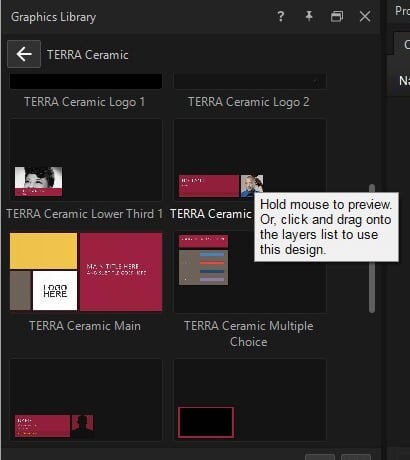
1. In the Library, browse the folders until you see a design that looks useful: a lower third, a full-screen title, or anything else. The goal is to get a graphic on air, not to pick a final design.
2. Move the pointer over the thumbnail. The design animates in the **Preview** panel, so you can preview designs without dropping anything into the project.
3. Move from one thumbnail to the next and watch the Preview update. When you find a title design you like, leave the pointer on it for a moment to see how it plays in and out.
## Drop it into the Project List
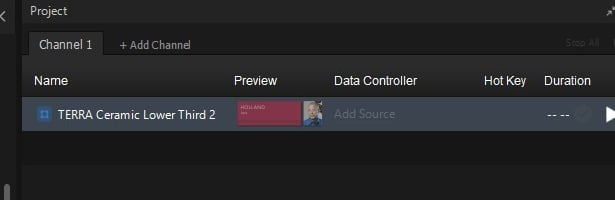
1. Drag the thumbnail from the Library and drop it on the **Project List**. Captivate adds a row for the graphic. The row shows the graphic’s name and a **Play** button.
2. The graphic is now part of your show. Nothing is on air yet; you’ve staged it, not played it.
3. If you change your mind, right-click the row and remove it. You can add as many graphics as you want and rearrange them by dragging rows up and down.
## Play it on
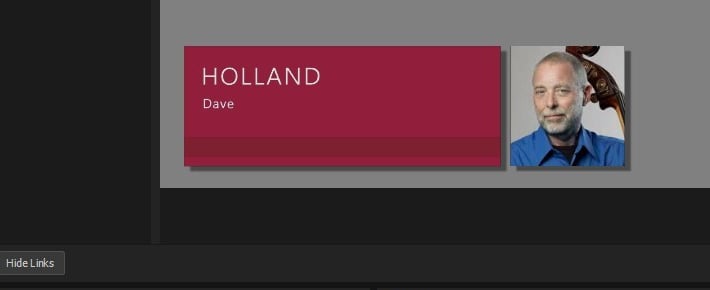
1. Click the **Play** button on the graphic’s row in the Project List. Captivate animates the graphic on; you’ll see it appear in the **Program Monitor**.
2. The Program Monitor shows what Captivate is sending to Program. If Program Out is connected to a display, switcher, virtual webcam, or other destination, that destination receives the Program output. Connecting Program Out is a separate setup; see [Output graphics to a display](/set-up-your-production/chapter-index/output-graphics-to-a-display.md) when you’re ready.
3. The graphic’s row now shows the **Play** button in red. Click the red **Play** button to take the graphic off air. The icon stays a play arrow; it does not change into a stop button.
## Play it off
1. Click the same row’s red **Play** button. The graphic animates out and the Program Monitor returns to whatever was underneath: black, another graphic, or the current video source.
2. The sequence is **play on, on air, play off, clear**. Most live operation in Captivate is a variation on it.
## Try a couple more
Drag two or three more title designs into the Project List. Play each one on, watch it in the Program Monitor, play it off. You can play multiple graphics at once (a lower third **and** a bug, for example); each row is independent. Whether they overlap, replace each other, or stack depends on how each graphic was designed.
When you’re comfortable with play on and play off, move on to changing what the graphic **says**.
## What you just did
You used the **Library**, **Project List**, **Preview**, and **Program Monitor** to choose a title design, add it to your show, put it on air, and take it off. You didn’t open Properties, connect a Data Controller, or enter any values. Next, you’ll customize what the graphic shows.
## Next step
[2. Customize a graphic’s values (Live Values)](/play-and-update-graphics/chapter-index/2-customize-its-values.md): open the **Properties** panel and edit the graphic’s text, images, and colors in **Live Values**.
## Related
* [Tour the Captivate interface](/get-started/chapter-index-2/the-playout-interface.md)
* [Library panel](/get-started/chapter-index-2/library-panel.md)
* [Project List panel](/get-started/chapter-index-2/project-list-panel-and-channel-management.md)
---
# Agent Instructions
This documentation is published with GitBook. GitBook is the documentation platform designed so that both humans and AI agents can read, navigate, and reason over technical content effectively. Learn more at gitbook.com.
## Querying This Documentation
If you need additional information that is not directly available in this page, you can query the documentation dynamically by asking a question.
Perform an HTTP GET request on the current page URL with the `ask` query parameter, and the optional `goal` query parameter:
```
GET https://captivatehelp.newbluelive.com/play-and-update-graphics/chapter-index/1-play-a-graphic.md?ask=&goal=
```
`ask` is the immediate question: it should be specific, self-contained, and written in natural language.
`goal` is optional and describes the broader end goal you are ultimately trying to accomplish on behalf of the user. GitBook uses it to tailor the answer towards what is most useful for that goal.
The response will contain a direct answer to the question and relevant excerpts and sources from the documentation.
Use this mechanism when the answer is not explicitly present in the current page, you need clarification or additional context, or you want to retrieve related documentation sections.