> For the complete documentation index, see [llms.txt](https://captivatehelp.newbluelive.com/llms.txt). Markdown versions of documentation pages are available by appending `.md` to page URLs; this page is available as [Markdown](https://captivatehelp.newbluelive.com/play-and-update-graphics/chapter-index-3/scoreboard-tool-overview.md).

# Connect Scoreboard Tool data to a graphic

Captivate features in-app scoreboard controllers for baseball, basketball, football, hockey, lacrosse, soccer, and volleyball. You can connect a controller to a graphic and control the scoreboard data from within Captivate or an Internet browser.

* [General setup](#general)
* [Baseball](#baseball)
* [Basketball](#basketball)
* [Football](#football)
* [Ice Hockey](#ice-hockey)
* [Lacrosse](#lacrosse)
* [Soccer](#soccer)
* [Volleyball](#volleyball)

{% hint style="info" %}
Scoreboard controllers are not available in Captivate Present.
{% endhint %}

**❗ IMPORTANT**

**Which generation your variable names come from.** The per-sport variable tables below list the names used by **Scoreboard Tool**. A second generation, **Scoreboard Tool 2**, offers the same sports but uses different variable names — `Home Name` rather than `Home Team`, `Home Short Name` rather than `Home Team Short`, and a separate `Clock 1` among them.

Connect from the names you actually see in the controller’s tab. If they do not match the tables here, you are on **Scoreboard Tool 2**; the setup steps are the same, only the names differ.

## General

1. In Captivate’s playout interface, open a project (if one isn’t already open) and select a graphic in the Project List.

   **💡 TIP**\
   Want to create a new graphic? Open the Graphics Library panel and drag a design from the library to your channel, or select **File > New > Graphic** to add an empty graphic template.
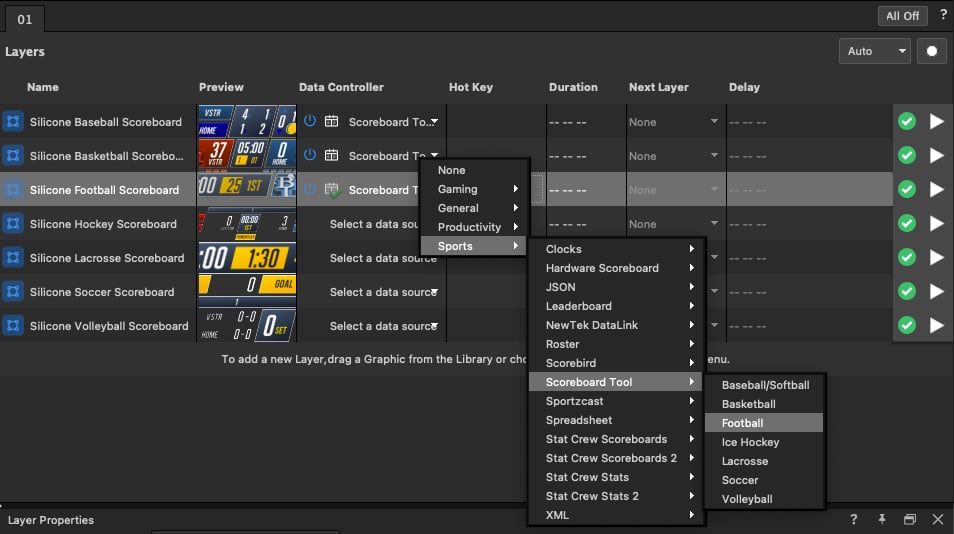
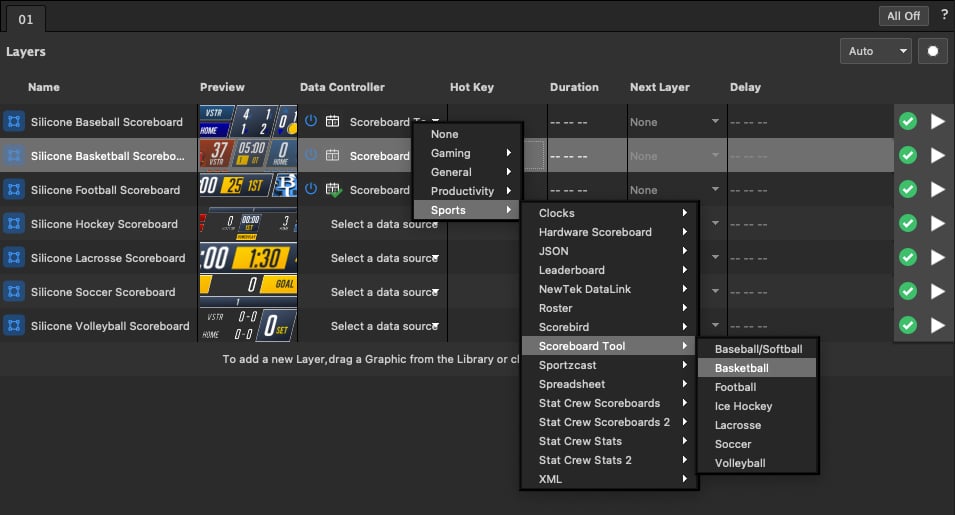
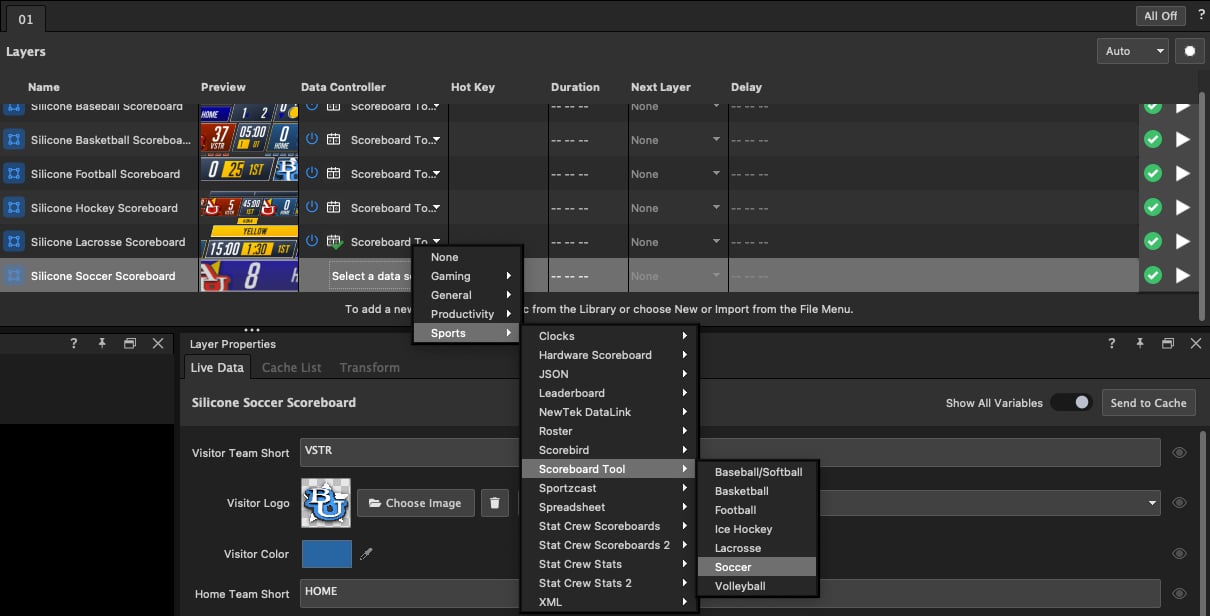
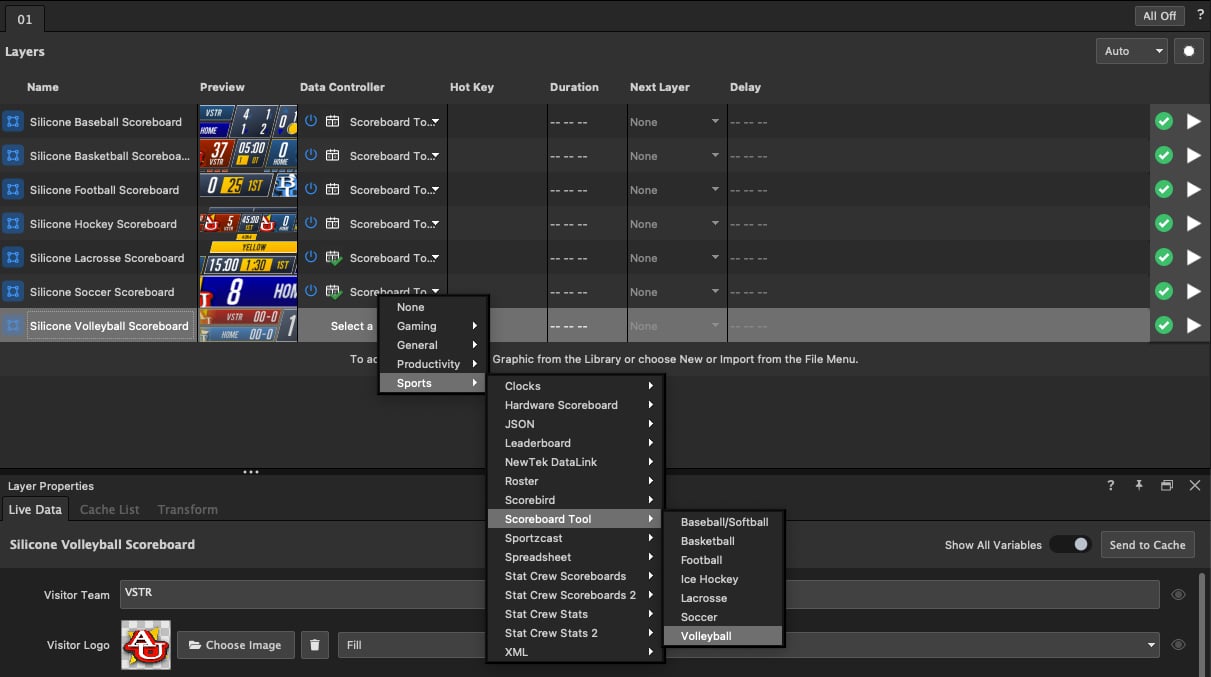
2. Choose **Select a Datasource** > **Sports** > **Scoreboard Tool** and select a sport to add the Scoreboard Tool input to the graphic. The Scoreboard Tool input appears as a tab in the **Layer Properties** panel and in the Project List.

   <div align="left"><figure><img src="https://352477438-files.gitbook.io/~/files/v0/b/gitbook-x-prod.appspot.com/o/spaces%2FFCWMxradHcVjURnrXSYX%2Fuploads%2Fgit-blob-273588b417e02d4b82dc3cab676ae6a9e5dbac41%2Fimage_3257.jpg?alt=media" alt="Scoreboard Tool menu"><figcaption></figcaption></figure></div>
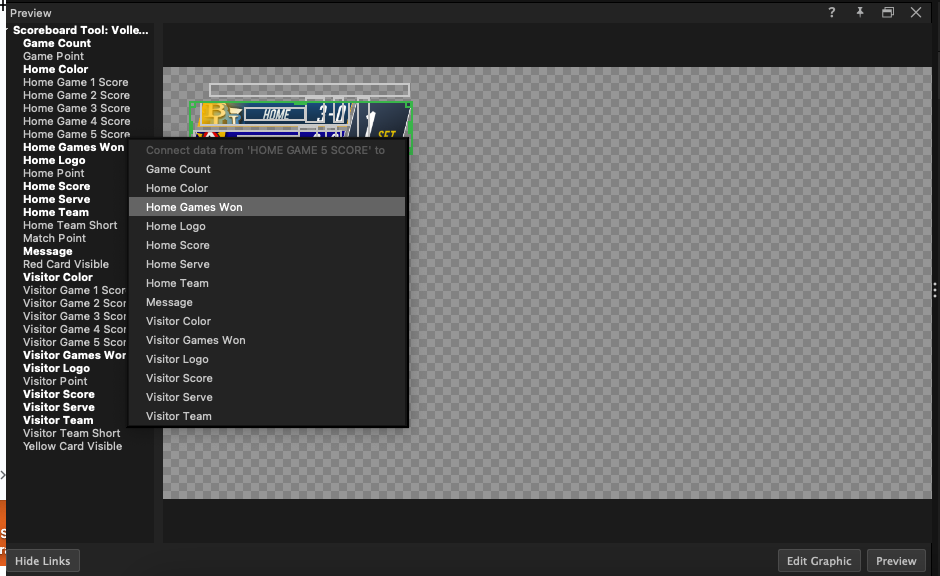
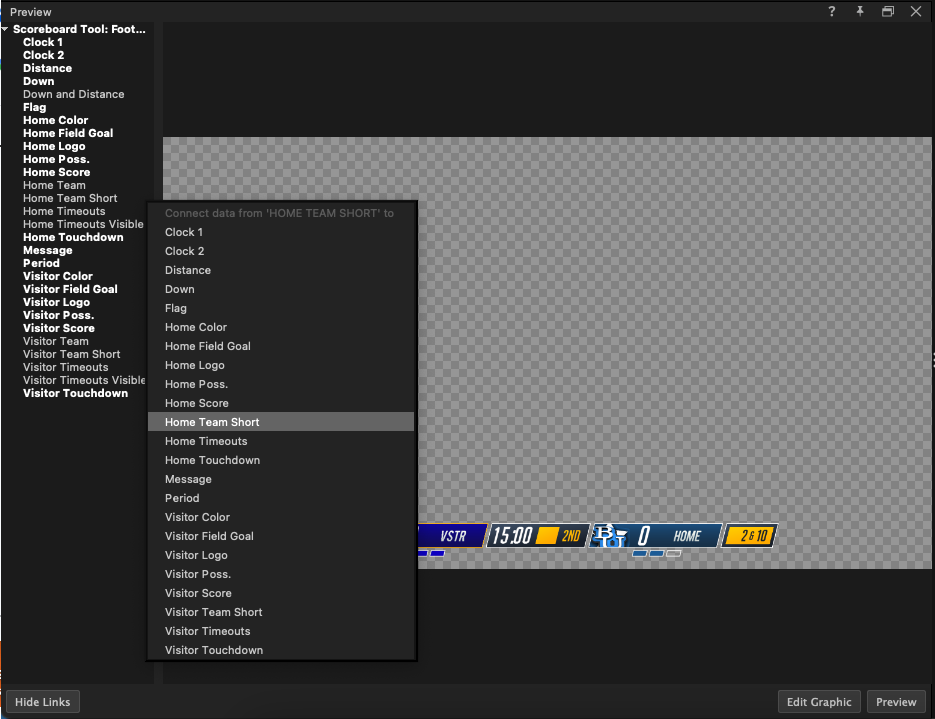
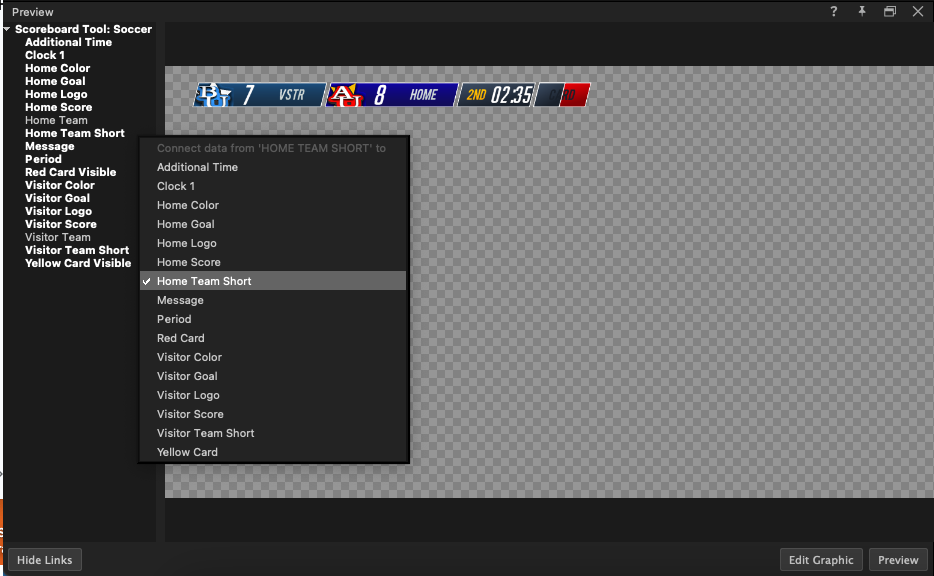
3. Click the **Link Data** button in the Preview panel to view the Scoreboard Tool Data Controller and variables.
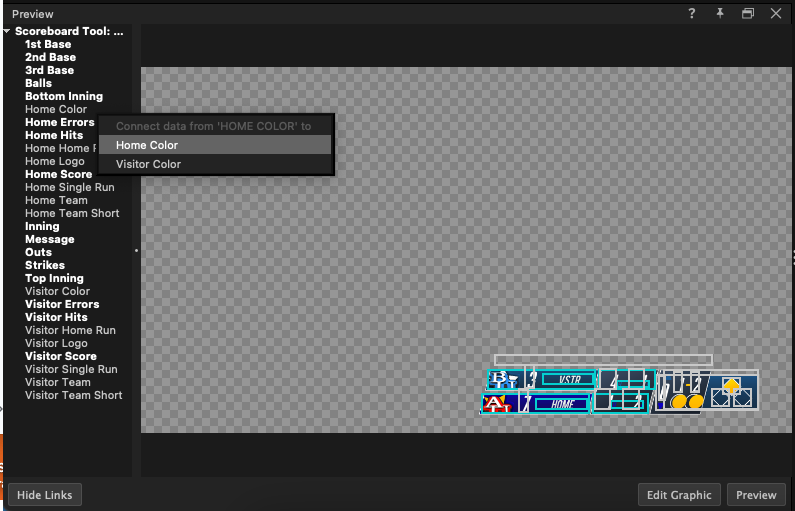
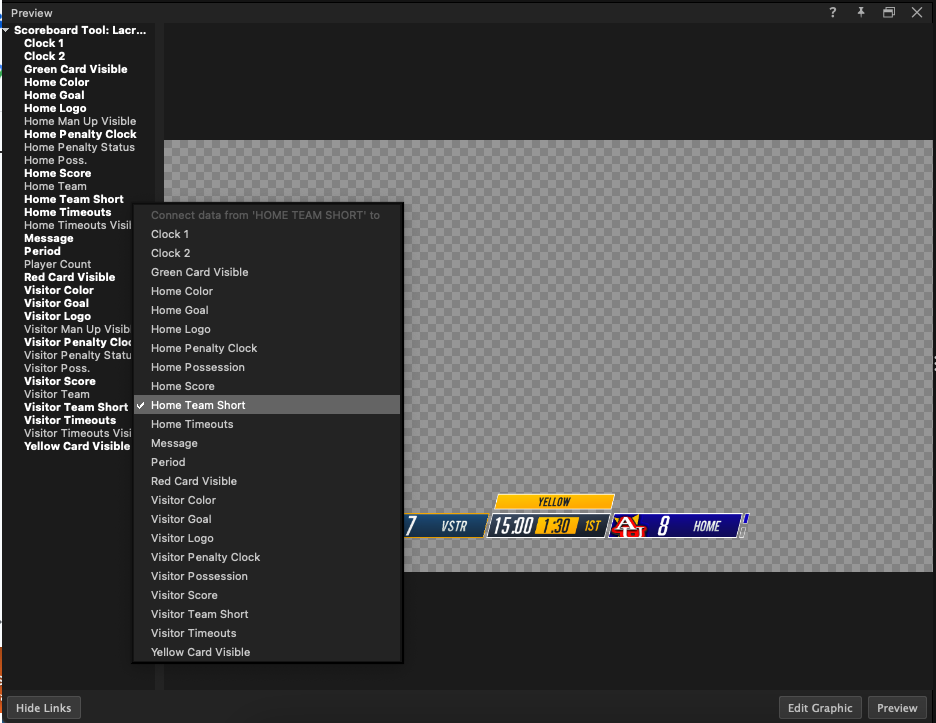
4. Click and drag a Scoreboard Tool variable onto a design element in your graphic. Repeat for each variable.

   **💡 TIP**\
   To disconnect a variable, right-click a variable in the **Preview** panel and choose **Disconnect variable**.

   <div align="left"><figure><img src="https://352477438-files.gitbook.io/~/files/v0/b/gitbook-x-prod.appspot.com/o/spaces%2FFCWMxradHcVjURnrXSYX%2Fuploads%2Fgit-blob-f70ebdc2dde7e0eba00479743fdc67ef2e9f06f8%2Fimage_3461.png?alt=media" alt="Linked variables"><figcaption></figcaption></figure></div>
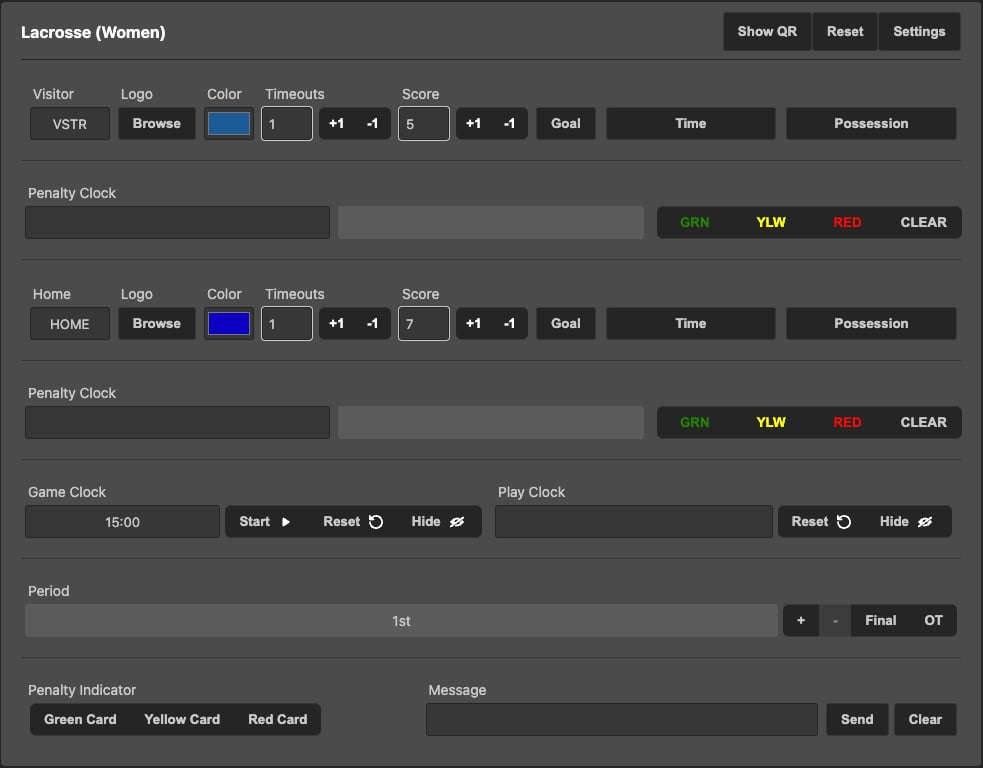
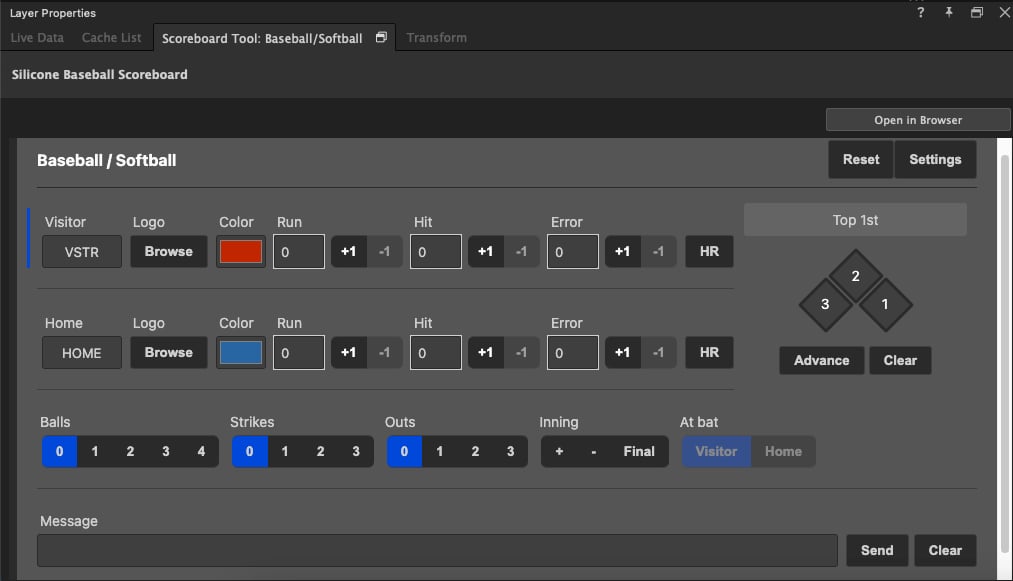
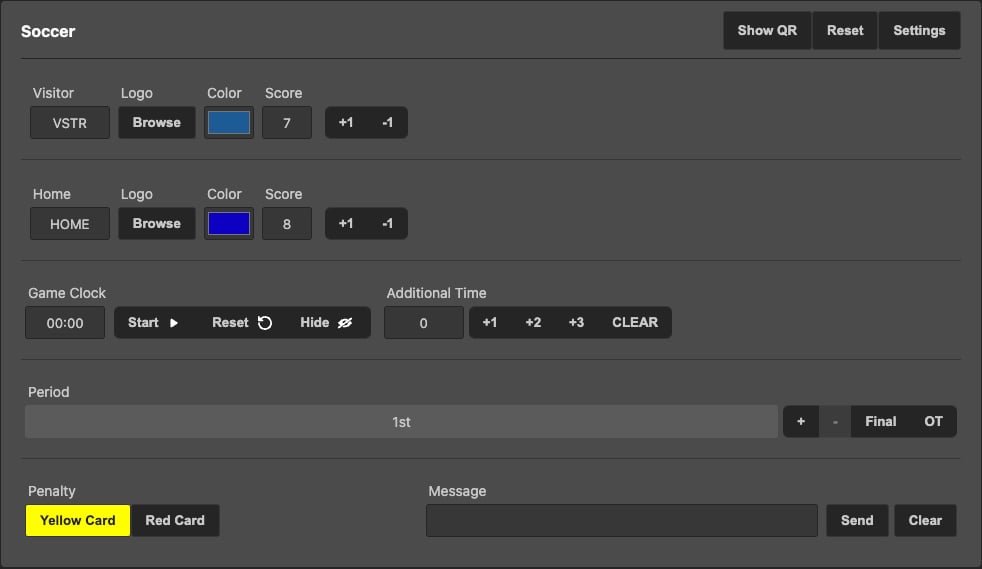
5. Use the Scoreboard Controller in the Scoreboard Tool panel to drive variables in your scoreboard graphic.

   <div align="left"><figure><img src="https://352477438-files.gitbook.io/~/files/v0/b/gitbook-x-prod.appspot.com/o/spaces%2FFCWMxradHcVjURnrXSYX%2Fuploads%2Fgit-blob-60053d5e3b7eab12f634e26e46bc8e12d3ca2c67%2Fimage_5344.jpg?alt=media" alt="Scoreboard Controller"><figcaption></figcaption></figure></div>

**💡 TIP**\
To control the scoreboard from your Internet browser instead of Captivate’s Scoreboard Tool panel, click **Open in Browser**.

**📌 NOTE: Troubleshooting flashing digits**

If you experience flashing digits when two clock variables are running, smooth this out by:

1. Editing the graphic in the Designer.
2. Selecting each clock layer.
3. Going to the Properties panel > **Variables** > **Variable Settings**.
4. Clicking the **Animate in/out** checkbox.
5. Repeating for each clock layer that is flashing.
6. Saving changes in the Designer.

## Baseball

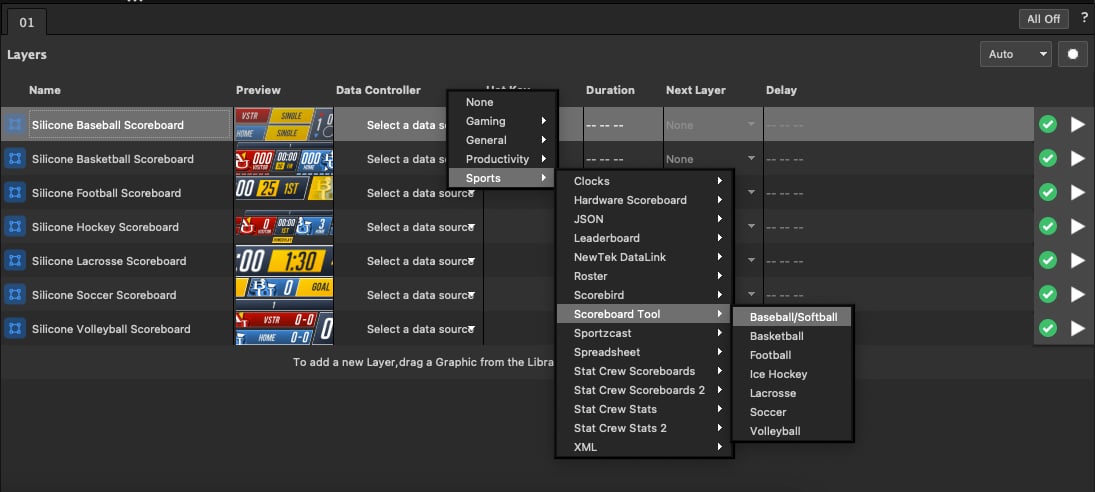
1. Add one of the Baseball Scoreboard templates to the Graphic Layers panel.
2. Select a Datasource for that graphic: **Sports** > **Scoreboard Tool** > **Baseball/Softball**.

   <div align="left"><figure><img src="https://352477438-files.gitbook.io/~/files/v0/b/gitbook-x-prod.appspot.com/o/spaces%2FFCWMxradHcVjURnrXSYX%2Fuploads%2Fgit-blob-c580433f90ccde2d987ac3e590eb7857a1ad8115%2Fimage_1810.jpg?alt=media" alt="Baseball selection"><figcaption></figcaption></figure></div>

   <div align="left"><figure><img src="https://352477438-files.gitbook.io/~/files/v0/b/gitbook-x-prod.appspot.com/o/spaces%2FFCWMxradHcVjURnrXSYX%2Fuploads%2Fgit-blob-fa674c906a63d12b74e529fef12a722111d902dc%2Fimage_9246.jpg?alt=media" alt="Baseball scoreboard"><figcaption></figcaption></figure></div>
3. Pre-designed variables are pre-linked. Edit and link additional variables if desired. See [Create variables in graphics](/design-and-customize-graphics/chapter-index-4/create-variables-in-graphics.md).

   <div align="left"><figure><img src="https://352477438-files.gitbook.io/~/files/v0/b/gitbook-x-prod.appspot.com/o/spaces%2FFCWMxradHcVjURnrXSYX%2Fuploads%2Fgit-blob-ab1f4e5d83e57054d9f0b90e17817c6af4ffbeeb%2Fimage_7066.jpg?alt=media" alt="Linked variables"><figcaption></figcaption></figure></div>
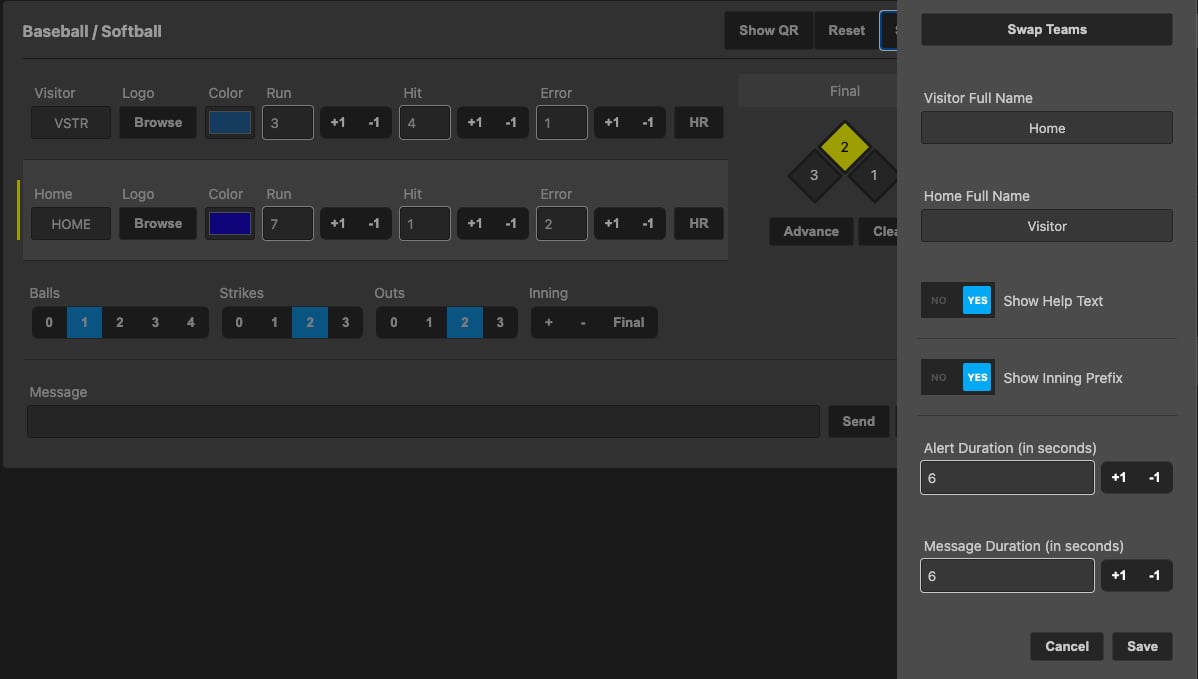
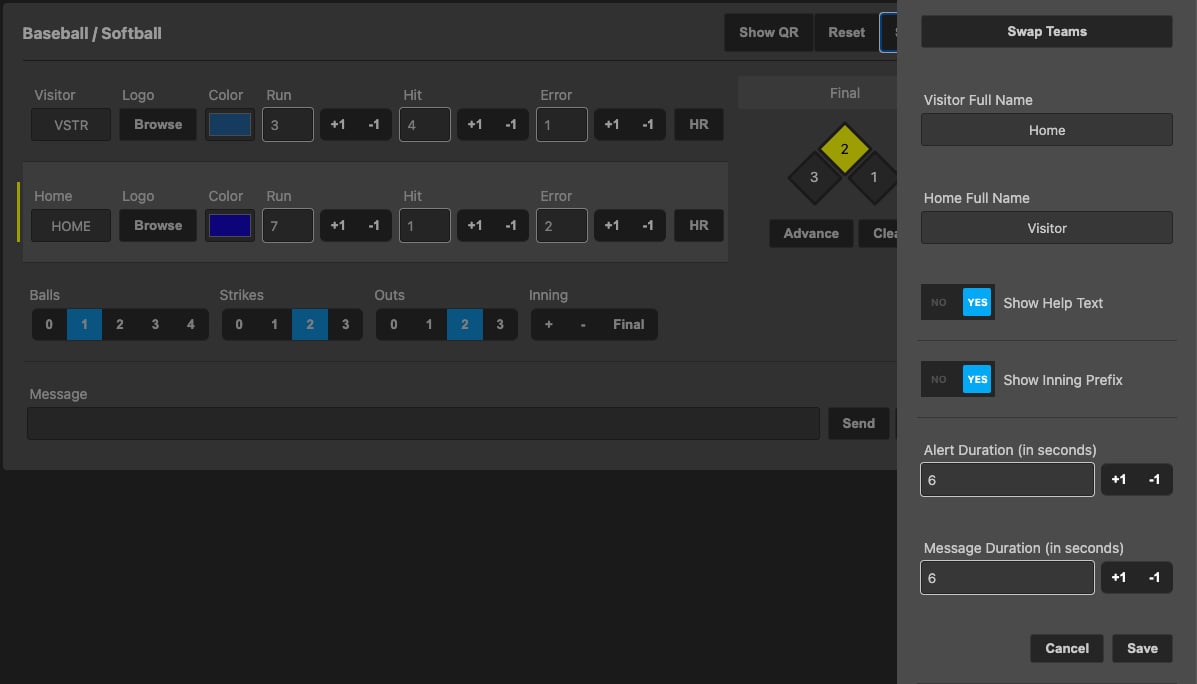
4. In the Scoreboard Tool Panel, open **Settings** in the upper right.

   <div align="left"><figure><img src="https://352477438-files.gitbook.io/~/files/v0/b/gitbook-x-prod.appspot.com/o/spaces%2FFCWMxradHcVjURnrXSYX%2Fuploads%2Fgit-blob-efe946aceb8fea5094f7b6407850420ace33fed0%2Fimage_6127.jpg?alt=media" alt="Baseball settings"><figcaption></figcaption></figure></div>

**Settings**

| Setting                            | Function                                                                                  |
| ---------------------------------- | ----------------------------------------------------------------------------------------- |
| Swap Teams                         | Toggle between Home-above-Visitor and Visitor-above-Home layouts in the controller panel. |
| Visitor Full Name / Home Full Name | Enter the full names of both teams. Link them via the Linked Data column.                 |
| Show Help Text                     | Yes displays help text at the bottom; No hides it.                                        |
| Show Inning Prefix                 | Yes displays Top/Bottom of inning; No displays the inning number only.                    |
| Alert Duration (seconds)           | How long Run / Home Run alerts display.                                                   |
| Message Duration (seconds)         | How long the Message displays.                                                            |

**Controls**

| Control                                 | Function                                                                                 |
| --------------------------------------- | ---------------------------------------------------------------------------------------- |
| Visitor / Home                          | Short-form team names. Link a Short Name variable to the design element via Linked Data. |
| Logo                                    | Browse to import team logos.                                                             |
| Color                                   | Choose team colors via color wheel or RGB/HSL/HEX entry.                                 |
| Run                                     | Manually enter Runs or use +1 / -1. Pre-connected visibility variable.                   |
| Hit                                     | Manually enter Hits or use +1 / -1.                                                      |
| Error                                   | Manually enter Errors or use +1 / -1.                                                    |
| HR                                      | Click HR for a Home Run. Triggers the alert variable.                                    |
| Base Diamonds 1, 2, 3 / Advance / Clear | Click bases or use Advance / Clear.                                                      |
| Balls                                   | Click 0-4 when a ball occurs.                                                            |
| Strikes                                 | Click 0-3 when a strike occurs.                                                          |
| Outs                                    | Click 0-3 when an out occurs.                                                            |
| Inning                                  | +/- to advance innings. The At Bat indicator follows. Click Final to clear the inning.   |
| At Bat                                  | Reflects the current inning’s team at bat.                                               |
| Message                                 | Type a message for the graphic.                                                          |
| Reset                                   | Reset the scoreboard.                                                                    |
| Show QR                                 | Scan from a mobile device to operate the controller remotely (on the same network).      |

## Basketball

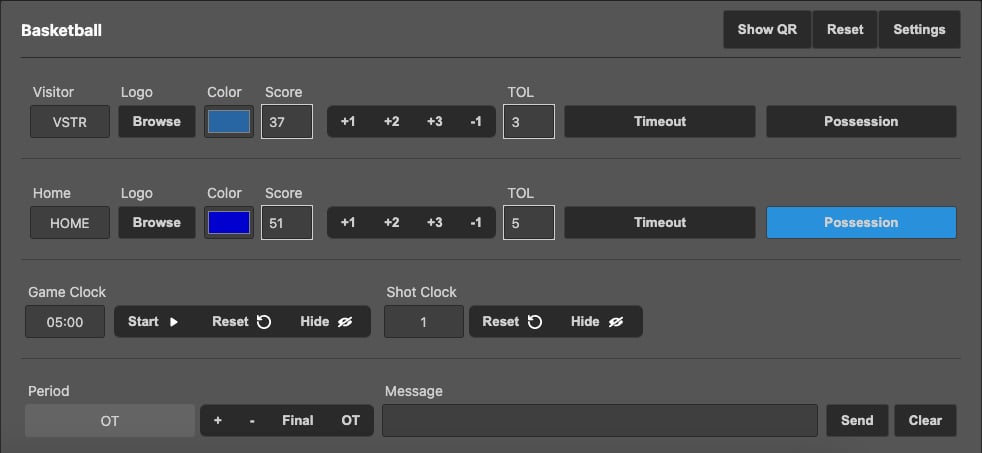
1. Add a Basketball Scoreboard template to the Graphic Layers panel.
2. Select **Sports** > **Scoreboard Tool** > **Basketball** as the data controller.

   <div align="left"><figure><img src="https://352477438-files.gitbook.io/~/files/v0/b/gitbook-x-prod.appspot.com/o/spaces%2FFCWMxradHcVjURnrXSYX%2Fuploads%2Fgit-blob-632932c808bea072f4363ea538d6bee214d4d058%2Fimage_939.jpg?alt=media" alt="Basketball menu"><figcaption></figcaption></figure></div>

   <div align="left"><figure><img src="https://352477438-files.gitbook.io/~/files/v0/b/gitbook-x-prod.appspot.com/o/spaces%2FFCWMxradHcVjURnrXSYX%2Fuploads%2Fgit-blob-0fb0357af114b0d592207cac863ce946966753c0%2Fimage_1672.jpg?alt=media" alt="Basketball scoreboard"><figcaption></figcaption></figure></div>
3. Pre-designed variables are pre-linked.

   <div align="left"><figure><img src="https://352477438-files.gitbook.io/~/files/v0/b/gitbook-x-prod.appspot.com/o/spaces%2FFCWMxradHcVjURnrXSYX%2Fuploads%2Fgit-blob-7cdf3c2460edf4b781c448800043a6391d0c8d30%2Fimage_2948.png?alt=media" alt="Linked variables"><figcaption></figcaption></figure></div>
4. Open **Settings**.

   <div align="left"><figure><img src="https://352477438-files.gitbook.io/~/files/v0/b/gitbook-x-prod.appspot.com/o/spaces%2FFCWMxradHcVjURnrXSYX%2Fuploads%2Fgit-blob-f721824bf0b8fbd488e431acac17db88f8503aa5%2Fimage_1806.jpg?alt=media" alt="Basketball settings"><figcaption></figcaption></figure></div>

**Settings**

| Setting                  | Function                         |
| ------------------------ | -------------------------------- |
| Swap Teams               | Toggle layout.                   |
| Visitor / Home Full Name | Full team names.                 |
| Show Help Text           | Yes/No.                          |
| Shot Clock Default       | Shot clock default in seconds.   |
| Game Clock Default       | Game clock default (Min:Sec).    |
| Halftime Clock Default   | Halftime clock default.          |
| Overtime Clock           | Overtime clock default.          |
| Default Timeouts         | Default number of timeouts.      |
| Period Mode              | Quarters or Halves.              |
| Alert Duration           | Alert display time in seconds.   |
| Message Duration         | Message display time in seconds. |

**Controls**

| Control             | Function                                                               |
| ------------------- | ---------------------------------------------------------------------- |
| Visitor / Home      | Short names.                                                           |
| Logo                | Team logo upload.                                                      |
| Color               | Team color picker.                                                     |
| Score               | Enter score or use +1 / +2 / +3 / -1.                                  |
| TOL (Timeouts Left) | Tracks remaining timeouts; Timeout button deducts.                     |
| Possession          | Indicates which team has the ball.                                     |
| Game Clock          | Start / Reset / Hide.                                                  |
| Shot Clock          | Start / Reset / Hide.                                                  |
| Period              | +/- to advance periods. OT button for overtime. Final closes the game. |
| Message             | Custom message.                                                        |
| Reset               | Clear the scoreboard.                                                  |
| Show QR             | Operate from a mobile device.                                          |

## Football

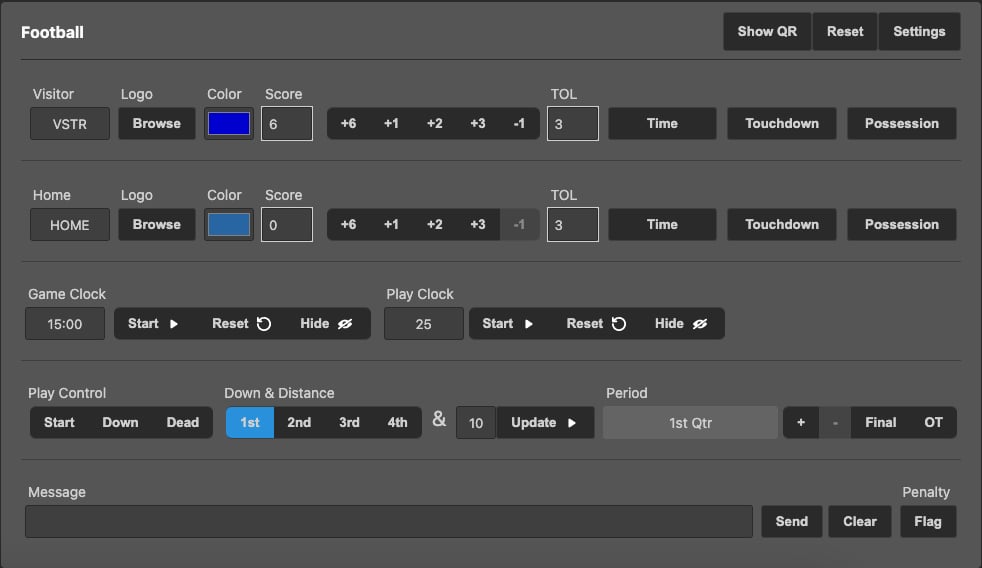
1. Add a Football Scoreboard template.
2. Select **Sports** > **Scoreboard Tool** > **Football**.

   <div align="left"><figure><img src="https://352477438-files.gitbook.io/~/files/v0/b/gitbook-x-prod.appspot.com/o/spaces%2FFCWMxradHcVjURnrXSYX%2Fuploads%2Fgit-blob-ab13e0b97c277a15d75e1fbcdf3f79f34e806ec1%2Fimage_1491.jpg?alt=media" alt="Football scoreboard"><figcaption></figcaption></figure></div>
3. Pre-designed variables are pre-linked.

   <div align="left"><figure><img src="https://352477438-files.gitbook.io/~/files/v0/b/gitbook-x-prod.appspot.com/o/spaces%2FFCWMxradHcVjURnrXSYX%2Fuploads%2Fgit-blob-46d141d62efb7b319944e57a297656f1b1f9c822%2Fimage_1627.png?alt=media" alt="Linked variables"><figcaption></figcaption></figure></div>
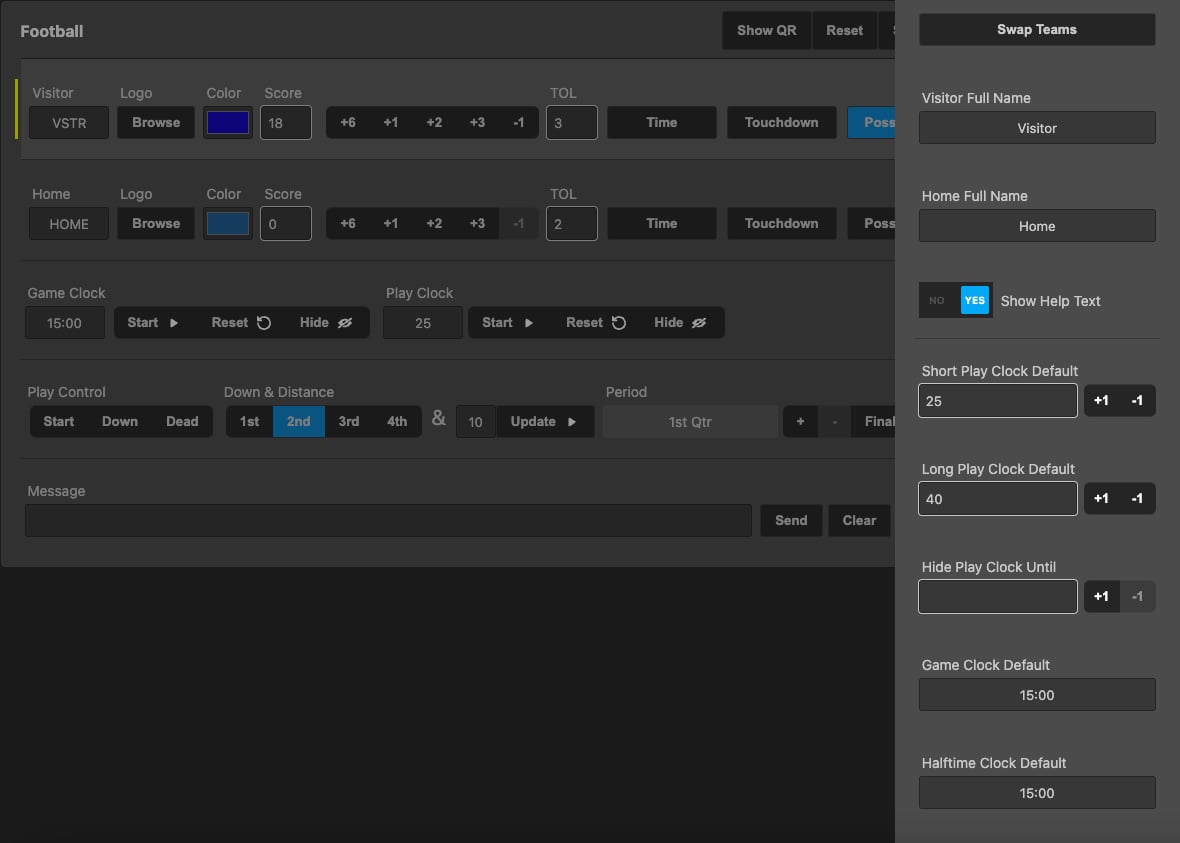
4. Open **Settings**.

   <div align="left"><figure><img src="https://352477438-files.gitbook.io/~/files/v0/b/gitbook-x-prod.appspot.com/o/spaces%2FFCWMxradHcVjURnrXSYX%2Fuploads%2Fgit-blob-40674f29ef2e9c280b8a16a1f4462a0f72606993%2Fimage_7444.jpg?alt=media" alt="Football settings"><figcaption></figcaption></figure></div>

**Settings**

| Setting                  | Function                         |
| ------------------------ | -------------------------------- |
| Swap Teams               | Toggle layout.                   |
| Visitor / Home Full Name | Full team names.                 |
| Short Play Clock Default | Short play clock in seconds.     |
| Long Play Clock Default  | Long play clock in seconds.      |
| Hide Play Clock Until    | Hide play clock until N seconds. |
| Game Clock Default       | Game clock default (Min:Sec).    |
| Halftime Clock Default   | Halftime clock default.          |
| Overtime Clock Default   | Overtime clock default.          |
| Default Timeouts         | Default timeouts.                |
| Alert Duration           | Alert duration in seconds.       |
| Message Duration         | Message duration in seconds.     |

**Controls**

| Control         | Function                                                |
| --------------- | ------------------------------------------------------- |
| Visitor / Home  | Short names.                                            |
| Logo            | Logo upload.                                            |
| Color           | Team colors.                                            |
| Score           | Manual entry or +6 / +1 / +2 / +3 / -1.                 |
| TOL             | Timeouts Left.                                          |
| Touchdown       | Adds 6 points and triggers an alert.                    |
| Possession      | Ball possession indicator.                              |
| Game Clock      | Start / Reset / Hide.                                   |
| Play Clock      | Start / Reset / Hide.                                   |
| Play Control    | Start, Down (long play clock), Dead (short play clock). |
| Down & Distance | 1st/2nd/3rd/4th down + yards. Click Update.             |
| Period          | +/- with OT and Final buttons.                          |
| Message         | Custom message.                                         |
| Penalty         | Hit Flag for a penalty alert.                           |
| Reset           | Clear the scoreboard.                                   |
| Show QR         | Mobile control.                                         |

## Ice Hockey

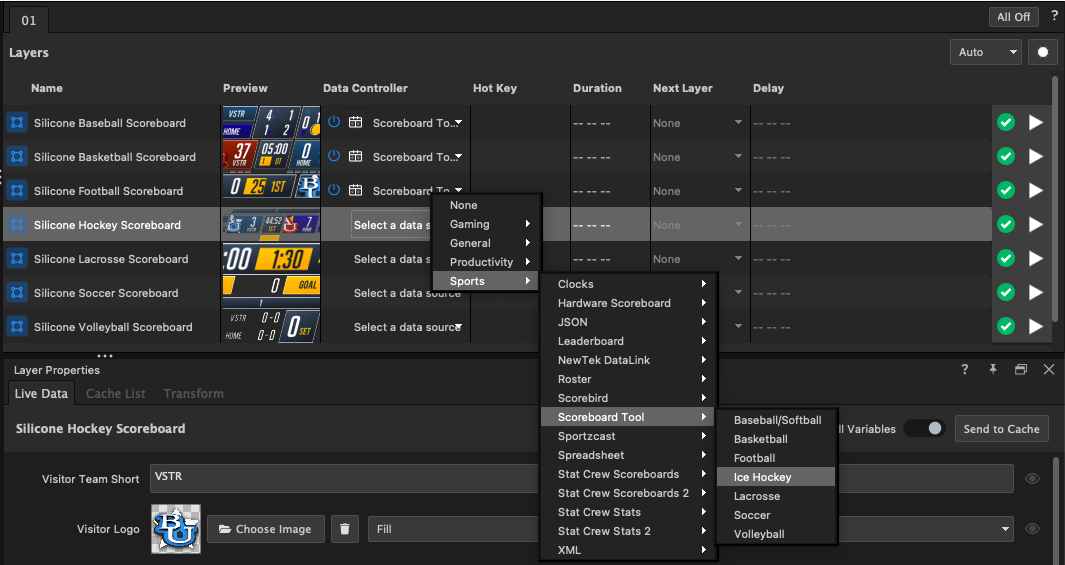
1. Add an Ice Hockey Scoreboard template.
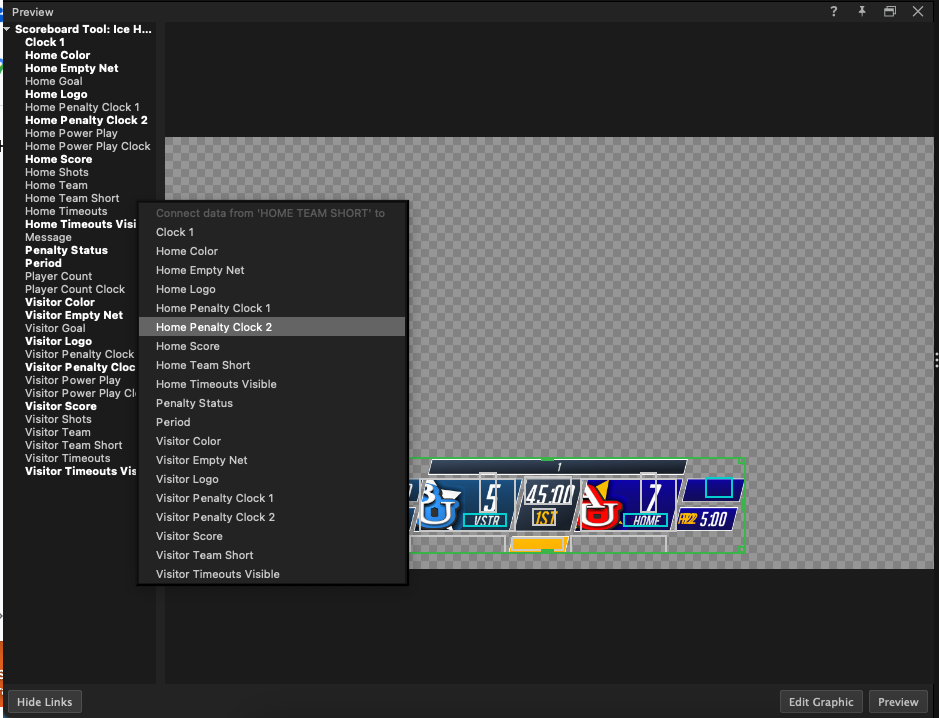
2. Select **Sports** > **Scoreboard Tool** > **Ice Hockey**.

   <div align="left"><figure><img src="https://352477438-files.gitbook.io/~/files/v0/b/gitbook-x-prod.appspot.com/o/spaces%2FFCWMxradHcVjURnrXSYX%2Fuploads%2Fgit-blob-517656d1391fd382eca3797215838e2d5eeb5119%2Fimage_3097.png?alt=media" alt="Hockey menu"><figcaption></figcaption></figure></div>

   <div align="left"><figure><img src="https://352477438-files.gitbook.io/~/files/v0/b/gitbook-x-prod.appspot.com/o/spaces%2FFCWMxradHcVjURnrXSYX%2Fuploads%2Fgit-blob-a896820d026ad5a57aef1d201b37fed77e6adbe1%2Fimage_8327.jpg?alt=media" alt="Hockey scoreboard"><figcaption></figcaption></figure></div>
3. Pre-designed variables are pre-linked.

   <div align="left"><figure><img src="https://352477438-files.gitbook.io/~/files/v0/b/gitbook-x-prod.appspot.com/o/spaces%2FFCWMxradHcVjURnrXSYX%2Fuploads%2Fgit-blob-0030c6af0343bb96fa504f160d1babbe8263e2a1%2Fimage_1372.png?alt=media" alt="Linked variables"><figcaption></figcaption></figure></div>
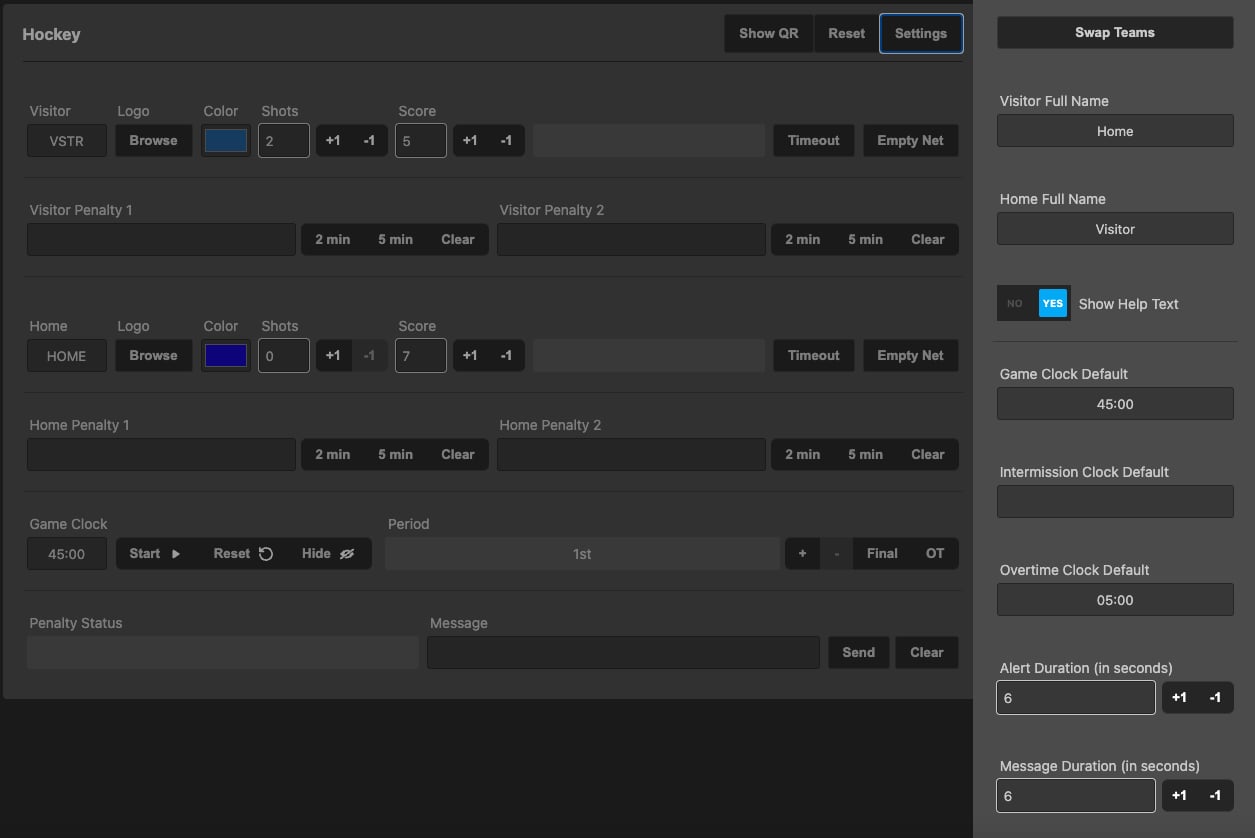
4. Open **Settings**.

   <div align="left"><figure><img src="https://352477438-files.gitbook.io/~/files/v0/b/gitbook-x-prod.appspot.com/o/spaces%2FFCWMxradHcVjURnrXSYX%2Fuploads%2Fgit-blob-0774d4c89d71e6d86117af3392ef992419a77dde%2Fimage_7593.jpg?alt=media" alt="Hockey settings"><figcaption></figcaption></figure></div>

**Settings**

| Setting                    | Function                     |
| -------------------------- | ---------------------------- |
| Swap Teams                 | Layout toggle.               |
| Visitor / Home Full Name   | Full team names.             |
| Game Clock Default         | Game clock default.          |
| Intermission Clock Default | Intermission clock default.  |
| Overtime Clock Default     | Overtime clock default.      |
| Alert Duration             | Alert duration in seconds.   |
| Message Duration           | Message duration in seconds. |

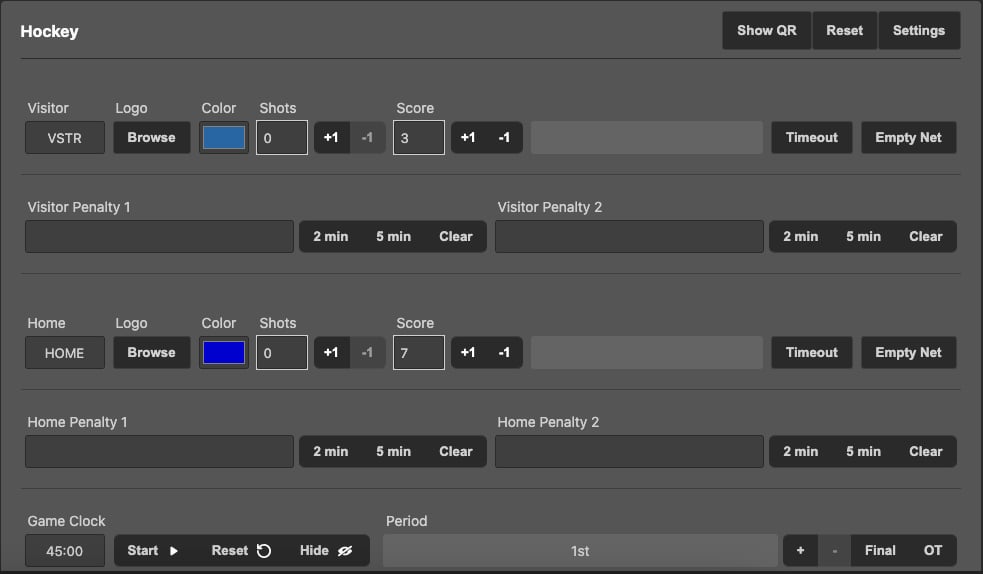
**Controls**

| Control                      | Function                                                       |
| ---------------------------- | -------------------------------------------------------------- |
| Visitor / Home               | Short names.                                                   |
| Logo                         | Logo upload.                                                   |
| Color                        | Team colors.                                                   |
| Shots                        | Track shots on goal with +1 / -1.                              |
| Score                        | +1 / -1 entry.                                                 |
| Timeout                      | Triggers a visibility variable until cleared.                  |
| Empty Net                    | Triggers a visibility variable until cleared.                  |
| Home / Visitor Penalty 1 / 2 | Penalty clock with 2/5-min presets.                            |
| Game Clock                   | Start / Reset / Hide.                                          |
| Period                       | +/- with OT.                                                   |
| Penalty Status               | Populates Power Play, 4-on-4, etc., based on active penalties. |
| Message                      | Custom message.                                                |
| Reset                        | Reset the scoreboard.                                          |
| Show QR                      | Mobile control.                                                |

## Lacrosse

1. Add a Lacrosse Scoreboard template.
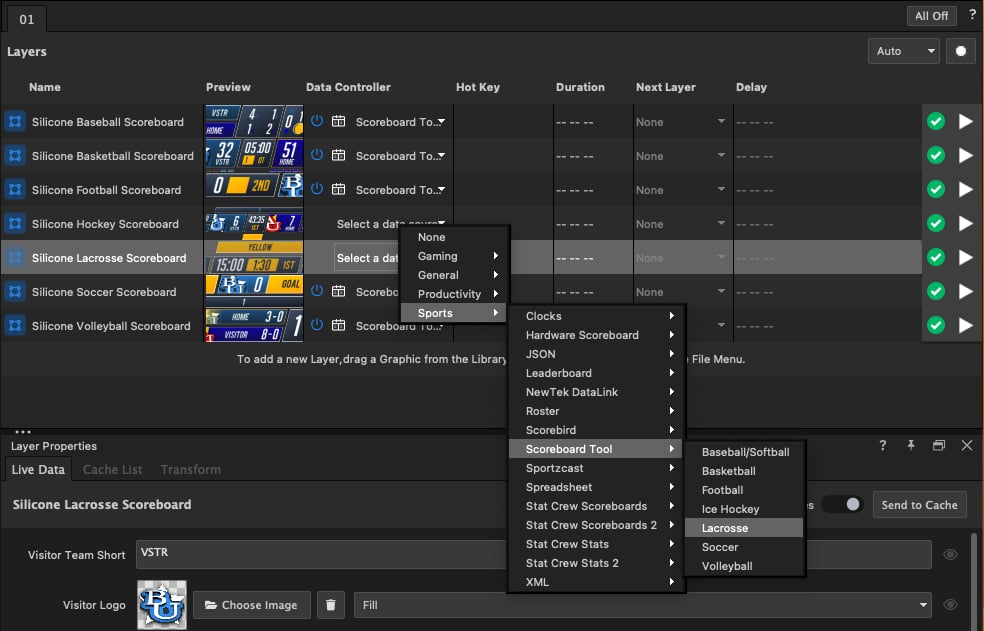
2. Select **Sports** > **Scoreboard Tool** > **Lacrosse**.

   <div align="left"><figure><img src="https://352477438-files.gitbook.io/~/files/v0/b/gitbook-x-prod.appspot.com/o/spaces%2FFCWMxradHcVjURnrXSYX%2Fuploads%2Fgit-blob-2ed52b5075d4b04d3d24f2c669da7c4c699a5e93%2Fimage_4864.jpg?alt=media" alt="Lacrosse menu"><figcaption></figcaption></figure></div>

   <div align="left"><figure><img src="https://352477438-files.gitbook.io/~/files/v0/b/gitbook-x-prod.appspot.com/o/spaces%2FFCWMxradHcVjURnrXSYX%2Fuploads%2Fgit-blob-3643137f08e2ca63952bbbc889fe56d92f9f9ab5%2Fimage_5363.jpg?alt=media" alt="Lacrosse scoreboard"><figcaption></figcaption></figure></div>
3. Pre-designed variables are pre-linked.

   <div align="left"><figure><img src="https://352477438-files.gitbook.io/~/files/v0/b/gitbook-x-prod.appspot.com/o/spaces%2FFCWMxradHcVjURnrXSYX%2Fuploads%2Fgit-blob-50fed7dcd32022e003d86a91247527ea95561f03%2Fimage_1465.png?alt=media" alt="Linked variables"><figcaption></figcaption></figure></div>
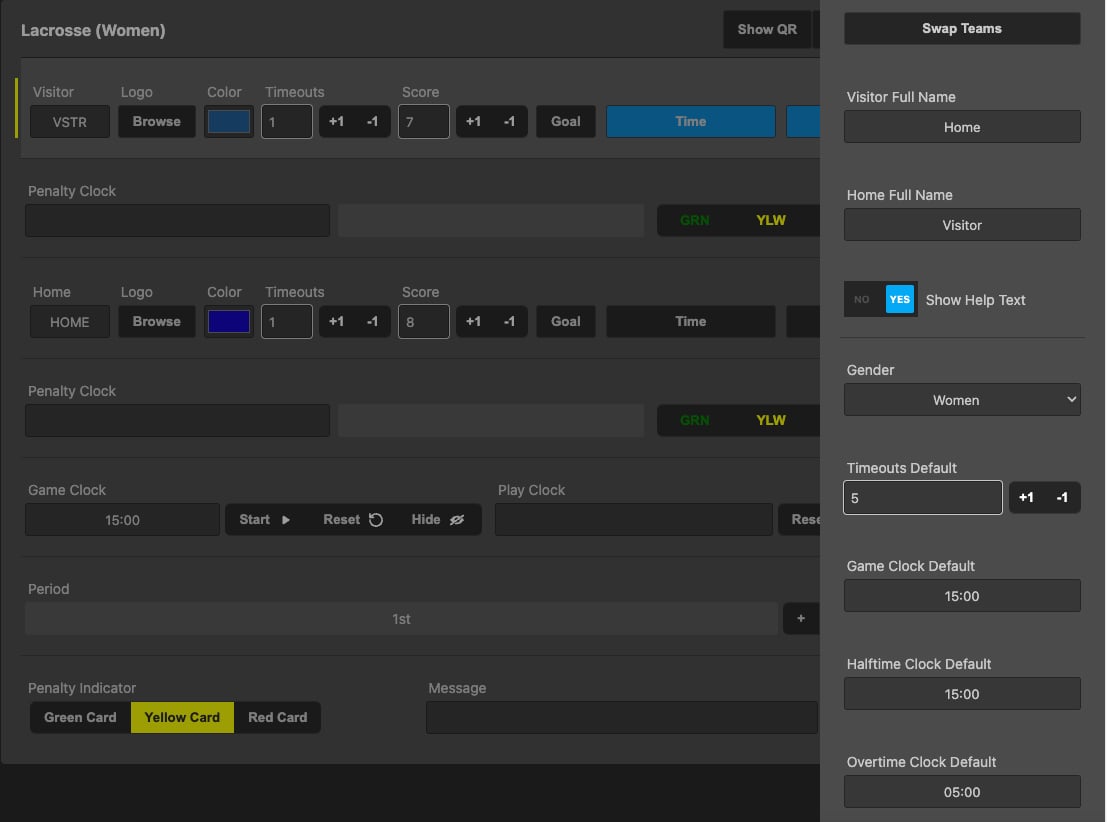
4. Open **Settings**.

   <div align="left"><figure><img src="https://352477438-files.gitbook.io/~/files/v0/b/gitbook-x-prod.appspot.com/o/spaces%2FFCWMxradHcVjURnrXSYX%2Fuploads%2Fgit-blob-ac90e736c36e9ba32b20d45634e6259367ca921d%2Fimage_549.jpg?alt=media" alt="Lacrosse settings"><figcaption></figcaption></figure></div>

**Settings**

| Setting                  | Function                                          |
| ------------------------ | ------------------------------------------------- |
| Swap Teams               | Layout toggle.                                    |
| Visitor / Home Full Name | Full names.                                       |
| Show Help Text           | Yes/No.                                           |
| Gender                   | Select gender for the correct scoreboard variant. |
| Timeouts Default         | Default timeouts per team.                        |
| Game Clock Default       | Game clock default.                               |
| Halftime Clock Default   | Halftime clock default.                           |
| Overtime Clock Default   | Overtime clock default.                           |
| Play Clock Time          | Play clock default.                               |
| Green Card Time          | Green-card penalty default.                       |
| Yellow Card Time         | Yellow-card penalty default.                      |
| Red Card Time            | Red-card penalty default.                         |
| Alert Duration           | Alert seconds.                                    |
| Message Duration         | Message seconds.                                  |

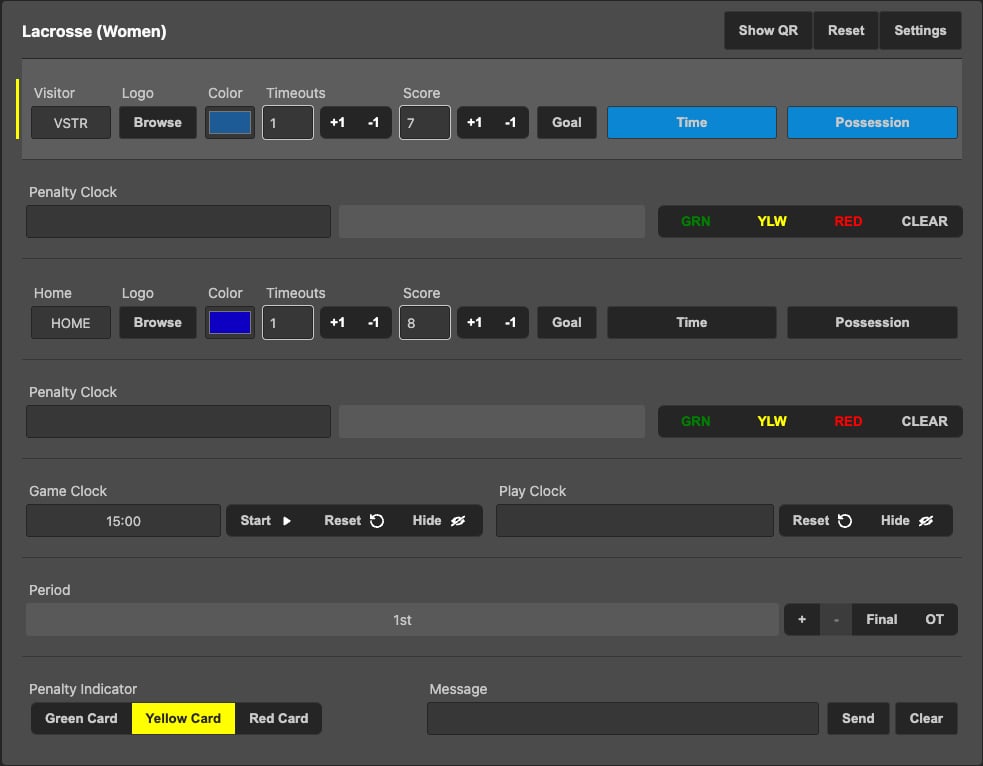
**Controls**

| Control                       | Function                                                   |
| ----------------------------- | ---------------------------------------------------------- |
| Visitor / Home                | Short names.                                               |
| Logo                          | Logo upload.                                               |
| Color                         | Team colors.                                               |
| Timeouts                      | +1 / -1; Time button deducts and stops clock.              |
| Score                         | +1 / -1 or Goal button.                                    |
| Possession                    | Ball possession indicator.                                 |
| Penalty Clock GRN / YLW / RED | Starts a penalty clock and Man Down indicator.             |
| Game Clock                    | Start / Reset / Hide.                                      |
| Play Clock                    | Start / Reset / Hide.                                      |
| Period                        | +/- with OT and Final.                                     |
| Penalty Indicator             | Display a Green / Yellow / Red card alone without a clock. |
| Message                       | Custom message.                                            |
| Reset                         | Reset.                                                     |
| Show QR                       | Mobile control.                                            |

## Soccer

1. Add a Soccer Scoreboard template.
2. Select **Sports** > **Scoreboard Tool** > **Soccer**.

   <div align="left"><figure><img src="https://352477438-files.gitbook.io/~/files/v0/b/gitbook-x-prod.appspot.com/o/spaces%2FFCWMxradHcVjURnrXSYX%2Fuploads%2Fgit-blob-feed744249c947c4fdc1394acd048990577def4e%2Fimage_8697.jpg?alt=media" alt="Soccer menu"><figcaption></figcaption></figure></div>

   <div align="left"><figure><img src="https://352477438-files.gitbook.io/~/files/v0/b/gitbook-x-prod.appspot.com/o/spaces%2FFCWMxradHcVjURnrXSYX%2Fuploads%2Fgit-blob-3a58621c74e20c686b532e64703650bb7b92d7b4%2Fimage_8655.jpg?alt=media" alt="Soccer scoreboard"><figcaption></figcaption></figure></div>
3. Pre-designed variables are pre-linked.

   <div align="left"><figure><img src="https://352477438-files.gitbook.io/~/files/v0/b/gitbook-x-prod.appspot.com/o/spaces%2FFCWMxradHcVjURnrXSYX%2Fuploads%2Fgit-blob-29c668c4acf08fa3e4b85859d1514cbe7df4b0ce%2Fimage_1122.png?alt=media" alt="Linked variables"><figcaption></figcaption></figure></div>
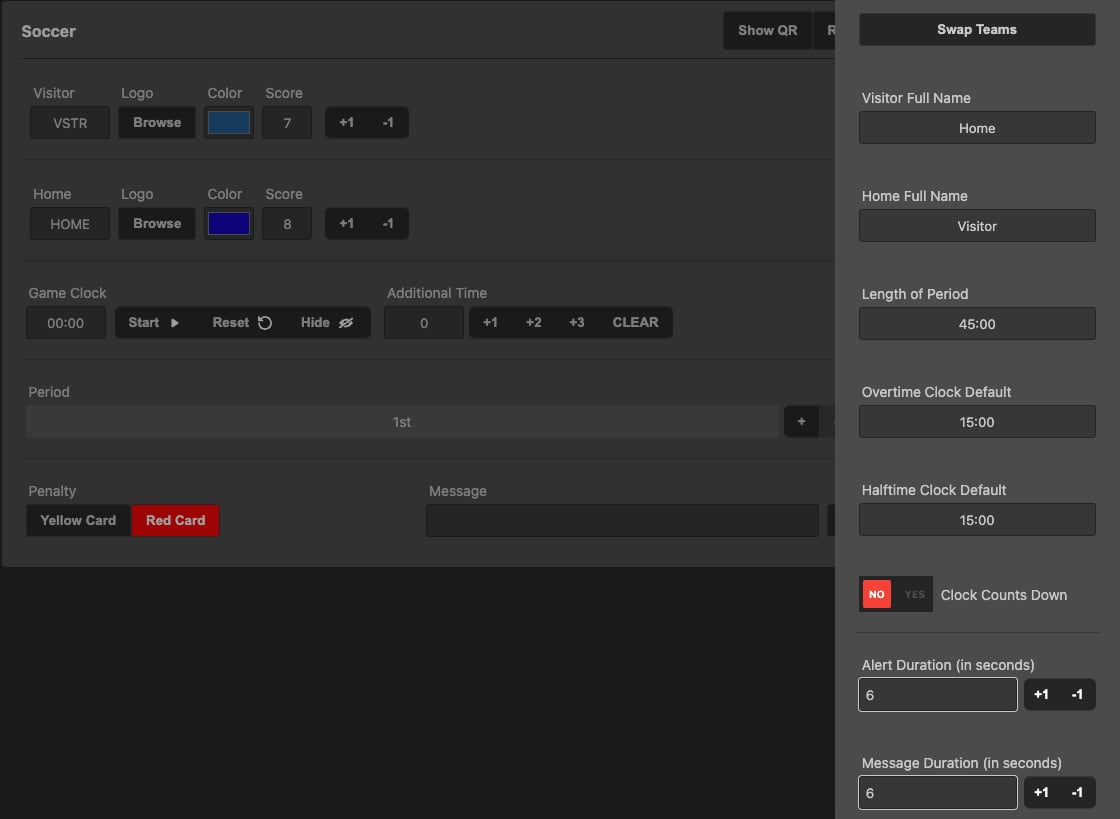
4. Open **Settings**.

   <div align="left"><figure><img src="https://352477438-files.gitbook.io/~/files/v0/b/gitbook-x-prod.appspot.com/o/spaces%2FFCWMxradHcVjURnrXSYX%2Fuploads%2Fgit-blob-d578ad61239fe27b23af66806e8b3c707c05fa15%2Fimage_5290.jpg?alt=media" alt="Soccer settings"><figcaption></figcaption></figure></div>

**Settings**

| Setting                  | Function                    |
| ------------------------ | --------------------------- |
| Swap Teams               | Layout toggle.              |
| Visitor / Home Full Name | Full names.                 |
| Length of Period         | Default period length.      |
| Overtime Clock Default   | Overtime clock default.     |
| Halftime Clock Default   | Halftime clock default.     |
| Clock Counts Down        | Toggle countdown direction. |
| Alert Duration           | Alert seconds.              |
| Message Duration         | Message seconds.            |

**Controls**

| Control         | Function                          |
| --------------- | --------------------------------- |
| Visitor / Home  | Short names.                      |
| Logo            | Logo upload.                      |
| Color           | Team colors.                      |
| Score           | +1 / -1 or Goal button.           |
| Game Clock      | Start / Reset / Hide.             |
| Additional Time | Add stoppage time.                |
| Period          | +/- with OT / Final.              |
| Penalty         | Green / Yellow / Red card alerts. |
| Message         | Custom message.                   |
| Reset           | Reset.                            |
| Show QR         | Mobile control.                   |

## Volleyball

1. Add a Volleyball Scoreboard template.
2. Select **Sports** > **Scoreboard Tool** > **Volleyball**.

   <div align="left"><figure><img src="https://352477438-files.gitbook.io/~/files/v0/b/gitbook-x-prod.appspot.com/o/spaces%2FFCWMxradHcVjURnrXSYX%2Fuploads%2Fgit-blob-08194e6d27b3fc8a8077afdc48e314bf9fb43f1b%2Fimage_1223.jpg?alt=media" alt="Volleyball menu"><figcaption></figcaption></figure></div>

   <div align="left"><figure><img src="https://352477438-files.gitbook.io/~/files/v0/b/gitbook-x-prod.appspot.com/o/spaces%2FFCWMxradHcVjURnrXSYX%2Fuploads%2Fgit-blob-d8c4562f75d34f3cd10e2c6c19c33f4f7ed9c683%2Fimage_4639.jpg?alt=media" alt="Volleyball scoreboard"><figcaption></figcaption></figure></div>
3. Pre-designed variables are pre-linked.
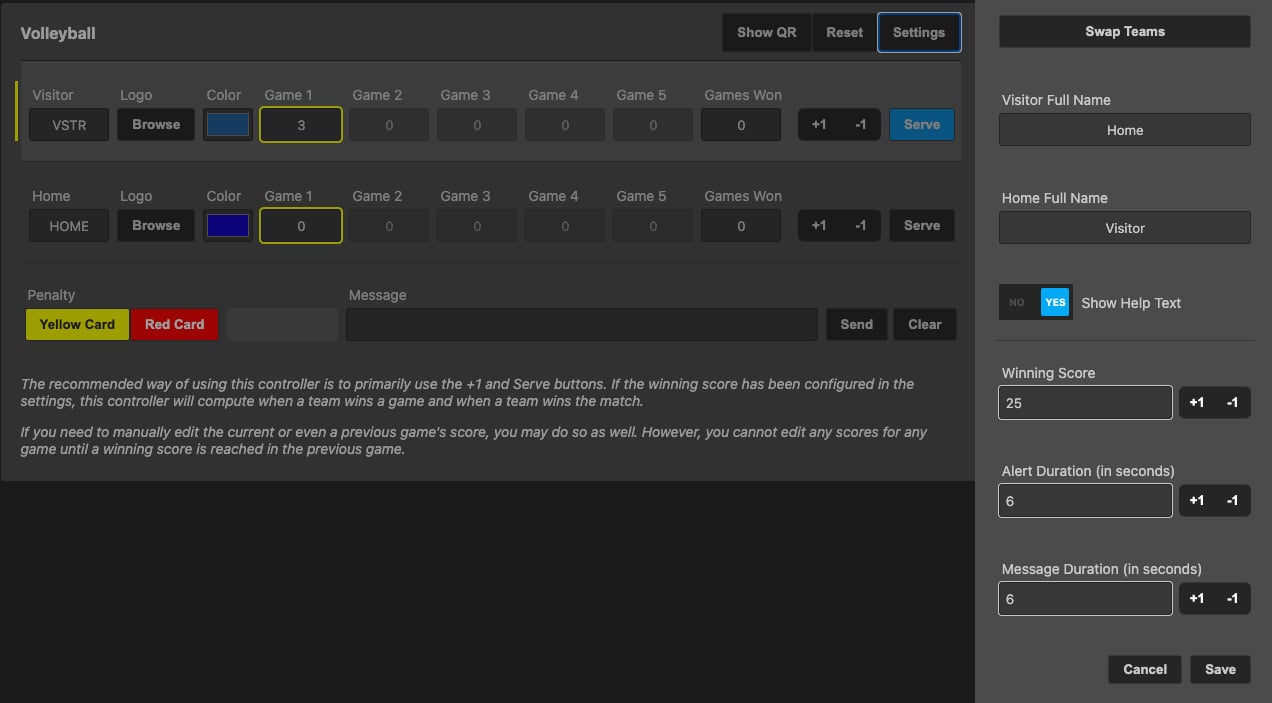
4. Open **Settings**.

   <div align="left"><figure><img src="https://352477438-files.gitbook.io/~/files/v0/b/gitbook-x-prod.appspot.com/o/spaces%2FFCWMxradHcVjURnrXSYX%2Fuploads%2Fgit-blob-08188886f334fddb0cdb993d689c0183c79040bc%2Fimage_5577.jpg?alt=media" alt="Volleyball settings"><figcaption></figcaption></figure></div>

**Settings**

| Setting                  | Function                           |
| ------------------------ | ---------------------------------- |
| Swap Teams               | Layout toggle.                     |
| Visitor / Home Full Name | Full names.                        |
| Show Help Text           | Yes/No.                            |
| Winning Score            | Total points needed to win a game. |
| Alert Duration           | Alert seconds.                     |
| Message Duration         | Message seconds.                   |

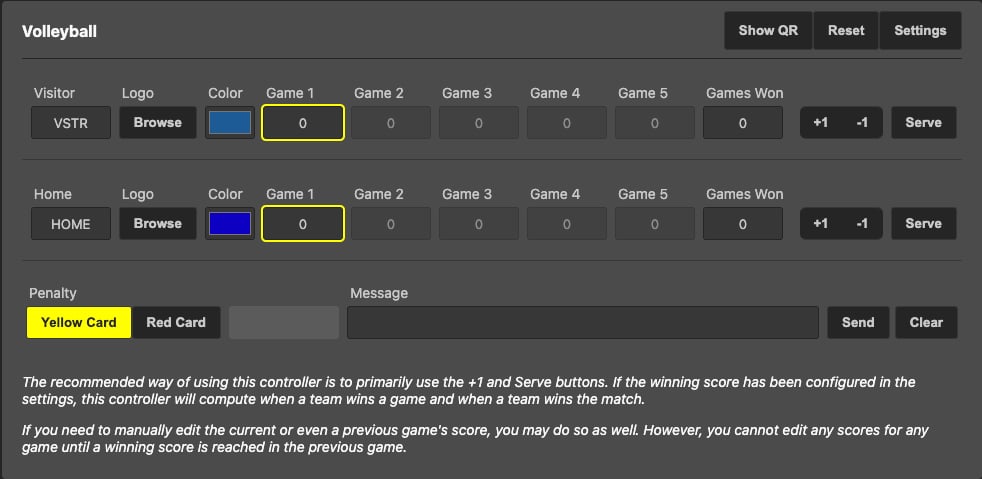
**Controls**

| Control              | Function                                                            |
| -------------------- | ------------------------------------------------------------------- |
| Visitor / Home       | Short names.                                                        |
| Logo                 | Logo upload.                                                        |
| Color                | Team colors.                                                        |
| Game 1-5 / Games Won | Enter or +1 / -1 each game’s score. Auto-advances on Winning Score. |
| Serve                | Possession indicator for serve.                                     |
| Penalty              | Yellow / Red card alerts.                                           |
| Message              | Custom message.                                                     |
| Reset                | Reset.                                                              |
| Show QR              | Mobile control.                                                     |


---

# Agent Instructions
This documentation is published with GitBook. GitBook is the documentation platform designed so that both humans and AI agents can read, navigate, and reason over technical content effectively. Learn more at gitbook.com.

## Querying This Documentation
If you need additional information that is not directly available in this page, you can query the documentation dynamically by asking a question.

Perform an HTTP GET request on the current page URL with the `ask` query parameter, and the optional `goal` query parameter:

```
GET https://captivatehelp.newbluelive.com/play-and-update-graphics/chapter-index-3/scoreboard-tool-overview.md?ask=<question>&goal=<endgoal>
```

`ask` is the immediate question: it should be specific, self-contained, and written in natural language.
`goal` is optional and describes the broader end goal you are ultimately trying to accomplish on behalf of the user. GitBook uses it to tailor the answer towards what is most useful for that goal.

The response will contain a direct answer to the question and relevant excerpts and sources from the documentation.

Use this mechanism when the answer is not explicitly present in the current page, you need clarification or additional context, or you want to retrieve related documentation sections.