> For the complete documentation index, see [llms.txt](https://captivatehelp.newbluelive.com/llms.txt). Markdown versions of documentation pages are available by appending `.md` to page URLs; this page is available as [Markdown](https://captivatehelp.newbluelive.com/play-and-update-graphics/chapter-index-3/connect-sportzcast.md).
# Connect Sportzcast data to a graphic
Captivate can connect to a Sportzcast Scorebot device and display real-time information from the supported sports: **Baseball**, **Football**, **Basketball**, **Volleyball**, **Hockey**, **Soccer**, **Wrestling**, and **Tennis**.
1. In Captivate’s playout interface, open a project (if one isn’t already open) and select a graphic in the Project List.
**💡 TIP**\
Want to create a new graphic? Open the Library panel and drag a design from the library to the Project List. If you create a new graphic with a Sportzcast design from the library’s Inputs section, your graphic is already connected to a Sportzcast input, so go to step 3.
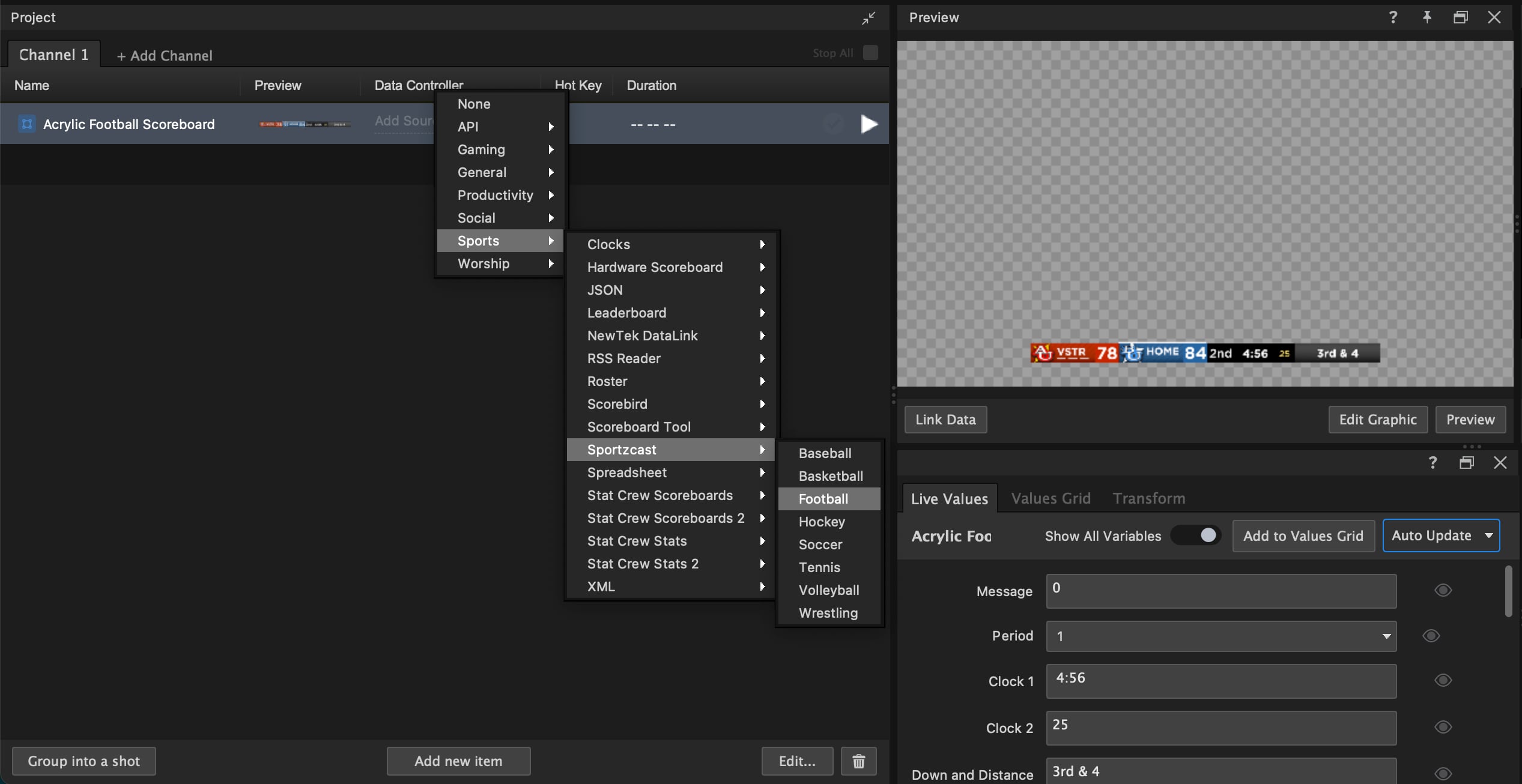
2. Click the **Select a Datasource** cell in the Data Controller column and choose **Sports** > **Sportzcast** > the sport you want, to add the Sportzcast input to the graphic.
The Sportzcast data appears as a tab in the Properties panel.
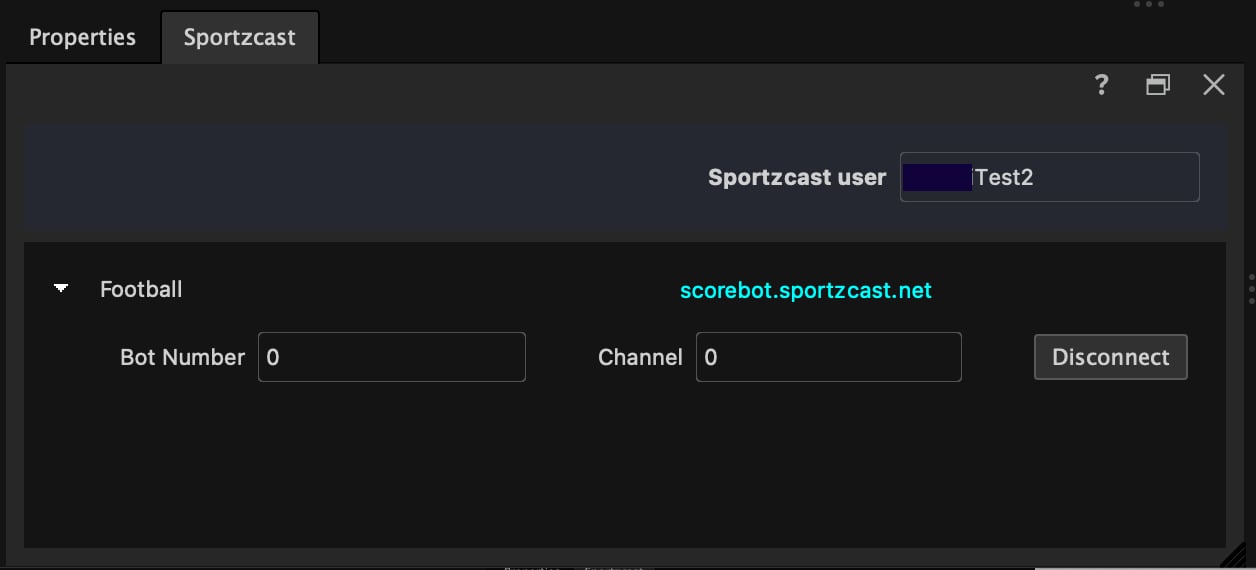
3. In the Sportzcast panel, enter your Sportzcast User email or Unique Integration Name.
**📌 NOTE**\
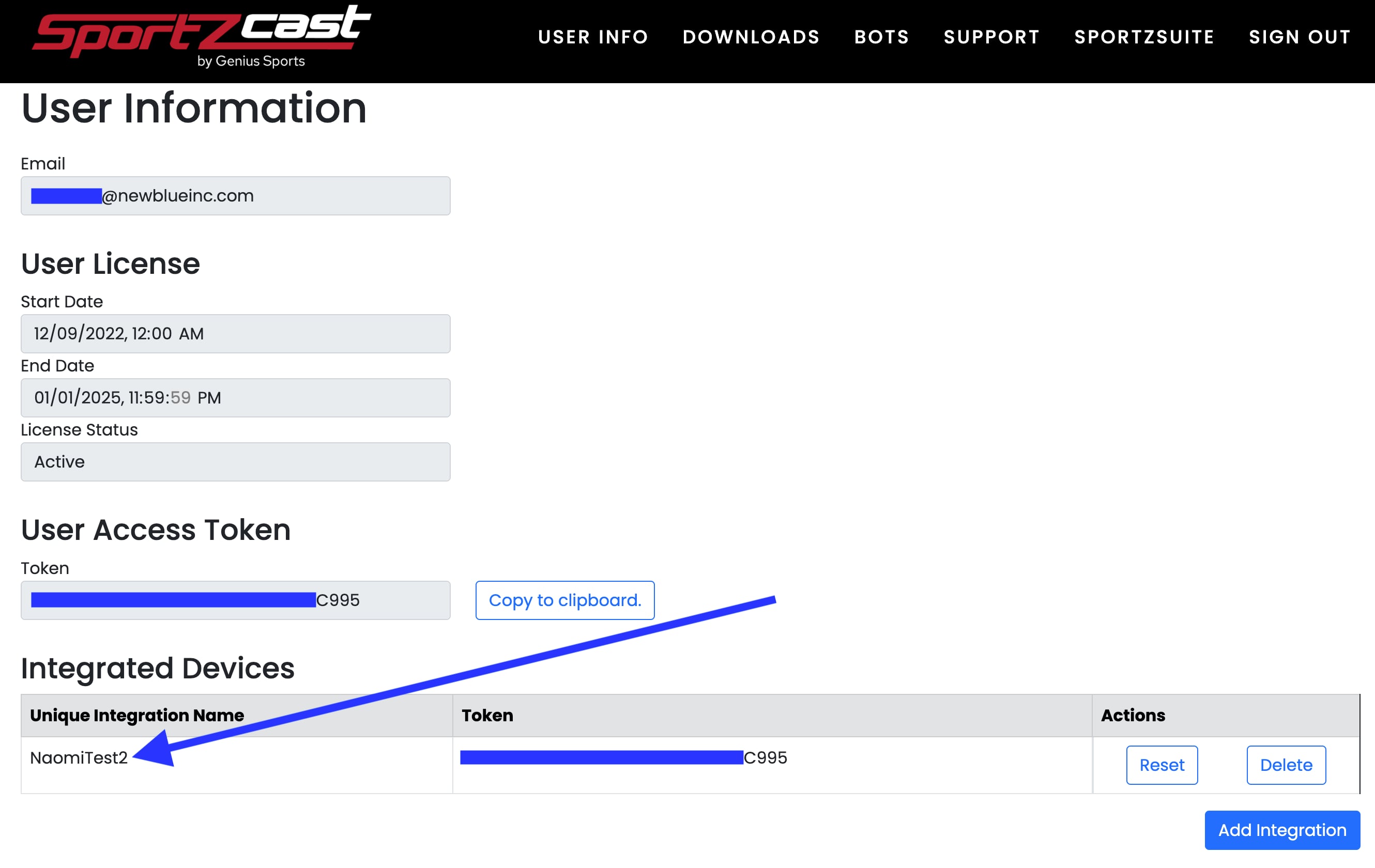
If you have multiple integrations you may need to use the Unique Integration Name. Find it at [sportzcast.net/Support](https://sportzcast.net/Support): **Sign In** > **User Info** > **Integrated Devices** > **Unique Integration Name**.
4. Hover over the **Choose Server or enter IP address** link and click. Select a server or enter an IP address. If you are using a virtual bot from your Sportzsuite, enter `scorebot.sportzcast.net`.
5. Enter your **Bot Number**.
6. If you need to change the channel to a number other than 0, enter the **Channel** number.
7. Click **Connect**.
**📌 NOTE: Troubleshooting**
If you are having issues connecting, confirm all information is entered correctly in your Sportzsuite account at [sportzsuite.net](https://sportzsuite.net/).
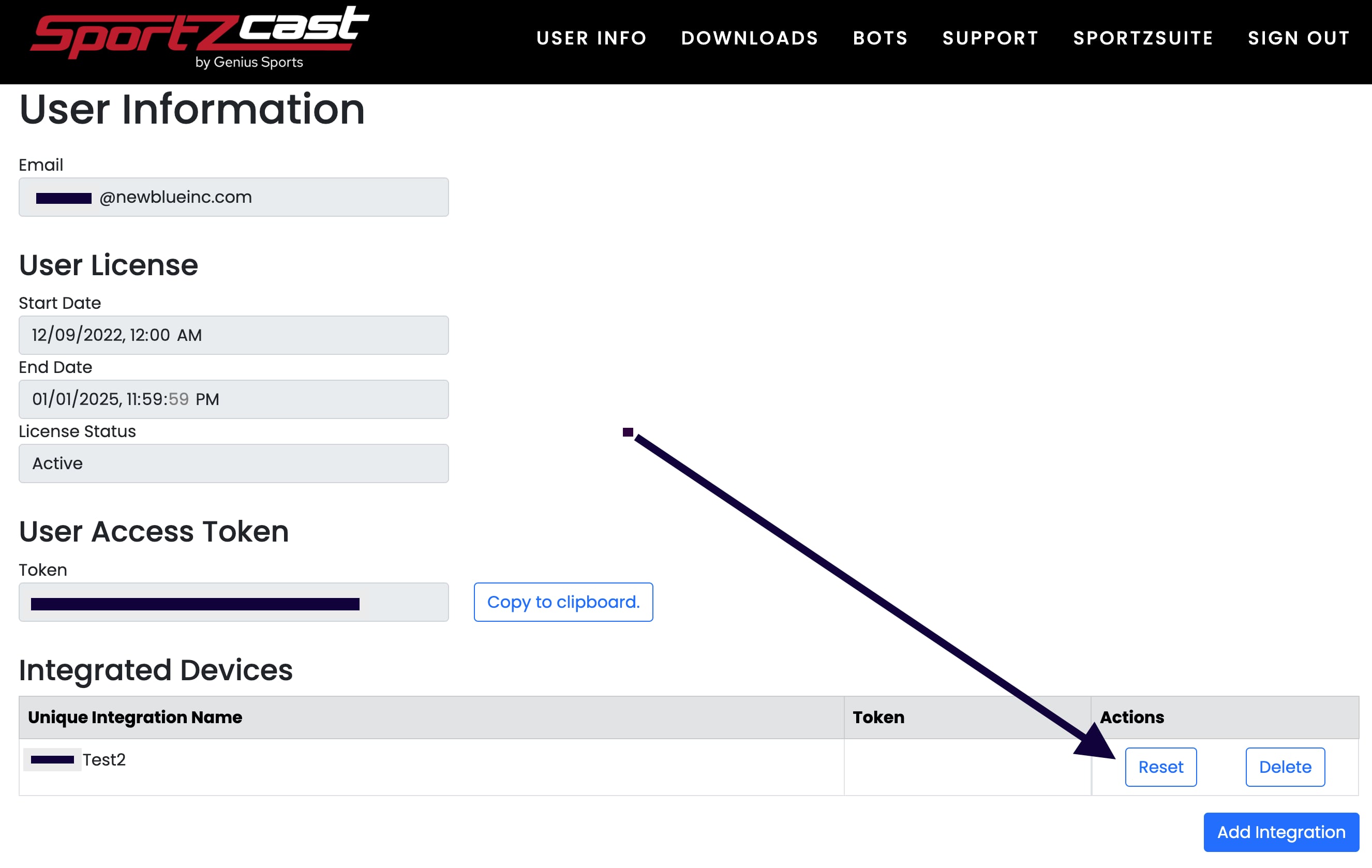
Sportzcast provides a token, per account, for only one machine. It will fail until the token is cleared from their database. If you have used your scorebot with Captivate on another system, or with another NewBlue user on the same system, you will need to reset the token.
**Sign In** > **User Info** > **Integrated Devices** > **Reset**.
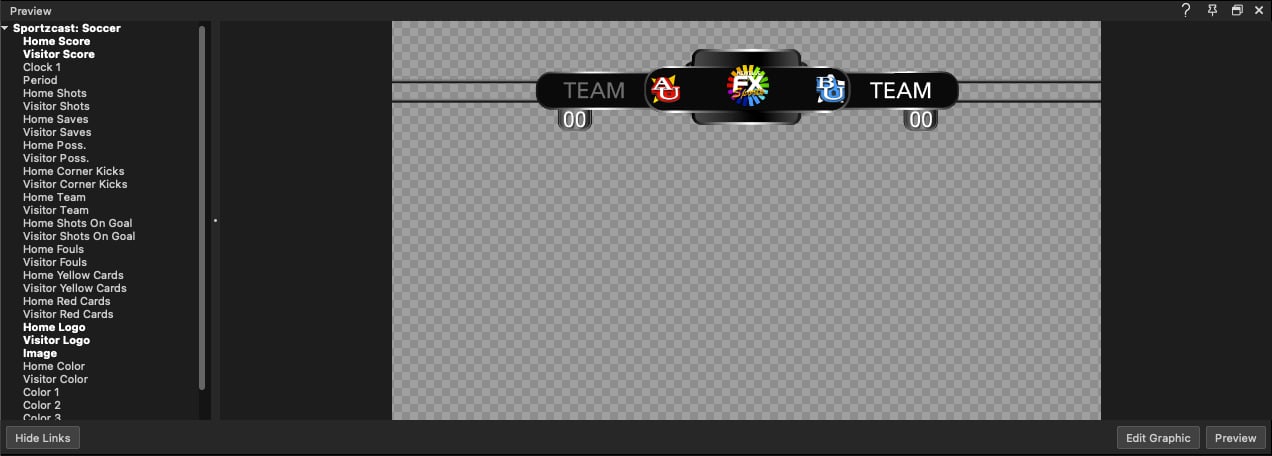
8. Click **Link Data** in the Edit / Preview panel to view the Sportzcast input and variables.
9. Click and drag a Sportzcast variable onto an object in your graphic. Repeat for each variable.
**💡 TIP**\
To disconnect a variable, right-click it in the Edit / Preview panel and choose **Disconnect variable**.
The Sportzcast data is now visible in your graphic and updating in real time.
**📌 NOTE: Troubleshooting flashing digits**
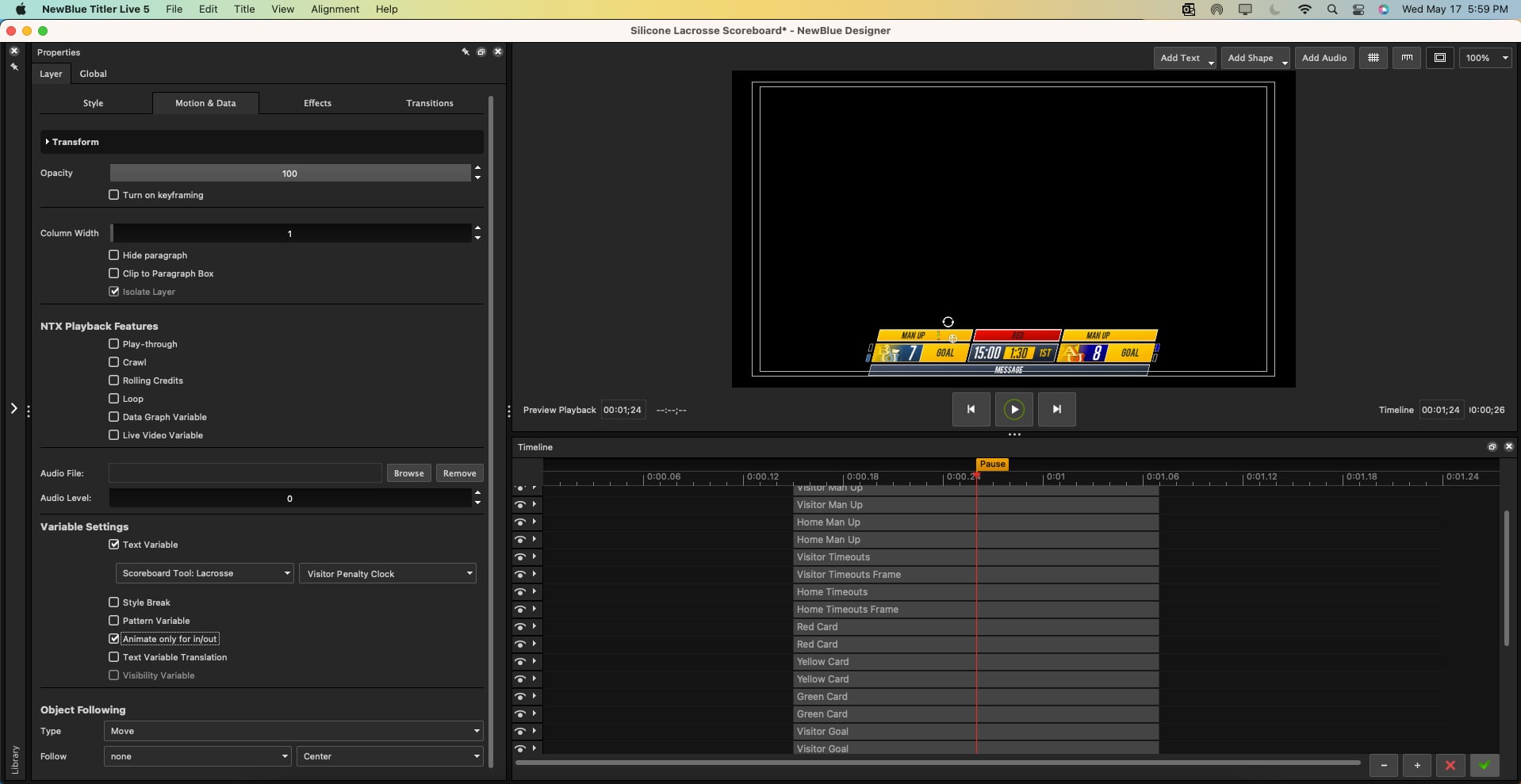
If you experience flashing digits when two clock variables are running, smooth this by:
1. Editing the graphic in the Designer.
2. Selecting each clock layer.
3. Going to **Properties** > **Variables** > **Variable Settings**.
4. Clicking the **Animate only for in/out** checkbox.
---
# Agent Instructions
This documentation is published with GitBook. GitBook is the documentation platform designed so that both humans and AI agents can read, navigate, and reason over technical content effectively. Learn more at gitbook.com.
## Querying This Documentation
If you need additional information that is not directly available in this page, you can query the documentation dynamically by asking a question.
Perform an HTTP GET request on the current page URL with the `ask` query parameter, and the optional `goal` query parameter:
```
GET https://captivatehelp.newbluelive.com/play-and-update-graphics/chapter-index-3/connect-sportzcast.md?ask=&goal=
```
`ask` is the immediate question: it should be specific, self-contained, and written in natural language.
`goal` is optional and describes the broader end goal you are ultimately trying to accomplish on behalf of the user. GitBook uses it to tailor the answer towards what is most useful for that goal.
The response will contain a direct answer to the question and relevant excerpts and sources from the documentation.
Use this mechanism when the answer is not explicitly present in the current page, you need clarification or additional context, or you want to retrieve related documentation sections.