> For the complete documentation index, see [llms.txt](https://captivatehelp.newbluelive.com/llms.txt). Markdown versions of documentation pages are available by appending `.md` to page URLs; this page is available as [Markdown](https://captivatehelp.newbluelive.com/play-and-update-graphics/chapter-index-3/connect-scorebird.md).
# Connect Scorebird data to a graphic
Captivate can connect to a Scorebird NeST device and display real-time information. This article covers connecting your NeST, defines a few Scorebird terms, and lists common troubleshooting steps.
* [Connect your Scorebird NeST to Captivate](#connect-your-scorebird-nest-to-captivate)
* [Scorebird Terms to Know](#scorebird-terms-to-know)
* [Troubleshooting](#troubleshooting)
## Connect your Scorebird NeST to Captivate
Two connection modes are available, requiring slightly different information based on the NeST device you own.
{% hint style="info" %}
It is recommended that you start your Scorebird game before connecting within Captivate if you want your variables automatically selected. You can always manually select them if you start the game after connecting.
{% endhint %}
1. In Captivate’s playout interface, open a project (if one isn’t already open) and select a graphic in the Project List.
**💡 TIP**\
Want to create a new graphic? Open the Library panel and drag a design from the library to the Project panel. If you create a new graphic from the library’s Designs section, add the Scorebird Data Controller to your graphic.
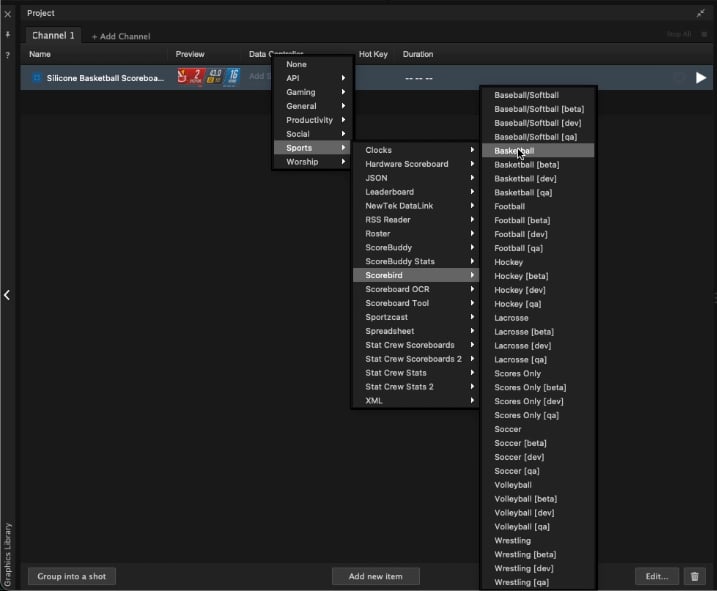
2. Choose **Select a Datasource** > **Sports** > **Scorebird** and select a sport to add the Scorebird Data Controller to the graphic.
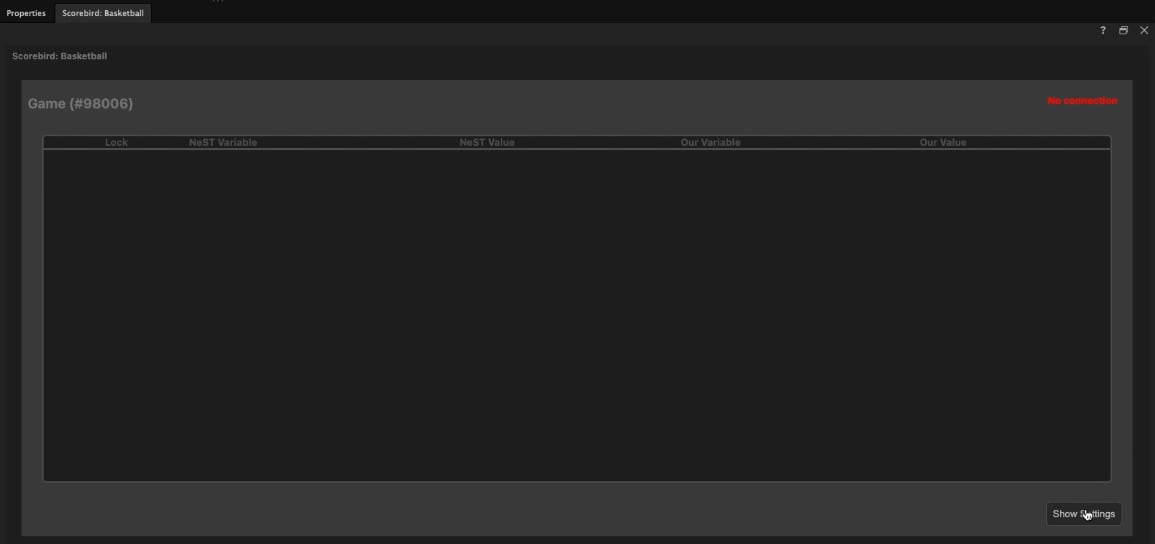
3. The **Scorebird Data Controller** can be accessed from a tab within the **Layer Properties** panel.
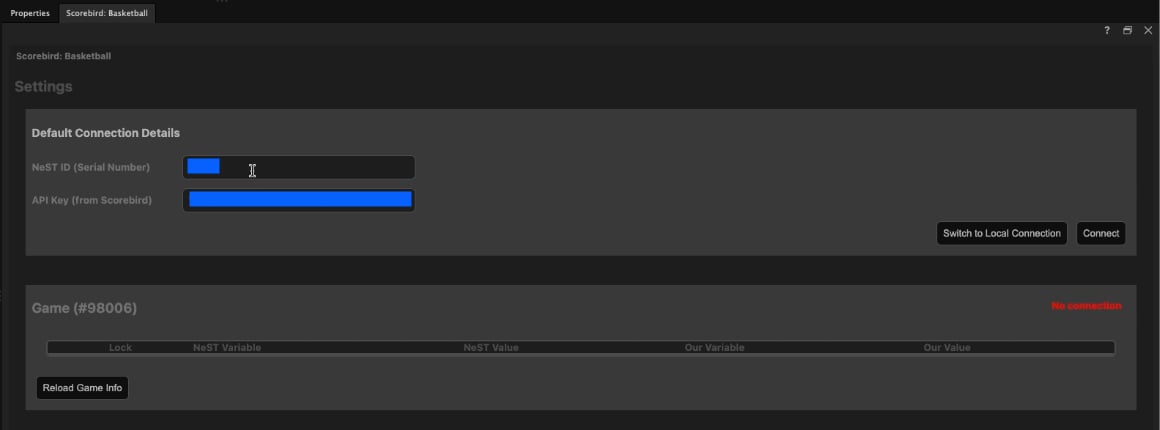
4. Click **Show Settings** to access the inputs to enter your Scorebird NeST information.
Two connection modes are available:
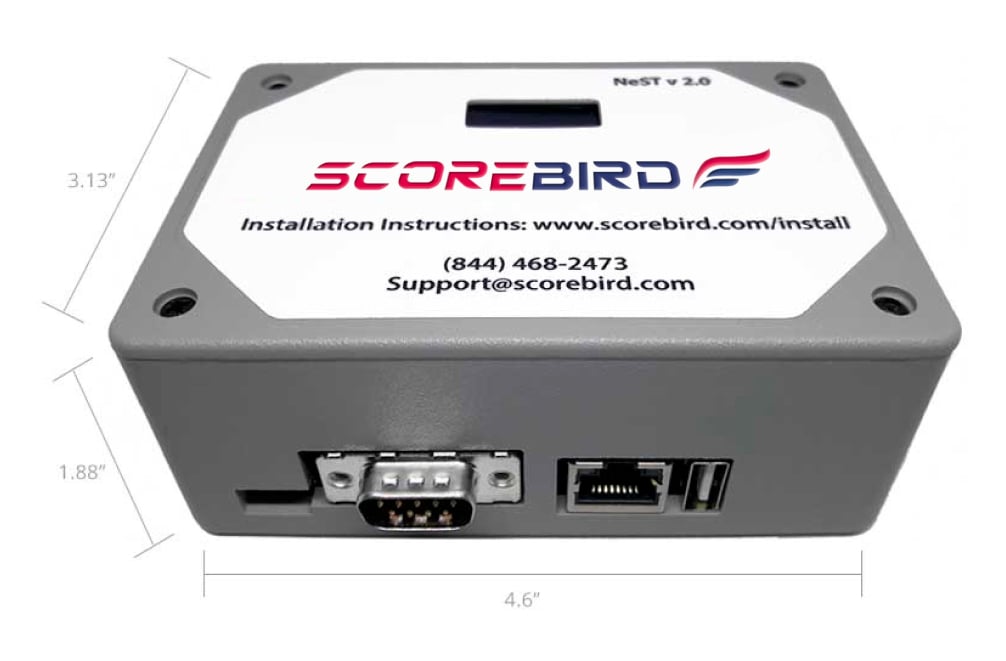
* **Connect to Scorebird Server** — for the older **NeST 2.0** device. You need the **NeST ID (serial number)** on the device. The Identity Pool key is auto-fetched (you no longer need to supply it).
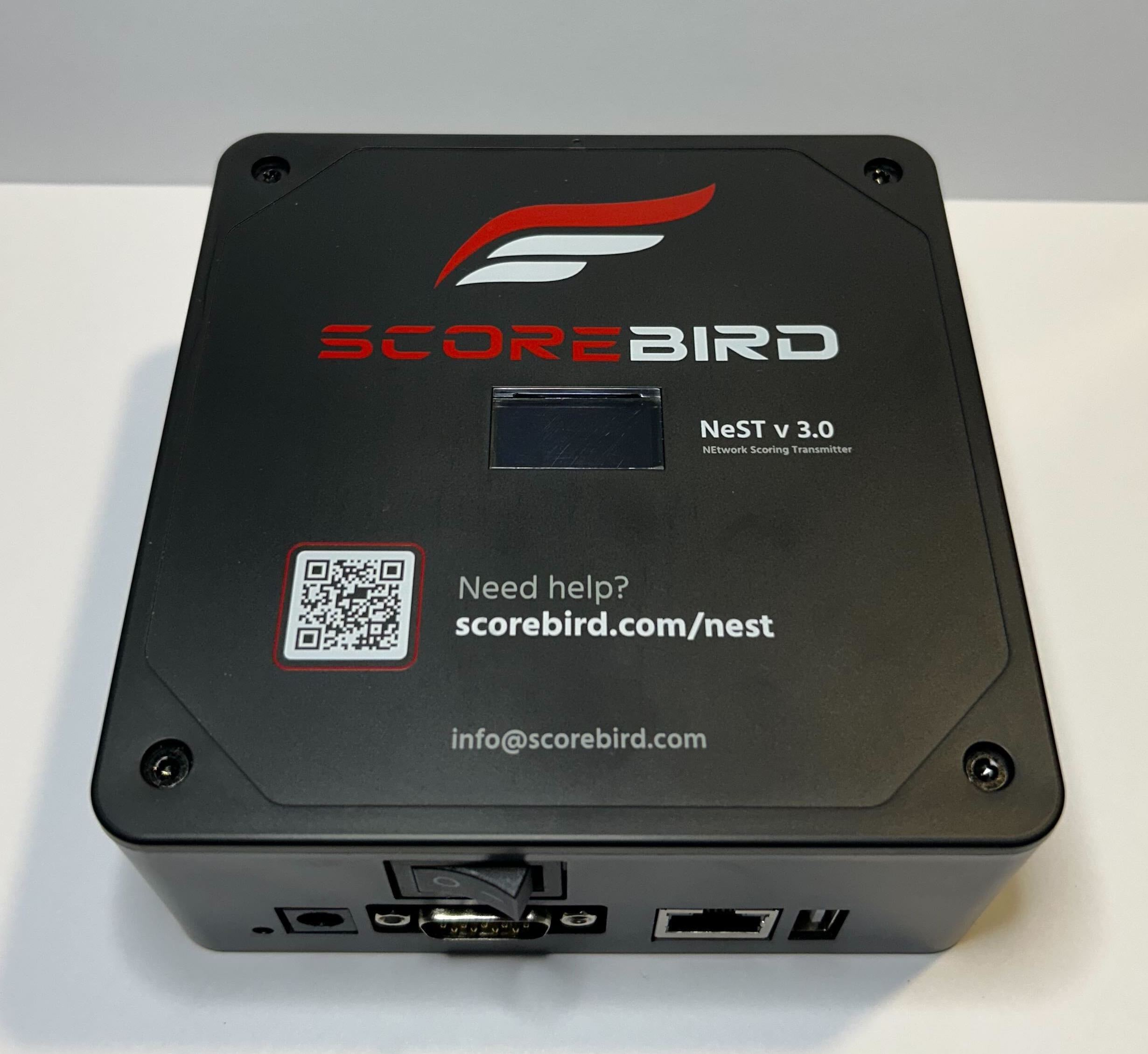
* **Direct connection to local NeST v3 Device** — for the newer **NeST 3.0** device. This local mode only requires the **IP address (network address)** of the device.
**📌 NOTE**\
Select **Switch to Local Connection** if you are using the **Direct connection to local NeST v3 Device** mode.
5. Click **Connect** to allow Captivate to retrieve live data from your NeST.
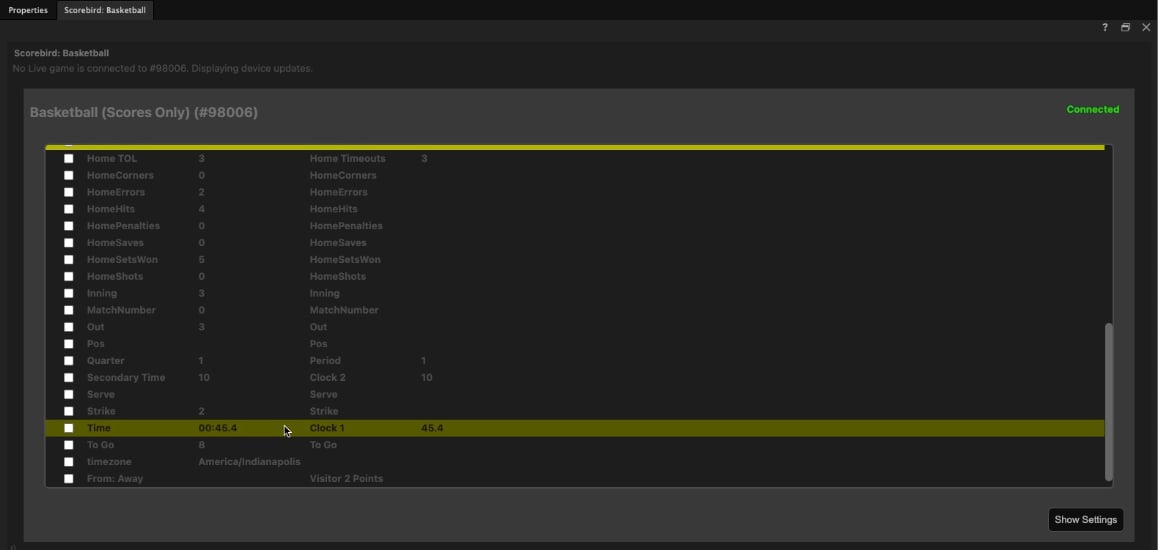
6. If the connection is successful, green "Connected" text appears under the Save Settings button.
7. Scroll down to audit the data being fetched from the NeST device in real time.
**💡 TIP**\
Having trouble setting up your NeST device? Watch [Scorebird’s setup video](https://youtu.be/7yM5gRJcuVs).
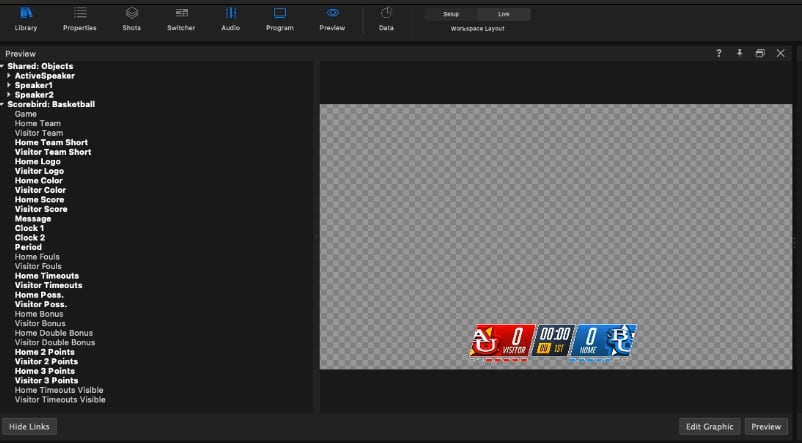
8. To verify the selected data is connected to your graphic correctly, click the **Link Data** button in the Preview panel to display all variables available to connect.
9. Connected variables appear in bold. Drag and drop a variable to a design element, or right-click the variable name to assign it. See [Create variables in graphics](/design-and-customize-graphics/chapter-index-4/create-variables-in-graphics.md).
Once your graphic is customized, test by playing from your Project List to send the graphic live.
{% hint style="info" %}
When data arrives from the NeST / Scorebird ecosystem, it overrides whatever is in the graphic. The **Lock** button forces a variable to never update from new Scorebird data — useful for team names and colors when Scorebird data may be wrong or out of date.
{% endhint %}
## Scorebird Terms to Know
* **NeST ID (Scorebird)** — the serial number of your NeST device.
* **API Key (Scorebird)** — like a password, assigned to you by Scorebird. Contact your Scorebird representative if you don’t have one.
* **Reload Game Info (Scorebird)** — if the Data Controller was opened before the game went live, click this to load active game data like team names and colors. Only applies to **Connect to Scorebird Server** mode.
## Troubleshooting
* Can’t connect / red "not connected" text / scores not updating:
1. Click **Reload Game Info**.
2. Double-check your essential settings via **Show Settings** and save them again.
3. Right-click on the page and choose **Reload**.
4. Check your internet connection by visiting your Scorebird account from a browser on the Captivate computer.
* If your NeST device is sending data to Scorebird but Captivate isn’t getting it, contact [NewBlue Support](https://newbluefx.zendesk.com/hc/en-us/requests/new).
* If your NeST device is not sending data to the Scorebird website, contact [Scorebird](https://www.scorebird.com/contact-scorebird). See also [Scorebird Documentation](https://www.scorebird.com/broadcast-overlays-pages/newblue).
---
# Agent Instructions
This documentation is published with GitBook. GitBook is the documentation platform designed so that both humans and AI agents can read, navigate, and reason over technical content effectively. Learn more at gitbook.com.
## Querying This Documentation
If you need additional information that is not directly available in this page, you can query the documentation dynamically by asking a question.
Perform an HTTP GET request on the current page URL with the `ask` query parameter, and the optional `goal` query parameter:
```
GET https://captivatehelp.newbluelive.com/play-and-update-graphics/chapter-index-3/connect-scorebird.md?ask=&goal=
```
`ask` is the immediate question: it should be specific, self-contained, and written in natural language.
`goal` is optional and describes the broader end goal you are ultimately trying to accomplish on behalf of the user. GitBook uses it to tailor the answer towards what is most useful for that goal.
The response will contain a direct answer to the question and relevant excerpts and sources from the documentation.
Use this mechanism when the answer is not explicitly present in the current page, you need clarification or additional context, or you want to retrieve related documentation sections.