> For the complete documentation index, see [llms.txt](https://captivatehelp.newbluelive.com/llms.txt). Markdown versions of documentation pages are available by appending `.md` to page URLs; this page is available as [Markdown](https://captivatehelp.newbluelive.com/play-and-update-graphics/chapter-index-3/connect-a-hardware-scoreboard.md).
# Connect a hardware scoreboard via serial port
Captivate can connect to a hardware scoreboard console (such as the Daktronics All Sport 5000 and other supported vendors) and retrieve real-time serial data for on-air graphics. This article walks through the cabling and connection steps.
{% hint style="info" %}
While this article uses Daktronics for the example, the Hardware Scoreboard Data Controller supports multiple protocol families. The same workflow applies to other supported vendors — pick the matching menu entry.
{% endhint %}
## Required items
* A Mac or Windows machine with Captivate installed. The machine needs an available USB-A port (an adapter or USB hub is fine).
* The scoreboard console (e.g., Daktronics All Sport 5000).
* A **Daktronics Port Expander**.
**📌 NOTE**\
We recommend obtaining this adaptor from [serialtools.tv](https://serialtools.tv/product/daktronics-port-expander/).
* A **USB-to-RS232 cable**.
**📌 NOTE**\
An adapter with the FTDI chipset is required.
**❗ IMPORTANT**\
Serial data can only effectively travel 50 feet before you begin to lose data. Keep cable length under 50 feet.
## Connect the hardware
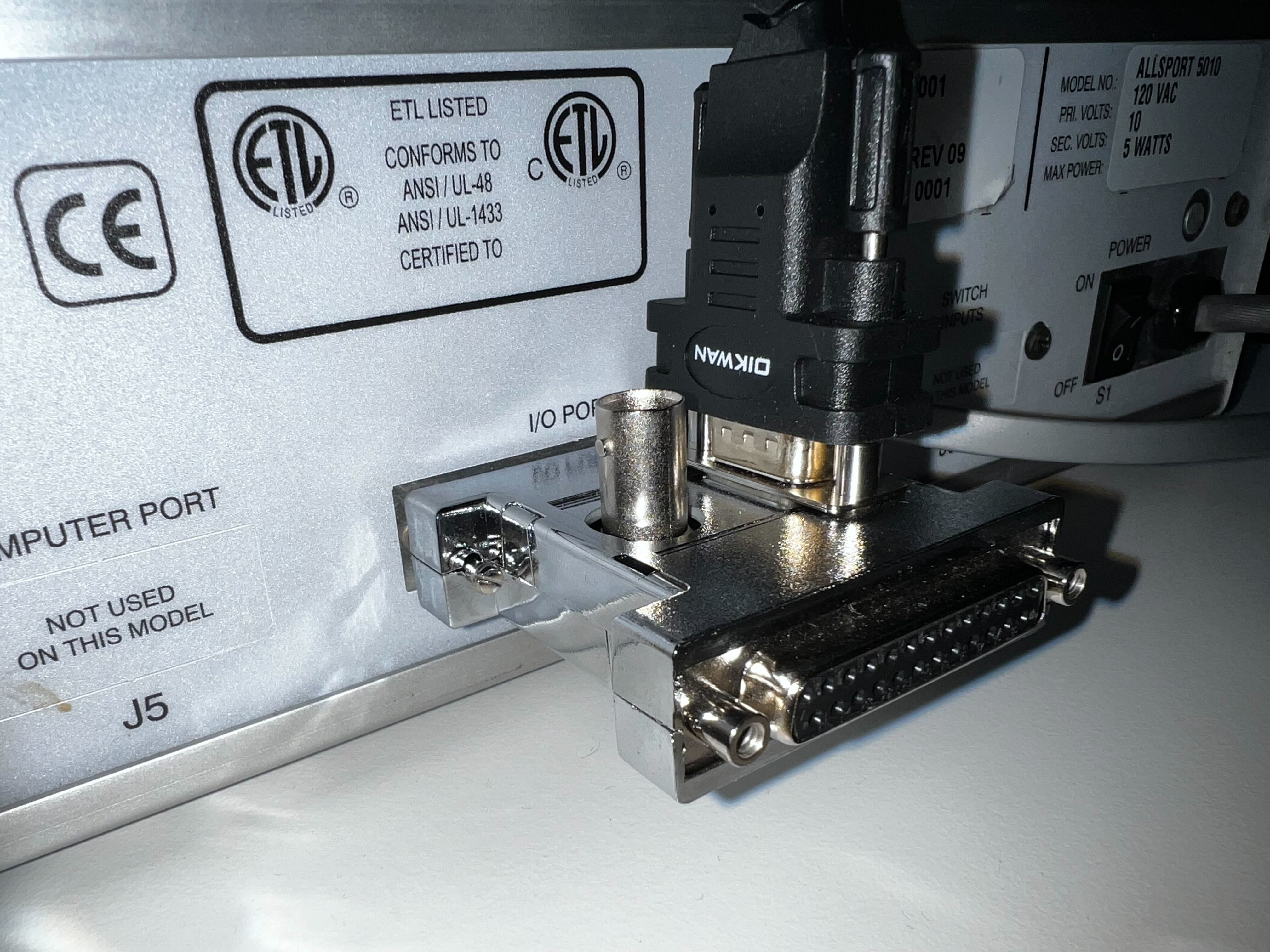
1. Connect the male end of the Daktronics Port Expander to the All Sport 5000’s **I/O PORT**.
2. The Daktronics Port Expander has a female RS232 port. Connect the male end of the USB-to-RS232 cable here.
3. Connect the USB end of the cable into the Captivate machine.
## Set up the Data Controller
1. Launch Captivate and add a scoreboard graphic to a channel from the **Layers** list.
2. Open the Data Controller dropdown for the corresponding graphic layer and navigate to **Sports** > **Hardware Scoreboard** > **Daktronics** > **\** (or the matching vendor entry for your console).
3. The Data Controller appears as a tab in the **Layer Properties** panel.
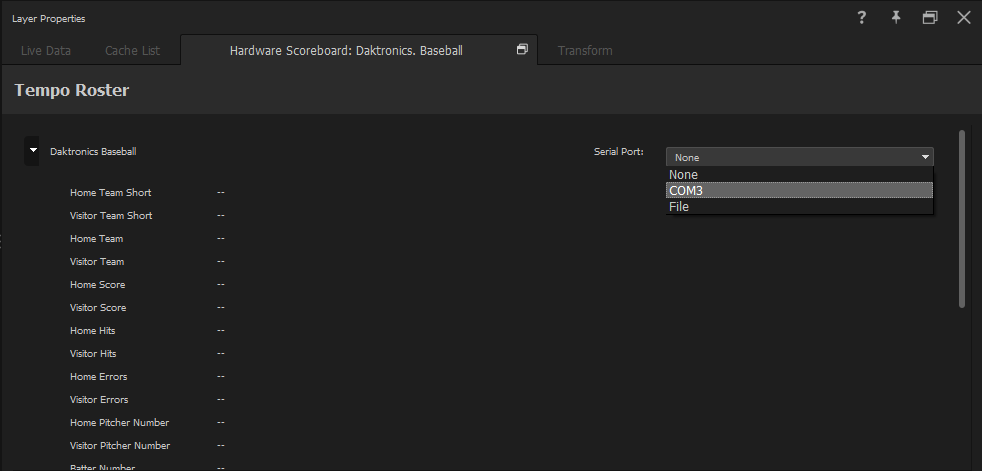
4. In the Data Controller, use the dropdown in the top-right corner to select a source to read serial data from.
The dropdown lists any ports that Captivate has detected.
5. The Data Controller interface lists available data variables for the selected sport. Variables populate in real time as the console sends data.
**❗ IMPORTANT**\
This Data Controller supports only a single serial source at a time. Use one sport Data Controller per Captivate session to avoid data variable conflicts.
## Supported vendors
The Hardware Scoreboard Data Controller speaks the following scoreboard protocols. Use the menu entry that matches your console:
| | |
| ----------------------- | --------------------------------------------------------- |
| Protocol | Typical consoles |
| **Daktronics RTD** | Daktronics consoles using their RTD (Real-Time Data) feed |
| **Daktronics CG** | Daktronics consoles using the CG character-generator feed |
| **Trans-Lux Fair-Play** | Trans-Lux / Fair-Play consoles |
| **Tissot** | Tissot timing consoles |
| **White Way** | White Way scoreboards |
| **OES** | OES (Outdoor Electronic Sales) consoles |
| **Varsity** | Varsity scoreboards |
| **Farmtek** | Farmtek scoreboards |
Protocols appear in the menu when their entitlements are licensed. If your console is missing from the list, contact NewBlue support; many Daktronics-compatible feeds (CG and RTD) cover non-Daktronics consoles that emulate those protocols.
---
# Agent Instructions
This documentation is published with GitBook. GitBook is the documentation platform designed so that both humans and AI agents can read, navigate, and reason over technical content effectively. Learn more at gitbook.com.
## Querying This Documentation
If you need additional information that is not directly available in this page, you can query the documentation dynamically by asking a question.
Perform an HTTP GET request on the current page URL with the `ask` query parameter, and the optional `goal` query parameter:
```
GET https://captivatehelp.newbluelive.com/play-and-update-graphics/chapter-index-3/connect-a-hardware-scoreboard.md?ask=&goal=
```
`ask` is the immediate question: it should be specific, self-contained, and written in natural language.
`goal` is optional and describes the broader end goal you are ultimately trying to accomplish on behalf of the user. GitBook uses it to tailor the answer towards what is most useful for that goal.
The response will contain a direct answer to the question and relevant excerpts and sources from the documentation.
Use this mechanism when the answer is not explicitly present in the current page, you need clarification or additional context, or you want to retrieve related documentation sections.