> For the complete documentation index, see [llms.txt](https://captivatehelp.newbluelive.com/llms.txt). Markdown versions of documentation pages are available by appending `.md` to page URLs; this page is available as [Markdown](https://captivatehelp.newbluelive.com/play-and-update-graphics/chapter-index-3/authenticate-zoom.md).
# Authenticate Zoom
If you plan to **host** a meeting from Captivate, **send** Program Out into Zoom, or pull **Live Q\&A** answers from a meeting, you must sign your Zoom account into Captivate first. Joining an existing meeting as a participant does not require authentication.
For the rest of the Zoom workflow — joining a meeting, bringing participants in as live video, sending Captivate’s Program back into Zoom — see [Connect to a Zoom Meeting](/play-and-update-graphics/chapter-index-3/connect-zoom-meeting.md).
## Before you authenticate (macOS only)
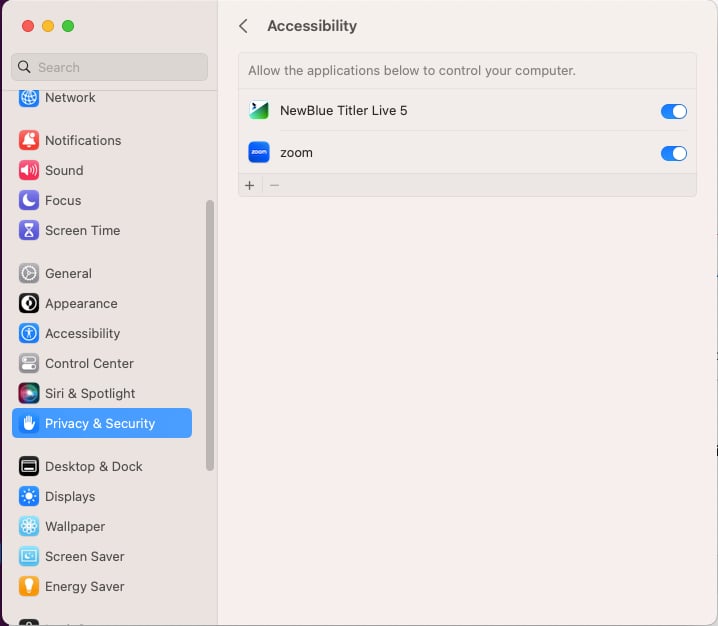
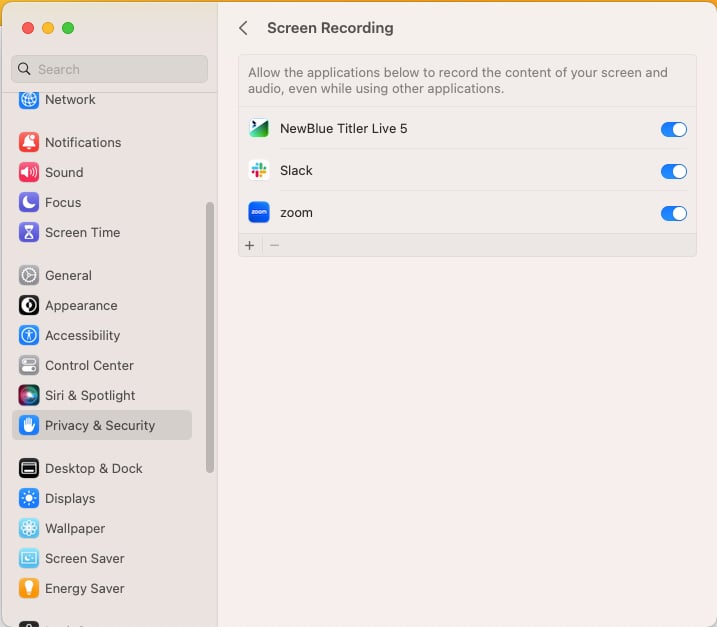
On macOS, give Captivate **and** the Zoom desktop client the system permissions they need before you start. Otherwise the sign-in succeeds but media won’t move.
1. Go to **System Settings** > **Privacy & Security**.
2. Open **Accessibility** and check both Captivate and Zoom.
3. Open **Screen Recording** and check both Captivate and Zoom.
For more on macOS first-run permissions, see [macOS first-run permissions](/get-started/chapter-index/macos-permissions.md).
## Sign your Zoom account into Captivate
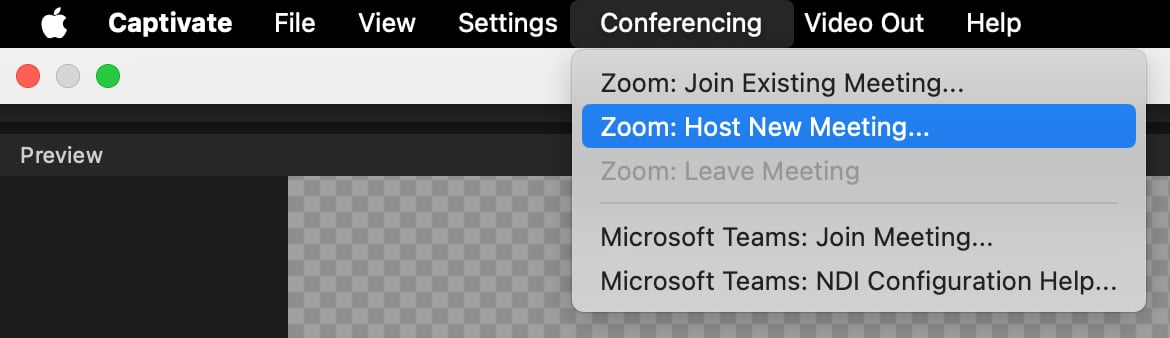
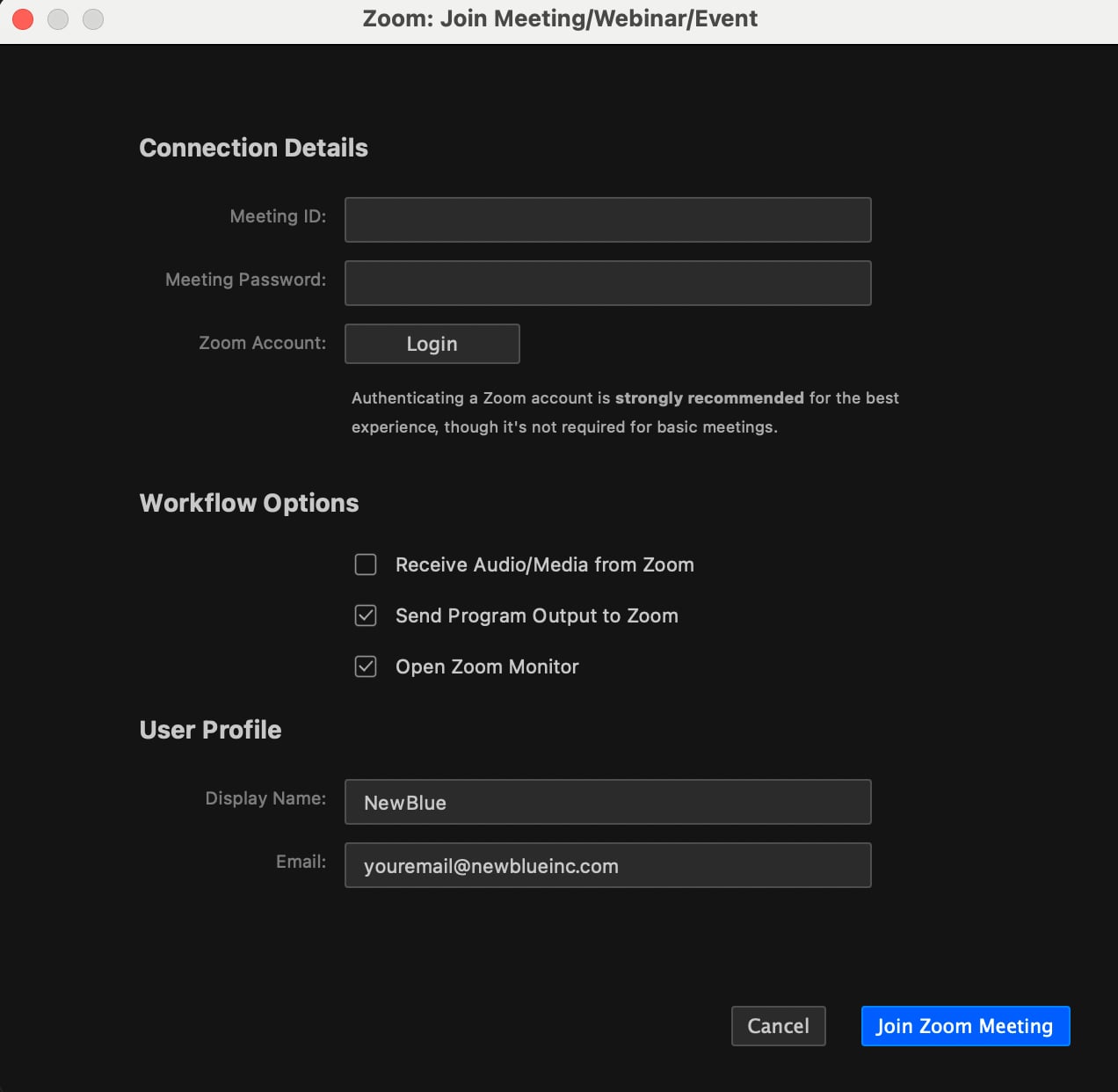
1. With your project open in Captivate, go to **Conferencing** > **Zoom: Host New Meeting** or **Zoom: Join Existing Meeting…**. Either choice opens the Zoom panel; the menu item just decides which workflow opens next.
2. Click **Login** in the Zoom panel.
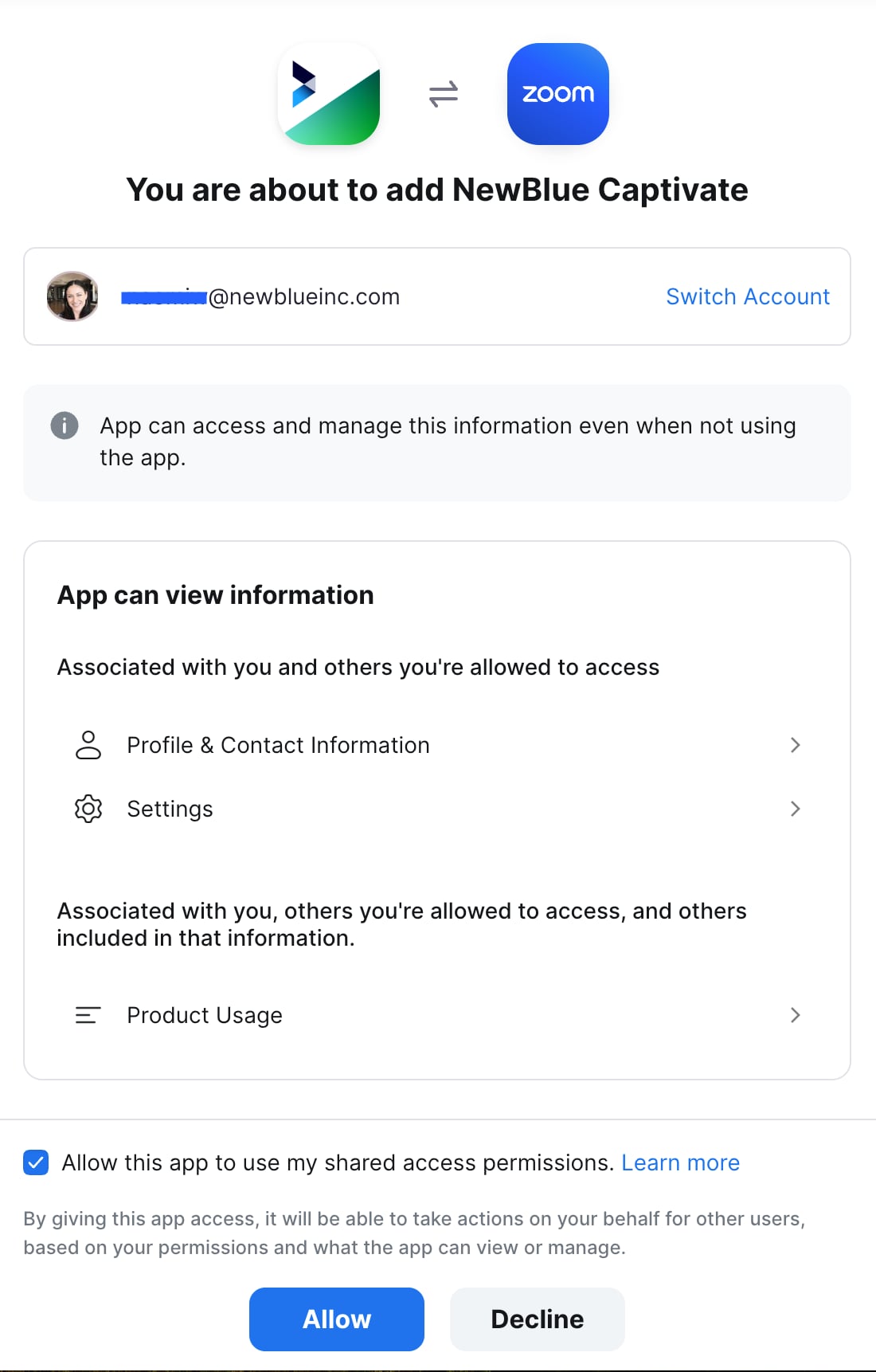
3. Your default browser opens a Zoom OAuth page. Enter your Zoom credentials.
4. Tick the box that allows Zoom to use the system shared access preferences and click **Allow**.
5. When the OAuth flow succeeds, the browser asks you to return to Captivate. The Zoom panel updates to show your account and the **Login** button is replaced by **Logout**.
The authentication persists in Captivate until you click **Logout** — you do not need to re-authenticate every meeting. If your Zoom account changes (different organization, expired refresh token), the Zoom panel returns to the unauthenticated state and you’ll be prompted to **Login** again.
## When authentication is required vs. optional
| Workflow | Auth required? |
| ----------------------------------------------------------------------- | -------------- |
| Join a public meeting as a participant; receive participant video/audio | No |
| Join a meeting that requires Zoom authentication | Yes |
| Host a meeting from inside Captivate | Yes |
| Send Program Output to Zoom (as virtual camera + mic) | Yes |
| Pull Live Q\&A answers into a graphic | Yes |
## Related
* [Connect to a Zoom Meeting](/play-and-update-graphics/chapter-index-3/connect-zoom-meeting.md) — the meeting workflow once you’re signed in.
* [macOS first-run permissions](/get-started/chapter-index/macos-permissions.md) — the general macOS permission story.
* [Output graphics as a Virtual Webcam](/set-up-your-production/chapter-index-6/output-graphics-as-a-virtual-webcam.md) — the lower-friction alternative if you only need to push your Program into a Zoom call as a camera source.
---
# Agent Instructions
This documentation is published with GitBook. GitBook is the documentation platform designed so that both humans and AI agents can read, navigate, and reason over technical content effectively. Learn more at gitbook.com.
## Querying This Documentation
If you need additional information that is not directly available in this page, you can query the documentation dynamically by asking a question.
Perform an HTTP GET request on the current page URL with the `ask` query parameter, and the optional `goal` query parameter:
```
GET https://captivatehelp.newbluelive.com/play-and-update-graphics/chapter-index-3/authenticate-zoom.md?ask=&goal=
```
`ask` is the immediate question: it should be specific, self-contained, and written in natural language.
`goal` is optional and describes the broader end goal you are ultimately trying to accomplish on behalf of the user. GitBook uses it to tailor the answer towards what is most useful for that goal.
The response will contain a direct answer to the question and relevant excerpts and sources from the documentation.
Use this mechanism when the answer is not explicitly present in the current page, you need clarification or additional context, or you want to retrieve related documentation sections.