> For the complete documentation index, see [llms.txt](https://captivatehelp.newbluelive.com/llms.txt). Markdown versions of documentation pages are available by appending `.md` to page URLs; this page is available as [Markdown](https://captivatehelp.newbluelive.com/play-and-update-graphics/chapter-index-3/authenticate-your-internet-accounts.md).
# Authenticate your Internet Accounts
Captivate has been adding more integrations with popular third-party applications and services, many of which need user authentication.
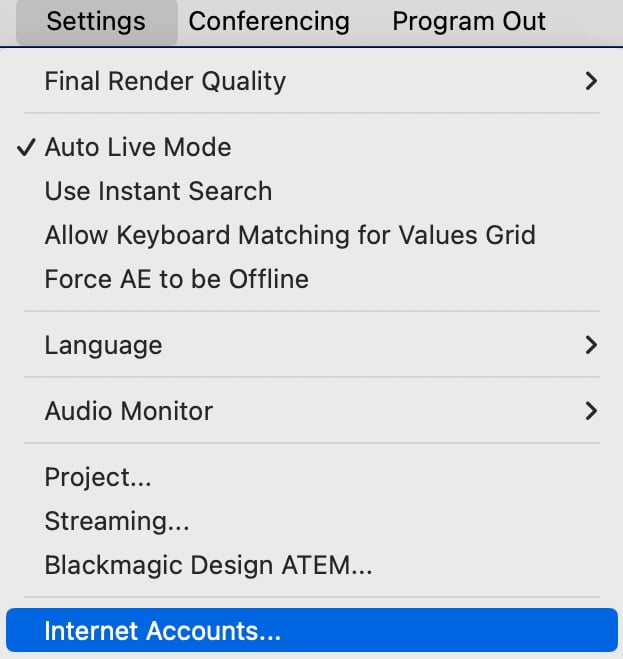
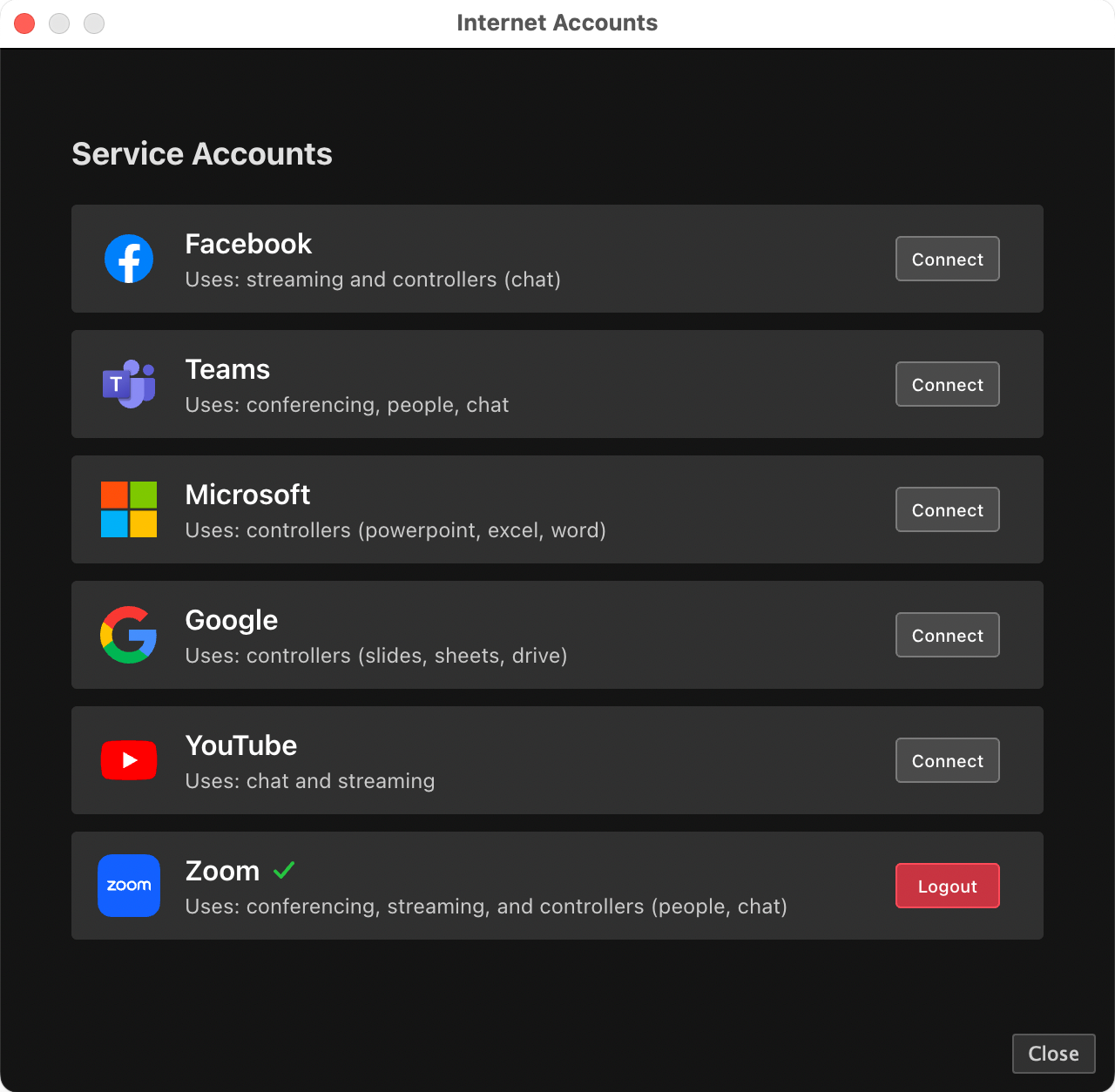
To make managing these accounts easier and improve your overall user experience, we’ve introduced a global **Service Accounts** panel (reached via **Settings > Internet Accounts**). The Service Accounts panel provides a consolidated view, which is helpful for authenticating all internet credentials at once and for checking the status of your accounts. This panel centralizes account setup for our newest updated integrations, allowing Data Controllers to share and persist credentials to avoid multiple logins.
* [Setting up your Service Accounts panel](#setting-up-your-service-accounts-panel)
* [Convenience Paths](#convenience-paths)
## Setting up your Service Accounts panel
1. Select **Settings** > **Internet Accounts**.
2. Click **Connect** to authenticate an account.
When you click the **Connect** button in Captivate, it will open an external browser with the login page for the associated service (e.g., Facebook). The external browser is necessary because many services no longer allow embedded browsers for logging in. This development ensures a more secure login process.
3. Once the login is complete, close the browser page and return to Captivate.
Upon successful authentication, the **Connect** button next to the targeted service will turn red and be labelled as **Logout**.
**📌 NOTE**\
Click **Logout** to remove authentication from an account. Logging out will clear the credentials for the associated service.
## Convenience Paths
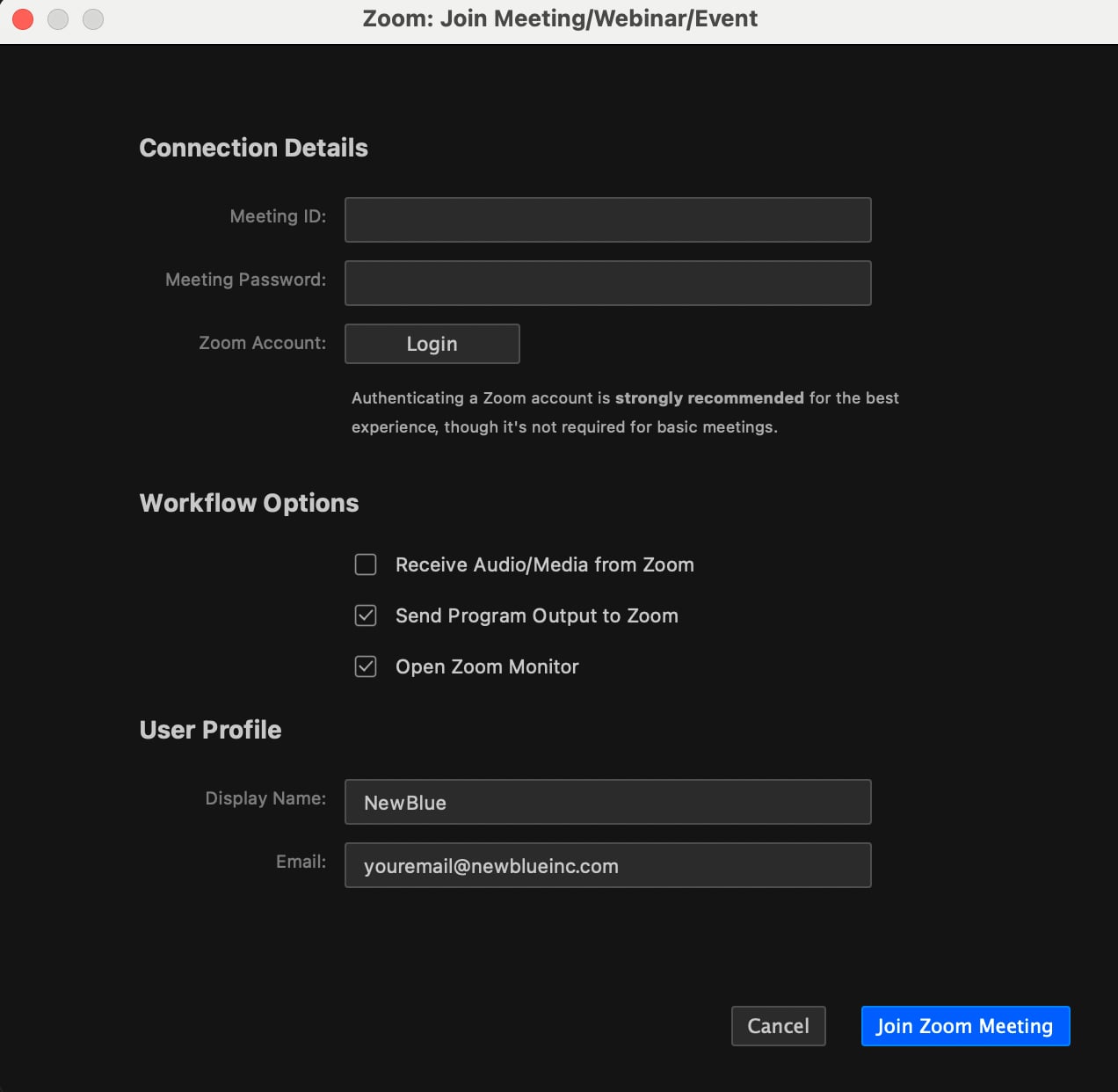
Where it makes sense for convenience, we provide shortcuts for authenticating an account. For example, inside the Zoom dialogues we provide quick access to account login/logout. This helps keep your workflow running smoothly.
{% hint style="info" %}
The authentication will automatically attempt to refresh credentials. If you haven’t used Captivate for many days, your credentials may expire, requiring you to log in again. In such cases, the authentication system will automatically remove the expired credentials.
{% endhint %}
---
# Agent Instructions
This documentation is published with GitBook. GitBook is the documentation platform designed so that both humans and AI agents can read, navigate, and reason over technical content effectively. Learn more at gitbook.com.
## Querying This Documentation
If you need additional information that is not directly available in this page, you can query the documentation dynamically by asking a question.
Perform an HTTP GET request on the current page URL with the `ask` query parameter, and the optional `goal` query parameter:
```
GET https://captivatehelp.newbluelive.com/play-and-update-graphics/chapter-index-3/authenticate-your-internet-accounts.md?ask=&goal=
```
`ask` is the immediate question: it should be specific, self-contained, and written in natural language.
`goal` is optional and describes the broader end goal you are ultimately trying to accomplish on behalf of the user. GitBook uses it to tailor the answer towards what is most useful for that goal.
The response will contain a direct answer to the question and relevant excerpts and sources from the documentation.
Use this mechanism when the answer is not explicitly present in the current page, you need clarification or additional context, or you want to retrieve related documentation sections.