> For the complete documentation index, see [llms.txt](https://captivatehelp.newbluelive.com/llms.txt). Markdown versions of documentation pages are available by appending `.md` to page URLs; this page is available as [Markdown](https://captivatehelp.newbluelive.com/play-and-update-graphics/chapter-index-2/legacy-xml-controller.md).
# Legacy XML controller
**❗ IMPORTANT**\
This page documents the **legacy** XML controller (the Qt/C++ `CSVFileReaderHandler` registered as **General > XML** and **Sports > XML**, plus the related `XMLFileReaderHandler` for sports-XML control documents). It is retained so existing projects continue to open. For new projects, use [Tables](/play-and-update-graphics/chapter-index-1/tables-overview.md) — the unified Tables controller reads XML via **Browse** or **Open URL** in **Load New Data** and is the supported path forward. The legacy XML menu entry may be removed in a future release.
Captivate can display data from incoming XML feeds, such as Scoreboard OCR and other sources that write real-time data to XML files. This data can be assigned to design elements such as text and updated in real time.
## Add a legacy XML input
1. In Captivate’s playout interface, open a project (if one isn’t already open) and select a graphic in the Project List.
**💡 TIP**\
Open the Graphics Library panel and drag a graphic from the library to your channel. To customize variables, see [Create variables in graphics](/design-and-customize-graphics/chapter-index-4/create-variables-in-graphics.md).
2. Click the **Select a Datasource** cell in the Data Controller column and choose **General** > **XML** > **New Input** (or **Sports** > **XML** > **New Input** if a sports-graphic input list is open).
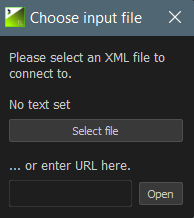
3. A dialog prompts you to either select an XML file from your computer or enter a URL hosting your XML data.
Enter the **URL** of the XML file on your local network or FTP location, or click **Select file** and pick the XML file.
**💡 TIP**\
**FTP syntax:** The URL form is `ftp://username:password@server.com/path/file.xml`. You can also use an IP address after `@` instead of a hostname.
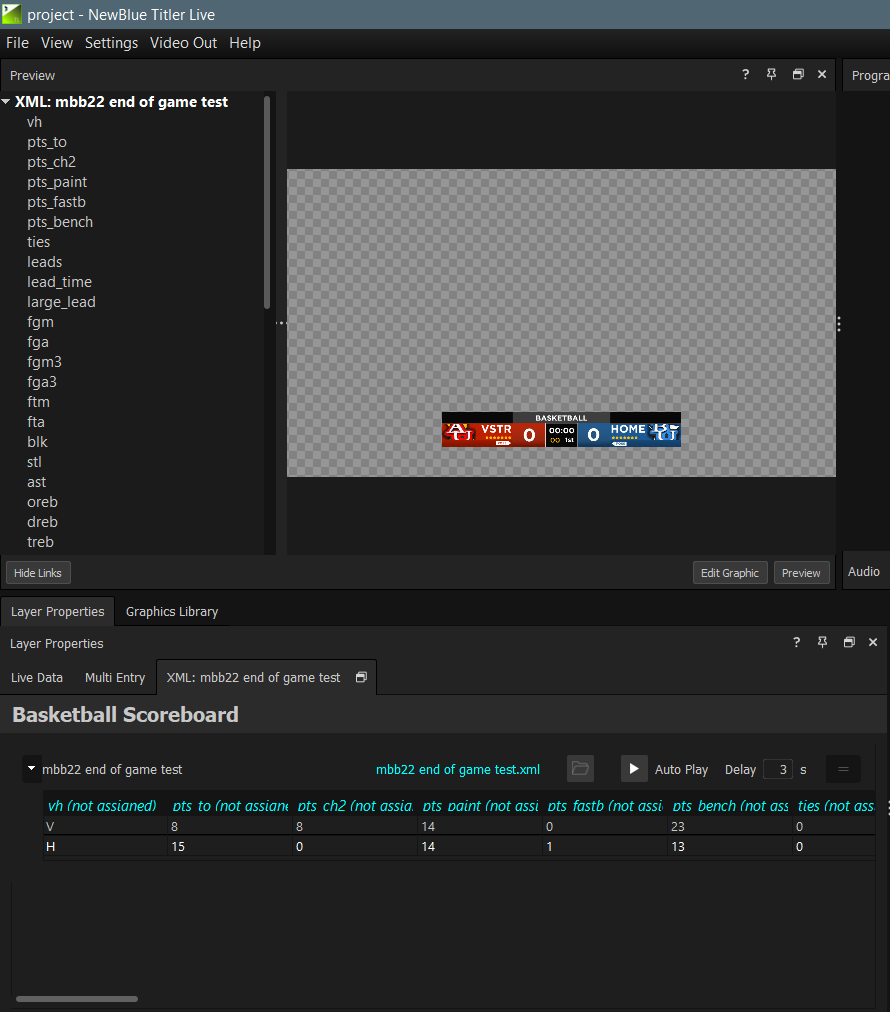
4. The XML data and its variables appear in the **Link Data** sidebar in the **Preview** panel. Click **Link Data** to view the XML input and variables.
5. Click and drag an XML variable onto an object in the graphic. Repeat for each variable you want to include in the graphic.
**💡 TIP**\
To disconnect a variable, right-click it in the **Preview** panel and choose **Disconnect variable**.
The XML data is now visible in the graphic. Captivate updates the graphic as the underlying data changes.
## How Captivate reads XML
The legacy XML handler auto-flattens the document into a table by heuristic. There is no XPath, attribute selector, or `text()` selector — you cannot ask for a specific node by selector.
* Repeated elements are read as rows; an element’s children and attributes become columns.
* The parser defaults to **400 keys** maximum and a **max depth of 3**. Heavily nested documents (sports XML with deep schedule trees, league-wide rosters, multi-day stats) may not produce the columns you expect.
* For sports feeds that ship with a **control document** (a separate XML that maps title-variable placeholders to XPath-like expressions), use the **Sports > XML** menu entry — the dialog accepts both the control document and the live data file.
* If the generated columns are not what you want, reshape the feed upstream (export a flatter XML) or convert to CSV/XLSX and load through the modern Tables controller.
## Refresh behavior
How Captivate picks up new data depends on the source:
* **Local files** — Captivate watches the file via the OS file-change events and reloads automatically when the file is rewritten.
* **URL / FTP sources** — Captivate fetches once at load. Click the **Refresh** / **Reload** control in the input’s settings to pull a fresh copy, or use the input’s Auto Refresh interval if exposed for that source.
## Migration to the new Tables controller
If you maintain a project that currently uses **General > XML**, you can switch to [Tables: Row](/play-and-update-graphics/chapter-index-1/drive-a-graphic-with-tables-row.md) or **Tables: Block** without changing the source file: choose **Productivity > Tables: Row > New Input**, click **Browse** to pick the same XML file, and re-link the variables to your graphic. The Tables grid then exposes column sorting, header context menus, and Auto Refresh that the legacy handler does not.
The control-document workflow for sports XML feeds remains specific to the legacy **Sports > XML** path. If your project depends on a control document, keep the legacy input until product publishes a Tables-side equivalent.
## See also
* [Legacy data controllers](/play-and-update-graphics/chapter-index-2.md) — chapter overview
* [Tables](/play-and-update-graphics/chapter-index-1/tables-overview.md) — modern Tables controller
* [Legacy JSON controller](/play-and-update-graphics/chapter-index-2/legacy-json-controller.md) — sibling article for JSON feeds
---
# Agent Instructions
This documentation is published with GitBook. GitBook is the documentation platform designed so that both humans and AI agents can read, navigate, and reason over technical content effectively. Learn more at gitbook.com.
## Querying This Documentation
If you need additional information that is not directly available in this page, you can query the documentation dynamically by asking a question.
Perform an HTTP GET request on the current page URL with the `ask` query parameter, and the optional `goal` query parameter:
```
GET https://captivatehelp.newbluelive.com/play-and-update-graphics/chapter-index-2/legacy-xml-controller.md?ask=&goal=
```
`ask` is the immediate question: it should be specific, self-contained, and written in natural language.
`goal` is optional and describes the broader end goal you are ultimately trying to accomplish on behalf of the user. GitBook uses it to tailor the answer towards what is most useful for that goal.
The response will contain a direct answer to the question and relevant excerpts and sources from the documentation.
Use this mechanism when the answer is not explicitly present in the current page, you need clarification or additional context, or you want to retrieve related documentation sections.