> For the complete documentation index, see [llms.txt](https://captivatehelp.newbluelive.com/llms.txt). Markdown versions of documentation pages are available by appending `.md` to page URLs; this page is available as [Markdown](https://captivatehelp.newbluelive.com/get-started/welcome/start-screen.md).
# The Quick Start dialog
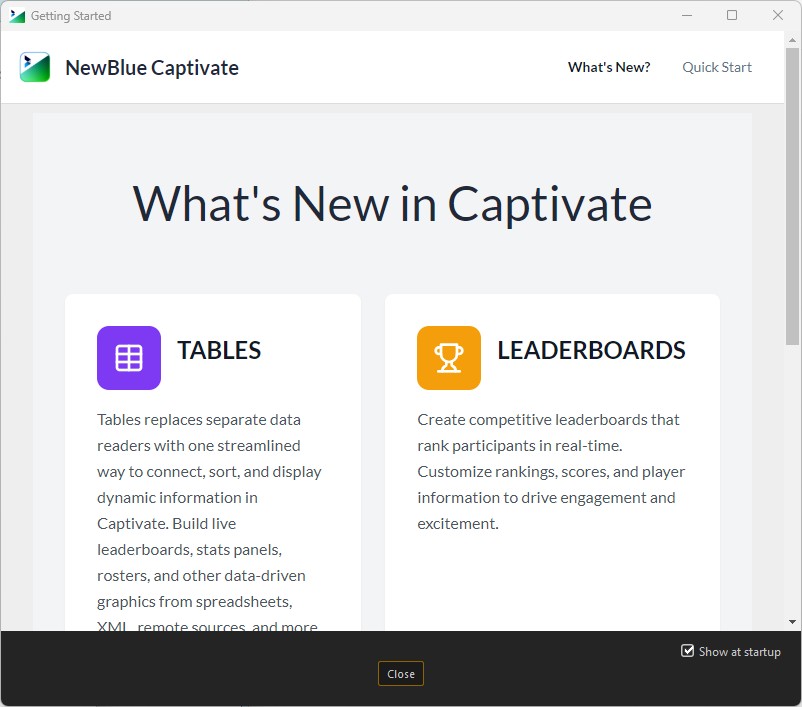
The Quick Start dialog is the welcome window Captivate opens when it starts. It links to tutorial videos, release notes, the help site, and other getting-started resources.
You don’t need to interact with it. Close it and continue — Captivate is fully usable underneath.
{% hint style="info" %}
Quick Start does not create or open projects. The **File** menu inside the main Captivate interface handles **New Project**, **Open Project**, and **Open Recent**.
{% endhint %}
## Turn Quick Start off
1. With the Quick Start dialog open, clear the **Show at startup** checkbox at the bottom of the window.
2. Click **Close**.
Captivate remembers the choice for the rest of the current major release. When you upgrade to a new major version, Quick Start opens again on first launch so you can see what’s new — even if you turned it off in the previous version.
## Open Quick Start again
To open Quick Start after you’ve turned it off, use the **Help** menu inside Captivate.
## When Quick Start doesn’t show
If you see the **Activation Is Required** dialog instead, activation hasn’t completed yet. Finish activation; Quick Start appears on the next launch. See [Activation flow reference](/reference/license-activation-flow.md).
If the panel appears blank or shows an error, the computer is offline. Quick Start loads its content from the internet — close the window and continue working normally. This does not affect Captivate’s ability to run shows.
## Related
* [Put your first graphic on air](/get-started/welcome/first-graphic-smoke-test.md) — the next step after Quick Start.
* [Activation flow reference](/reference/license-activation-flow.md) — what to do when the **Activation Is Required** dialog also shows.
---
# Agent Instructions
This documentation is published with GitBook. GitBook is the documentation platform designed so that both humans and AI agents can read, navigate, and reason over technical content effectively. Learn more at gitbook.com.
## Querying This Documentation
If you need additional information that is not directly available in this page, you can query the documentation dynamically by asking a question.
Perform an HTTP GET request on the current page URL with the `ask` query parameter, and the optional `goal` query parameter:
```
GET https://captivatehelp.newbluelive.com/get-started/welcome/start-screen.md?ask=&goal=
```
`ask` is the immediate question: it should be specific, self-contained, and written in natural language.
`goal` is optional and describes the broader end goal you are ultimately trying to accomplish on behalf of the user. GitBook uses it to tailor the answer towards what is most useful for that goal.
The response will contain a direct answer to the question and relevant excerpts and sources from the documentation.
Use this mechanism when the answer is not explicitly present in the current page, you need clarification or additional context, or you want to retrieve related documentation sections.