> For the complete documentation index, see [llms.txt](https://captivatehelp.newbluelive.com/llms.txt). Markdown versions of documentation pages are available by appending `.md` to page URLs; this page is available as [Markdown](https://captivatehelp.newbluelive.com/get-started/chapter-index/application-manager.md).
# About the NewBlue Application Manager
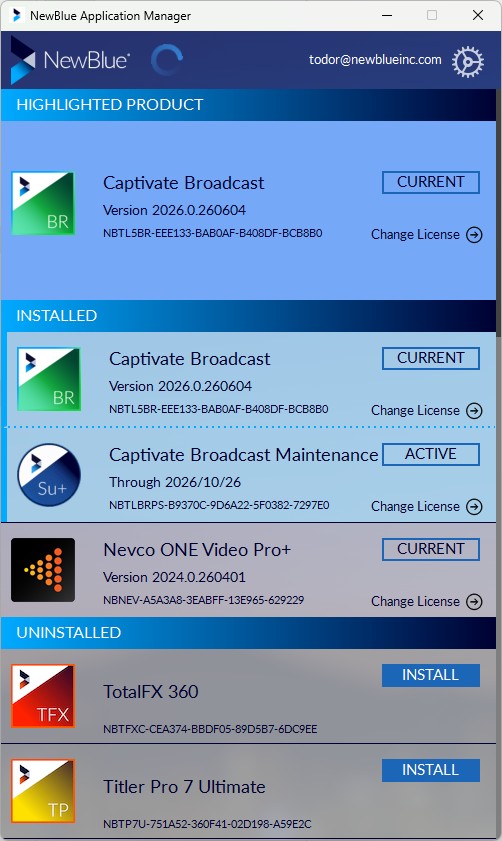
The NewBlue Application Manager is a companion app installed with Captivate. Captivate uses it for sign-in, license activation, seat management, and update checks for NewBlue products on the machine.
You use the Application Manager to activate Captivate.
The Application Manager opens in its own window. Captivate launches it when activation is needed, and you can also open it from the **Help** menu or directly from the operating system.
* [What the Application Manager does](#what-the-application-manager-does)
* [Where to find it](#where-to-find-it)
* [How to open it](#how-to-open-it)
* [What happens after activation](#what-happens-after-activation)
## What the Application Manager does
* Signs you in to your NewBlue account and remembers the session.
* Activates your Captivate license with your serial number.
* Manages seats — deactivating this machine and reactivating on another.
* Helps you activate Captivate on a computer without internet access.
* Checks for product updates and installs them.
* Shows which NewBlue products are installed and their license state.
The Application Manager doesn’t run productions, hold project files, or interact with graphics. Everything related to making and playing graphics lives in Captivate itself.
## Where to find it
The Application Manager is installed with Captivate. After install, find it at:
* **Windows:** a **NewBlue Application Manager** entry in the Start menu, backed by `ApplicationManager.exe`.
* **macOS:** `NewBlue Application Manager.app` in `/Applications`.
If the Application Manager is missing, damaged, or NewBlue Support asks you to reinstall it, download the latest version from your NewBlue account page.
## How to open it
You can open the Application Manager three ways:
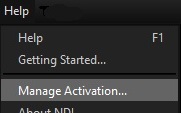
1. **From Captivate.** Open the **Help** menu and choose **Manage Activation…**.
2. **Directly.** Click the **NewBlue Application Manager** entry in the Windows Start menu, or open `NewBlue Application Manager.app` from `/Applications` on macOS.
3. **From the Activation Is Required dialog.** If Captivate shows the **Activation Is Required** dialog, click **Launch Application Manager**.
The Application Manager allows only one running instance per machine. Launching it a second time brings the existing window to the front.
## What happens after activation
After activation succeeds, Captivate usually updates its license status within a few seconds. You don’t need to restart Captivate in most cases.
Captivate and the Application Manager open and close independently — closing one does not close the other. Sign out and deactivation can finish in the Application Manager even after Captivate has been quit.
Some NewBlue website or email links may open the Application Manager automatically.
**💡 TIP**
Sign-in is by NewBlue email and password only. There is no Apple ID, Google, or Microsoft single sign-on path.
## Next step
[Activate Captivate](/get-started/chapter-index/activate-the-product.md) — sign in and activate your license.
## Related
* [Activation flow reference](/reference/license-activation-flow.md) — what triggers online, offline, deactivation, and seat-move paths, and how to read the banner state.
---
# Agent Instructions
This documentation is published with GitBook. GitBook is the documentation platform designed so that both humans and AI agents can read, navigate, and reason over technical content effectively. Learn more at gitbook.com.
## Querying This Documentation
If you need additional information that is not directly available in this page, you can query the documentation dynamically by asking a question.
Perform an HTTP GET request on the current page URL with the `ask` query parameter, and the optional `goal` query parameter:
```
GET https://captivatehelp.newbluelive.com/get-started/chapter-index/application-manager.md?ask=&goal=
```
`ask` is the immediate question: it should be specific, self-contained, and written in natural language.
`goal` is optional and describes the broader end goal you are ultimately trying to accomplish on behalf of the user. GitBook uses it to tailor the answer towards what is most useful for that goal.
The response will contain a direct answer to the question and relevant excerpts and sources from the documentation.
Use this mechanism when the answer is not explicitly present in the current page, you need clarification or additional context, or you want to retrieve related documentation sections.