> For the complete documentation index, see [llms.txt](https://captivatehelp.newbluelive.com/llms.txt). Markdown versions of documentation pages are available by appending `.md` to page URLs; this page is available as [Markdown](https://captivatehelp.newbluelive.com/get-started/chapter-index-2/properties-panel.md).
# Properties panel
The Properties panel is where you actively manage the selected Project List item — every value, variation, transition, and playback detail it exposes lives here. Press **F3** to show or hide it.
The panel changes based on what you select. The tab bar across the top shows the tabs available for the selected item, and the item’s name appears under the tab bar. A graphic, media clip, live input, Shot Layout, and transition can each show a different set of tabs. If only one tab applies, the tab bar is hidden.
## Two tabs handle most value changes
For graphics, media clips, and live inputs, most value changes happen in two tabs:
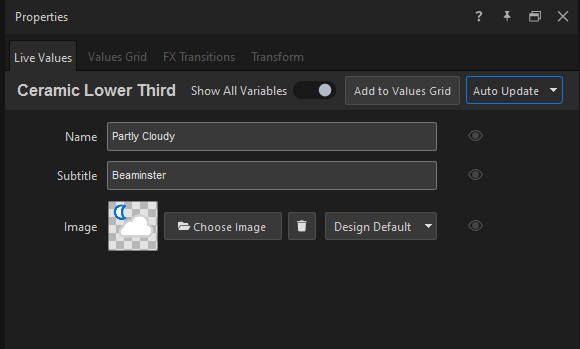
* **Live Values** — the current values shown by the selected item. Use it to edit text in a lower third, swap a headshot, or change a color. See [Live Values tab](/control-your-show/chapter-index/live-data-tab.md).
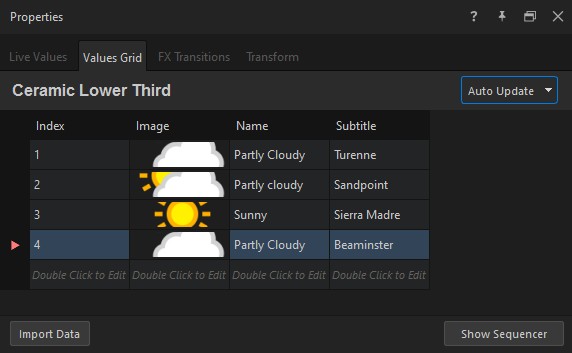
* **Values Grid** — prepared rows of values you can play during the show. For graphics, each row can hold a different variation. For live inputs, rows switch the input source. See [Values Grid tab](/get-started/chapter-index-2/values-grid-tab-reference.md).
The remaining tabs are item-specific — transition overrides for graphics, the clip list for media sequences, source settings for live inputs. They’re listed by item type below.
## How value changes reach Program
The **Auto Update** dropdown in the top-right corner of the value tabs decides when your changes reach Program:
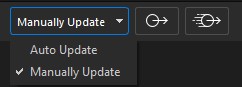
* **Auto Update** (default) — changes in **Live Values** or the **Values Grid** update Program immediately.
* **Manually Update** — Captivate holds your changes so you can check them in the Preview panel before sending them to Program. Two buttons in the panel header send the held values: **Update changes without animation** sends them immediately with no animation — useful when fixing a typo — and **Update changes with animation** sends them and plays the graphic’s update animation.
Next to the dropdown on the Live Values tab, **Add to Values Grid** captures the current Live Values as a new row in the grid — a quick way to build up variations as you work.
## Tabs by item type
### Graphics
* **Live Values** — the values shown by the graphic, with the **Show All Variables** toggle and the **Add to Values Grid** button. See [Live Values tab](/control-your-show/chapter-index/live-data-tab.md).
* **Values Grid** — prepared rows of values for the graphic. See [Values Grid tab](/get-started/chapter-index-2/values-grid-tab-reference.md).
* **FX Transitions** — graphic-specific play and update transitions, when supported by the graphic and included in your license. See [Set graphic transition overrides](/set-up-your-production/chapter-index-3/graphic-transition-overrides.md).
* **Transform** — adjust position, scale, fit behavior, or zone assignment without editing the original design. See [Move and resize items for Program](/set-up-your-production/position-and-fit-items-in-program.md).
### Media clips and media sequences
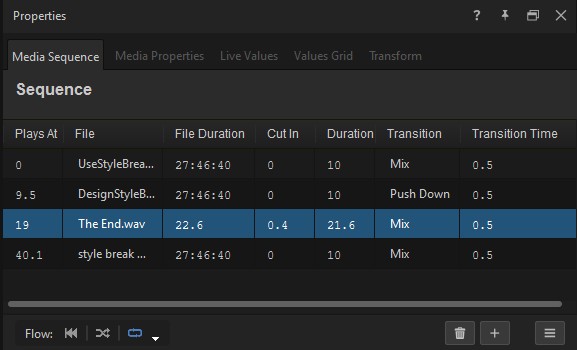
* **Media Sequence** — the list of clips and playback flow controls. See [Create a media sequence](/design-and-customize-graphics/chapter-index-7/create-a-media-sequence.md).
* **Media Properties** — the clip’s **Playback Role** and, for sequences, the **Sequence Type** (Continuous Sequence or Media List). See [Assign playback roles for media clips](/design-and-customize-graphics/chapter-index-7/assigning-a-playback-role-for-media-clips.md).
* **Live Values**, **Values Grid**, and **Transform** also appear, as they do for graphics.
### Live inputs
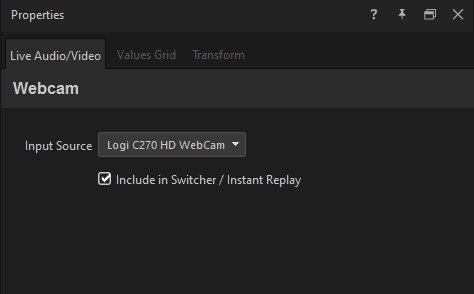
* **Live Audio/Video** — the input source picker and per-source settings. See [Use live video sources](/set-up-your-production/chapter-index-2/play-live-video-source-layers.md).
* Source-specific tabs appear for some input types: **Browser**, **RTMP Settings**, **SRT Settings**, and so on.
* **Values Grid** — for live inputs, the grid rows switch the input source. See [Values Grid tab](/get-started/chapter-index-2/values-grid-tab-reference.md).
* **Transform** — for live inputs this holds **Fit Mode** and **Fill Color** rather than position and scale. See [Move and resize items for Program](/set-up-your-production/position-and-fit-items-in-program.md).
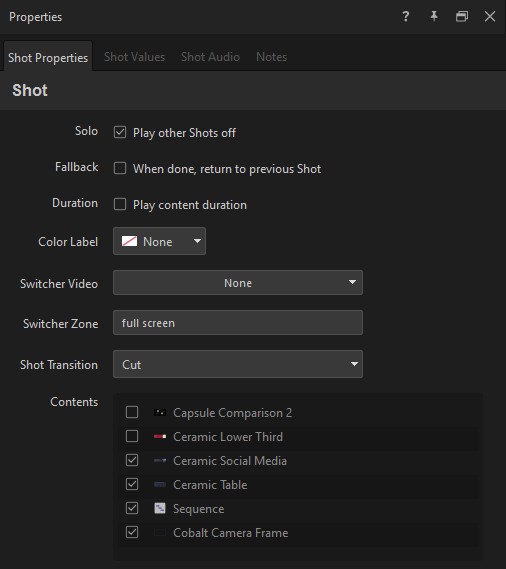
### Shot Layouts
* **Shot Properties** — the Shot’s behavior and contents.
* **Shot Values** — variables for the graphics inside the Shot.
* **Shot Audio** — per-item audio faders inside the Shot.
* **Notes** — operator notes attached to the Shot.
See [Create Shot Layouts](/control-your-show/chapter-index-1/creating-shot-layouts.md).
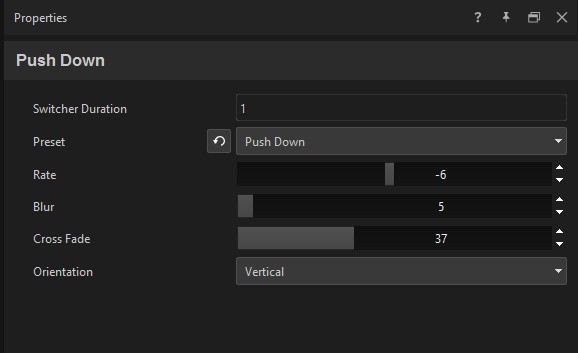
### Transitions
A transition shows one settings area with no tab bar — duration, preset, and controls for the selected preset.
See [Set up transitions](/set-up-your-production/chapter-index-3/setting-up-transitions.md).
## Workflows are the exception
Workflow items — Media Manager, Media Tracker, and the other dedicated workflows — don’t use the Properties panel at all. Each opens its own panel and does not depend on the current Properties selection. See [Dedicated Workflows](/control-your-show/chapter-index-2.md).
## Related
* [Live Values tab](/control-your-show/chapter-index/live-data-tab.md)
* [Values Grid tab](/get-started/chapter-index-2/values-grid-tab-reference.md)
* [Set graphic transition overrides](/set-up-your-production/chapter-index-3/graphic-transition-overrides.md)
* [Move and resize items for Program](/set-up-your-production/position-and-fit-items-in-program.md)
* [Designer Properties panel](/design-and-customize-graphics/chapter-index-1/designer-properties-panel.md)
---
# Agent Instructions
This documentation is published with GitBook. GitBook is the documentation platform designed so that both humans and AI agents can read, navigate, and reason over technical content effectively. Learn more at gitbook.com.
## Querying This Documentation
If you need additional information that is not directly available in this page, you can query the documentation dynamically by asking a question.
Perform an HTTP GET request on the current page URL with the `ask` query parameter, and the optional `goal` query parameter:
```
GET https://captivatehelp.newbluelive.com/get-started/chapter-index-2/properties-panel.md?ask=&goal=
```
`ask` is the immediate question: it should be specific, self-contained, and written in natural language.
`goal` is optional and describes the broader end goal you are ultimately trying to accomplish on behalf of the user. GitBook uses it to tailor the answer towards what is most useful for that goal.
The response will contain a direct answer to the question and relevant excerpts and sources from the documentation.
Use this mechanism when the answer is not explicitly present in the current page, you need clarification or additional context, or you want to retrieve related documentation sections.