> For the complete documentation index, see [llms.txt](https://captivatehelp.newbluelive.com/llms.txt). Markdown versions of documentation pages are available by appending `.md` to page URLs; this page is available as [Markdown](https://captivatehelp.newbluelive.com/get-started/chapter-index-2/library-panel.md).
# Library panel
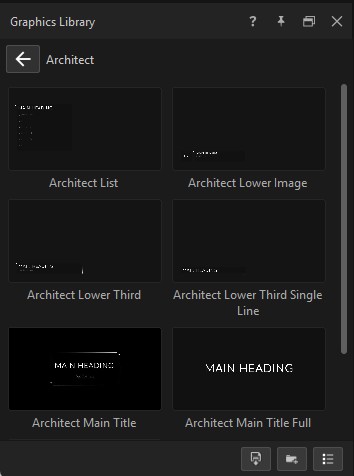
The Library panel — titled **Graphics Library** in its dock — lists title design templates you can drag into the Project List. Press **F4** to show or hide the Library, or click the **Library** button on the top bar.
## What the Library contains
The Library holds the title design templates bundled with Captivate, any add-on collections you’ve installed, and the custom titles you’ve saved. Templates are organized into folders (categories), and folders appear as icons in the same grid as the templates.
The panel shows:
* A **back** button at the top, with the current folder’s name next to it.
* A grid of thumbnails — folder icons and title design templates.
In the bottom-right corner, three buttons:
* **Save current title here** — saves the active title design into the current folder.
* **New category** — creates a user folder.
* **View mode** — toggles between icon and list view.
## Browse and preview
1. Double-click a folder icon to open it.
2. Click the **back** button to go up a level.
3. To preview a title design, move the mouse over its thumbnail. After a short delay, Captivate plays the title’s animation in the Preview panel. Move the mouse away from the thumbnail to stop the preview.
The Library has no search field. Navigate to templates by folder.
## Add a graphic to your show
1. Find the template in the Library.
2. Click and drag its thumbnail onto the **Project List**. A new layer is added at the drop position.
You can select multiple thumbnails (Shift-click or Ctrl/Cmd-click) and drag them together.
## Save the current title to the Library
1. In the Library, navigate to the folder where you want the title design saved. Create a new user folder first if needed.
2. Click **Save current title here** in the bottom-right corner. The active title design is added to that folder.
## Create, rename, and delete user folders
User folders are categories you create in your own library, alongside the bundled ones.
1. Navigate to the parent location where the new folder should live.
2. Click **New category** in the bottom-right corner.
3. Type a name for the folder.
To rename a user folder, right-click its icon and choose **Rename**. To delete one, right-click and choose **Delete**; Captivate asks you to confirm, then removes the folder and any titles inside it. Bundled folders cannot be renamed or deleted.
## Switch view modes
Click the **view mode** button in the bottom-right corner to switch between icon view (large thumbnails) and list view (small icon plus name). The choice is remembered per folder.
## Related
* [Project List panel](/get-started/chapter-index-2/project-list-panel-and-channel-management.md)
* [Properties panel](/get-started/chapter-index-2/properties-panel.md)
* [Designer Workspace panel](/design-and-customize-graphics/chapter-index-1/designer-workspace-overview.md) — edit a title design.
* [Save graphics and presets to the library](/design-and-customize-graphics/chapter-index-8/save-graphics-and-presets-to-the-library.md) — the design-side save workflows.
---
# Agent Instructions
This documentation is published with GitBook. GitBook is the documentation platform designed so that both humans and AI agents can read, navigate, and reason over technical content effectively. Learn more at gitbook.com.
## Querying This Documentation
If you need additional information that is not directly available in this page, you can query the documentation dynamically by asking a question.
Perform an HTTP GET request on the current page URL with the `ask` query parameter, and the optional `goal` query parameter:
```
GET https://captivatehelp.newbluelive.com/get-started/chapter-index-2/library-panel.md?ask=&goal=
```
`ask` is the immediate question: it should be specific, self-contained, and written in natural language.
`goal` is optional and describes the broader end goal you are ultimately trying to accomplish on behalf of the user. GitBook uses it to tailor the answer towards what is most useful for that goal.
The response will contain a direct answer to the question and relevant excerpts and sources from the documentation.
Use this mechanism when the answer is not explicitly present in the current page, you need clarification or additional context, or you want to retrieve related documentation sections.