> For the complete documentation index, see [llms.txt](https://captivatehelp.newbluelive.com/llms.txt). Markdown versions of documentation pages are available by appending `.md` to page URLs; this page is available as [Markdown](https://captivatehelp.newbluelive.com/design-and-customize-graphics/graphics-library-build-side-reference/graphics-library-overview.md).
# Graphics Library / Library overview
Captivate’s Graphics Library includes collections of all graphics that are installed with Captivate, which can be graphics that come with Captivate, custom graphics you have created and saved to the Graphics Library, and graphics collections you installed separately.
Graphics are available from within the [playout interface](/get-started/chapter-index-2/the-playout-interface.md) and the Designer; however, when you’re working in the Designer, this library is expanded to include presets of styles, effects, transitions, shapes, and lighting so you can quickly apply preset attributes to graphics and their design layers.
Sections in this article:
* [Browse collections of graphics and presets](#browse-collections-of-graphics-and-presets)
* [Preview and use graphics](#preview-and-use-graphics)
* [Preview and use presets](#preview-and-use-presets)
* [Add custom categories to the graphics library / library panel](#add-custom-categories-to-the-graphics-library--library-panel)
* [Save the current graphic to the graphics library / library panel](#save-the-current-graphic-to-the-graphics-library-panel)
## Browse collections of graphics and presets
Choose **View** > **Library** to view the **Library / Graphics Library** panel (if it’s not already visible), then click the **Expand**  icon in the **Library / Graphics Library** panel to browse collections of graphics and presets.
{% hint style="info" %}
The Library is named **Graphics Library** from the playout interface.
{% endhint %}
### Graphics collections in the playout interface
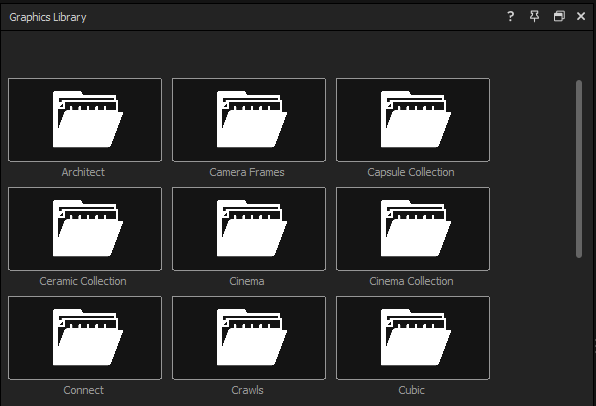
The Graphics Library in the playout interface shows installed graphics collections as folders (Architect, Camera Frames, Caps, and the other bundled folders, plus any add-on collections you’ve installed and your own custom categories). Double-click a folder to open it; see [Library panel](/get-started/chapter-index-2/library-panel.md) for the panel’s full set of controls.
### Preset collections in the Designer
Select one of the following collections from the drop-down list at the top of the Library panel. These collections of presets are only available in the Designer.
* **Effects** — Create animations, warps, and more.
* **Lighting** — Control a scene’s lighting, camera angle, camera width, and more.
* **Shapes** — Add predesigned circles and rectangles.
* **Styles** — Control the look and feel of 2D and 3D layers, including font, alignment, kerning, color, transparency, bevel, extrusion, and more.
* **Transitions** — Add and customize transitions to create in and out animations, fly-ins, warps, zooms, and more.
## Preview and use graphics
1. In the Library panel, double-click a folder in the Graphics Library / Library to view graphics in that collection.
2. Hover your cursor over a thumbnail image to see a preview of the graphic in the Preview panel of the playout interface or in the Designer’s canvas.
3. Double-click a graphic to add it to your project.
**💡 TIP**\
Click the **View Mode**  toggle button to switch between thumbnail and list views of the collection.
## Preview and use presets
1. Open a graphic in the Designer.
2. Select a design layer that you want to change in your graphic.
3. In the Library panel, select a collection of presets from the drop-down list at the top of the panel.
4. If necessary, double-click a folder to view presets within that collection.
5. Hover your cursor over a thumbnail image to see a preview of the preset on the selected layer.
6. Double-click a preset to apply it to the selected layer.
**💡 TIP**\
Click the **View Mode**  toggle button to switch between thumbnail and list views of the collection.
## Add custom categories to the graphics library / library panel
1. Open the Graphics Library / Library panel.
2. Click the **New Category**  icon.
3. Enter a name for the new category.
4. Click **OK**.
## Save the current graphic to the graphics library panel
1. Open the Graphics Library panel.
2. Click the **Save**  icon.
3. Enter a name for the new graphic.
4. Click **Save** to save the current graphic to the current location in the graphics library.
## See also
* [Save graphics and presets to the graphics library / library](/design-and-customize-graphics/chapter-index-8/save-graphics-and-presets-to-the-library.md)
---
# Agent Instructions
This documentation is published with GitBook. GitBook is the documentation platform designed so that both humans and AI agents can read, navigate, and reason over technical content effectively. Learn more at gitbook.com.
## Querying This Documentation
If you need additional information that is not directly available in this page, you can query the documentation dynamically by asking a question.
Perform an HTTP GET request on the current page URL with the `ask` query parameter, and the optional `goal` query parameter:
```
GET https://captivatehelp.newbluelive.com/design-and-customize-graphics/graphics-library-build-side-reference/graphics-library-overview.md?ask=&goal=
```
`ask` is the immediate question: it should be specific, self-contained, and written in natural language.
`goal` is optional and describes the broader end goal you are ultimately trying to accomplish on behalf of the user. GitBook uses it to tailor the answer towards what is most useful for that goal.
The response will contain a direct answer to the question and relevant excerpts and sources from the documentation.
Use this mechanism when the answer is not explicitly present in the current page, you need clarification or additional context, or you want to retrieve related documentation sections.