> For the complete documentation index, see [llms.txt](https://captivatehelp.newbluelive.com/llms.txt). Markdown versions of documentation pages are available by appending `.md` to page URLs; this page is available as [Markdown](https://captivatehelp.newbluelive.com/design-and-customize-graphics/chapter-index-7/create-a-media-sequence.md).
# Create a media sequence
> *Availability — included in Broadcast and Enterprise. Available for Sport as the Media Sequencer add-on.*
In this guide, we’ll walk you through creating and managing a media sequence — the tool for importing, configuring, and arranging media clips into a single playable item. By the end, you’ll have a strong foundation for incorporating dynamic sequences into your projects, such as commercial breaks, demonstrations, event promotions, and sponsor callouts.
For the runtime operator workflow (Start Behavior, Playback Order, Stop Behavior, Hold Point) once a sequence is built, see [Operate a media sequence](/control-your-show/chapter-index/operate-a-media-sequence.md).
* [Creating a new media sequence](#creating-a-new-media-sequence)
* [Continuous Sequence vs. Media List](#continuous-sequence-vs-media-list)
* [Adding media to a sequence](#adding-media-to-a-sequence)
* [Editing a sequence](#editing-a-sequence)
* [Sequence Flow Details](#sequence-flow-details)
* [Additional tools](#additional-tools)
* [Playback Role](#playback-role)
## Creating a new media sequence
1. **Start a New Media Sequence**
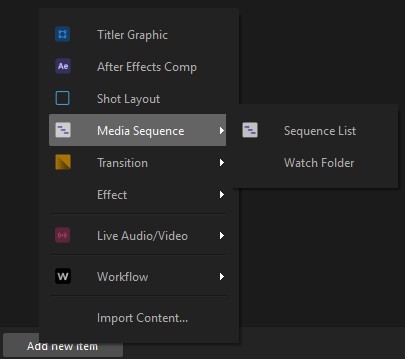
* In the Project panel, click **Add new item** → **Media Sequence** → **Sequence List** (or **Watch Folder** to track a folder of media on disk), or **Import a media file** into your project.
* Imported media will automatically display an icon in the Project Panel indicating the media type (e.g., video or image).
2. **Rename the Sequence**
* New sequences are named by default (e.g., *Sequence 1*). To rename, right-click the sequence and choose **Rename**.
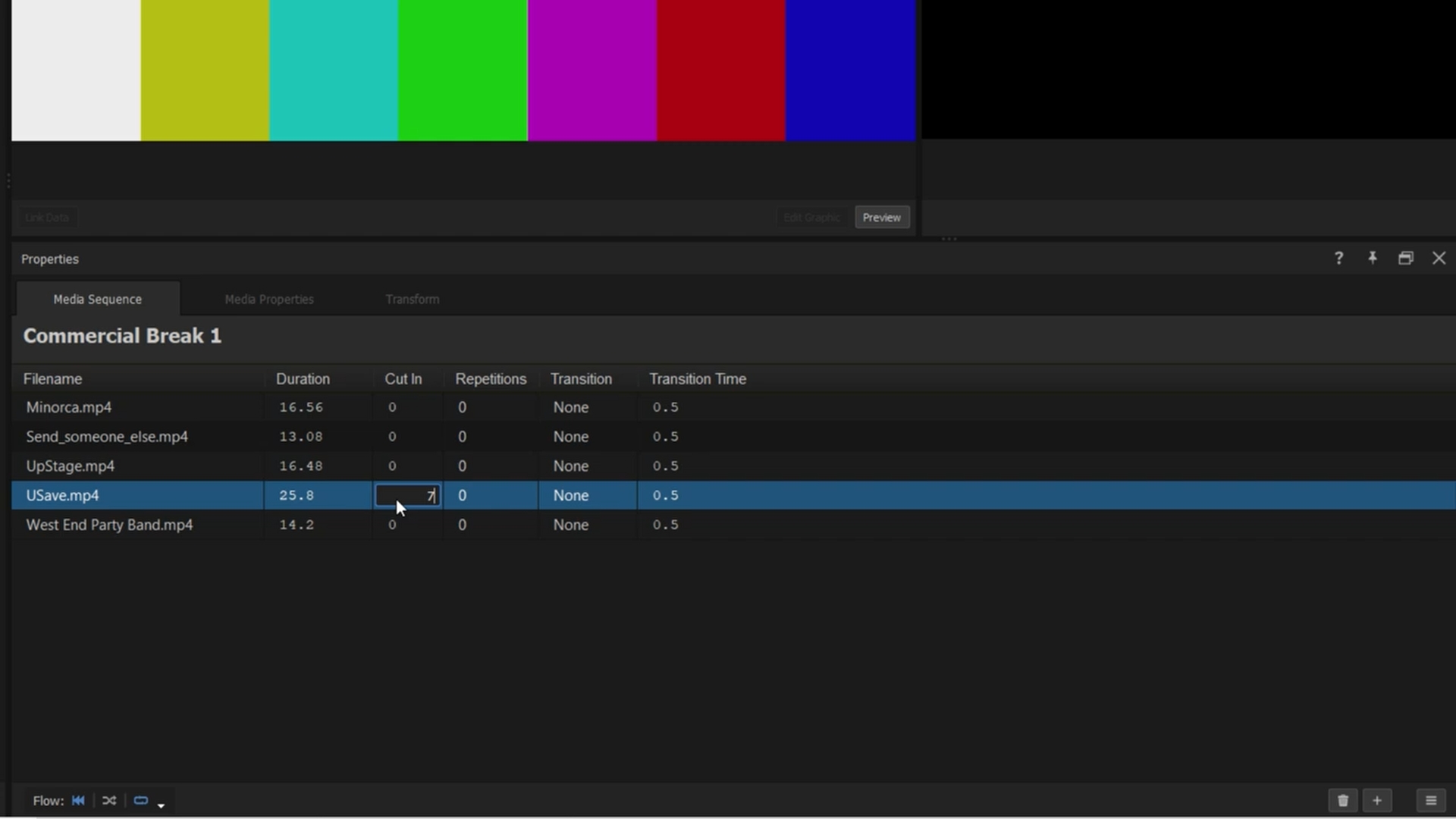
* Example: rename to *Commercial Break 1* for easy identification.
## Sequence List vs. Watch Folder
The **Add new item → Media Sequence** menu offers two creation flows that decide where the sequence’s clip list comes from:
* **Sequence List** — you add clips manually by drag-and-drop or **Add Media**, reorder them inside the Media Sequencer, and remove individual clips. This is the classic media-sequence workflow.
* **Watch Folder** — Captivate opens a **Select Watch Folder** directory picker. After you pick a folder, the sequence mirrors that folder’s contents: media files added to the folder on disk appear in the sequence automatically; files removed from the folder drop out. A folder-badge icon appears next to the sequence header so you can see at a glance that this is a watched sequence.
In Watch Folder mode the manual edit gestures are deliberately hidden:
* **Add Media** is unavailable — the folder on disk is the source of truth.
* **Replace Footage** is unavailable on the per-clip context menu.
* **Clear Sequence** is unavailable — clear the folder instead.
Use Watch Folder for unattended playout where a producer drops files into a shared folder and Captivate picks them up between segments.
## Continuous Sequence vs. Media List
{% hint style="info" %}
Available in Captivate 2026.0 and later.
{% endhint %}
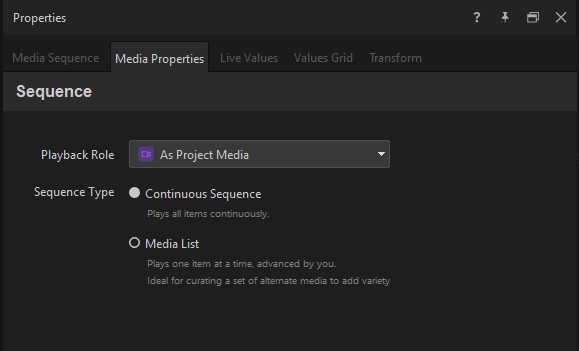
On the **Media Properties** tab of the Properties panel, the **Sequence Type** control offers two radio buttons that pick how the sequence behaves:
* **Continuous Sequence** — the sequence plays its clips in order as one continuous run. This is the classic media sequence behavior; use it for commercial breaks, demos, and anything where one clip flows into the next.
* **Media List** — the sequence is a *list of choices*. Captivate plays one clip at a time when triggered, picking the next according to the **Playback Order** rule below. Use a Media List when you want to step through clips manually (or randomly) instead of running them all back-to-back.
Switching between modes changes the available options in **Sequence Flow Details** below — *Continuous* mode talks about advancing through the whole list, while *Media List* mode talks about which one item plays next.
## Adding media to a sequence
1. **Import Media**
* Add media by clicking the **Add Media** button or by dragging files directly into the Media Sequencer.
* Supported types include video, still images, and audio in various formats.
2. **Configure Media Settings**
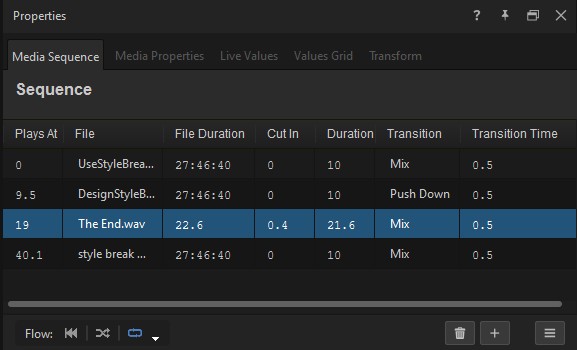
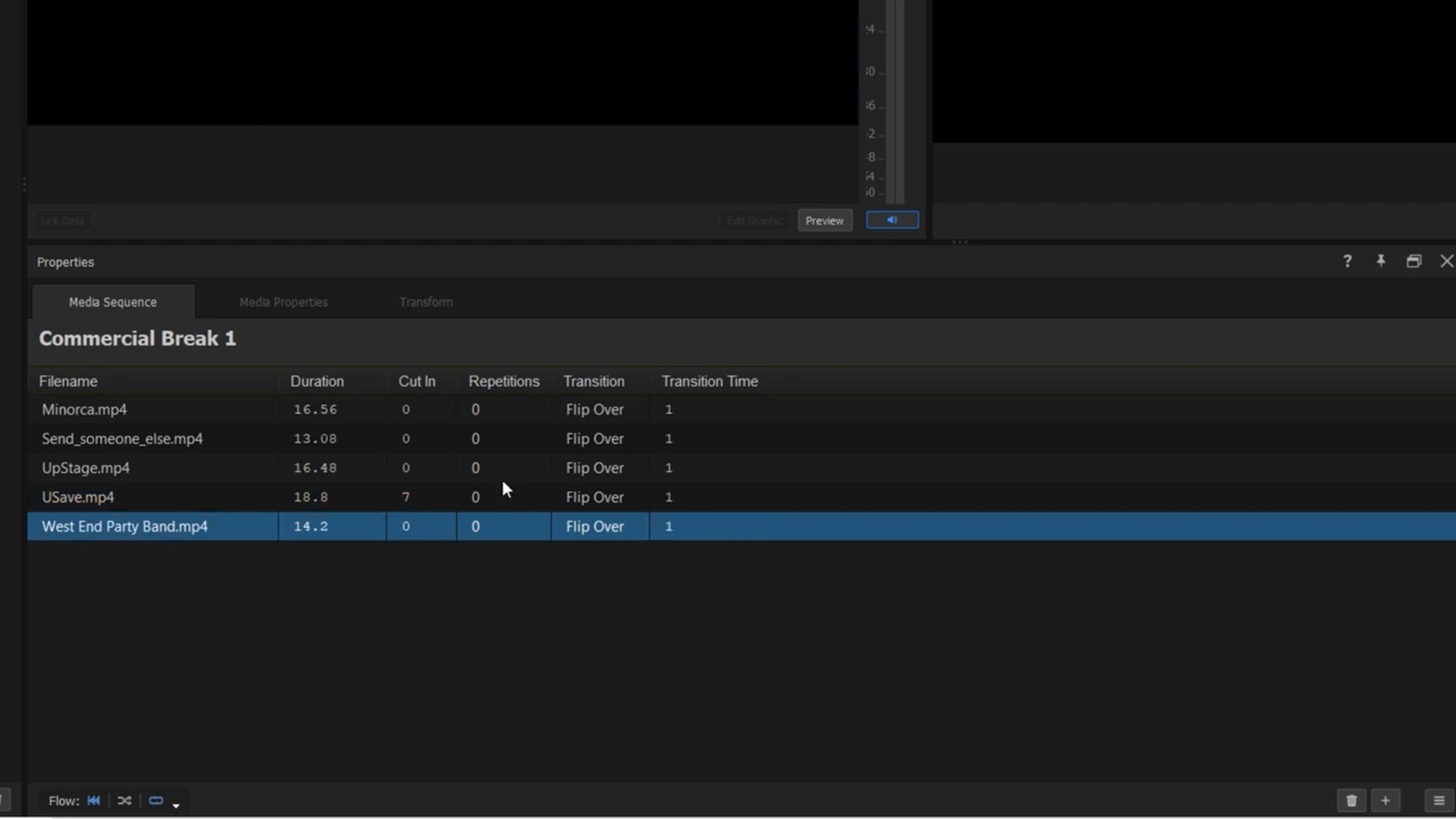
Each clip row in the table has columns for:
* **Plays At** — when the clip starts within the sequence.
* **File** — the source file.
* **File Duration** — the source’s natural length.
* **Cut In** — where the clip starts playing within its source. Skip the first 7 seconds of a video by setting Cut In to 7 seconds.
* **Duration** — how long the clip plays in the sequence. Defaults to File Duration; shorten to trim.
* **Repetitions** — how many times the clip repeats. Default is 0 (plays once).
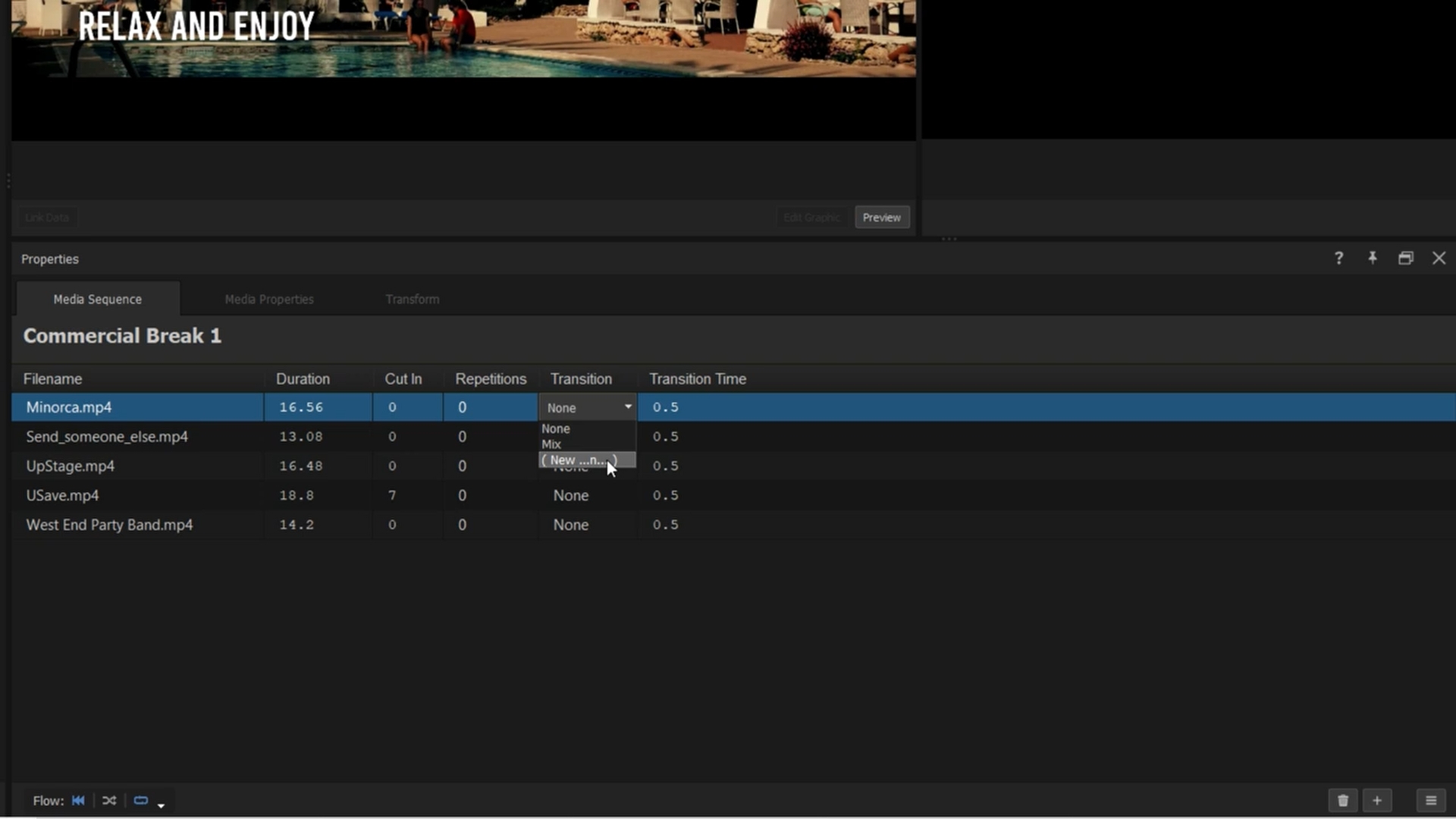
* **Transition** — the transition into this clip from the previous one.
* **Transition Time** — duration of the transition.
* **Hold Point** *(2026.0)* — a freeze point within the clip. When the sequence reaches the Hold Point, playback freezes on that frame until you advance the sequence manually. Useful for quote-of-the-day cards, score cards, and slideshows where you want pacing to be human-driven.
3. **Apply Transitions**
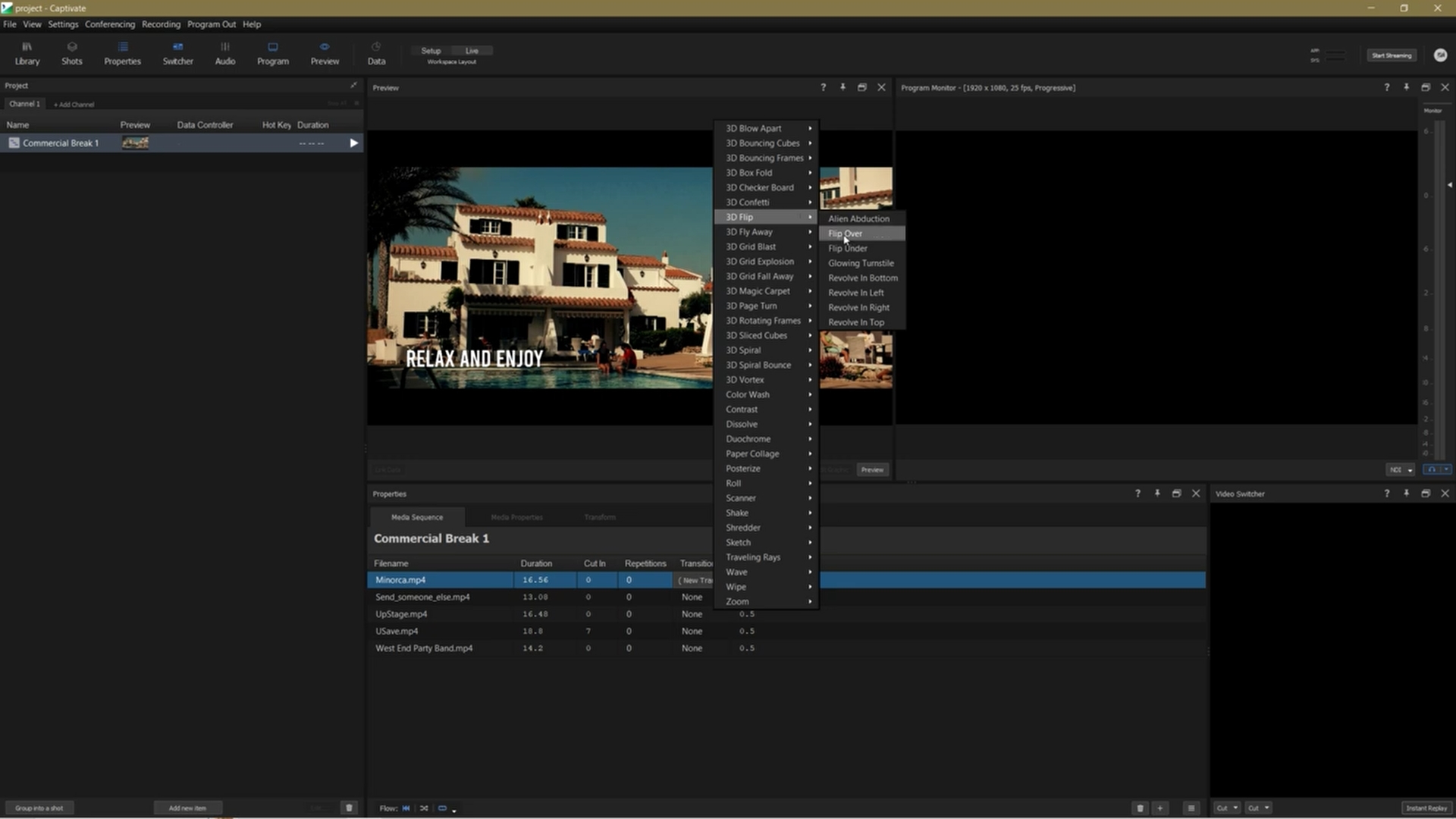
* Apply transitions individually per clip, or globally to all clips in the sequence.
* Choose from the available transitions (cross-fades, 3D flips, custom stingers).
* Adjust transition durations per-clip in the **Transition Time** column.
## Editing a sequence
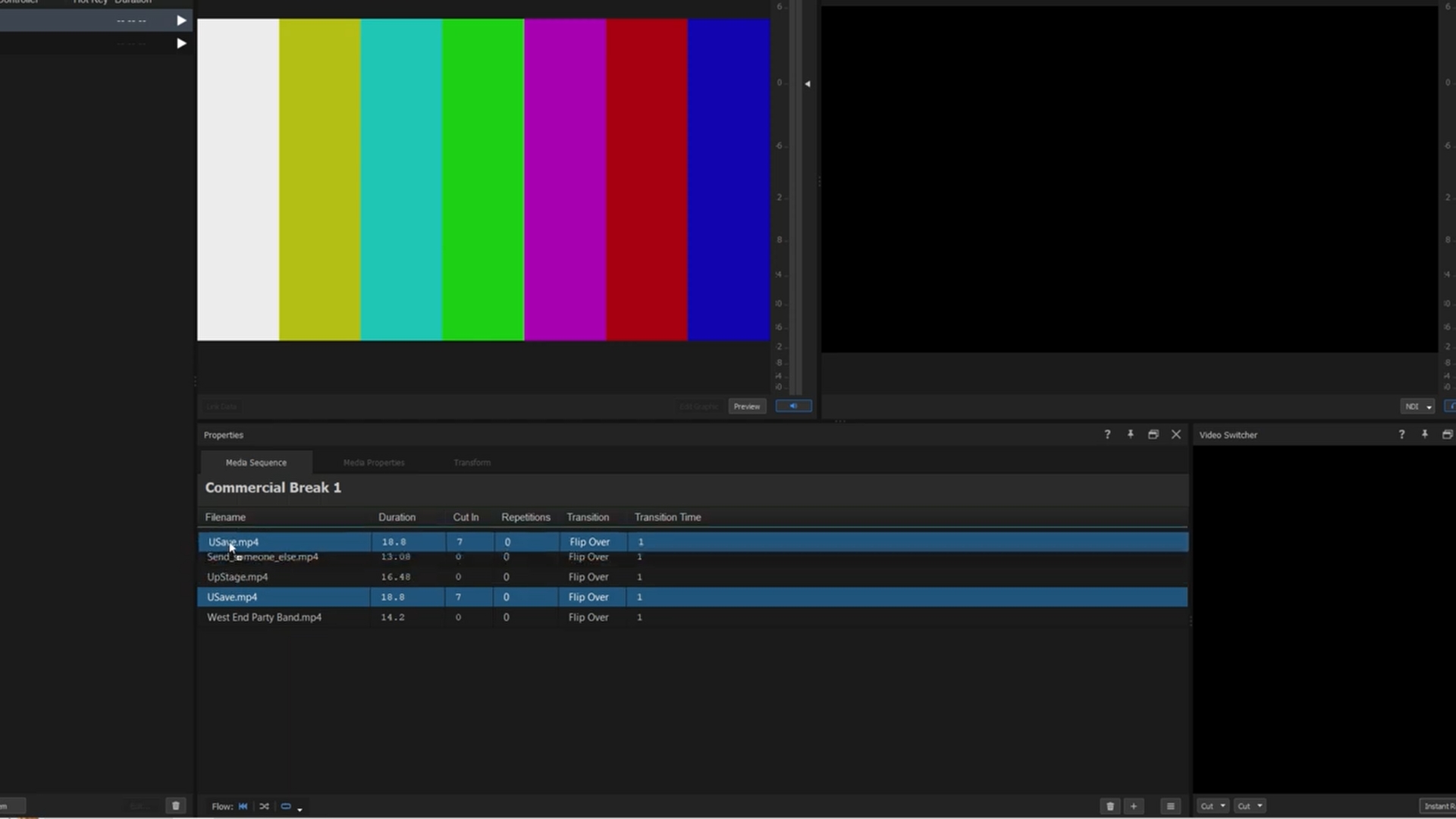
1. **Reordering Clips**
* Drag and drop clips within the sequence to change the playback order.
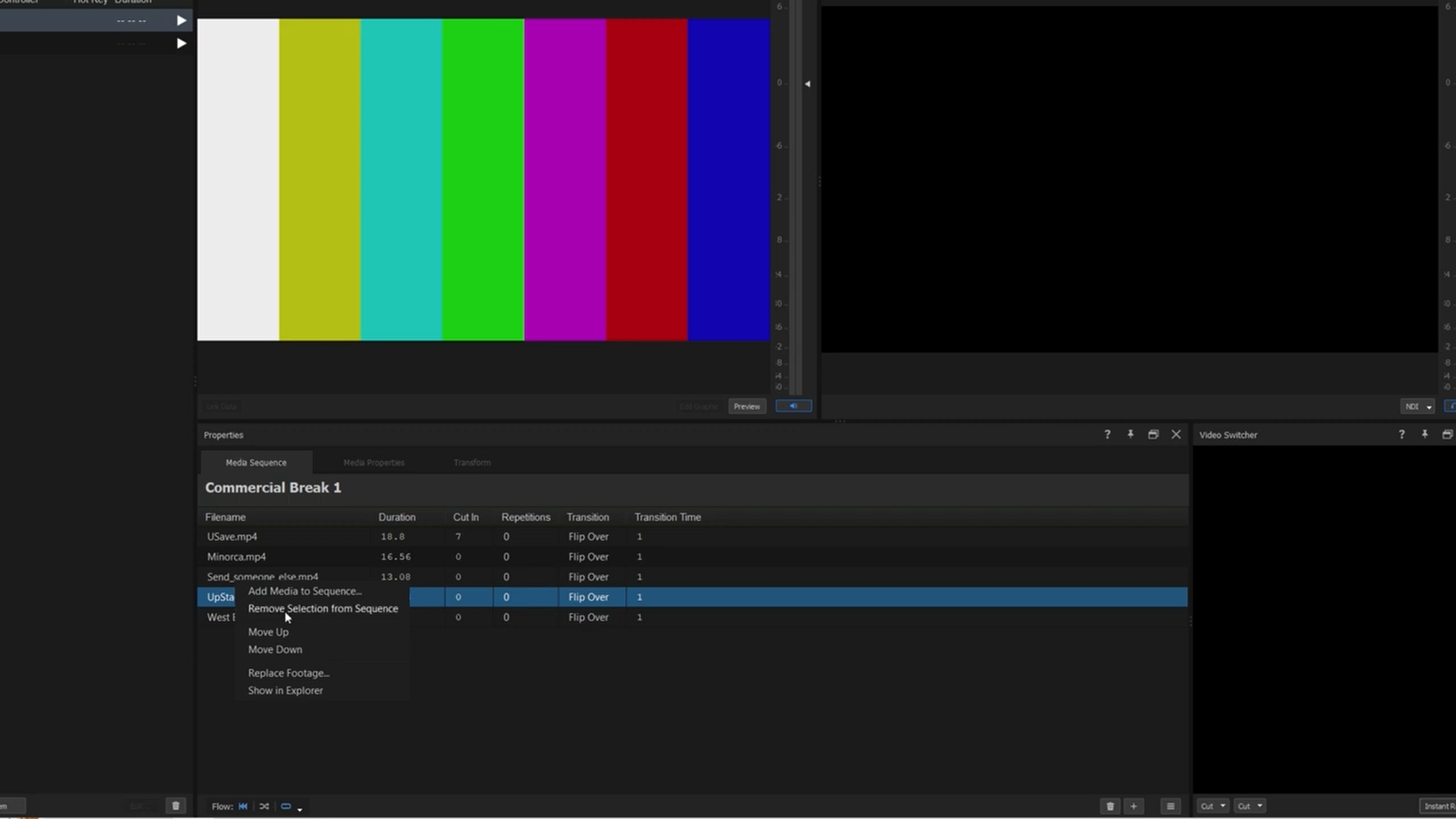
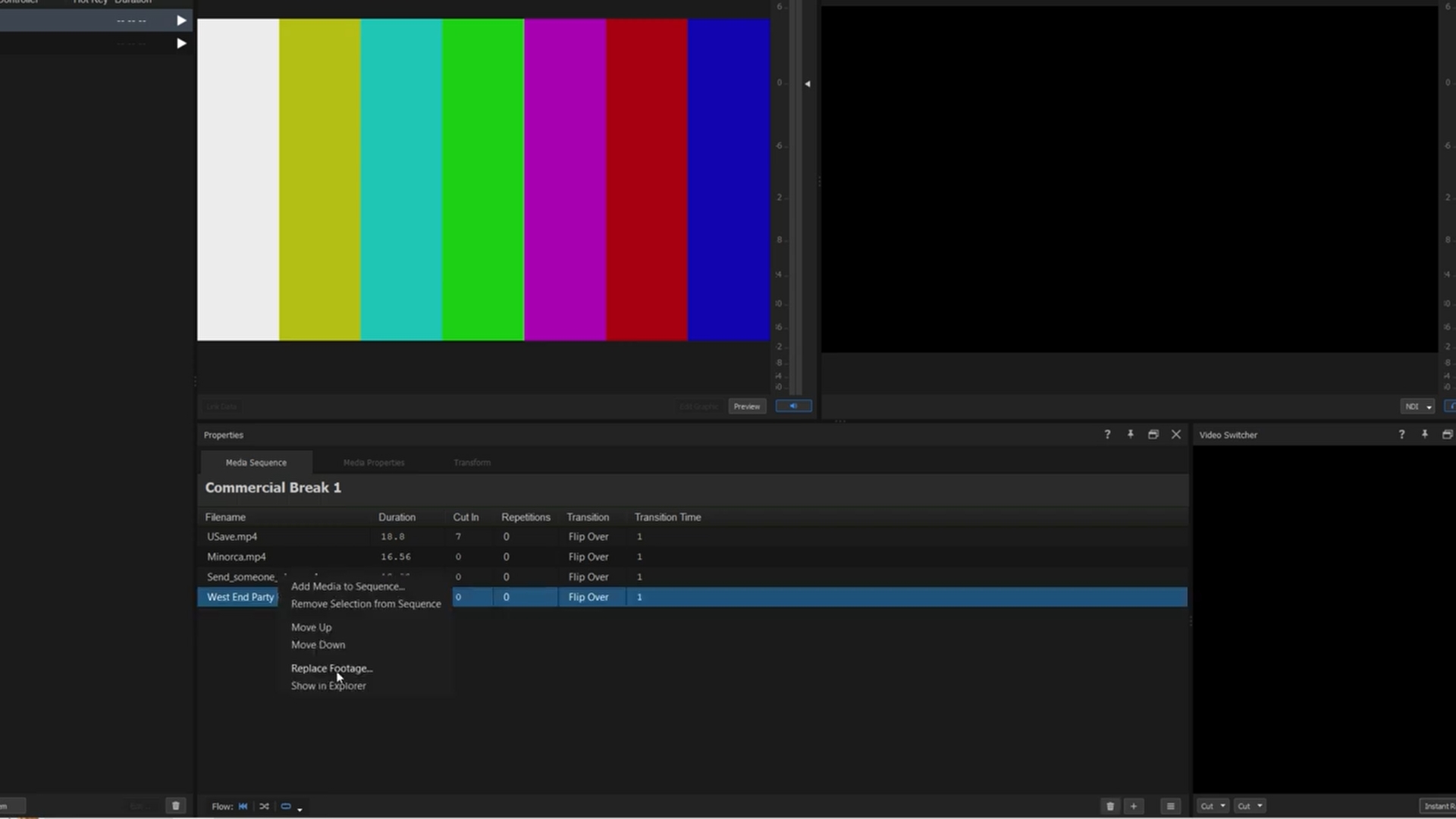
2. **Removing or Replacing Clips**
* Right-click a clip and choose **Remove** to take it out of the sequence. A sequence always keeps at least one clip — **Remove** is unavailable on the last remaining clip.
* Choose **Replace Footage** to swap the clip’s source file while keeping its settings.
## Sequence Flow Details
At the bottom of the Media Sequencer, **Sequence Flow Details** controls how the whole sequence behaves at runtime.
{% hint style="info" %}
**On labels:** Captivate 2026.0 renames several Sequence Flow options. The 2026.0 names are used below; older Captivate releases used slightly different wording, called out in parentheses where relevant.
{% endhint %}
### Start Behavior
* **Start from beginning** — restart the sequence each time it’s played.
* **Resume from last position** — continue from where playback was stopped.
### Playback Order
* **Sequential** — play clips in the order shown. *(Earlier versions: "In Sequence".)*
* **Random** — shuffle clip order on each play.
* **No Change** *(2026.0)* — don’t auto-advance; the next clip is selected only when you tell the sequence to advance (via a button, a remote action, or a variable). Useful when you want a Media List to be controlled entirely by an operator.
### Stop Behavior *(earlier versions: "End Behavior")*
* **Repeat sequence** *(earlier versions: "Repeat Indefinitely")* — loops continuously.
* **Hold on final item** — repeats the last clip after the sequence finishes (best for still images or looping videos). In Media List mode, called simply **Hold**.
* **Stop playback** — ends after the final clip.
Icons next to the Sequence Flow Details give a quick visual summary of the current settings.
## Additional tools
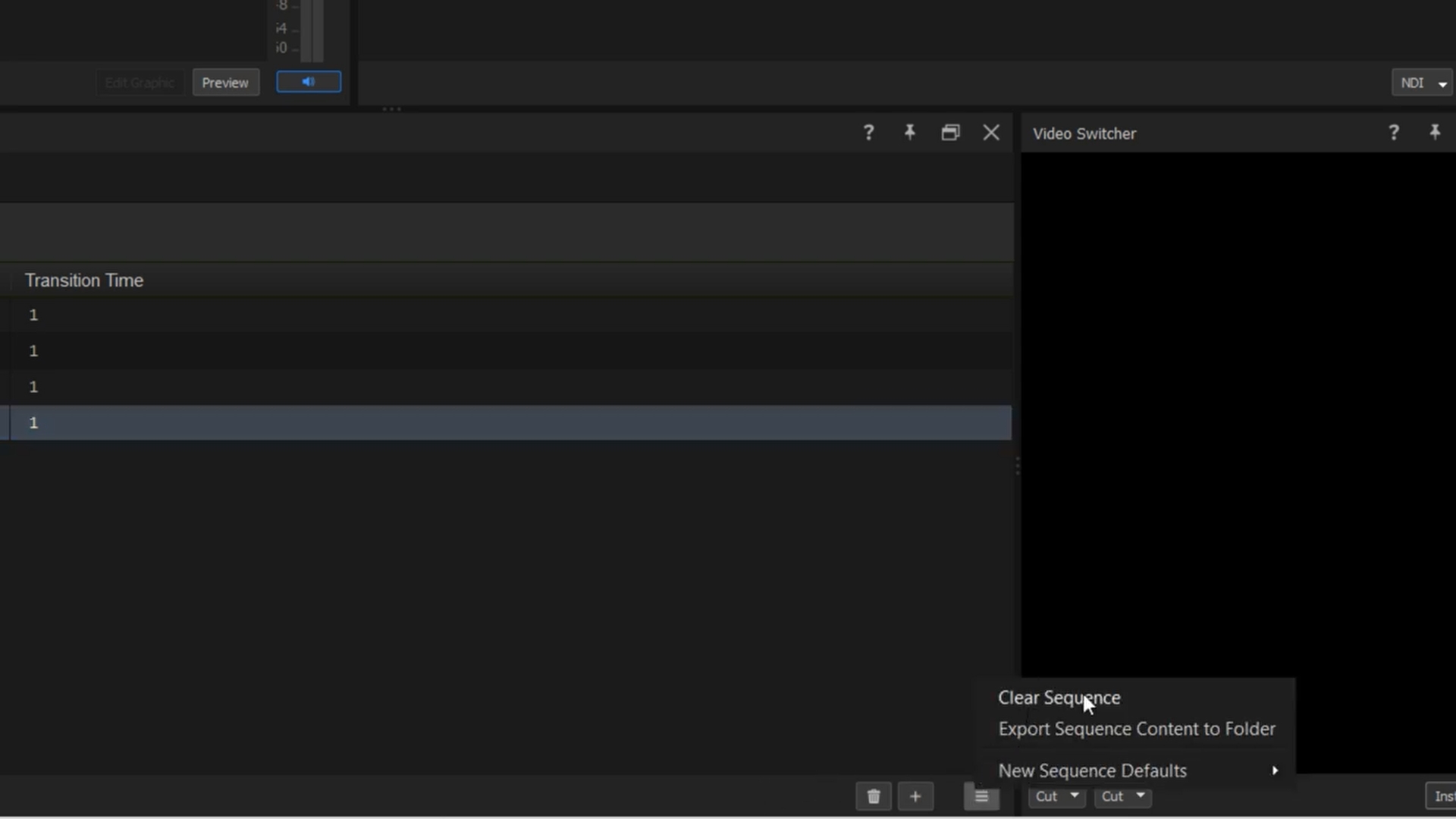
1. **Clear Sequence** — use the **Hamburger** icon (top-right of the Media Sequencer) to clear all clips and start fresh.
2. **Export Sequence Content to Folder** — export every clip in a sequence to a folder you choose, useful for consolidating files from multiple sources. (Disabled for Watch Folder sequences, since the source of truth is already a folder on disk.)
3. **New Sequence Defaults** — define default playback settings (e.g., repeat indefinitely or play once) that all new sequences will inherit.
## Playback Role
A media clip — including a Media Sequence — can play one of three **roles**: a normal project media item, a **Live Video Source**, or a **Transition**. This is set per-clip in the Properties tab. To choose a role for a media clip, see [Assign playback roles for media clips](/design-and-customize-graphics/chapter-index-7/assigning-a-playback-role-for-media-clips.md).
## Finalizing your sequence
After assembling your media sequence:
* Preview it to ensure smooth transitions and accurate clip order.
* Make final adjustments — replace unwanted clips, fine-tune Cut In and Duration, set Hold Points where you want operator-driven pacing.
Your sequence can be triggered live during broadcast — directly from the Project List, as a Shot from the Shot Launcher, or as a Live Video Source consumed by the Switcher.
## See also
* [Assign playback roles for media clips](/design-and-customize-graphics/chapter-index-7/assigning-a-playback-role-for-media-clips.md)
* [Create Shot Layouts](/control-your-show/chapter-index-1/creating-shot-layouts.md)
---
# Agent Instructions
This documentation is published with GitBook. GitBook is the documentation platform designed so that both humans and AI agents can read, navigate, and reason over technical content effectively. Learn more at gitbook.com.
## Querying This Documentation
If you need additional information that is not directly available in this page, you can query the documentation dynamically by asking a question.
Perform an HTTP GET request on the current page URL with the `ask` query parameter, and the optional `goal` query parameter:
```
GET https://captivatehelp.newbluelive.com/design-and-customize-graphics/chapter-index-7/create-a-media-sequence.md?ask=&goal=
```
`ask` is the immediate question: it should be specific, self-contained, and written in natural language.
`goal` is optional and describes the broader end goal you are ultimately trying to accomplish on behalf of the user. GitBook uses it to tailor the answer towards what is most useful for that goal.
The response will contain a direct answer to the question and relevant excerpts and sources from the documentation.
Use this mechanism when the answer is not explicitly present in the current page, you need clarification or additional context, or you want to retrieve related documentation sections.