> For the complete documentation index, see [llms.txt](https://captivatehelp.newbluelive.com/llms.txt). Markdown versions of documentation pages are available by appending `.md` to page URLs; this page is available as [Markdown](https://captivatehelp.newbluelive.com/design-and-customize-graphics/chapter-index-7/assigning-a-playback-role-for-media-clips.md).
# Assign playback roles for media clips
A media clip in your project doesn’t have to behave like a normal video — Captivate lets you tell each clip what **role** it should play. The same MP4 can be a regular scheduled clip, a live-video source that other titles can subscribe to, or a transition stinger.
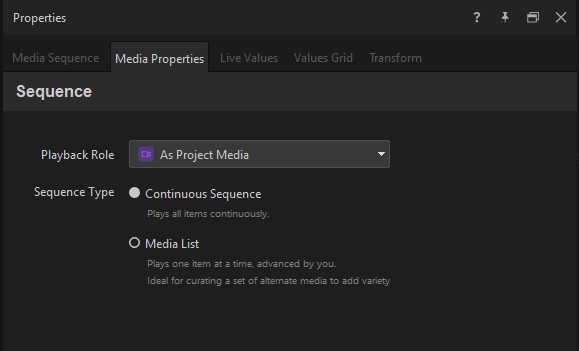
You set the role on the media clip’s **Media Properties** tab, in the **Playback Role** dropdown (the tooltip reads "How this media item is treated by the project").
## The three roles
### As Project Media
The default. The clip plays when you trigger it from the playout interface, the Project List, a Shot, or a sequence. It runs through to its end, then stops. Use this for anything you’d think of as "a video clip" — commercials, idents, replays, stings.
### Live Video Source
The clip is exposed to the rest of the project as a **live video source** — it shows up in the Add menu under **Live Audio/Video** as a video feed you can pick alongside cameras, NDI inputs, and other live sources.
When something else in the project consumes that source — for example, the Switcher cuts to it, a Live Video Layer in the Designer points to it, or an embedded live video appears in a graphic — the clip **automatically starts playing**. When the consumers stop using the source, the clip automatically stops.
Use this for content that you want to look and behave like a live source even though it’s a recorded file:
* A persistent intro/loop that any layout can pull in
* A pre-recorded "live" host clip that triggers when you switch to its angle
* An "always-on" virtual camera you composite into multiple shots
### Transition
The clip is treated as a **transition** — the kind of stinger that plays during a cut. Once a clip has the Transition role, it becomes available wherever transitions are picked:
* The **Switcher** can use it as a stinger between two shots
* A Shot can use it as the transition into or out of the shot
* **Instant Replay** can use it as the enter or leave transition
A transition clip plays once, in the place of (or layered over) the cut, then disappears. You won’t see it in the regular media-playback flow — it only appears as a transition option.
## Set the role
1. In the Project List or Project panel, click the media clip to open its Properties.
2. Open the media’s Properties tab.
3. In the **Playback Role** dropdown, choose **As Project Media**, **Live Video Source**, or **Transition**.
## What happens when you change a role
* **As Project Media → Live Video Source** — the clip stops appearing in normal playout and instead appears as a live source in the Add menu. Any project content that already references the clip as scheduled media will need to be rewired to consume the live source.
* **Live Video Source → As Project Media** — the live source disappears from the Add menu. Anything that was consuming it (Switcher, Live Video Layer, embedded live video) will fall back to whatever it does when its source is missing.
* **As Project Media → Transition** — the clip leaves the regular media menu and appears in transition pickers (Switcher stinger, Shot transition, Instant Replay transition).
* **Transition → As Project Media** — the clip leaves transition pickers and returns to the regular media menu. Switcher / Shot / Replay configurations that referenced it as a transition lose that reference and fall back to default.
You can switch the role any time. Captivate updates references where it can; for anything that can’t auto-rewire, you’ll see warnings in the project’s status indicators.
## Tips
* A media clip that’s a Live Video Source is invisible in the regular Project List media flow — you’ll only see it in the Add menu under Live Audio/Video. If you can’t find a clip you set to Live Video Source, look there.
* A Transition clip plays from start to finish whenever the transition fires, regardless of clip duration. Keep transition clips short.
* Live Video Source mode auto-mutes Captivate’s normal scheduled audio for that clip — the live consumers handle audio routing themselves.
## See also
* [Create a media sequence](/design-and-customize-graphics/chapter-index-7/create-a-media-sequence.md)
* [Create Shot Layouts](/control-your-show/chapter-index-1/creating-shot-layouts.md)
---
# Agent Instructions
This documentation is published with GitBook. GitBook is the documentation platform designed so that both humans and AI agents can read, navigate, and reason over technical content effectively. Learn more at gitbook.com.
## Querying This Documentation
If you need additional information that is not directly available in this page, you can query the documentation dynamically by asking a question.
Perform an HTTP GET request on the current page URL with the `ask` query parameter, and the optional `goal` query parameter:
```
GET https://captivatehelp.newbluelive.com/design-and-customize-graphics/chapter-index-7/assigning-a-playback-role-for-media-clips.md?ask=&goal=
```
`ask` is the immediate question: it should be specific, self-contained, and written in natural language.
`goal` is optional and describes the broader end goal you are ultimately trying to accomplish on behalf of the user. GitBook uses it to tailor the answer towards what is most useful for that goal.
The response will contain a direct answer to the question and relevant excerpts and sources from the documentation.
Use this mechanism when the answer is not explicitly present in the current page, you need clarification or additional context, or you want to retrieve related documentation sections.