> For the complete documentation index, see [llms.txt](https://captivatehelp.newbluelive.com/llms.txt). Markdown versions of documentation pages are available by appending `.md` to page URLs; this page is available as [Markdown](https://captivatehelp.newbluelive.com/design-and-customize-graphics/chapter-index-5/crawl-conductor.md).
# Crawl Conductor
A Crawl Conductor turns one designed item — a headline, a logo with text, a stock ticker entry — into a horizontally scrolling stream of items, each fed by a connected data source. As the conductor empties its queue, it asks the data source for the next row and recycles items off the screen.
## Designer Setup
You build a Crawl Conductor by wrapping one designed crawl item (a group of layers) in a conductor. The conductor then plays a stream of cloned items across the screen, asking your data source for new content as it goes.
1. In Captivate’s playout interface, select the graphic in the Project List, then click the **Edit Graphic** button in the Preview panel to open the Designer.
2. Build **one crawl item** — for example, a horizontal strip with a headline text, a logo, and a separator. Arrange the layers as the item should look as it crosses the screen.
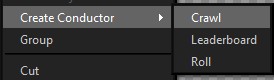
3. Select all the layers that make up the item, right-click in the canvas (or in the Timeline panel) and choose **Create Conductor** > **Crawl**. This combines the layers into one group and embeds the group in a Crawl Conductor.
If the **Create Conductor** menu is missing, your license doesn’t include the Crawl conductor; check your entitlements with NewBlue support.
4. Click on the conductor in the canvas to select it. The Properties panel’s **Crawl** tab shows the conductor’s design-time settings — speed, spacing, direction, and more.
{% hint style="info" %}
The conductor’s item template is the group you wrapped. Edit anything in that group and every crawl item picks up the change.
{% endhint %}
When the conductor is built, commit your changes with the green checkmark and return to the playout interface. You connect the data source there, not in the Designer — see [Drive a graphic with Tables: Row](/play-and-update-graphics/chapter-index-1/drive-a-graphic-with-tables-row.md).
## Properties
A Crawl Conductor’s settings appear in two places:
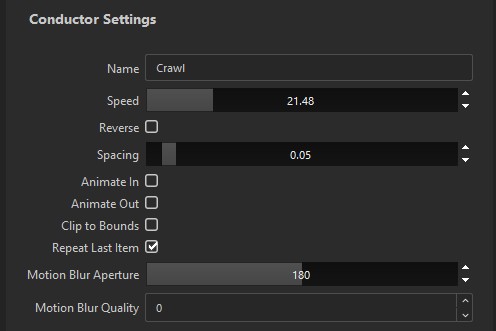
* **In the Designer**, when you select the Crawl Conductor instance inside the title, the Properties panel shows a **Crawl** tab with **all** settings — including design-time-only fields like spacing and clipping that don’t appear at playout time.
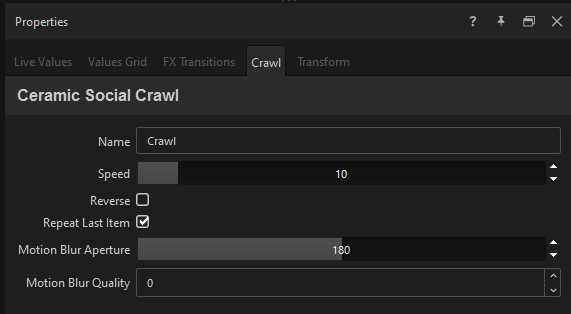
* **In the playout main view**, when you select the title that contains the Crawl Conductor, the title’s Properties shows a **Crawl** tab with the runtime-tunable subset (speed, reverse direction, repeat behavior, motion blur).
Fields marked *(Designer only)* below appear only in the Designer view.
### Name
The name your data source uses to address the conductor. The default is **Crawl**. If you rename it to, for example, **Headlines**, your data source must address conductor parameters as `Headlines.Speed` instead of `Crawl.Speed`. Item variable names (the columns in your data) are not affected by the conductor name.
Give each conductor a unique name when a graphic holds more than one of the same type — that’s how their data and parameters stay separate. You set the name here in the Designer; in the playout Properties it’s read-only.
### Speed
Crawl velocity. Default **10.00**. Range **0**–**100.00**, step **0.10**. **Higher values are faster** — 10 is slow, 100 is very fast.
### Reverse
When on, the crawl moves left-to-right instead of the default right-to-left. Default **off**.
### Spacing *(Designer only)*
Distance between consecutive crawl items, expressed as a fraction of the project frame’s width. Default **0.05** (5% of width). Range **-0.05** to **1.00**, step **0.05**.
Negative values let consecutive items overlap by up to 5% of the width.
### Animate In *(Designer only)*
When on, each crawl item plays its in-animation as it first enters the screen. Default **off**. Without this, items just slide in.
### Animate Out *(Designer only)*
When on, each crawl item plays its out-animation as it leaves the screen. Default **off**. This is usually undesirable when the crawl items are long. Note that when the whole graphic animates out, the crawl plays its out-animation then as well.
### Clip to Bounds *(Designer only)*
When on, the crawl is clipped to the conductor’s bounding box. Default **off**. Items outside the box are not drawn.
### Repeat Last Item
When on, the crawl re-uses the most recent item value if the data source has nothing new to send — the crawl keeps moving with whatever it last received. When off, the crawl pauses and waits for fresh content.
Default **on**. Turn off when you’d rather have an empty crawl than stale information.
### Motion Blur Aperture
Shutter angle in degrees applied to the crawl’s motion blur. Default **180** (cinema standard). Range **0**–**360**, step **1**.
* **0** — no motion blur
* **180** — cinema standard
* **360** — maximum blur
Motion blur only renders when **Motion Blur Quality** is greater than 0.
### Motion Blur Quality
Iteration count for the motion-blur sampler. Default **0** (off). Range **0**–**6**, step **1**.
Higher values produce smoother blur at higher render cost. Leave at 0 unless the crawl is fast enough to show stepping.
## See also
* [Drive a graphic with Tables: Row](/play-and-update-graphics/chapter-index-1/drive-a-graphic-with-tables-row.md) — the most common data source for a Crawl Conductor.
* [Crawls Controller](/play-and-update-graphics/chapter-index-1/crawls-controller.md) — General-menu variant of the same controller, also commonly paired with this conductor.
* [Roll Conductor](/design-and-customize-graphics/chapter-index-5/roll-conductor.md) — the vertical-axis equivalent
* [Leaderboard Conductor](/design-and-customize-graphics/chapter-index-5/leaderboard-conductor.md)
---
# Agent Instructions
This documentation is published with GitBook. GitBook is the documentation platform designed so that both humans and AI agents can read, navigate, and reason over technical content effectively. Learn more at gitbook.com.
## Querying This Documentation
If you need additional information that is not directly available in this page, you can query the documentation dynamically by asking a question.
Perform an HTTP GET request on the current page URL with the `ask` query parameter, and the optional `goal` query parameter:
```
GET https://captivatehelp.newbluelive.com/design-and-customize-graphics/chapter-index-5/crawl-conductor.md?ask=&goal=
```
`ask` is the immediate question: it should be specific, self-contained, and written in natural language.
`goal` is optional and describes the broader end goal you are ultimately trying to accomplish on behalf of the user. GitBook uses it to tailor the answer towards what is most useful for that goal.
The response will contain a direct answer to the question and relevant excerpts and sources from the documentation.
Use this mechanism when the answer is not explicitly present in the current page, you need clarification or additional context, or you want to retrieve related documentation sections.