> For the complete documentation index, see [llms.txt](https://captivatehelp.newbluelive.com/llms.txt). Markdown versions of documentation pages are available by appending `.md` to page URLs; this page is available as [Markdown](https://captivatehelp.newbluelive.com/design-and-customize-graphics/chapter-index-3/loop-videos-and-animations-in-a-graphic.md).
# Loop videos and animations in a graphic
When you customize graphics in the Designer, you can loop videos and animations to create dynamic backgrounds. The affected design layer loops continuously while the graphic is live, even through the pause point.
1. In Captivate’s playout interface, open a project and select a graphic in the Project List.
2. Click **Edit Graphic** in the Preview panel.
3. In the Designer, select the video/animated object you want to loop.
**📌 NOTE**\
End the layer slightly before the timeline ending to minimize any jumps.
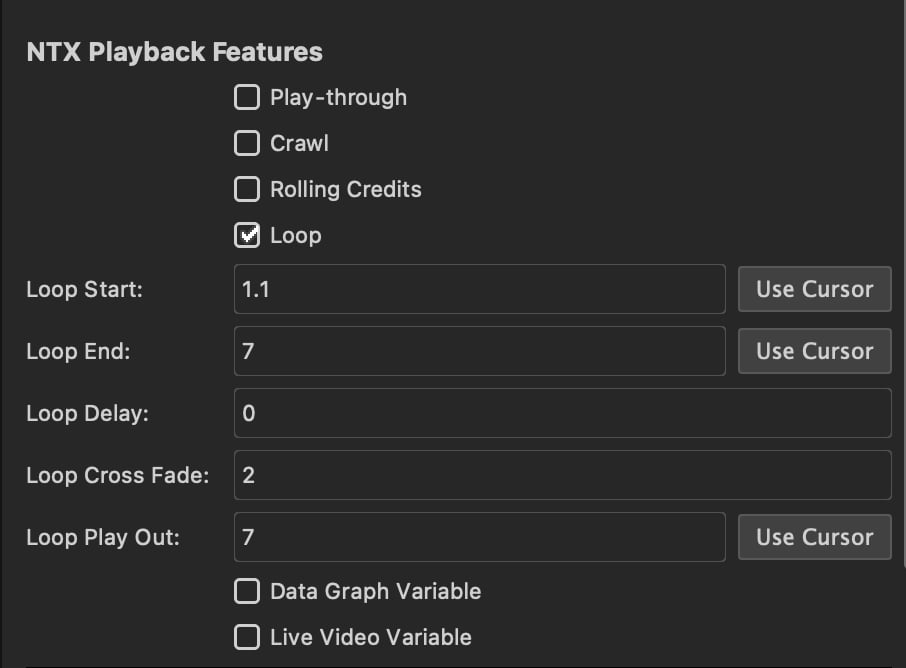
4. In **Properties > Special**, find the **NTX Feature** dropdown and choose **Loop**.
**📌 NOTE**\
The NTX Feature is a single dropdown with five mutually-exclusive options: **None**, **Play-through**, **Loop**, **Data Graph**, and **Live Video Variable**. A layer can use only one at a time.
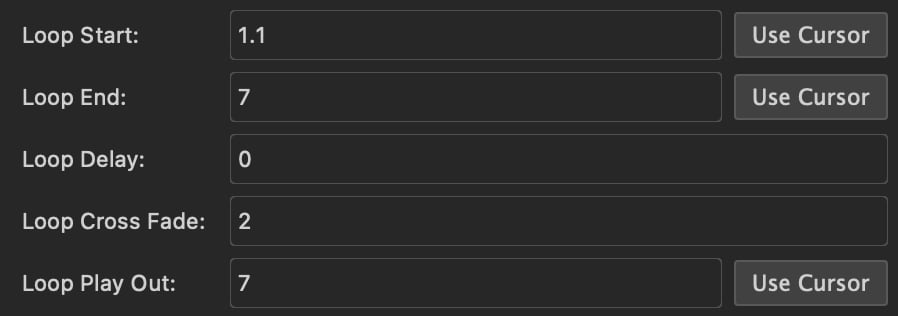
5. Enter a time in **Loop Start** (in seconds) for when the loop should start.
**💡 TIP**\
Set the time after the fade-in so the loop begins at full opacity. Picking similar start/end frames makes the loop smoother.
**💡 TIP**\
You can move the playhead in the timeline and click **Use Cursor** to use its position as the loop’s start or end time.
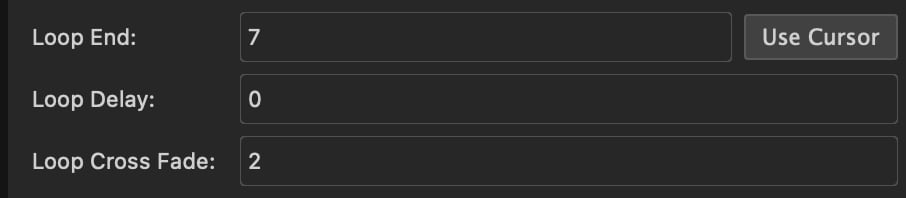
6. Set **Loop End** before any fade-out begins. Leave enough time after Loop End for the **Loop Cross Fade**. For example, with a 9-second layer and a 2-second cross fade, set Loop End to 7 seconds or less.
7. If you want a delay between loops, enter a time in **Loop Delay**.
8. For smooth looping without a jump, enter a time in **Loop Cross Fade** equal to or less than the time remaining between Loop End and the layer end.
9. **Loop Play Out** controls how much of the animation plays out when you take the graphic off-air. To play out the full animation, type the time after all animation completes (or use the cursor option).
10. Preview and adjust as needed.
11\. Close the Designer and click \*\*Keep\*\* to save.
---
# Agent Instructions
This documentation is published with GitBook. GitBook is the documentation platform designed so that both humans and AI agents can read, navigate, and reason over technical content effectively. Learn more at gitbook.com.
## Querying This Documentation
If you need additional information that is not directly available in this page, you can query the documentation dynamically by asking a question.
Perform an HTTP GET request on the current page URL with the `ask` query parameter, and the optional `goal` query parameter:
```
GET https://captivatehelp.newbluelive.com/design-and-customize-graphics/chapter-index-3/loop-videos-and-animations-in-a-graphic.md?ask=&goal=
```
`ask` is the immediate question: it should be specific, self-contained, and written in natural language.
`goal` is optional and describes the broader end goal you are ultimately trying to accomplish on behalf of the user. GitBook uses it to tailor the answer towards what is most useful for that goal.
The response will contain a direct answer to the question and relevant excerpts and sources from the documentation.
Use this mechanism when the answer is not explicitly present in the current page, you need clarification or additional context, or you want to retrieve related documentation sections.