> For the complete documentation index, see [llms.txt](https://captivatehelp.newbluelive.com/llms.txt). Markdown versions of documentation pages are available by appending `.md` to page URLs; this page is available as [Markdown](https://captivatehelp.newbluelive.com/design-and-customize-graphics/chapter-index-2/import-images-videos-and-audio.md).
# Import images and videos as design layers
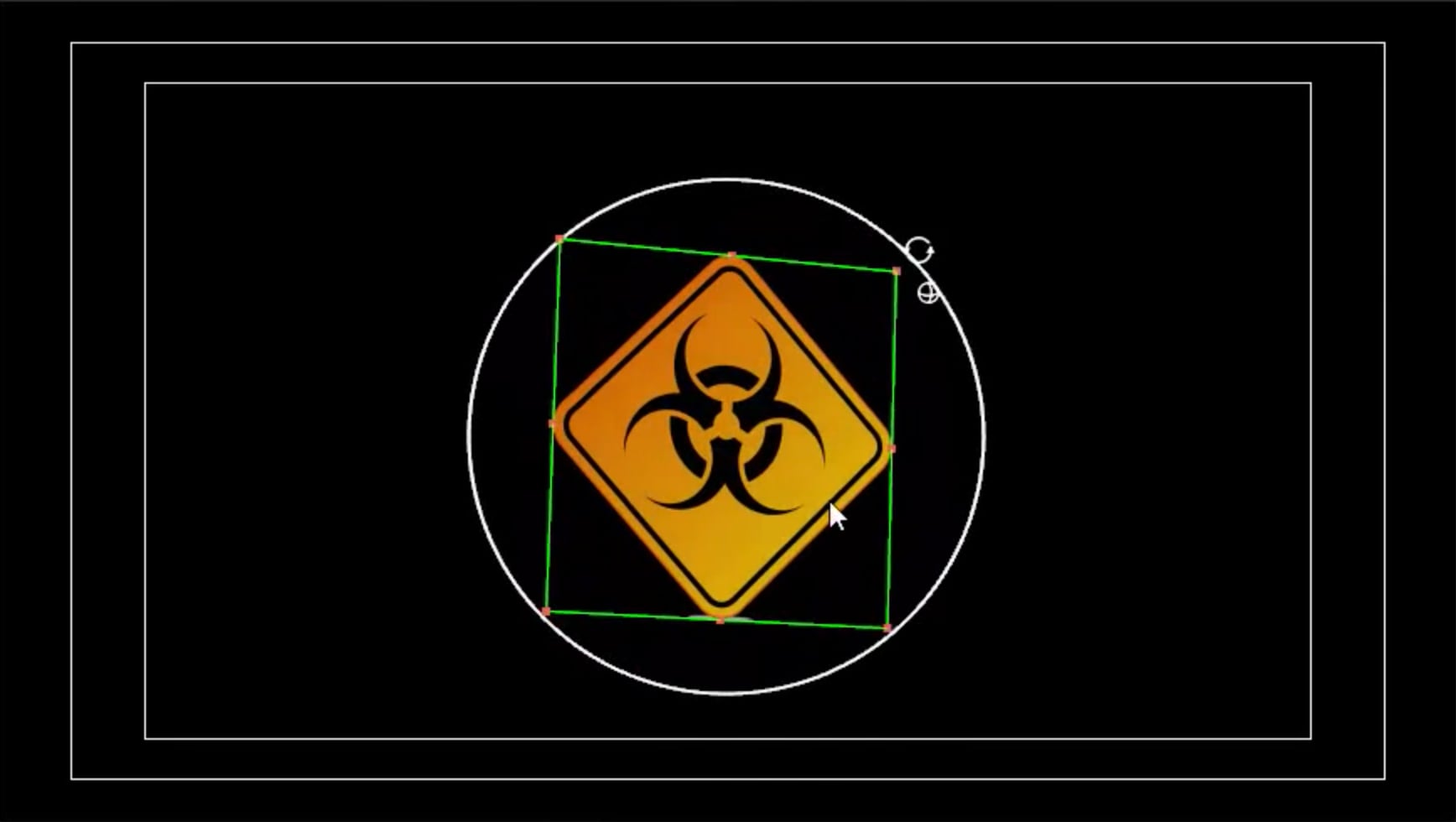
When you customize graphics in the Designer, you can import images, videos, and audio files, which you can scale, move, rotate, and customize with effects and transitions.
* [Import images](#import-images)
* [Import videos](#import-videos)
* [Import EPS vectors](#import-eps-vectors)
* [Import PSD files](#import-psd-files)
* [Import audio files](#import-audio-files)
## Import images
The Designer supports PNG, JPG, JPEG, GIF, BMP, TGA, and DDS files.
{% hint style="info" %}
PNGs can include transparent backgrounds, but since they’re raster-based, if extruded they will be extruded as a rectangle regardless of transparency.
{% endhint %}
1. In Captivate’s playout interface, select a graphic layer and click **Edit Graphic**.
2. To import into an existing layer, double-click the layer and place the cursor where the image should appear. Otherwise the image is imported as its own new layer.
3. Choose **File > Import > Image**.
4. Select an image and click **Open**.
## Import videos
Captivate supports MP4, MPG, MPEG, MOV, AVI, WEBM, and animated GIF files.
1. In Captivate’s playout interface, select a graphic layer and click **Edit Graphic**.
2. To import into an existing layer, double-click the layer and place the cursor where the video should appear.
3. Choose **File > Import > Video**.
4. Select a video and click **Open**.
{% hint style="info" %}
GIF files can be imported as either a still image or a video. **File > Import > Image** tries to import a GIF as video first and falls back to a still if the file has no animation. **File > Import > Video** does the reverse: video first, still fallback if decoding fails.
{% endhint %}
## Import EPS vectors
EPS vectors are ideal for pre-designed logos or shapes you want to extrude for 3D depth. EPS artwork imports as vector shape content that you can transform and style like a native shape layer. See [Import vector artwork as EPS](/design-and-customize-graphics/chapter-index-6/import-vector-artwork-as-eps.md) for the dedicated reference.
{% hint style="info" %}
The Designer supports EPS only. Adobe Illustrator `.ai` files cannot be imported directly. In Illustrator, save or export your design as EPS before importing.
{% endhint %}
1. In Captivate’s playout interface, select a graphic and click **Edit Graphic**.
2. To import into an existing layer, double-click and position the cursor.
3. Choose **File > Import > Vector**.
4. Select an EPS file and click **Open**.
**💡 TIP**\
To extrude an imported EPS image, select the image and increase **Extrusion** in **Style Settings > 3D Face > 3D Controls**.
## Import PSD files
You can import a layered Photoshop file. The Designer brings the PSD in retaining its original layer stack; PSD layers do not become independently animated Designer timeline tracks. See [Import a Photoshop file](/design-and-customize-graphics/chapter-index-6/import-a-photoshop-file.md) for the dedicated reference.
{% hint style="info" %}
Text layers in the PSD are rasterized into shape content, not editable text. To preserve editable text, add it in the Designer after import.
{% endhint %}
{% hint style="info" %}
PSD files cannot be extruded — use EPS if you need depth.
{% endhint %}
1. In Captivate’s playout interface, select a graphic and click **Edit Graphic**.
2. To import into an existing layer, double-click and position the cursor.
3. Choose **File > Import > PSD**.
4. Select a PSD file and click **Open**.
## Import audio files
The Designer supports WAV, MP3, and MP4 audio files. Audio attaches to the title’s timeline and plays when the title is cued.
1. With the graphic open in the Designer, do one of the following:
* Click **Add Audio** on the top toolbar.
* Choose **File > Import > Audio**.
2. Select an audio file and click **Open**.
The audio appears as its own layer on the Timeline with a default level you can adjust later.
{% hint style="info" %}
The audio import dialog filters for `.wav`, `.mp3`, and `.mp4` files only. Other audio formats are not supported. Convert other formats before importing.
{% endhint %}
{% hint style="info" %}
**Add Audio** is hidden on licenses that do not include the audio engine. If you do not see the button, your license does not include audio playback.
{% endhint %}
### Adjust audio level for a paragraph or audio layer
1. Select the layer.
2. In **Properties > Audio**, drag the **Audio Level** slider.
3. Use **Browse** to swap the audio file, or **Remove** to detach it.
The **Audio** tab appears only for paragraph and audio layers. Shape layers do not expose an Audio tab.
---
# Agent Instructions
This documentation is published with GitBook. GitBook is the documentation platform designed so that both humans and AI agents can read, navigate, and reason over technical content effectively. Learn more at gitbook.com.
## Querying This Documentation
If you need additional information that is not directly available in this page, you can query the documentation dynamically by asking a question.
Perform an HTTP GET request on the current page URL with the `ask` query parameter, and the optional `goal` query parameter:
```
GET https://captivatehelp.newbluelive.com/design-and-customize-graphics/chapter-index-2/import-images-videos-and-audio.md?ask=&goal=
```
`ask` is the immediate question: it should be specific, self-contained, and written in natural language.
`goal` is optional and describes the broader end goal you are ultimately trying to accomplish on behalf of the user. GitBook uses it to tailor the answer towards what is most useful for that goal.
The response will contain a direct answer to the question and relevant excerpts and sources from the documentation.
Use this mechanism when the answer is not explicitly present in the current page, you need clarification or additional context, or you want to retrieve related documentation sections.