> For the complete documentation index, see [llms.txt](https://captivatehelp.newbluelive.com/llms.txt). Markdown versions of documentation pages are available by appending `.md` to page URLs; this page is available as [Markdown](https://captivatehelp.newbluelive.com/design-and-customize-graphics/chapter-index-2/group-design-layers-in-a-graphic.md).
# Group design layers in a graphic
When you customize graphics in the Designer, you can create a group of design layers and customize all the layers at once as if they were one layer. You can move, scale, and keyframe groups, and apply effects and animations to groups. You can still modify individual layers within a group.
* [Group design layers](#group-design-layers)
* [View design layers in a group](#view-design-layers-in-a-group)
* [Customize one design layer in a group](#customize-one-design-layer-within-a-group)
* [Ungroup design layers](#ungroup-design-layers)
## Group design layers
1. In Captivate’s playout interface, select a graphic layer and click **Edit Graphic**.
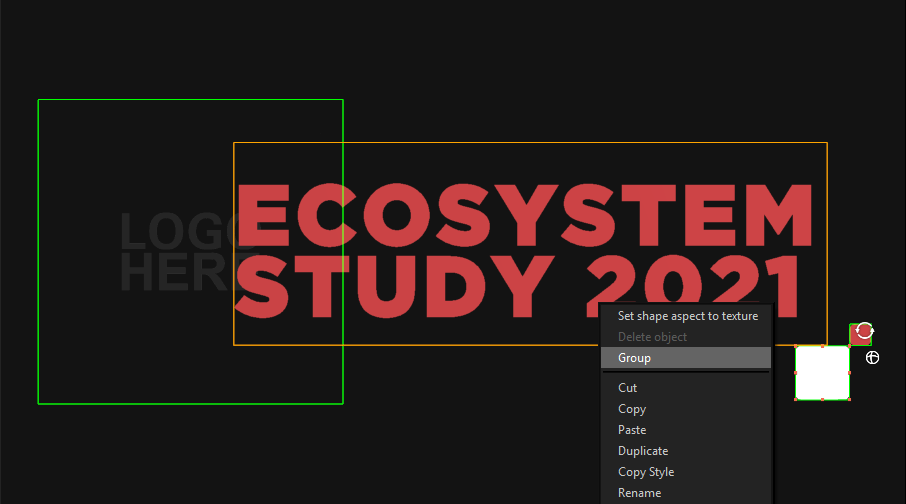
2. In the Designer, select the design layers to group:
* Click outside a layer in the Workspace and drag to select.
* Click next to a layer in the timeline and drag.
* Hold **Ctrl** (Windows) or **Command** (Mac) and click each layer.
3. Right-click (Windows) or Control+click (Mac) on one selected layer and choose **Group**. A blue bounding box appears.
**💡 TIP**\
To keyframe a group, see [Animate design layers with keyframes](/design-and-customize-graphics/chapter-index-3/animate-design-layers-with-keyframes.md).
## View design layers in a group
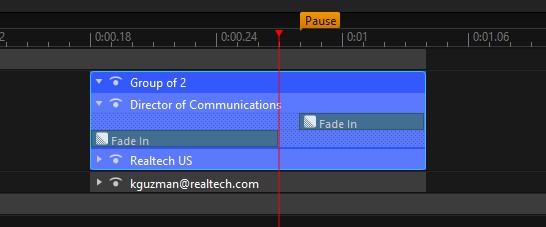
Click the expand/collapse arrow on the left side of a group in the Timeline workspace.
## Customize one design layer within a group
Expand the group in the Timeline workspace, select one of the design layers, and customize as you normally would.
**💡 TIP**\
See [Add styles to design layers](/design-and-customize-graphics/chapter-index-2/add-styles-to-design-layers.md) for style elements.
## Ungroup design layers
Right-click (Windows) or Control+click (Mac) on a group in the canvas or Timeline and choose **Ungroup**.
{% hint style="info" %}
A group that serves as the source for a Conductor (Crawl, Roll, Leaderboard, or Grid) cannot be ungrouped. The **Ungroup** command is hidden when the group is the conductor’s item template. To ungroup, first delete the Conductor, then ungroup the underlying source group.
{% endhint %}
{% hint style="info" %}
You cannot create a group inside another group from the right-click menu. Multi-selecting layers that are already inside a group does not offer **Group**.
{% endhint %}
---
# Agent Instructions
This documentation is published with GitBook. GitBook is the documentation platform designed so that both humans and AI agents can read, navigate, and reason over technical content effectively. Learn more at gitbook.com.
## Querying This Documentation
If you need additional information that is not directly available in this page, you can query the documentation dynamically by asking a question.
Perform an HTTP GET request on the current page URL with the `ask` query parameter, and the optional `goal` query parameter:
```
GET https://captivatehelp.newbluelive.com/design-and-customize-graphics/chapter-index-2/group-design-layers-in-a-graphic.md?ask=&goal=
```
`ask` is the immediate question: it should be specific, self-contained, and written in natural language.
`goal` is optional and describes the broader end goal you are ultimately trying to accomplish on behalf of the user. GitBook uses it to tailor the answer towards what is most useful for that goal.
The response will contain a direct answer to the question and relevant excerpts and sources from the documentation.
Use this mechanism when the answer is not explicitly present in the current page, you need clarification or additional context, or you want to retrieve related documentation sections.