> For the complete documentation index, see [llms.txt](https://captivatehelp.newbluelive.com/llms.txt). Markdown versions of documentation pages are available by appending `.md` to page URLs; this page is available as [Markdown](https://captivatehelp.newbluelive.com/design-and-customize-graphics/chapter-index-1/designer-properties-panel.md).
# Designer Properties panel
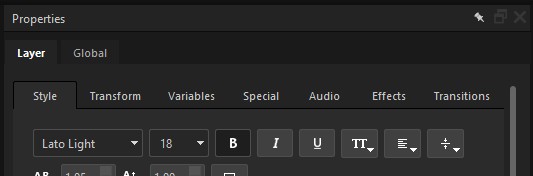
The **Properties** panel is where you adjust everything about the part of a graphic you have selected in the Designer — its look, position, motion, audio, variables, effects, and transitions. Select a layer, group, or conductor on the [Workspace](/design-and-customize-graphics/chapter-index-1/designer-workspace-overview.md) or in the [Timeline](/design-and-customize-graphics/chapter-index-1/designer-timeline-overview.md), and its settings appear here. With nothing selected, the panel reads "Select a layer in the design to see its properties here."
The panel is context-sensitive: the tabs it shows depend on what you’ve selected, so you only ever see the tabs that apply to the current object.
{% hint style="info" %}
**On scope:** This article is about the **Designer** Properties panel — what you see inside the Designer while editing a graphic. The playout main view has its own, separate Properties panel (Live Values, Values Grid, and so on); for that one, see [Properties panel](/get-started/chapter-index-2/properties-panel.md).
{% endhint %}
## Layer and Global
The panel has two top-level tabs:
* **Layer** — settings for the object you’ve selected: a single layer, a group, or a conductor. This is where you spend most of your time, and it holds the sub-tabs described under [The Layer tabs](#the-layer-tabs).
* **Global** — scene-wide settings that apply to the whole graphic rather than to one layer: its variables and its lighting and camera. See [The Global tabs](#the-global-tabs).
## The Layer tabs
When you select a layer or other object, the **Layer** tab shows a context-sensitive set of sub-tabs. Not every tab appears for every selection — the "appears for" note on each tab tells you when to expect it.
### Style
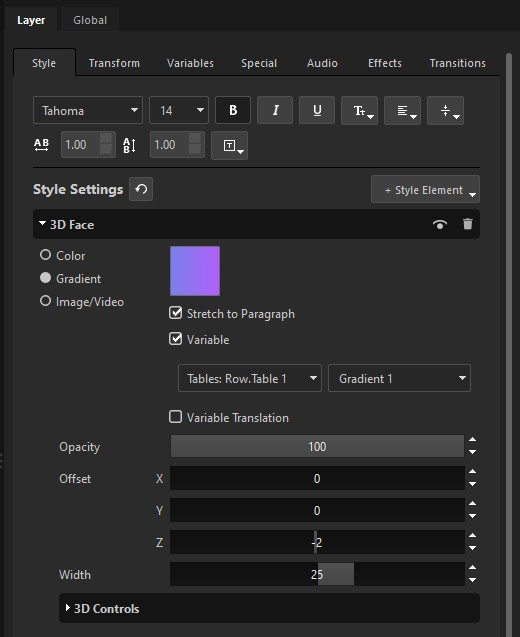
The look of a text or shape layer, built up as a stack of style elements — fonts, fills, gradients, outlines, shadows, bevels, and extrusions. Appears for a paragraph or shape. See [Add styles to design layers](/design-and-customize-graphics/chapter-index-2/add-styles-to-design-layers.md).
### Transform
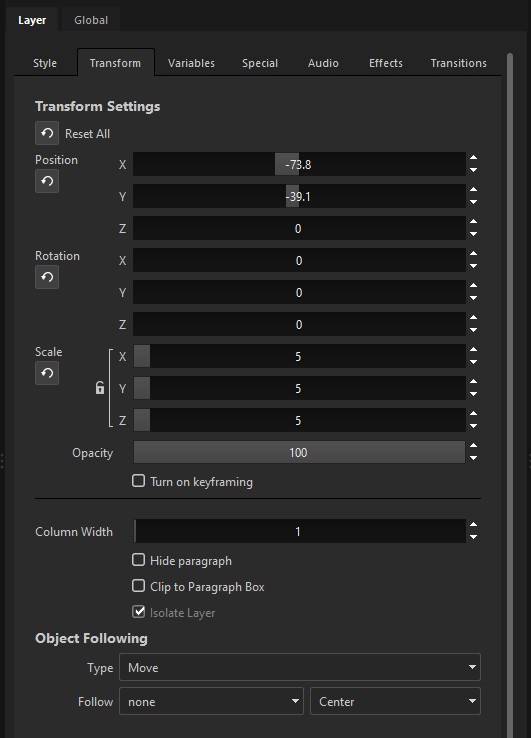
Position, rotation, scale, and anchor point, plus the keyframes that animate them, and per-layer extras such as opacity, column width, clipping, and Object Following. This is the bulk of what used to be the single **Motion** tab. Appears for a paragraph, shape, or group. See [Customize a design layer’s transform and additional properties](/design-and-customize-graphics/chapter-index-2/customize-motion-and-additional-properties.md).
### Variables
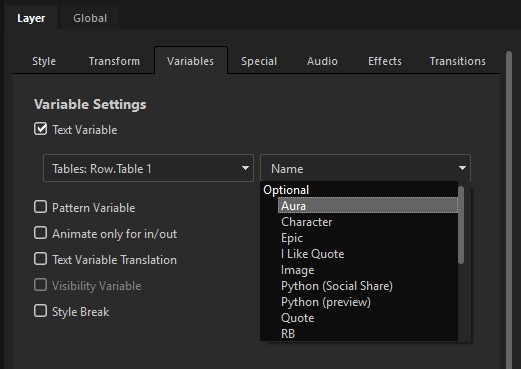
The **text**, **pattern**, and **visibility** variables a layer exposes, and how they’re wired to a data source. Color and image variables aren’t here — those live on the **Style** tab, embedded in the style design. Appears for a paragraph, shape, or group; a **Text Variable** applies only to a paragraph, not a shape. See [Create variables in graphics](/design-and-customize-graphics/chapter-index-4/create-variables-in-graphics.md).
### Special
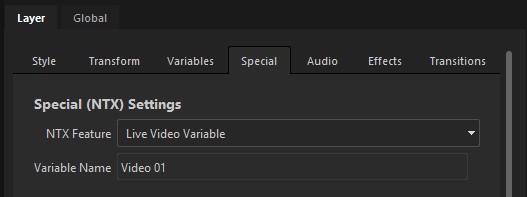
NTX features and layer-specific behaviors — crawling text, rolling credits, looping, data graphs, and live-video variables. Appears for a paragraph or shape.
### Audio
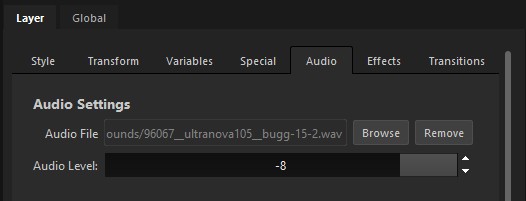
Attach an audio file — a WAV or MP3 — that plays when this layer plays, so you can pair a sound effect with a title’s motion. Browse to the file, and set how loud it plays with **Audio Level**. Appears for a paragraph.
### Effects
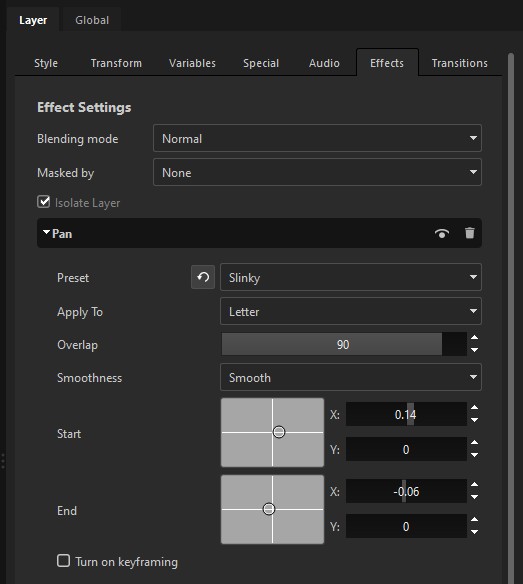
What a layer does beyond its base look: add and tune **effects** and animations, set a **Blending mode** for how the layer composites with what’s behind it, and assign masking — mark a layer as a mask, or pick which mask a layer is **Masked by**. Appears for a paragraph, shape, or group. See [Add effects to design layers](/design-and-customize-graphics/chapter-index-3/add-effects-to-design-layers.md).
### Transitions
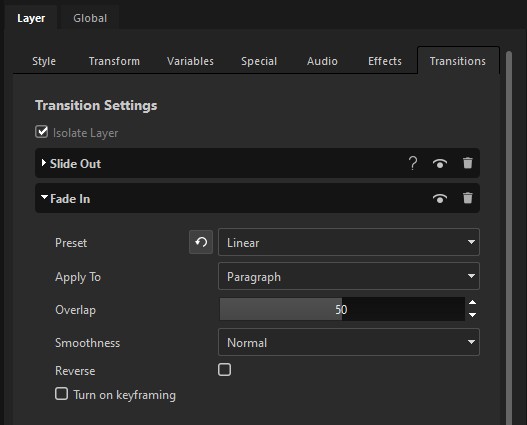
The in and out transitions applied to a layer. Appears for a paragraph, shape, or group. See [Add transitions to design layers](/design-and-customize-graphics/chapter-index-3/add-transitions-to-design-layers.md).
### Conductor
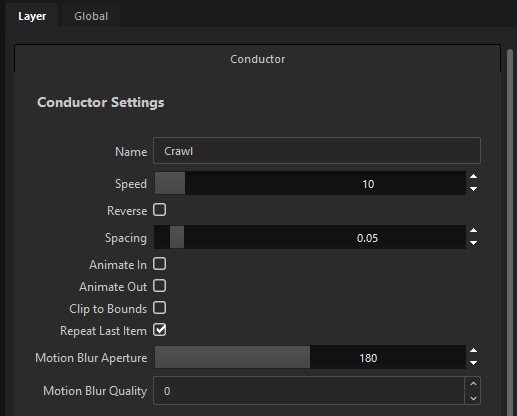
The parameters for a conductor you’ve added to the graphic — a Crawl, Roll, or Leaderboard. Appears when a conductor is selected. See [Crawl Conductor](/design-and-customize-graphics/chapter-index-5/crawl-conductor.md), [Roll Conductor](/design-and-customize-graphics/chapter-index-5/roll-conductor.md), and [Leaderboard Conductor](/design-and-customize-graphics/chapter-index-5/leaderboard-conductor.md).
### Group
A group’s own settings: its name, plus the **Transform** that positions, rotates, and scales the whole group at once. Appears when a group of layers is selected. See [Group design layers in a graphic](/design-and-customize-graphics/chapter-index-2/group-design-layers-in-a-graphic.md).
## The Global tabs
The **Global** tab holds settings that belong to the whole scene rather than to one layer. It has three sub-tabs.
### Variables
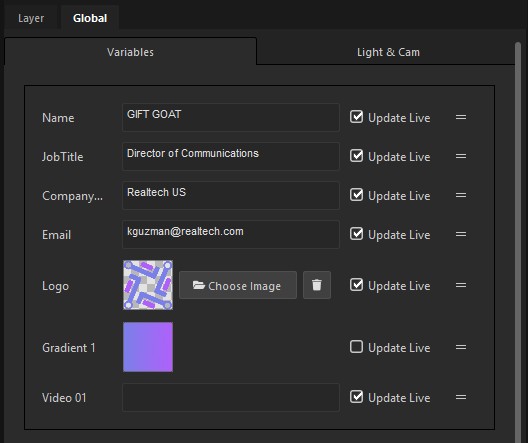
Every variable in the graphic, gathered in one place — each with its current value and an **Update Live** toggle. Set or preview all of your values from this one tab instead of selecting each layer in turn.
### Light & Cam
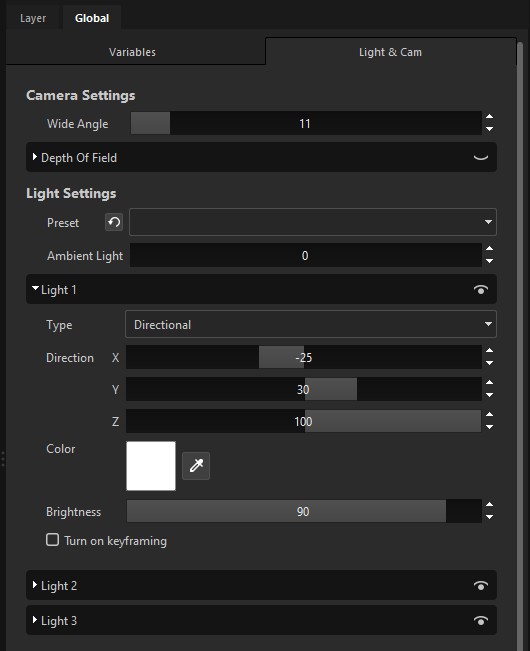
The scene’s camera and lighting: the camera **Wide Angle** and **Depth Of Field**, and up to three lights (**Light 1**–**Light 3**) with type, direction, color, and brightness. See [Customize lighting and camera settings](/design-and-customize-graphics/chapter-index-2/customize-lighting-and-camera-settings.md).
### Design Info
Author, tags, and notes saved into the title design. Under the **Content Information** heading:
* **Author** — who made the design.
* **Design Intents** — semantic tags that describe what the graphic is for, such as `lower-third`, `scoreboard`, or `sponsor`. Workflows and Data Controllers read these tags to discover and connect to the right titles automatically — a data source can bind to any graphic that carries its intent, without wiring each one up by hand. The Shot Launcher can also group shots into tabs by these tags.
* **User Notes** — free-form notes stored with the design.
## What changed in 2026.0
In Captivate 2026.0, the Properties panel was reorganized. The single **Motion** tab from prior versions was broken out into the focused tabs above, so you can find a specific setting without scrolling through one long list.
### Where did my old setting go?
If you can’t find a setting that used to live on the Motion tab:
| Old location | 2026.0 location |
| ----------------------------------------------------------- | ------------------------------------------------------------------ |
| Motion → keyframes, position, scale, rotation | **Transform** |
| Motion → audio | **Audio** |
| Motion → variables panel | **Variables** |
| Motion → "Crawl" / "Rolling Credits" toggle for text layers | **Special** |
| Motion → conductor settings | **Conductor** tab (visible when you select the conductor instance) |
| Motion & Data → variable wiring | **Variables** |
Internally, the **Transform** tab is still the old **Motion** editor — only the label changed.
### Why the change
The Motion tab had grown to hold every layer-modifying setting Captivate had — animation keyframes, audio, variables, transition choices. Splitting it into focused tabs keeps each one short and makes it obvious which tab a setting belongs in.
## See also
* [Designer Workspace panel](/design-and-customize-graphics/chapter-index-1/designer-workspace-overview.md)
* [Designer Library panel](/design-and-customize-graphics/chapter-index-1/designer-library-panel.md)
* [Designer Timeline panel](/design-and-customize-graphics/chapter-index-1/designer-timeline-overview.md)
* [Create variables in graphics](/design-and-customize-graphics/chapter-index-4/create-variables-in-graphics.md)
---
# Agent Instructions
This documentation is published with GitBook. GitBook is the documentation platform designed so that both humans and AI agents can read, navigate, and reason over technical content effectively. Learn more at gitbook.com.
## Querying This Documentation
If you need additional information that is not directly available in this page, you can query the documentation dynamically by asking a question.
Perform an HTTP GET request on the current page URL with the `ask` query parameter, and the optional `goal` query parameter:
```
GET https://captivatehelp.newbluelive.com/design-and-customize-graphics/chapter-index-1/designer-properties-panel.md?ask=&goal=
```
`ask` is the immediate question: it should be specific, self-contained, and written in natural language.
`goal` is optional and describes the broader end goal you are ultimately trying to accomplish on behalf of the user. GitBook uses it to tailor the answer towards what is most useful for that goal.
The response will contain a direct answer to the question and relevant excerpts and sources from the documentation.
Use this mechanism when the answer is not explicitly present in the current page, you need clarification or additional context, or you want to retrieve related documentation sections.