> For the complete documentation index, see [llms.txt](https://captivatehelp.newbluelive.com/llms.txt). Markdown versions of documentation pages are available by appending `.md` to page URLs; this page is available as [Markdown](https://captivatehelp.newbluelive.com/control-your-show/chapter-index/select-with-instant-search.md).
# Select graphic layers and spreadsheet data with Instant Search
Captivate includes an Instant Search feature that enables you to select a graphic in the Project List by typing a graphic layer’s name. Also, if a spreadsheet is connected to a graphic layer, you can select data in a spreadsheet by typing a graphic layer’s name and the data that you want to display.
{% hint style="info" %}
Instant Search is entitlement-gated. On licenses without the entitlement, the **Use Instant Search** item does not appear in the **Settings** menu.
{% endhint %}
{% hint style="info" %}
When the search popup is open, the spacebar appends a literal space to the search string. When the popup is closed, the spacebar plays the row currently selected in the Project List.
{% endhint %}
**💡 TIP**\
Consider naming your graphic layers in a way that is easy to remember and type; the graphic layer’s name is what you’ll type to select a graphic layer when using Instant Search. To rename a graphic layer, double-click the name of a graphic layer in the Project List and enter a new name.
* [Select a graphic layer with Instant Search](#select-a-graphic-with-instant-search)
* [Select spreadsheet data in a graphic layer with Instant Search](#select-spreadsheet-data-in-a-graphic-layer-with-instant-search)
## Select a graphic with Instant Search
1. Open a project in Captivate.
2. Choose **Settings** > **Use Instant Search** to turn on the Instant Search feature. (A checkmark appears next to the menu option when it is on.)
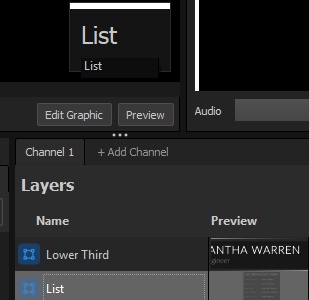
3. Type the name of a graphic. As you type, a popup list appears in the middle of Captivate’s playout interface and shows the name of every graphic layer from the Project List that matches your entry.
4. Press the **down arrow** on your keyboard to highlight the name of a graphic layer in the popup list.
5. Press **ENTER**.
**💡 TIP**\
Press SPACEBAR to play a graphic layer that is selected in the Project List. See [Shortcuts](/reference/shortcuts.md) for more keyboard controls.
## Select spreadsheet data in a graphic layer with Instant Search
1. Open a project in Captivate and, if you haven’t already, connect spreadsheet data to a graphic layer.
2. Choose **Settings** > **Use Instant Search** to turn on Instant Search. (A checkmark appears next to the menu option when it is on.)
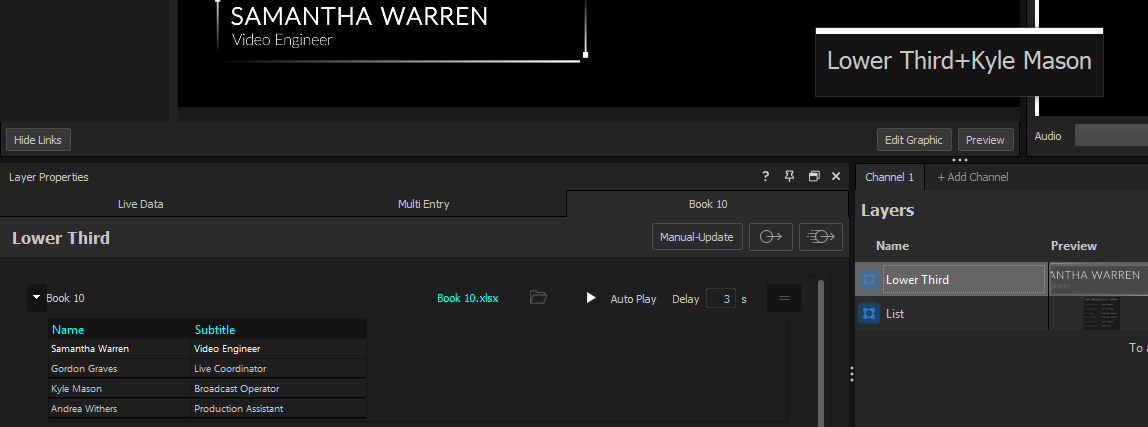
3. Type the name of a graphic. As you type, a popup list appears in the middle of Captivate’s playout interface showing the name of every graphic in the Project List that matches your entry.
4. Either finish typing the full name of a graphic or press the **down arrow** on your keyboard to highlight a graphic’s name in the popup list. Press **Tab** to cycle through entries in the popup.
5. Press the **+** or **forward slash** (**/**) key on your keyboard to drill into the spreadsheet rows for the highlighted graphic.
6. Type data that appears in the first column of the line or block that you want to select.
7. Press **ENTER** to select the graphic and data.
**Tips**
* You can hide blocks, lines, or cells of data. See [Legacy Spreadsheet / CSV controller](/play-and-update-graphics/chapter-index-2/legacy-spreadsheet-controller.md) for details.
* Press SPACEBAR to play a graphic layer that is selected from the Project List. See [Shortcuts](/reference/shortcuts.md) for more keyboard controls.
---
# Agent Instructions
This documentation is published with GitBook. GitBook is the documentation platform designed so that both humans and AI agents can read, navigate, and reason over technical content effectively. Learn more at gitbook.com.
## Querying This Documentation
If you need additional information that is not directly available in this page, you can query the documentation dynamically by asking a question.
Perform an HTTP GET request on the current page URL with the `ask` query parameter, and the optional `goal` query parameter:
```
GET https://captivatehelp.newbluelive.com/control-your-show/chapter-index/select-with-instant-search.md?ask=&goal=
```
`ask` is the immediate question: it should be specific, self-contained, and written in natural language.
`goal` is optional and describes the broader end goal you are ultimately trying to accomplish on behalf of the user. GitBook uses it to tailor the answer towards what is most useful for that goal.
The response will contain a direct answer to the question and relevant excerpts and sources from the documentation.
Use this mechanism when the answer is not explicitly present in the current page, you need clarification or additional context, or you want to retrieve related documentation sections.