> For the complete documentation index, see [llms.txt](https://captivatehelp.newbluelive.com/llms.txt). Markdown versions of documentation pages are available by appending `.md` to page URLs; this page is available as [Markdown](https://captivatehelp.newbluelive.com/control-your-show/chapter-index/pre-cache-graphics-before-a-show.md).
# Pre-cache graphics before a show
Render graphics and their variable values before a live production so nothing renders on air. Pre-caching matters most for complex After Effects designs, which have longer render times and heavier system demands.
Captivate can pre-cache values for native graphic layers and for After Effects layers. Each pre-cached value set is stored as a row in the **Values Grid** tab, ready to play during the broadcast.
## Topics included
* [Pre-cache your graphic layers](#pre-cache-your-graphic-layers)
* [Pre-cache your spreadsheet data](#pre-cache-your-spreadsheet-data)
* [Manage your Values Grid](#manage-your-values-grid)
## Pre-cache your graphic layers
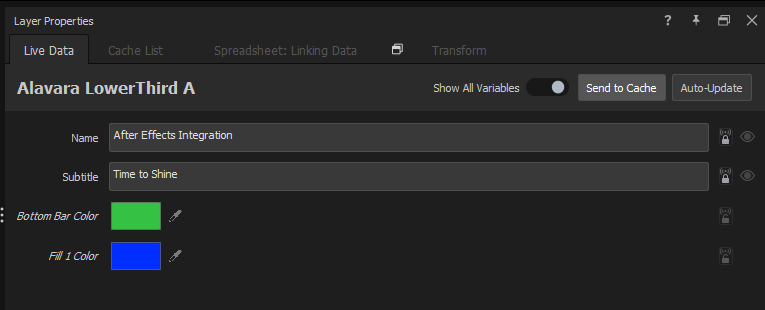
1. Choose the graphic layer you would like to pre-cache.
2. Open the **Live Values** tab in the Properties panel.
3. Adjust any values you would like to pre-cache for broadcast.
4. Click the **Add to Values Grid** button on the Live Values tab. The current variable values are snapshotted as a new row in the Values Grid, ready for playing live during broadcast.
{% hint style="info" %}
Renders for all values in the Values Grid are saved in the same directory as your Captivate project. They are recalled the next time you open the project.
{% endhint %}
## Pre-cache your spreadsheet data
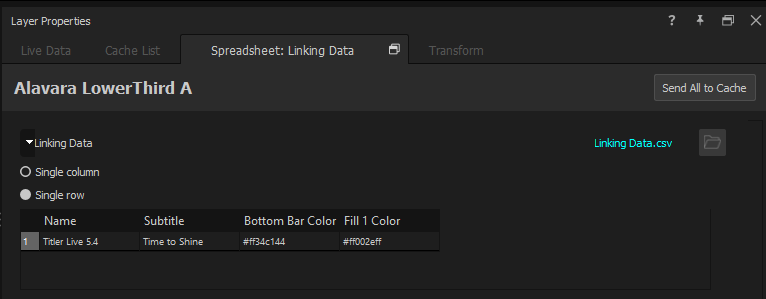
1. Choose the graphic layer connected to the spreadsheet you would like to pre-cache.
2. Open the tab named after the Data Controller that’s bound to this layer (for example, **Spreadsheet: \**) in the Properties panel.
3. Click **Send All to Cache**.
{% hint style="info" %}
To cache a single row instead, click that row, then choose **OK**. The pre-cached values appear in your Values Grid, ready for playing live during broadcast.
{% endhint %}
## Manage your Values Grid
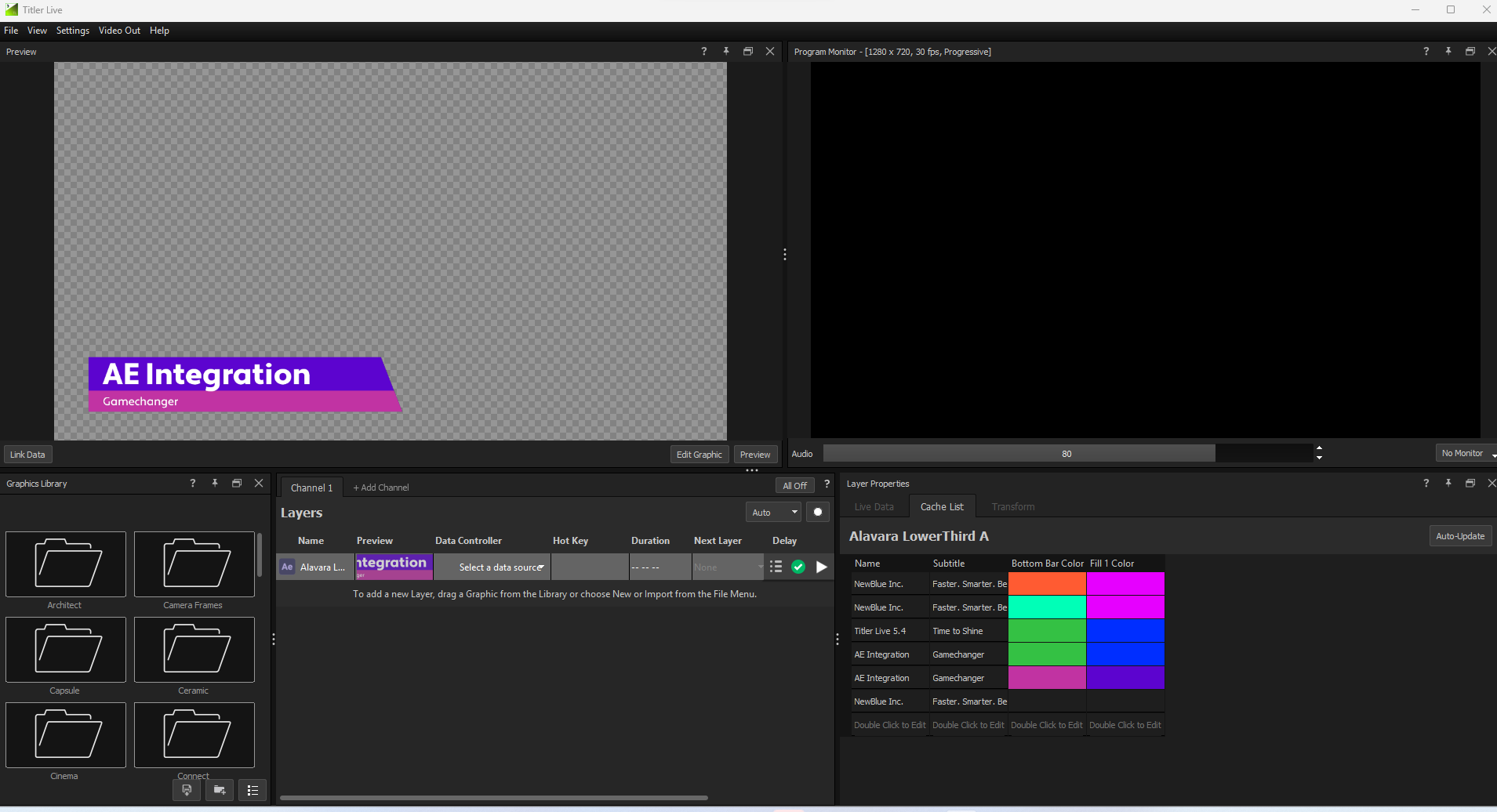
Use the Values Grid to control which data is visualized in your live layers, similarly to operating a connected Data Controller. For the full runtime workflow, see [Values Grid](/control-your-show/chapter-index/values-grid.md).
1. In the Project List, select the layer you wish to control.
2. Open the **Values Grid** tab in the Properties panel.
3. Click in any row of the Values Grid to queue that set of values for the selected layer. The values are shown in Preview.
**📌 NOTE**\
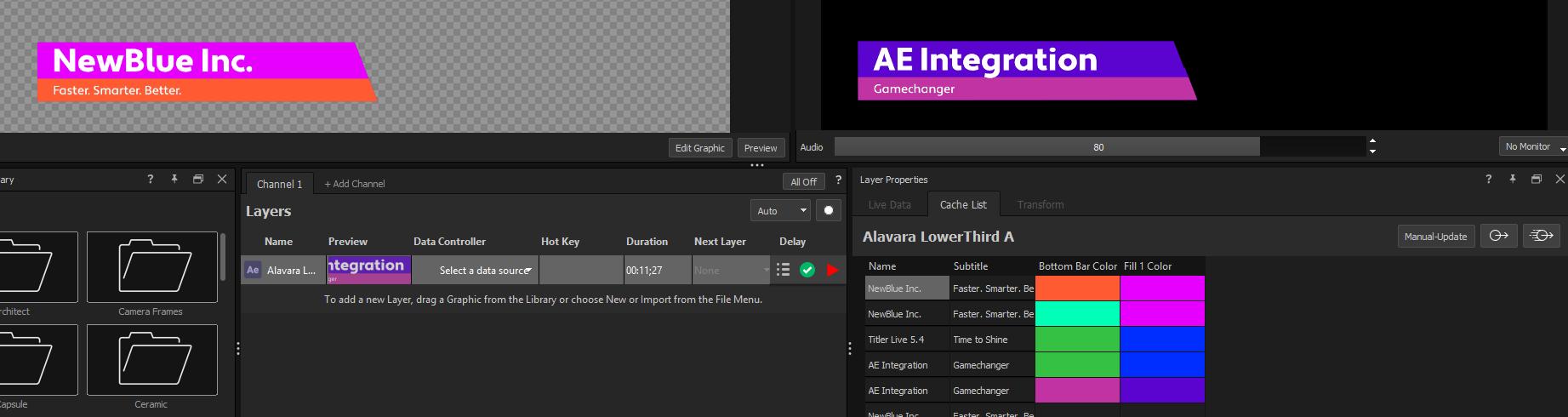
Values in on-air graphics update in two ways:
* If **Auto Update** is enabled, the selected row of values plays in the live graphic immediately.
* If **Manually Update** is selected, use the  button to send the selected values on air with animations, or the  button to update the graphic while bypassing animations.
**💡 TIP**\
Right-click a row to **Insert Row Above**. To delete a row from the Values Grid, right-click it and choose **Remove Row**.
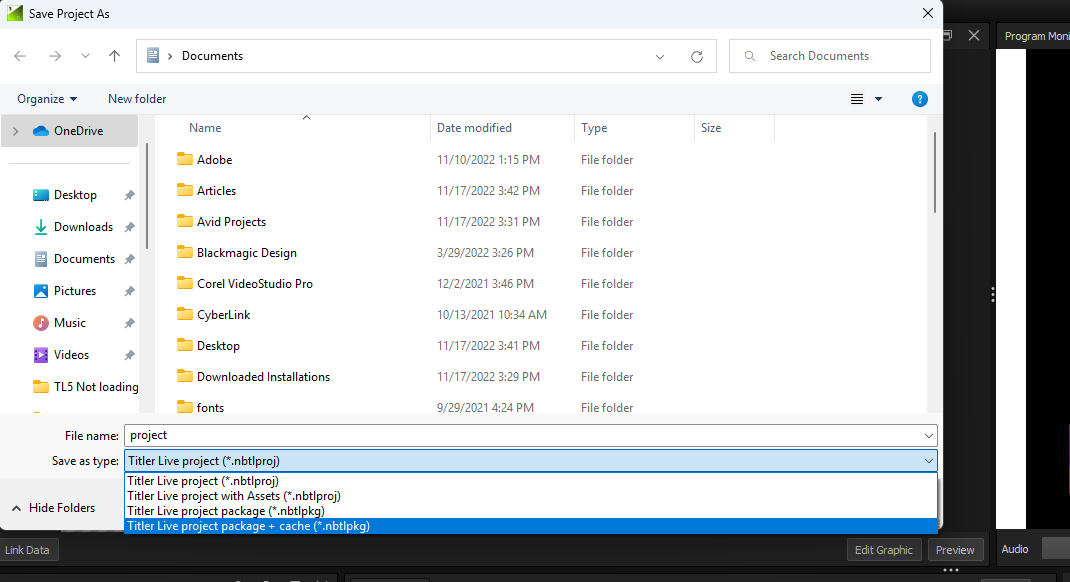
To save the project together with its cache, choose **File** > **Save Project As…**, then in the Save dialog’s **Save as type** dropdown pick **Captivate project with Assets**. The cache is bundled into the saved project.
Your saved project can be opened in Captivate and broadcast on a machine that does not have After Effects installed. The values will not be available to update live, however.
## Related
* [Values Grid](/control-your-show/chapter-index/values-grid.md) — operate the grid during the show.
* [Values Grid tab](/get-started/chapter-index-2/values-grid-tab-reference.md) — the panel-controls reference.
* [Which After Effects approach to use](/design-and-customize-graphics/chapter-index-6/after-effects-which-approach.md) — where pre-caching fits in the AE workflow.
---
# Agent Instructions
This documentation is published with GitBook. GitBook is the documentation platform designed so that both humans and AI agents can read, navigate, and reason over technical content effectively. Learn more at gitbook.com.
## Querying This Documentation
If you need additional information that is not directly available in this page, you can query the documentation dynamically by asking a question.
Perform an HTTP GET request on the current page URL with the `ask` query parameter, and the optional `goal` query parameter:
```
GET https://captivatehelp.newbluelive.com/control-your-show/chapter-index/pre-cache-graphics-before-a-show.md?ask=&goal=
```
`ask` is the immediate question: it should be specific, self-contained, and written in natural language.
`goal` is optional and describes the broader end goal you are ultimately trying to accomplish on behalf of the user. GitBook uses it to tailor the answer towards what is most useful for that goal.
The response will contain a direct answer to the question and relevant excerpts and sources from the documentation.
Use this mechanism when the answer is not explicitly present in the current page, you need clarification or additional context, or you want to retrieve related documentation sections.