> For the complete documentation index, see [llms.txt](https://captivatehelp.newbluelive.com/llms.txt). Markdown versions of documentation pages are available by appending `.md` to page URLs; this page is available as [Markdown](https://captivatehelp.newbluelive.com/control-your-show/chapter-index/animate-updates-from-live-data.md).
# Animate Live Values updates
The Layer Properties panel contains the Live Values tab which allows you to manually update variables from a graphic layer. There are two modes for sending updates to graphic layers when information from your variables has been manually edited.
{% hint style="info" %}
The Auto/Manual toggle and the two manual update buttons appear only when your license includes the live-update feature. Otherwise, updates are always sent automatically and these controls do not appear.
{% endhint %}
* [Auto Update](#auto-update)
* [Manually Update](#manually-update)
## Auto Update
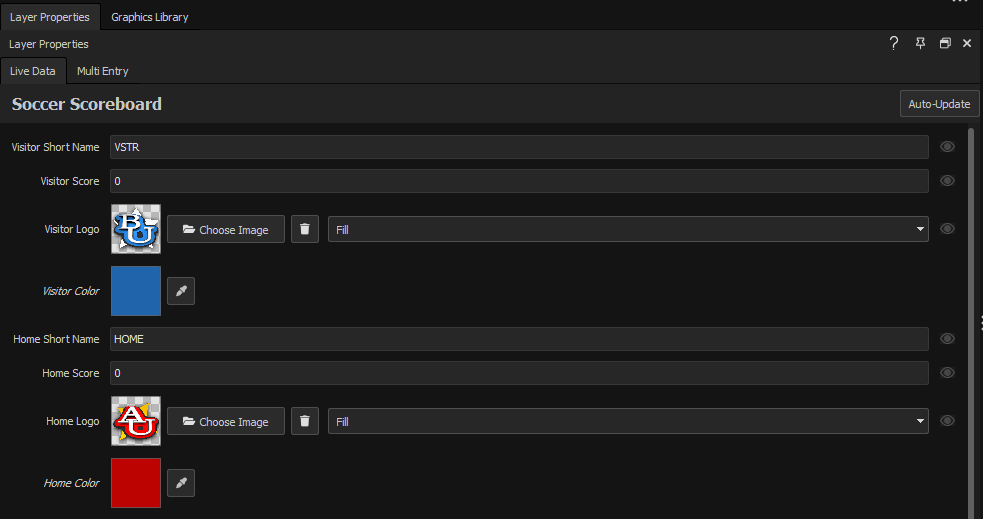
By default the Live Values tab is set to **Auto Update**. Any changes you make to a variable in this mode are sent to the live graphic immediately, using the transition preset applied to that design layer from the Designer.
## Manually Update
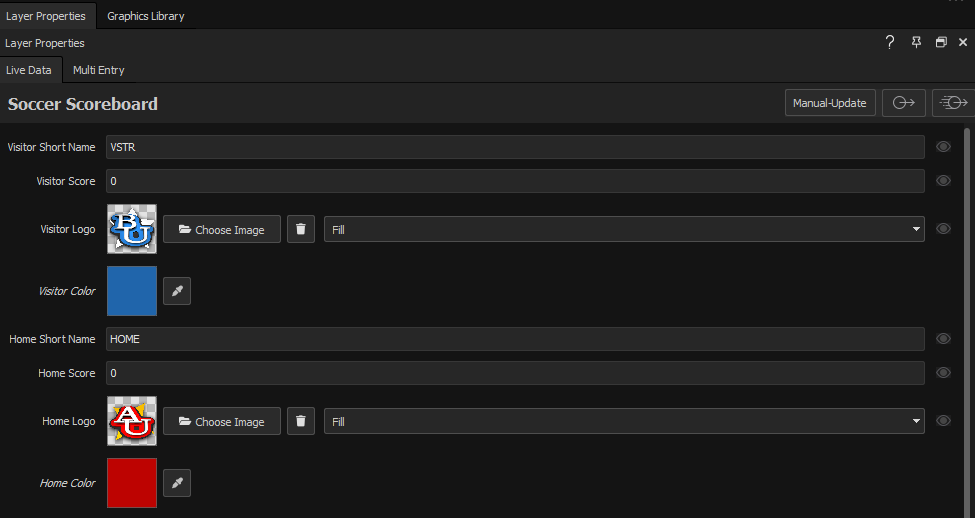
Switch the toggle to **Manually Update** to buffer edits. In this mode the Live Values tab shows two additional icon buttons next to the toggle:
The **Update changes without animation**  button sends any pending edits as a cut with no animation. This is very useful for making quick edits to existing information on a live graphic without drawing attention to a change.
The **Update changes with animation**  button sends any pending edits using the transition preset applied to that design layer from the Designer.
{% hint style="info" %}
One of these two update buttons must be pressed every time edits need to go on-air. You can edit multiple variables and follow up with a single press to send them all at once.
{% endhint %}
**💡 TIP**\
Hit the Enter key on your keyboard or click away from the text entry field to approve changes so that a variable can then be manually updated.
---
# Agent Instructions
This documentation is published with GitBook. GitBook is the documentation platform designed so that both humans and AI agents can read, navigate, and reason over technical content effectively. Learn more at gitbook.com.
## Querying This Documentation
If you need additional information that is not directly available in this page, you can query the documentation dynamically by asking a question.
Perform an HTTP GET request on the current page URL with the `ask` query parameter, and the optional `goal` query parameter:
```
GET https://captivatehelp.newbluelive.com/control-your-show/chapter-index/animate-updates-from-live-data.md?ask=&goal=
```
`ask` is the immediate question: it should be specific, self-contained, and written in natural language.
`goal` is optional and describes the broader end goal you are ultimately trying to accomplish on behalf of the user. GitBook uses it to tailor the answer towards what is most useful for that goal.
The response will contain a direct answer to the question and relevant excerpts and sources from the documentation.
Use this mechanism when the answer is not explicitly present in the current page, you need clarification or additional context, or you want to retrieve related documentation sections.