> For the complete documentation index, see [llms.txt](https://captivatehelp.newbluelive.com/llms.txt). Markdown versions of documentation pages are available by appending `.md` to page URLs; this page is available as [Markdown](https://captivatehelp.newbluelive.com/control-your-show/chapter-index-5/remote-control-from-phone-or-tablet.md).
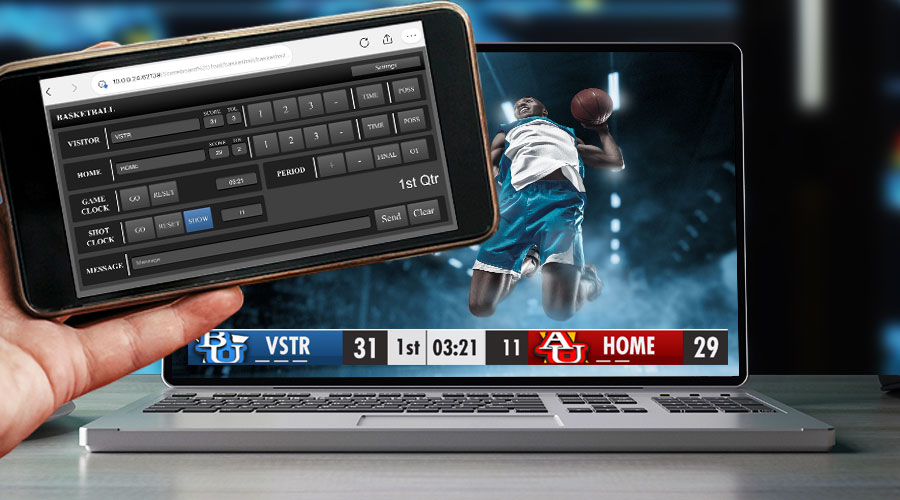
# Control scoreboard and social graphics from a phone or tablet
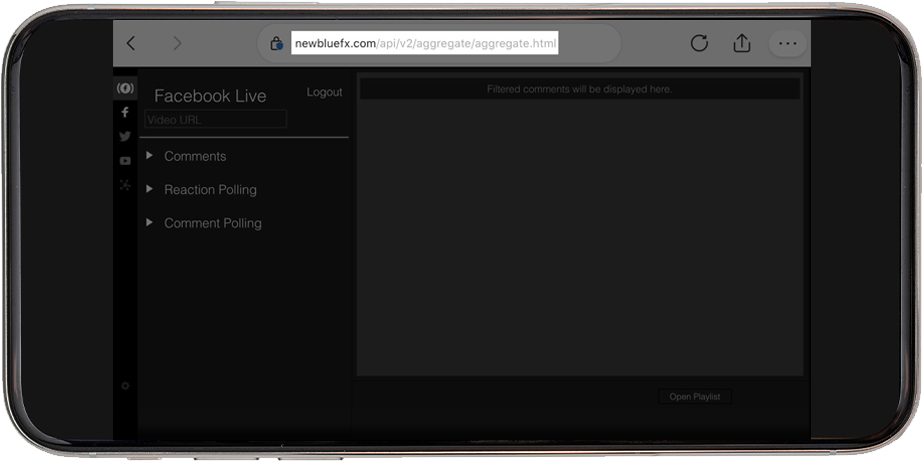
When using Captivate, you can modify any HTML-based Data Controller input using an internet browser from a device that is connected to your network — computers, cell phones, and tablets. Any Data Controller whose setup window shows an **Open in Browser** button supports this workflow.
{% hint style="info" %}
Changes to your title’s design and attributes must still be made in-app — the remote interface only exposes the bound Data Controller’s controls, not the Designer.
{% endhint %}
## How to Load a Controller on Mobile
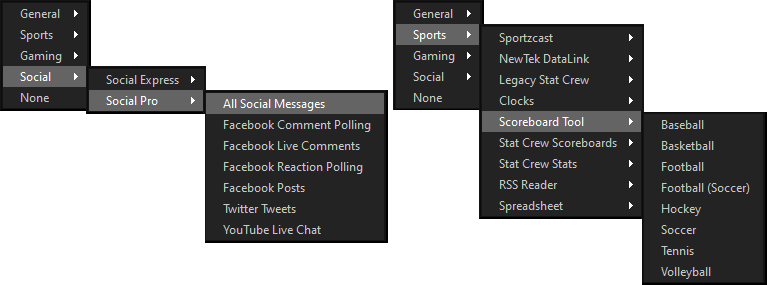
1. From your desktop Captivate software, add either a Scoreboard or Social Data Controller to one of your graphic layers using the Inputs dropdown.
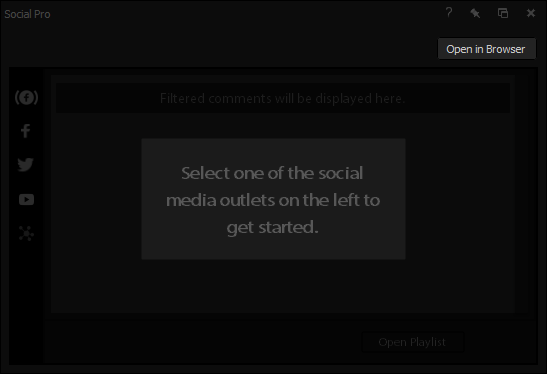
2. When the controller window opens, click **Open in Browser** in the top right of the controller window.
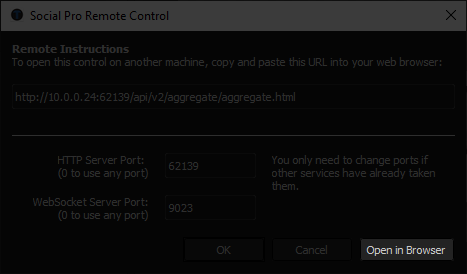
3. A dialog appears with a QR code and a link. Use whichever route fits the device:
* **Scan the QR code** with a phone or tablet on the same network — the controller opens directly on that device.
* **Click the underlined link** to open the controller in a browser on the Captivate machine.
* **Copy to Clipboard** copies the controller’s address, ready to paste into a message to any device on your network.
* On macOS, **Share** hands the address to the system share sheet, including AirDrop to a nearby device.
You are now using your controller via your mobile device or tablet.
## Multi-NIC machines
If your Captivate machine has more than one network interface (for example, a wired connection plus Wi-Fi, or a VPN client), the URL generated for the controller uses one of those interfaces. If your phone or tablet is on a different network than the one the URL points to, the page does not load.
To find the correct address, run `ipconfig` on Windows or `ifconfig` on macOS and use the IP address that belongs to the network your phone or tablet is connected to.
Scanning the QR code from the **Open in Browser** dialog opens the URL directly on the mobile device, which sidesteps typing the address by hand.
## Security
The controller URL has no built-in authentication. Anyone on the same network — including VPN clients and guest networks — who knows or guesses the URL can drive the controller. Use it on a trusted network, and keep the URL private.
---
# Agent Instructions
This documentation is published with GitBook. GitBook is the documentation platform designed so that both humans and AI agents can read, navigate, and reason over technical content effectively. Learn more at gitbook.com.
## Querying This Documentation
If you need additional information that is not directly available in this page, you can query the documentation dynamically by asking a question.
Perform an HTTP GET request on the current page URL with the `ask` query parameter, and the optional `goal` query parameter:
```
GET https://captivatehelp.newbluelive.com/control-your-show/chapter-index-5/remote-control-from-phone-or-tablet.md?ask=&goal=
```
`ask` is the immediate question: it should be specific, self-contained, and written in natural language.
`goal` is optional and describes the broader end goal you are ultimately trying to accomplish on behalf of the user. GitBook uses it to tailor the answer towards what is most useful for that goal.
The response will contain a direct answer to the question and relevant excerpts and sources from the documentation.
Use this mechanism when the answer is not explicitly present in the current page, you need clarification or additional context, or you want to retrieve related documentation sections.