> For the complete documentation index, see [llms.txt](https://captivatehelp.newbluelive.com/llms.txt). Markdown versions of documentation pages are available by appending `.md` to page URLs; this page is available as [Markdown](https://captivatehelp.newbluelive.com/control-your-show/chapter-index-4/tables-controller-with-companion.md).
# Spreadsheet Controller Operation
Google Sheets, Excel, and local Spreadsheet controllers are available via Companion for basic navigation, selection, and playback. This facilitates driving variables, synchronizing actions, and controlling delayed actions per your workflow.
* [Configuring Your Spreadsheet](#configuring-your-spreadsheet)
* [Spreadsheet Controller Preset Actions Available](#spreadsheet-controller-preset-actions-available)
* [Preset Additional Configuration Options & Requirements](#preset-additional-configuration-options--requirements)
## Configuring Your Spreadsheet
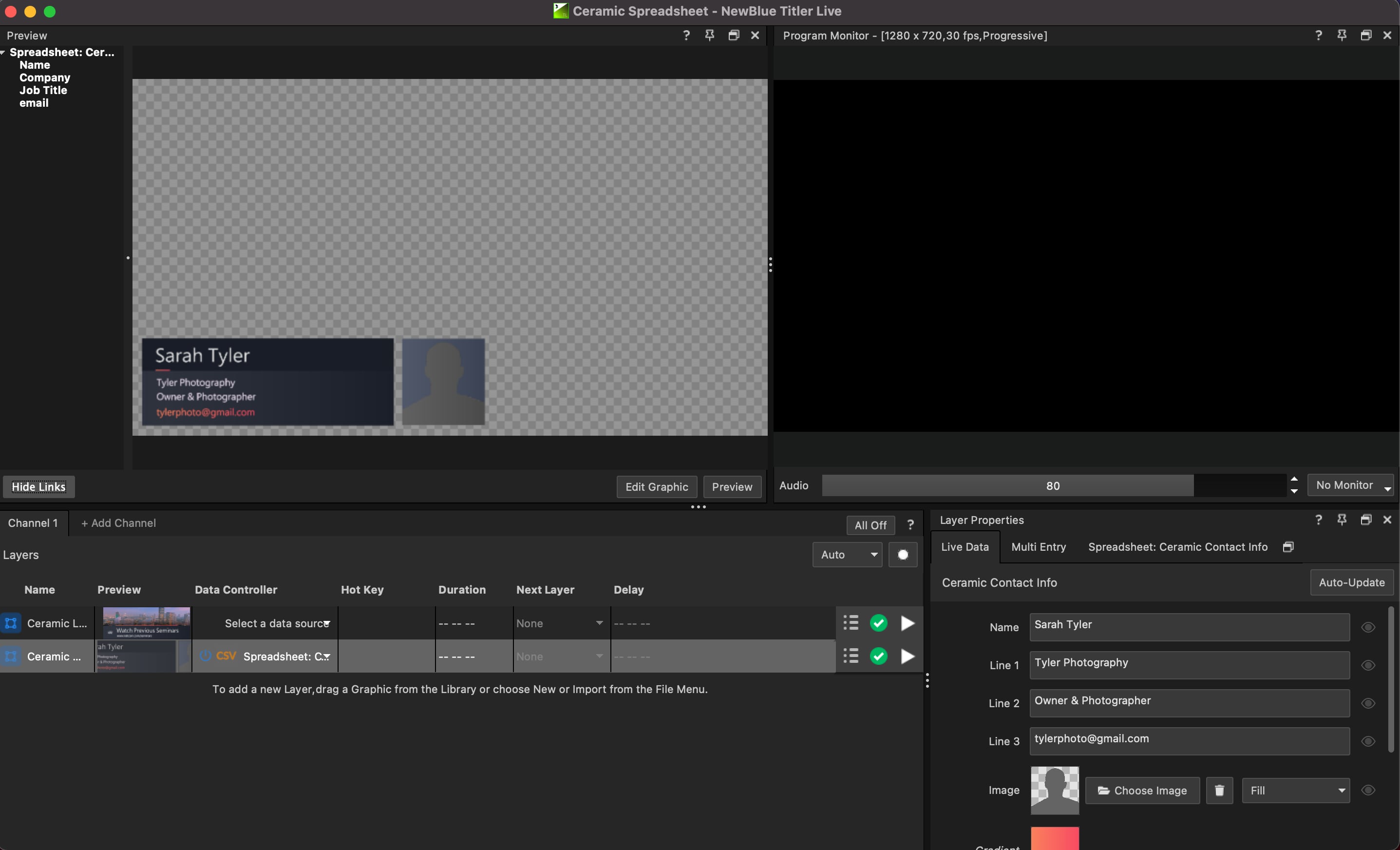
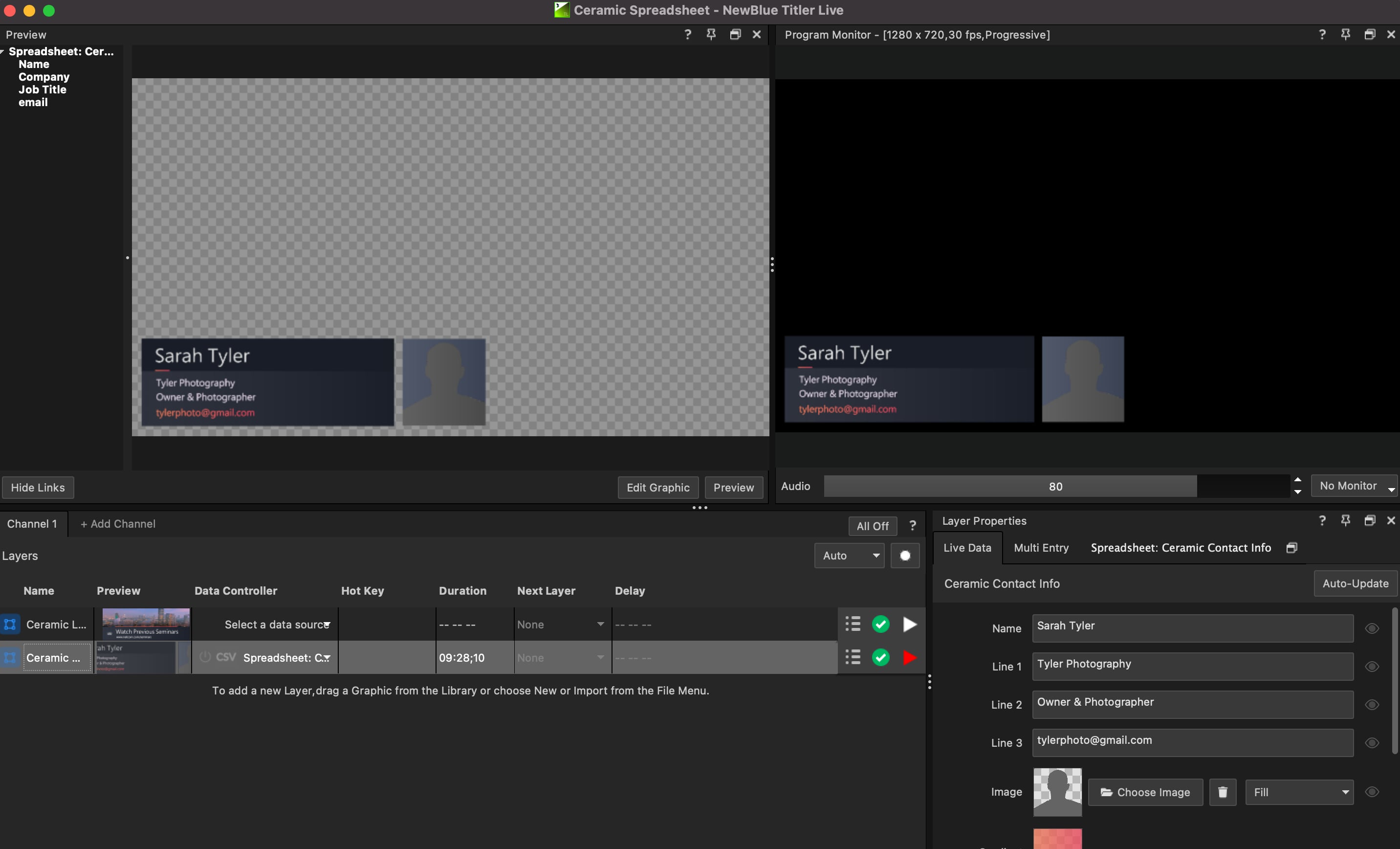
1. Open Captivate and set up your project with Layers connected to one or more spreadsheet controllers.
2. Launch Companion from Program Files (Win) or Applications (Mac).
3. Choose **Launch GUI** to open the Companion application in your browser.
4. Navigate to the **Connections** tab and ensure Titler NewBlue is showing OK Status. If not, **Add Connection > Search Titler > Add NewBlue Captivate**.
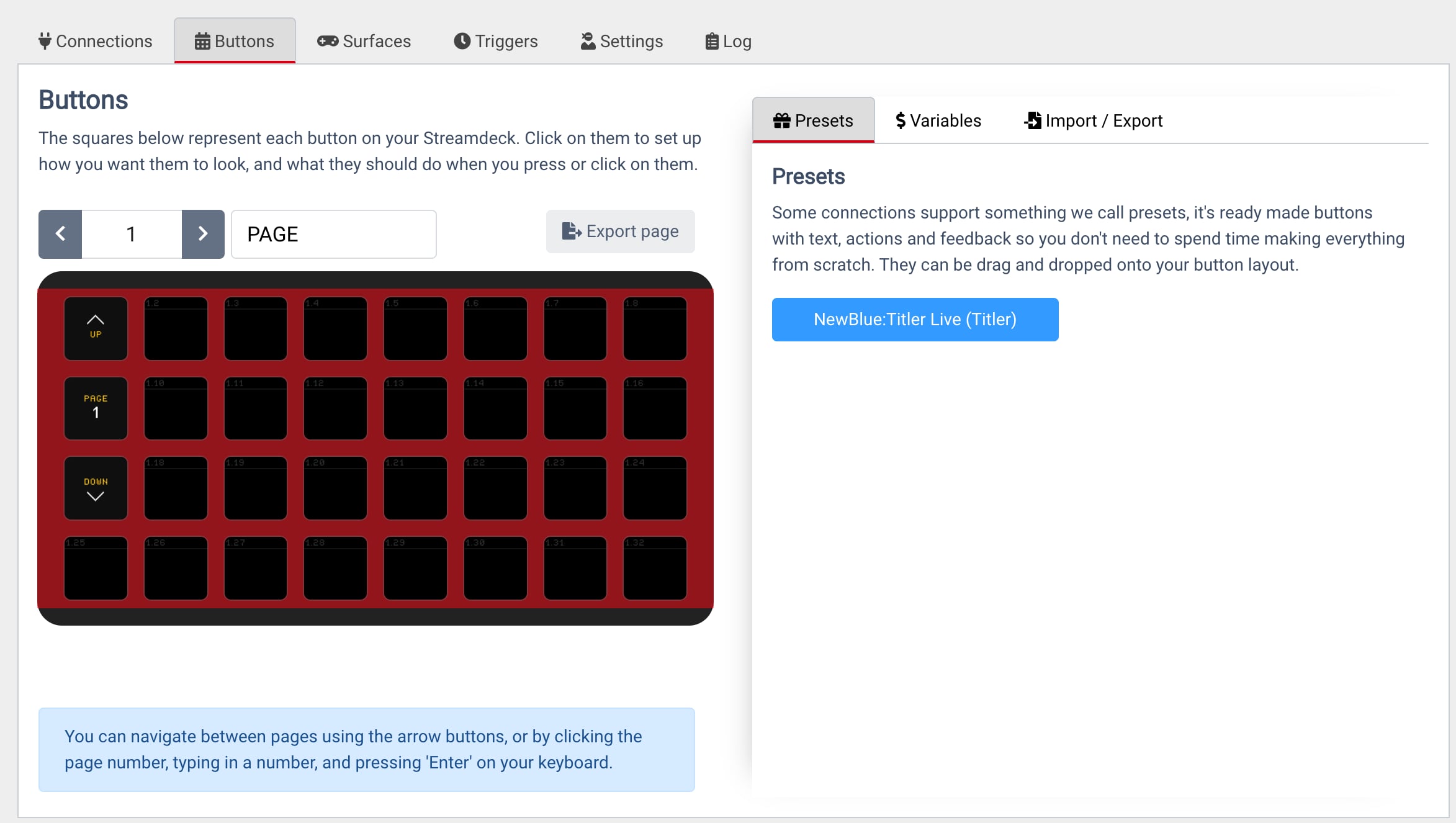
5. Choose the **Buttons** tab.
6. Select the **NewBlue: Captivate** button under the **Presets** tab.
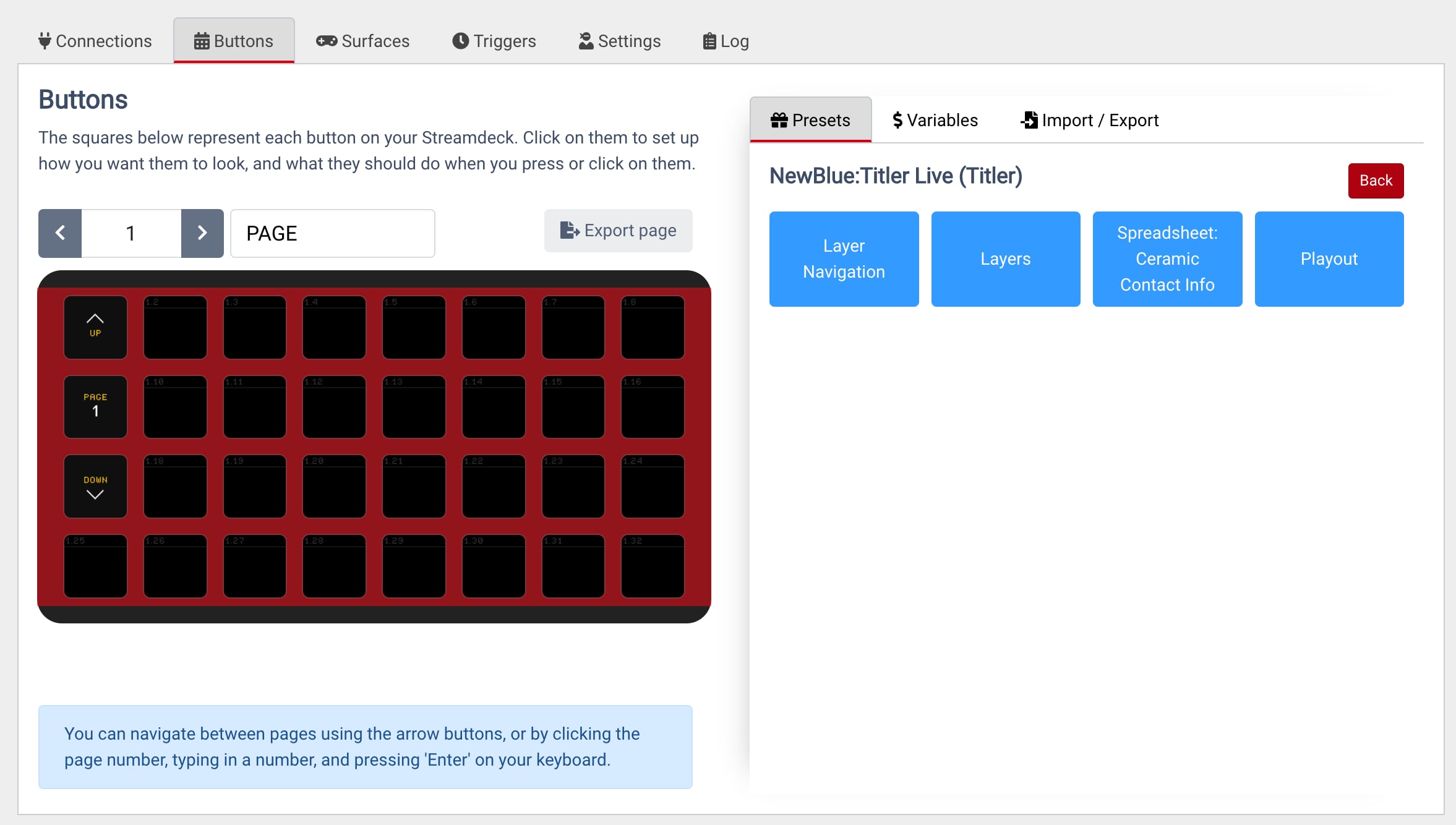
7. Click the **Google Sheets/Excel/Spreadsheet: (Name of Project file)** button.
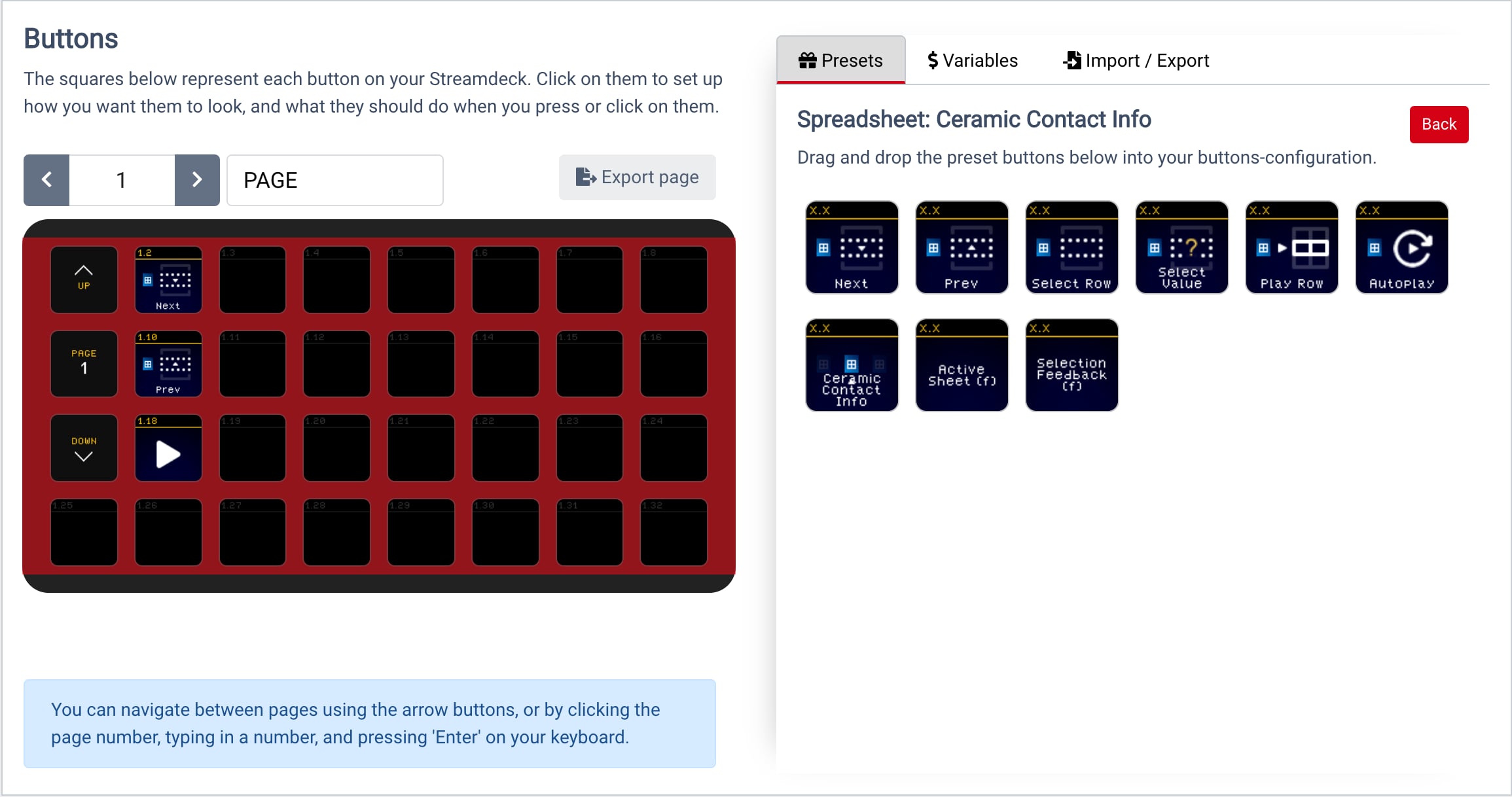
8. Drag and drop the button preset to your desired location.
## Spreadsheet Controller Preset Actions Available
**Google / Excel / Spreadsheet Operations**
| Action | Description | Additional config |
| ------------------------------------------------ | ------------------------------------------------------------------ | ----------------- |
| [Select Next Row](#play-next--play-previous) | Select the next row from a specific spreadsheet or the last-used. | Optional |
| [Select Previous Row](#play-next--play-previous) | Select the previous row. | Optional |
| [Select by Row](#select-by-row) | Select a specific row from a spreadsheet. | Required |
| [Select by Value](#select-by-value) | Select a row by matching a target column to an exact value. | Required |
| [Play by Row](#play-by-row) | Select and play a specific row on-air. | Required |
| [Refresh](#refresh) | Refresh the spreadsheet (Google/Excel only). | Optional |
| [Autoplay](#autoplay) | Start/stop Autoplay for a specific sheet. | Required |
| [Select Sheet](#select-by-sheet) | Select which sheet Companion controls when multiple are connected. | Required |
**Google / Excel / Spreadsheet Feedbacks**
| Action | Description | Additional config |
| --------------------- | ------------------------------------------------------------------------------------ | ----------------- |
| Active Sheet Feedback | Reports the active sheet name. | None |
| Spreadsheet Feedback | Reports the selected row. Can be configured to show the row index or a column value. | Required |
## Preset Additional Configuration Options & Requirements
All preset buttons can be edited from the Configuration Board. Most require additional configuration to specify which Row, Column, or Sheet to direct through Captivate.
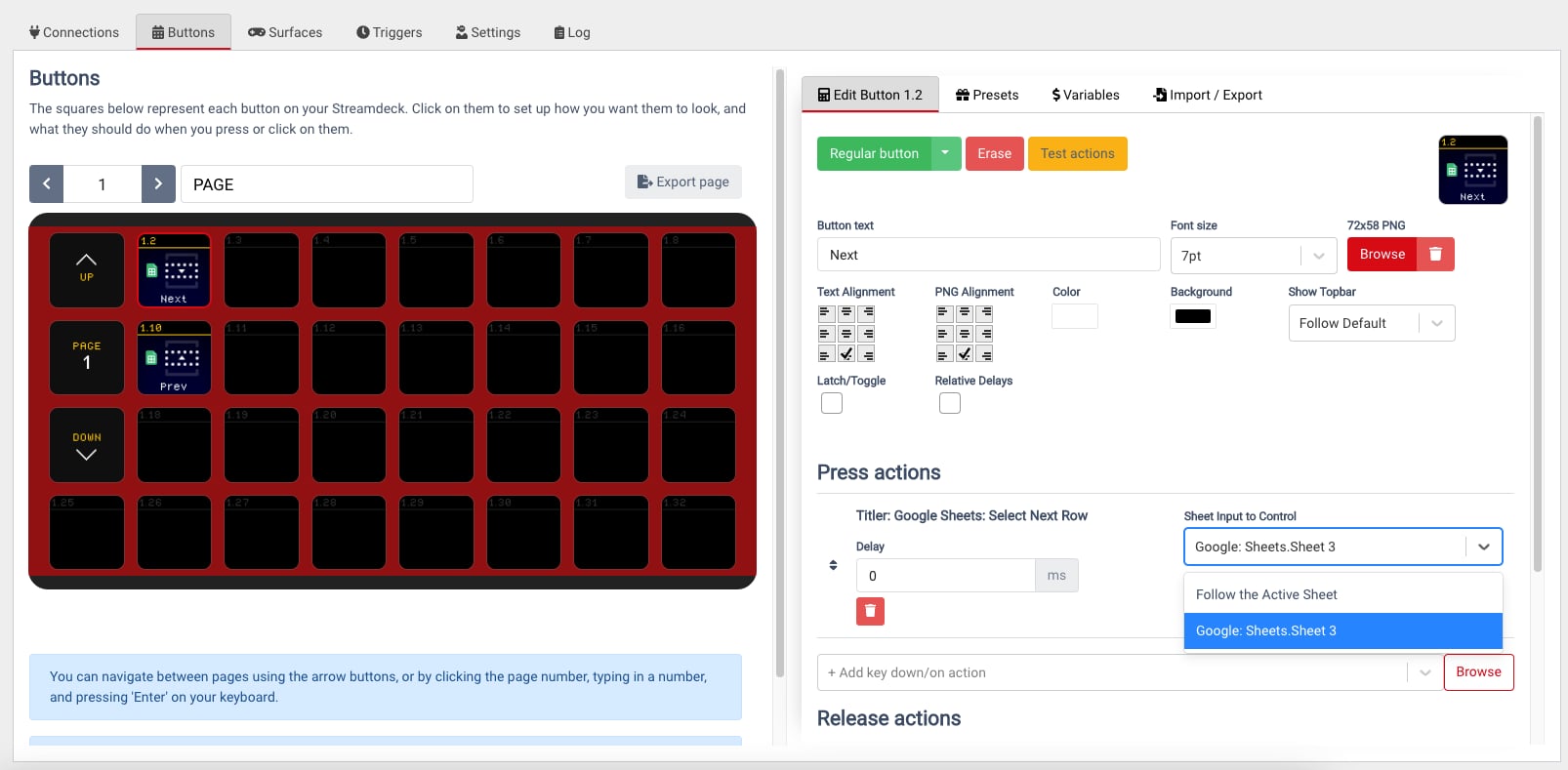
### Play Next / Play Previous
1. Select the Play Next or Play Previous button.
2. Choose the desired sheet under **Sheet Input to Control**.
Test with **Test actions**.
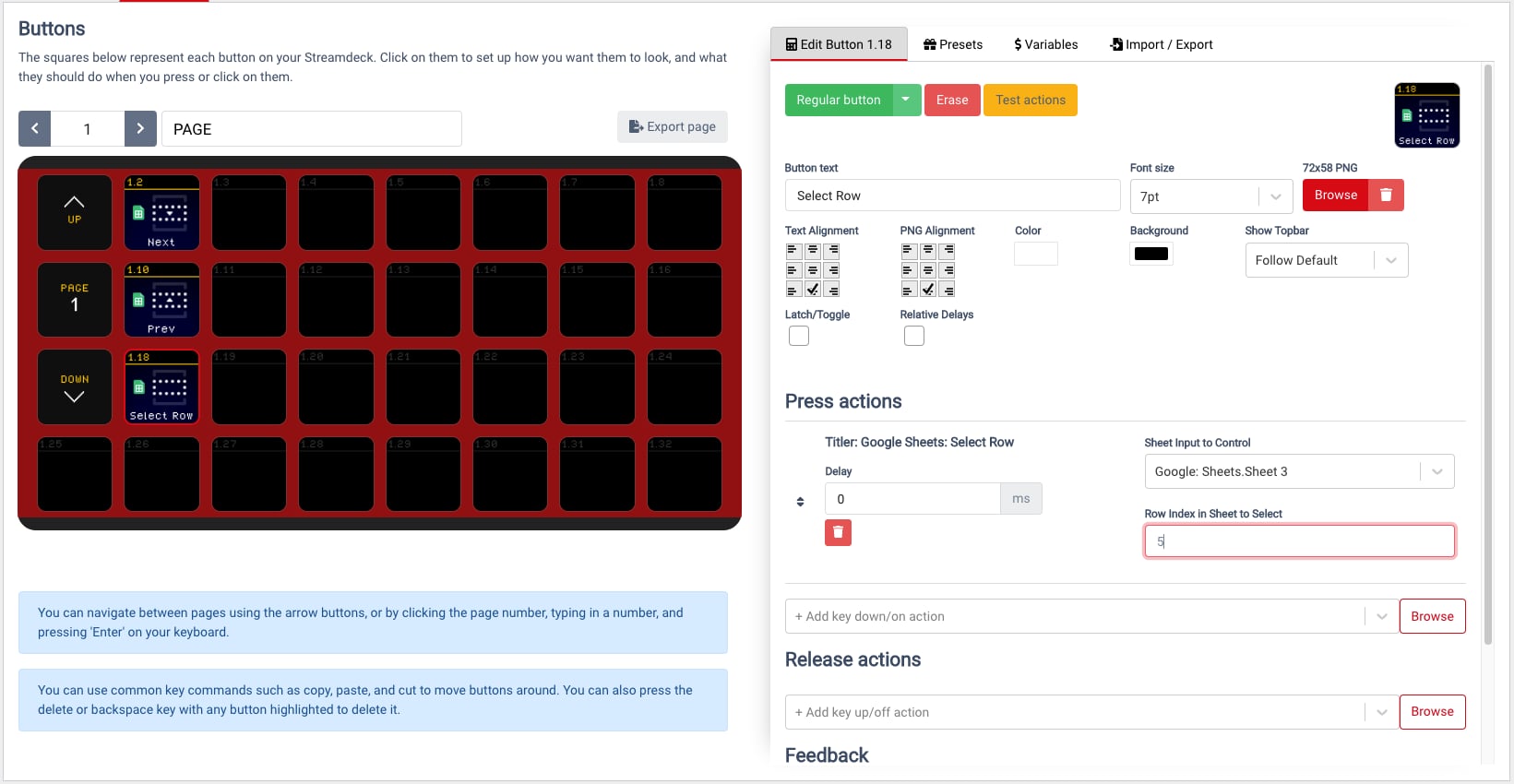
### Select by Row
1. Select the Select Row button.
2. Choose the desired sheet.
3. Type the desired Row under **Row Index in Sheet to Play**.
Test with **Test actions**.
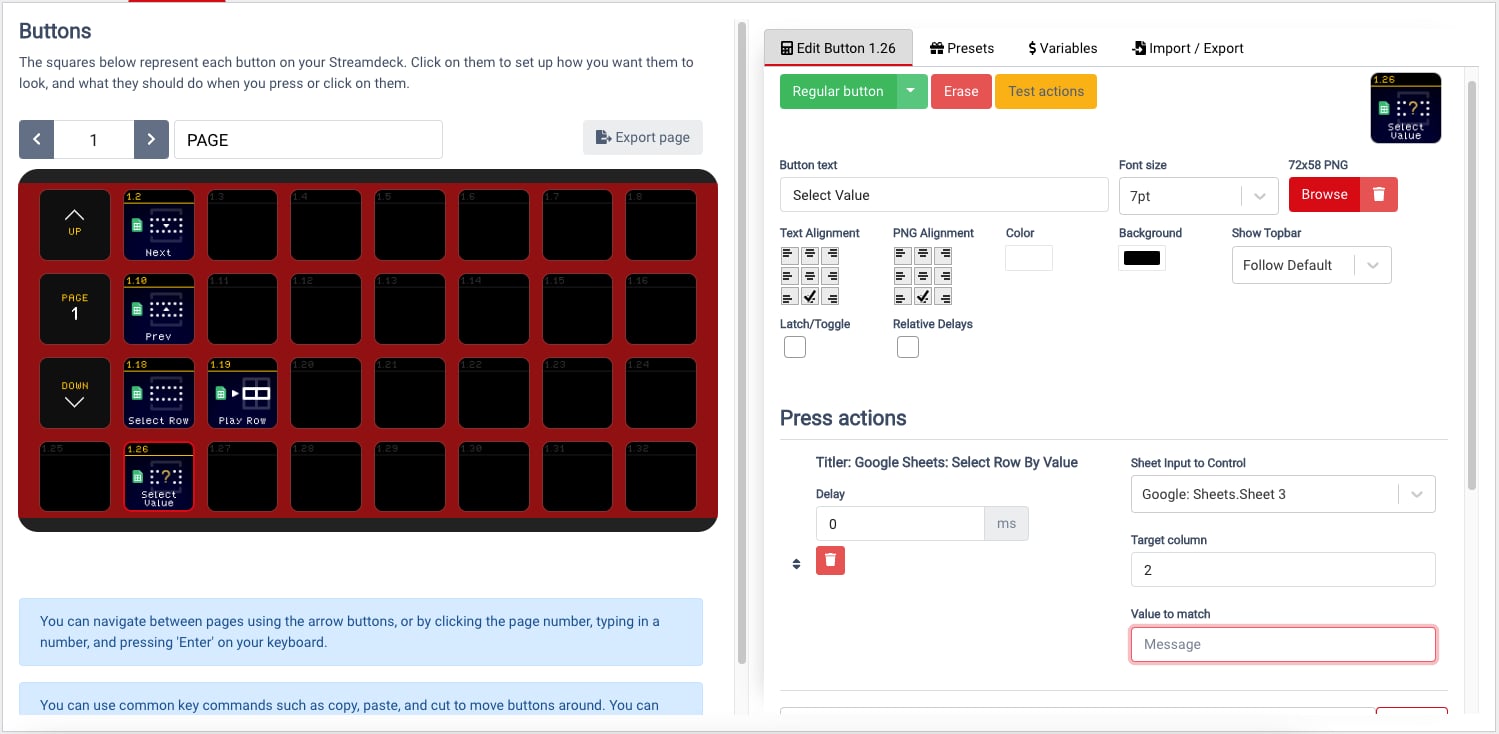
### Select by Value
1. Select the Select Value button.
2. Choose the desired sheet.
3. Type the desired Column under **Target Column**.
4. Type the desired value under **Value to match**.
Test with **Test actions**.
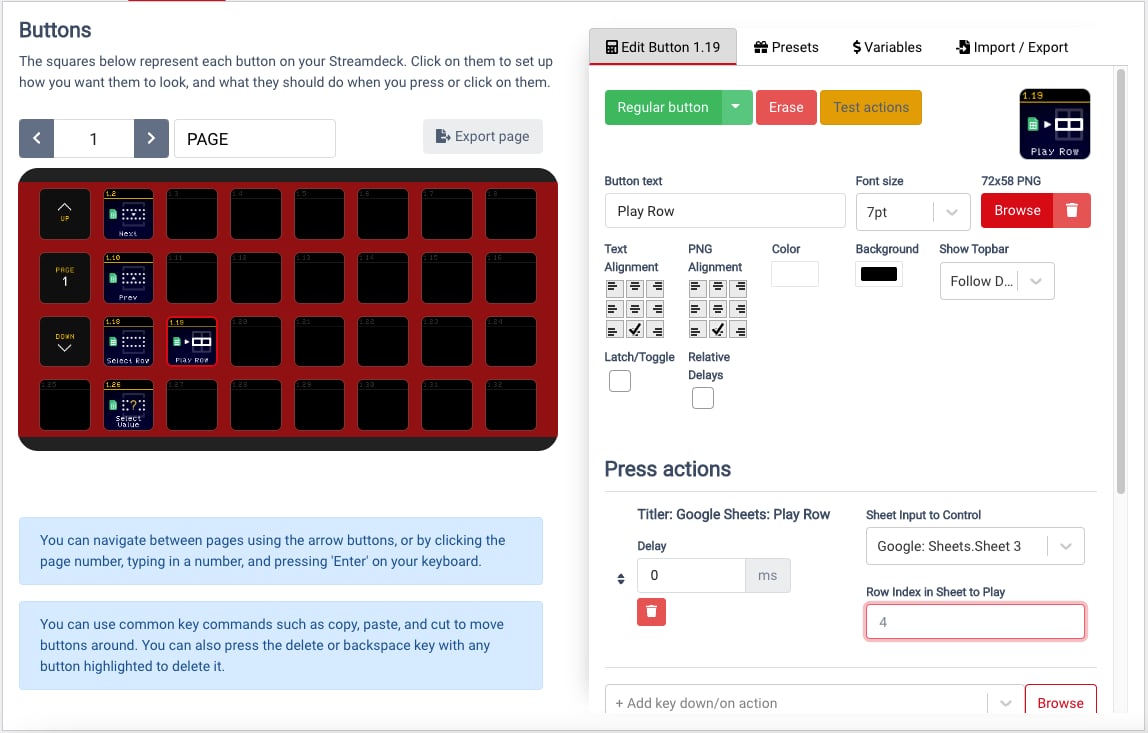
### Play by Row
1. Select the Play Row button.
2. Choose the desired sheet.
3. Type the desired Row under **Row Index in Sheet to Play**.
Test with **Test actions**.
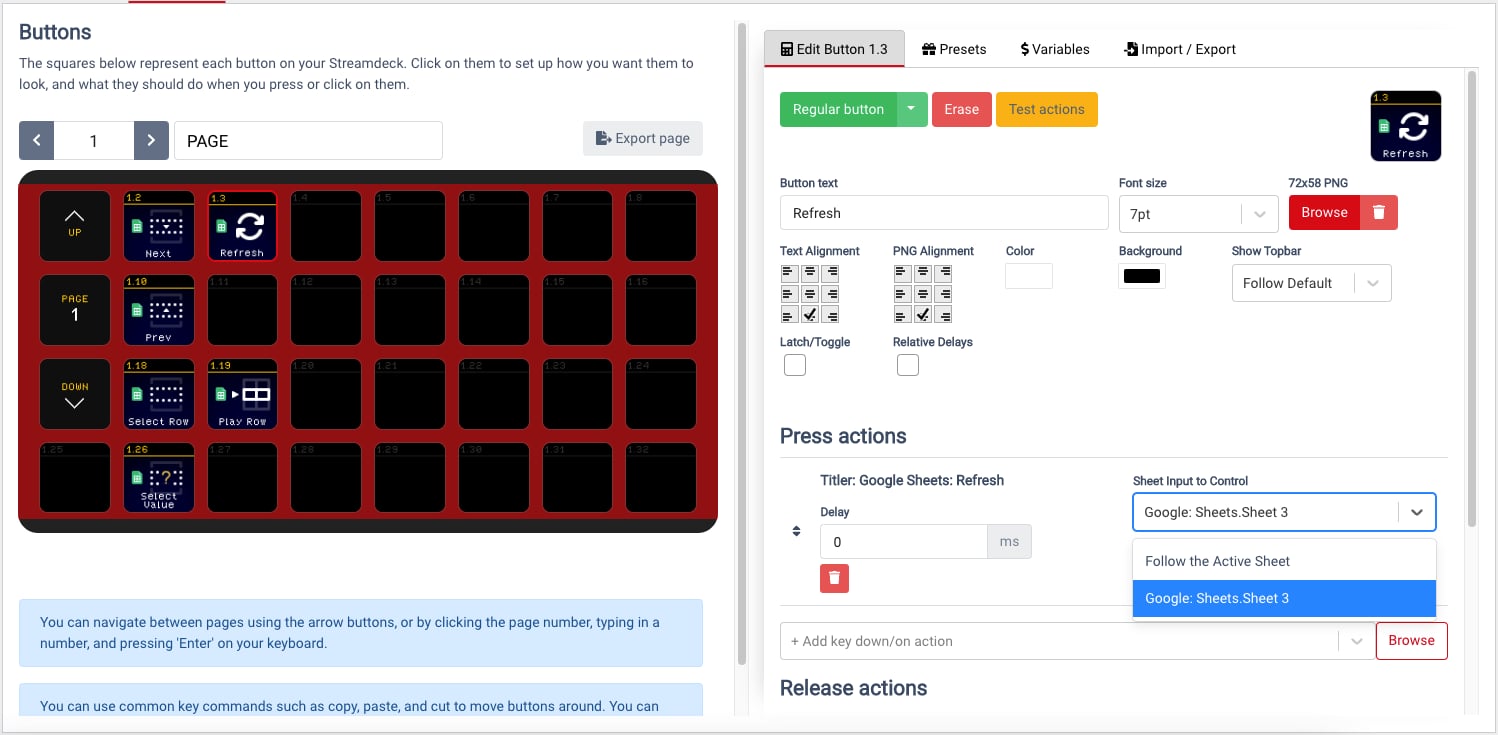
### Refresh
1. Select the Refresh button.
2. Choose the desired Google Sheet or Excel document.
Test with **Test actions**.
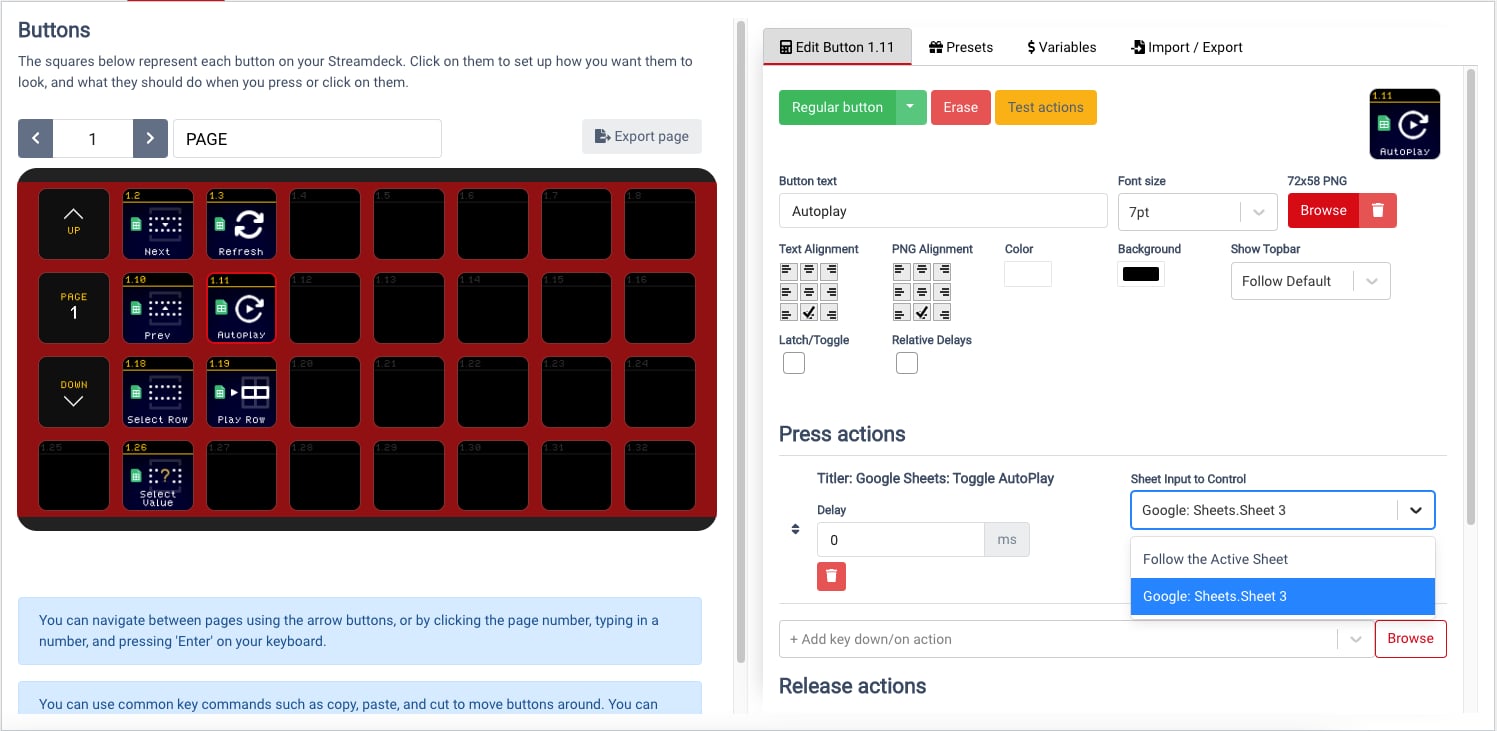
### Autoplay
1. Select the Autoplay button.
2. Choose the desired sheet.
Test with **Test actions**.
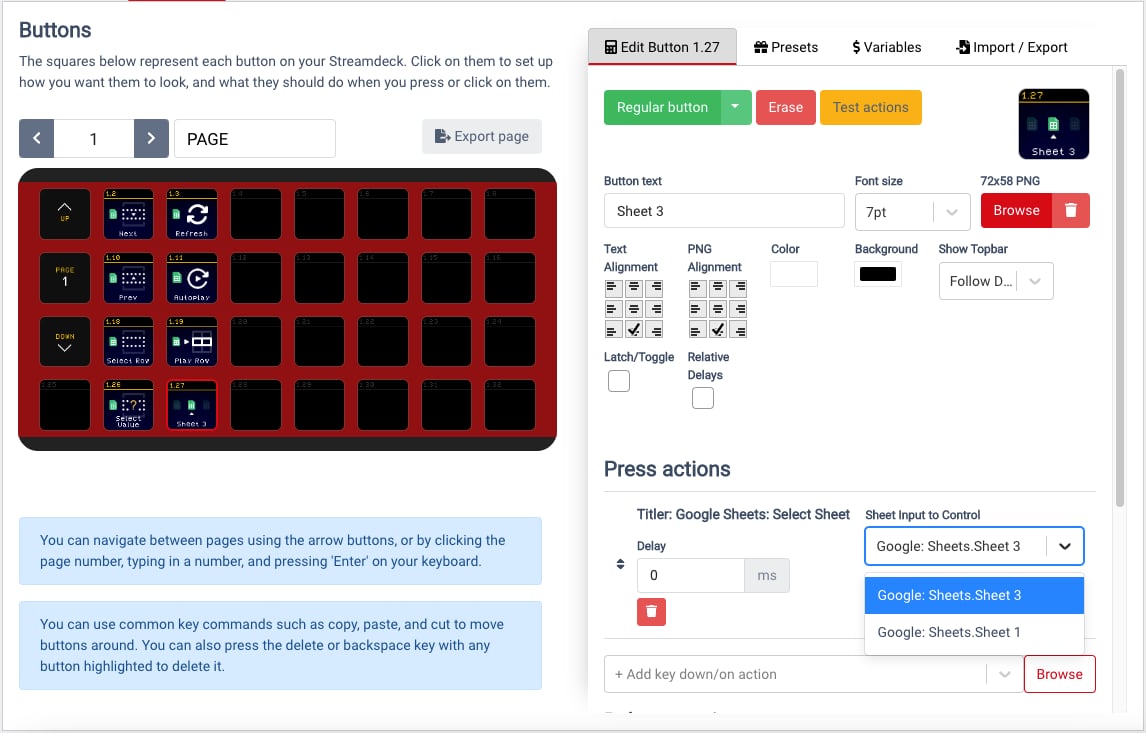
### Select by Sheet
1. Select the Select Sheet button.
2. Choose the desired Google Sheet.
Test with **Test actions**.
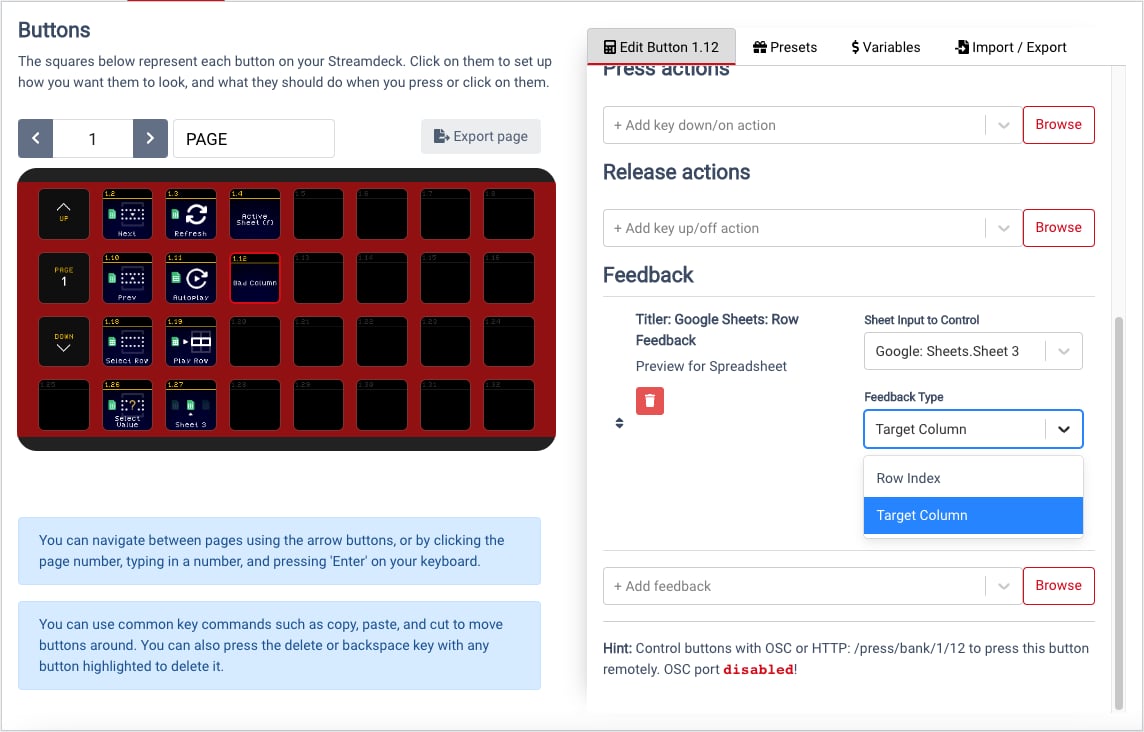
### Selection Feedback
1. Select the Selection Feedback button.
2. Choose **Target Column** or **Row Index** under **Feedback Type**.
{% hint style="info" %}
If freezing occurs, refresh your browser.
{% endhint %}
---
# Agent Instructions
This documentation is published with GitBook. GitBook is the documentation platform designed so that both humans and AI agents can read, navigate, and reason over technical content effectively. Learn more at gitbook.com.
## Querying This Documentation
If you need additional information that is not directly available in this page, you can query the documentation dynamically by asking a question.
Perform an HTTP GET request on the current page URL with the `ask` query parameter, and the optional `goal` query parameter:
```
GET https://captivatehelp.newbluelive.com/control-your-show/chapter-index-4/tables-controller-with-companion.md?ask=&goal=
```
`ask` is the immediate question: it should be specific, self-contained, and written in natural language.
`goal` is optional and describes the broader end goal you are ultimately trying to accomplish on behalf of the user. GitBook uses it to tailor the answer towards what is most useful for that goal.
The response will contain a direct answer to the question and relevant excerpts and sources from the documentation.
Use this mechanism when the answer is not explicitly present in the current page, you need clarification or additional context, or you want to retrieve related documentation sections.