> For the complete documentation index, see [llms.txt](https://captivatehelp.newbluelive.com/llms.txt). Markdown versions of documentation pages are available by appending `.md` to page URLs; this page is available as [Markdown](https://captivatehelp.newbluelive.com/control-your-show/chapter-index-4/operating-bitfocus-companion-via-streamdeck.md).
# Operate Bitfocus Companion with Stream Deck
## Elgato Stream Deck Setup
If you had issues setting up the Elgato Stream Deck in the [Set up Bitfocus Companion](/control-your-show/chapter-index-4/bitfocus-companion-setup.md) article, the steps below help. You may need to relaunch and ensure Stream Deck is fully disabled.
{% hint style="info" %}
To give Companion full control of your Stream Deck hardware, disable the Stream Deck software. Simply closing the application does not fully disable it — background processes continue and Stream Deck runs at startup by default.
{% endhint %}
### Disabling Stream Deck
**Option 1 (Mac):**
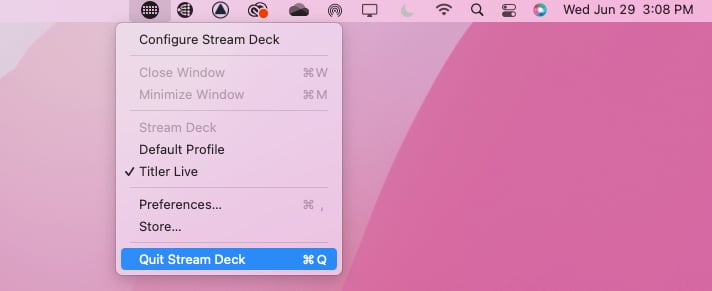
1. Click the Stream Deck icon in the top-right menu bar.
2. Choose **Quit Stream Deck**.
**Option 2 (Mac):**
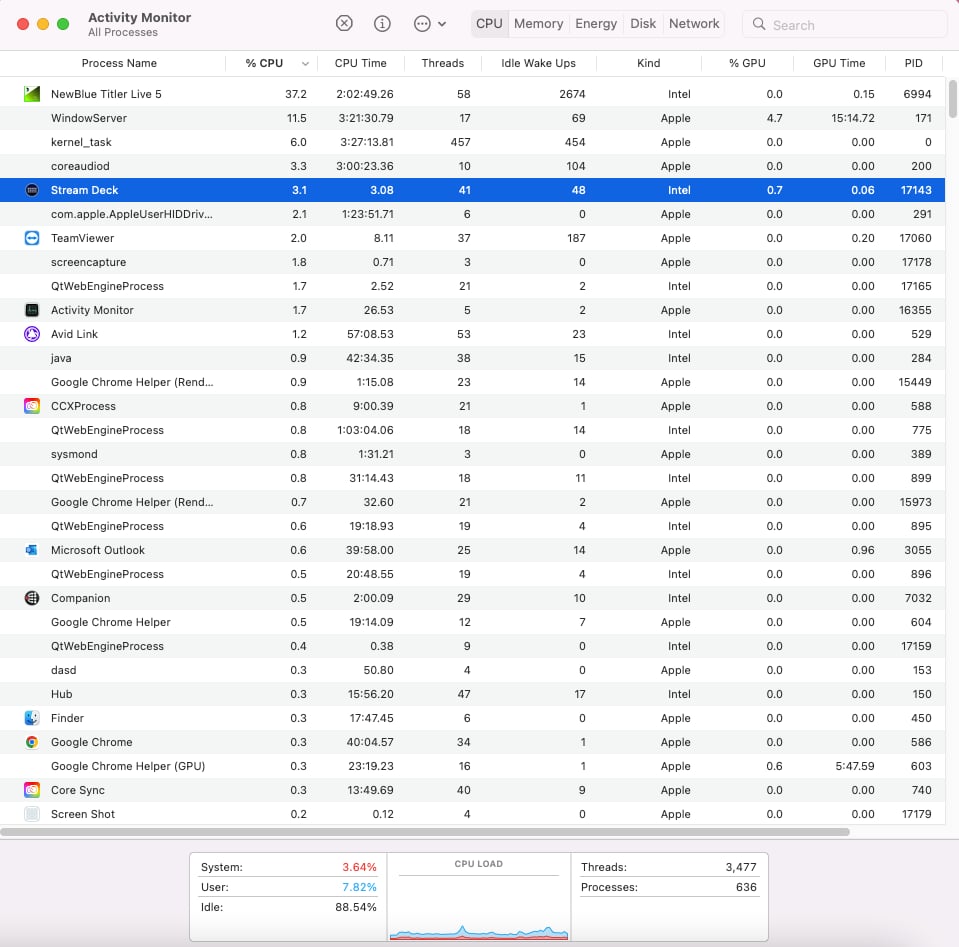
1. Open Activity Monitor.
2. Highlight StreamDeck.
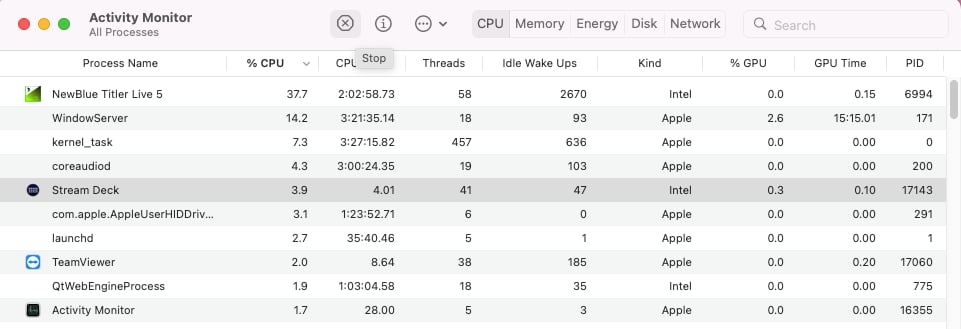
3. Press Stop and choose Quit.
{% hint style="info" %}
The Stream Deck application auto-launches on system restart. Disable it again before opening Companion.
{% endhint %}
**Option 1 (Windows):**
1. Click the arrow in the bottom-right of the menu bar.
2. Click Stream Deck and choose Quit.
**Option 2 (Windows):**
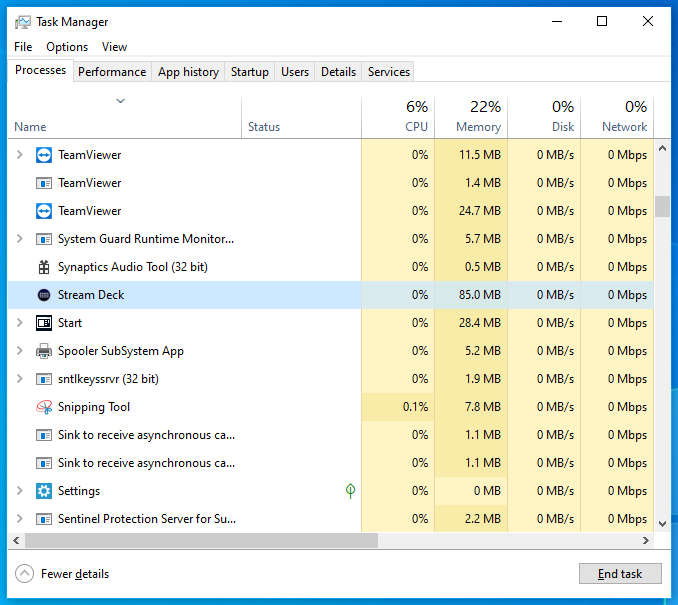
1. Open Task Manager.
2. Highlight StreamDeck.
3. Select **End Task**.
### Enabling Stream Deck within Bitfocus Companion
1. Relaunch Companion and open the Configuration Wizard.
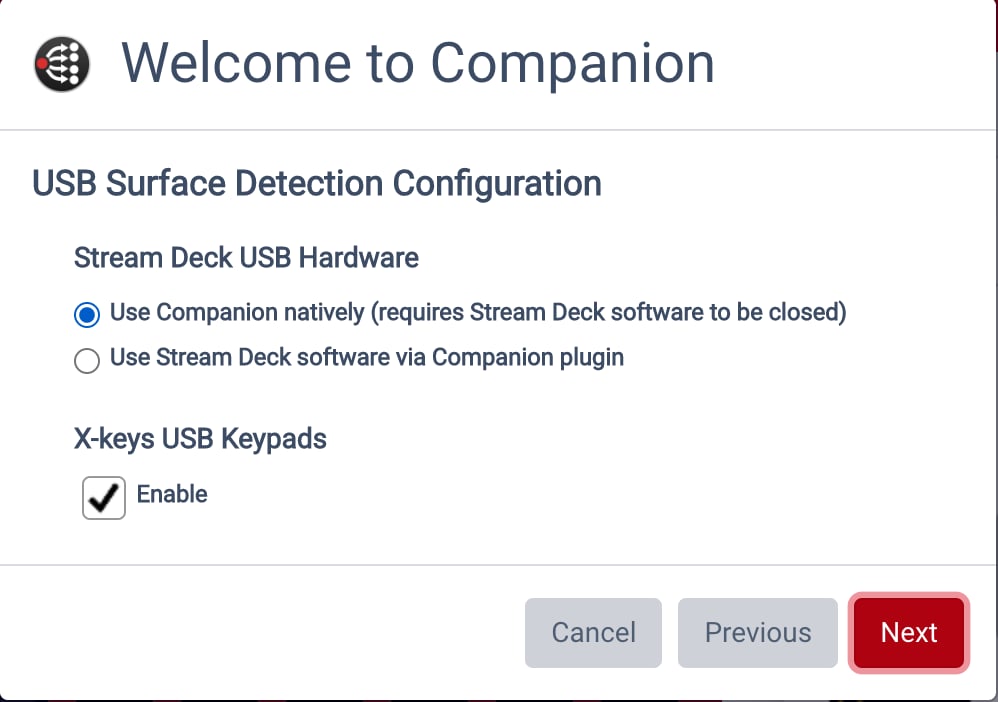
2. Click **Next** until you reach the USB Surface Detection Configuration window.
3. Select **Use Companion Natively** (recommended) and enable X-Keys USB Keypads if desired.
**📌 NOTE**\
To assign Stream Deck buttons to other apps that don’t support Companion natively, enable the Companion Stream Deck plugin.
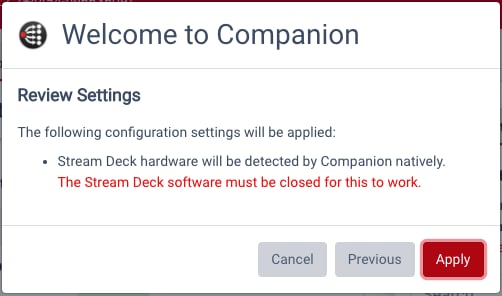
4. Click **Next** through to Review Settings. Verify and **Apply**.
{% hint style="info" %}
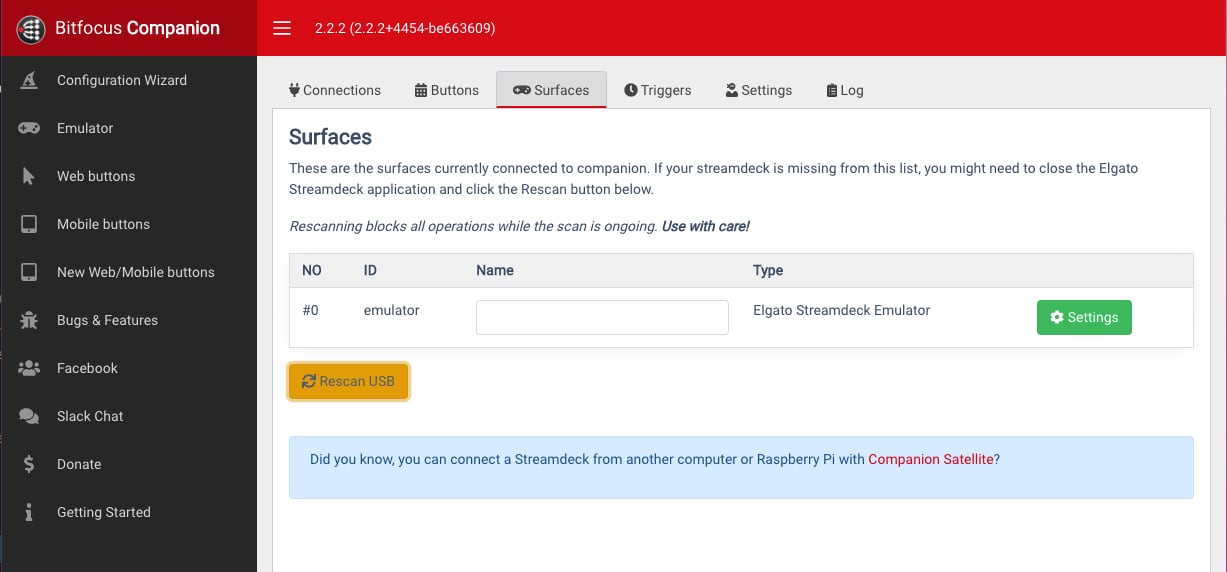
If your Stream Deck still doesn’t connect or drops, navigate to **Surfaces** and click **Rescan USB**.
{% endhint %}
### Captivate Companion module actions
The Bitfocus Companion module for Captivate exposes the actions documented in [Captivate presets in Companion](/control-your-show/chapter-index-4/presets-in-companion.md). This article covers the Companion route, which takes over the Stream Deck hardware; for the direct plug-in that works with the Stream Deck software running, see [Play graphics using an Elgato Stream Deck](/control-your-show/chapter-index-3/stream-deck-direct-plugin.md).
---
# Agent Instructions
This documentation is published with GitBook. GitBook is the documentation platform designed so that both humans and AI agents can read, navigate, and reason over technical content effectively. Learn more at gitbook.com.
## Querying This Documentation
If you need additional information that is not directly available in this page, you can query the documentation dynamically by asking a question.
Perform an HTTP GET request on the current page URL with the `ask` query parameter, and the optional `goal` query parameter:
```
GET https://captivatehelp.newbluelive.com/control-your-show/chapter-index-4/operating-bitfocus-companion-via-streamdeck.md?ask=&goal=
```
`ask` is the immediate question: it should be specific, self-contained, and written in natural language.
`goal` is optional and describes the broader end goal you are ultimately trying to accomplish on behalf of the user. GitBook uses it to tailor the answer towards what is most useful for that goal.
The response will contain a direct answer to the question and relevant excerpts and sources from the documentation.
Use this mechanism when the answer is not explicitly present in the current page, you need clarification or additional context, or you want to retrieve related documentation sections.