> For the complete documentation index, see [llms.txt](https://captivatehelp.newbluelive.com/llms.txt). Markdown versions of documentation pages are available by appending `.md` to page URLs; this page is available as [Markdown](https://captivatehelp.newbluelive.com/control-your-show/chapter-index-4/creating-multi-action-stacks-in-companion.md).

# Create multi-action stacks in Companion

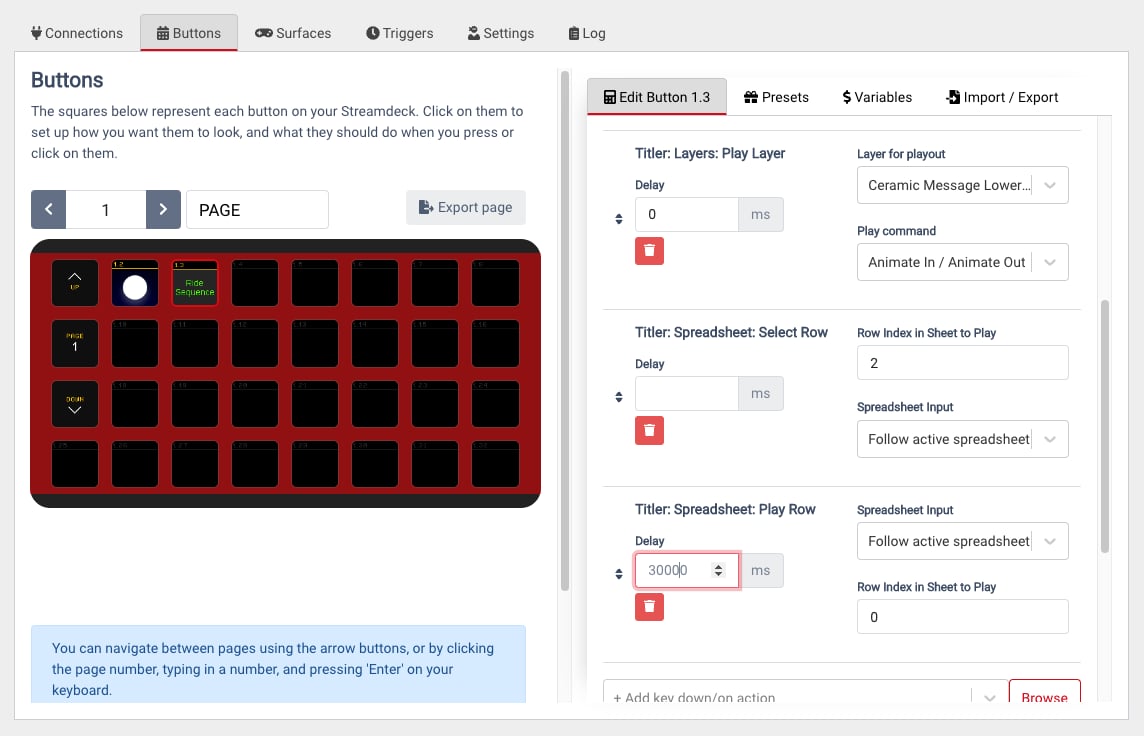
Bitfocus Companion allows you to assign multiple actions, with specified delays, to a single button. You can queue a sequence of events in your broadcast with a single press. Start from a button preset and stack additional actions, or fully customize a button from scratch.

* [Stacking Actions on a Preset Button](#stacking-actions-on-a-preset-button)
* [Customizing a Regular Button](#customizing-a-regular-button)

## Stacking Actions on a Preset Button

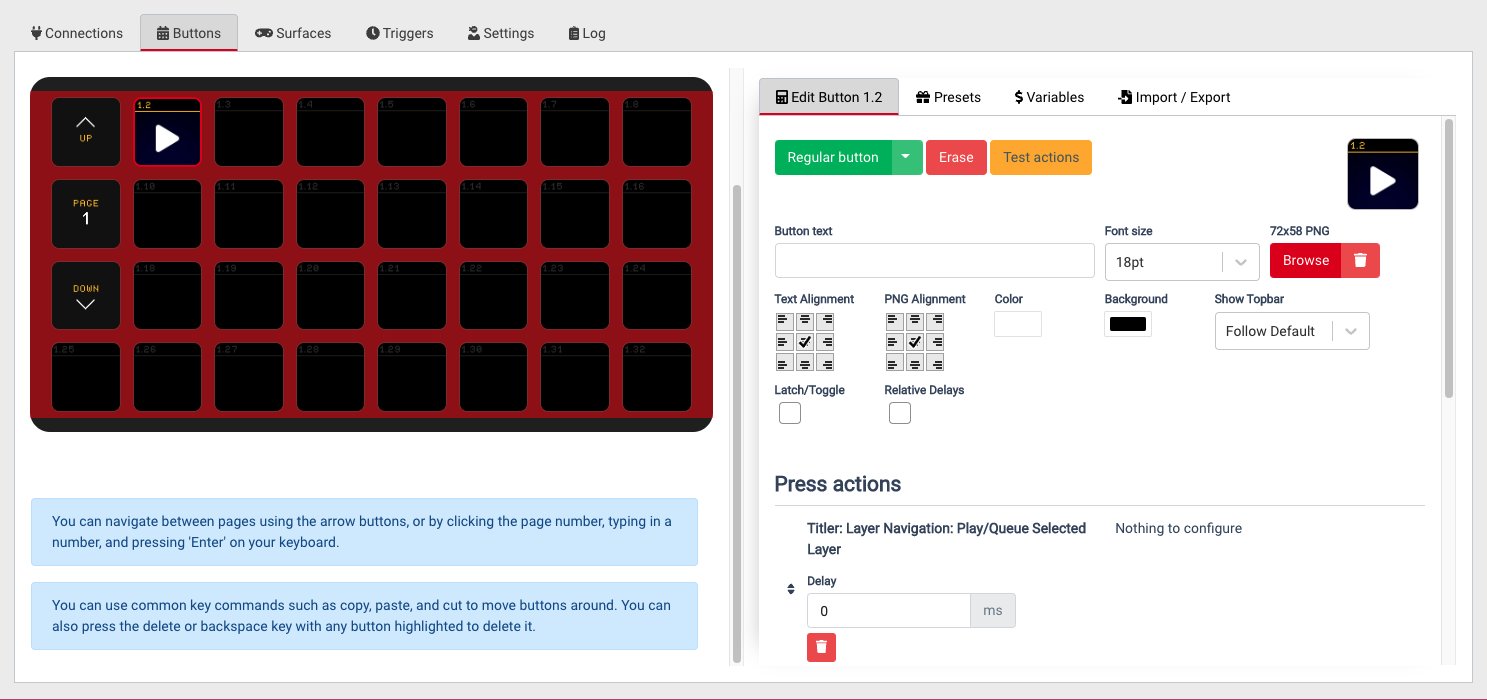
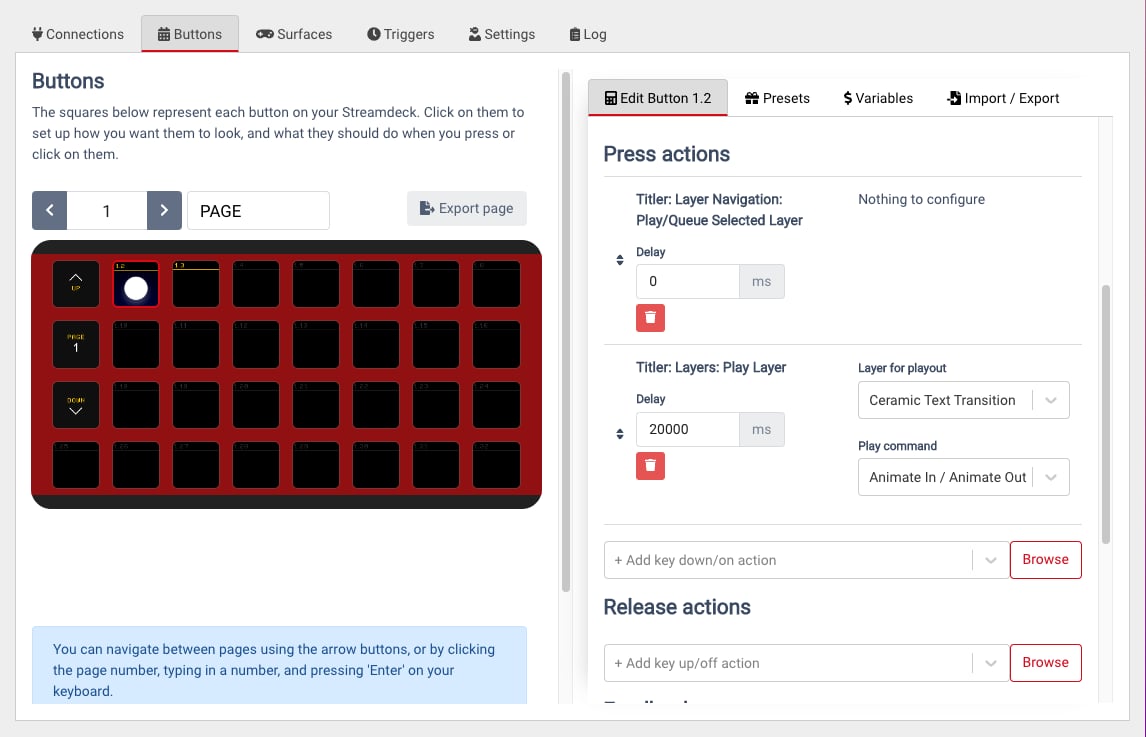
1. Choose the Preset Button you wish to begin your stacked action sequence with on the Buttons Configuration Board.

   <div align="left"><figure><img src="https://352477438-files.gitbook.io/~/files/v0/b/gitbook-x-prod.appspot.com/o/spaces%2FFCWMxradHcVjURnrXSYX%2Fuploads%2Fgit-blob-44fd931357d55156383922e71109bc42e0eca4ff%2Fimage_1461.png?alt=media" alt="Preset button selected"><figcaption></figcaption></figure></div>
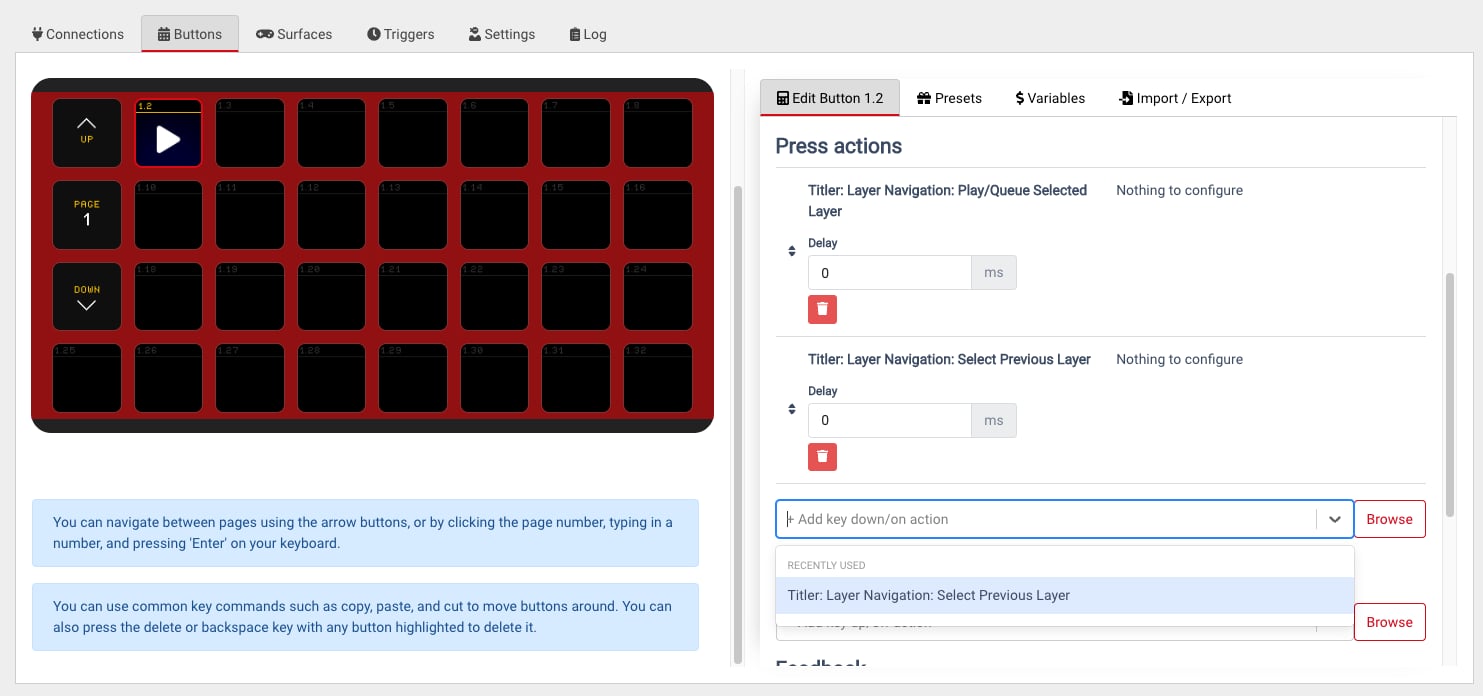
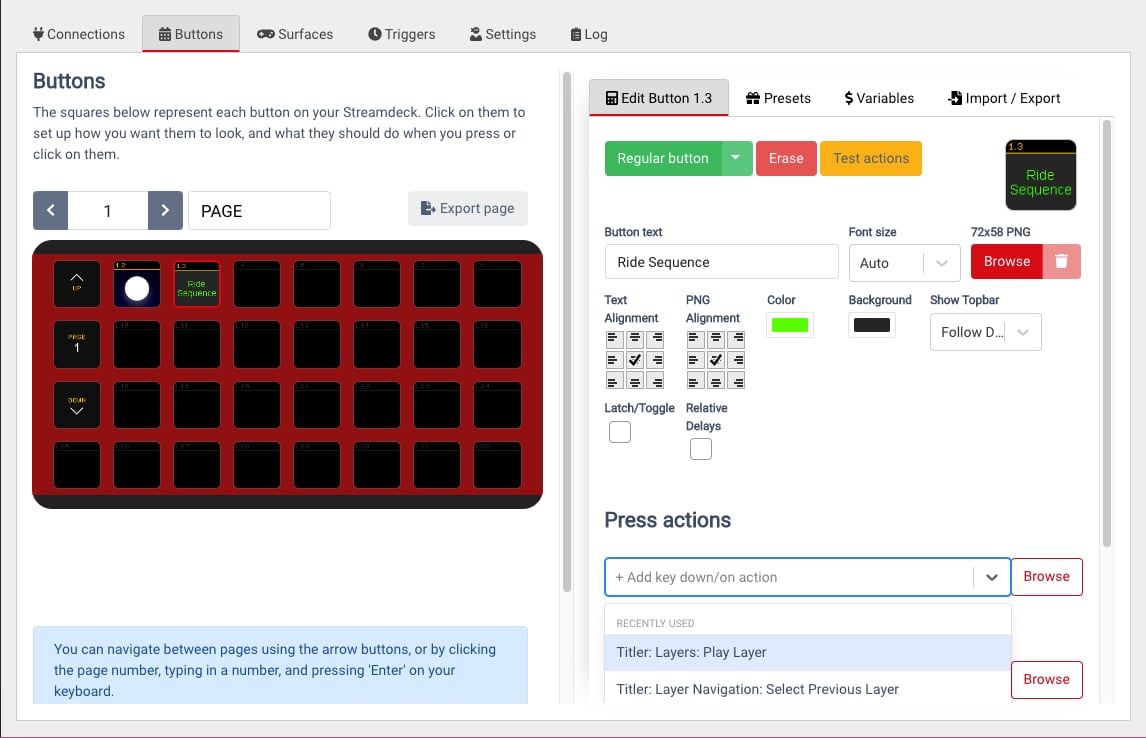
2. Enter your next desired action into **+ Add key down/on action**.

   <div align="left"><figure><img src="https://352477438-files.gitbook.io/~/files/v0/b/gitbook-x-prod.appspot.com/o/spaces%2FFCWMxradHcVjURnrXSYX%2Fuploads%2Fgit-blob-679105340bd1308e1f8ccd420ca8f10d8e5b9adf%2Fimage_5995.jpg?alt=media" alt="Add action"><figcaption></figcaption></figure></div>

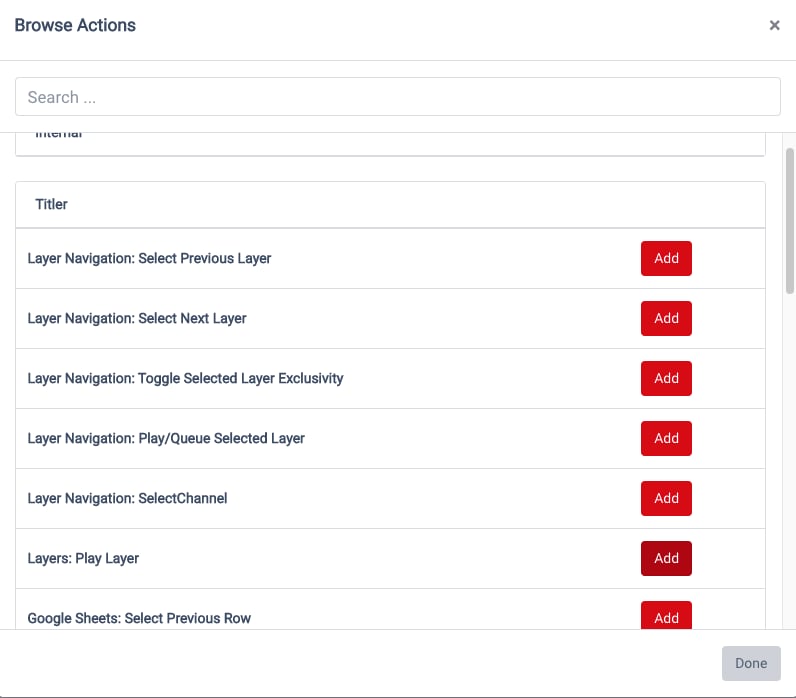
   Or **Browse and Add** from the Preset Actions under **Titler**.

   **📌 NOTE**\
   Actions for Google Sheets, Excel, Spreadsheets, and all Play Layer actions are only available for the data controllers/layers in an open Captivate project on the system.

   <div align="left"><figure><img src="https://352477438-files.gitbook.io/~/files/v0/b/gitbook-x-prod.appspot.com/o/spaces%2FFCWMxradHcVjURnrXSYX%2Fuploads%2Fgit-blob-4114d670070c548491e6e0361bf4b373aa7c8cfe%2Fimage_2056.jpg?alt=media" alt="Browse Titler"><figcaption></figcaption></figure></div>
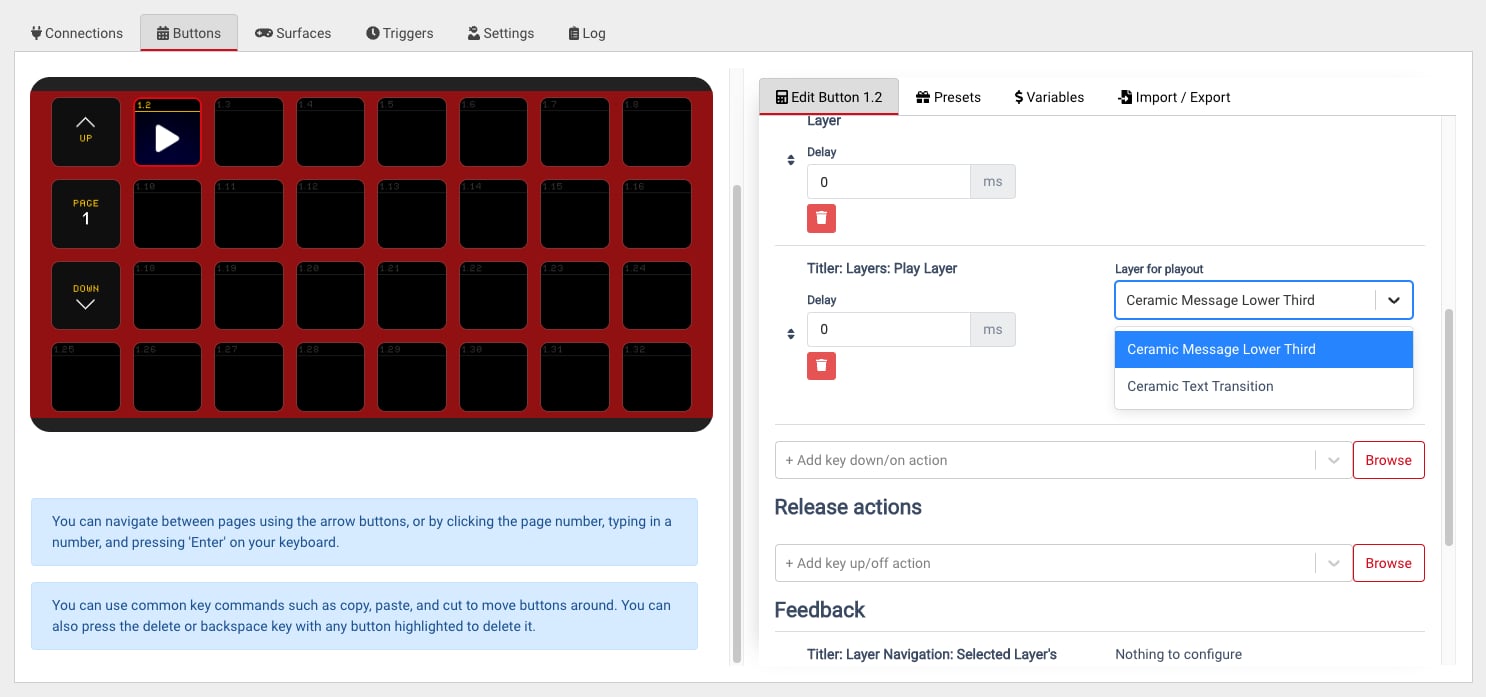
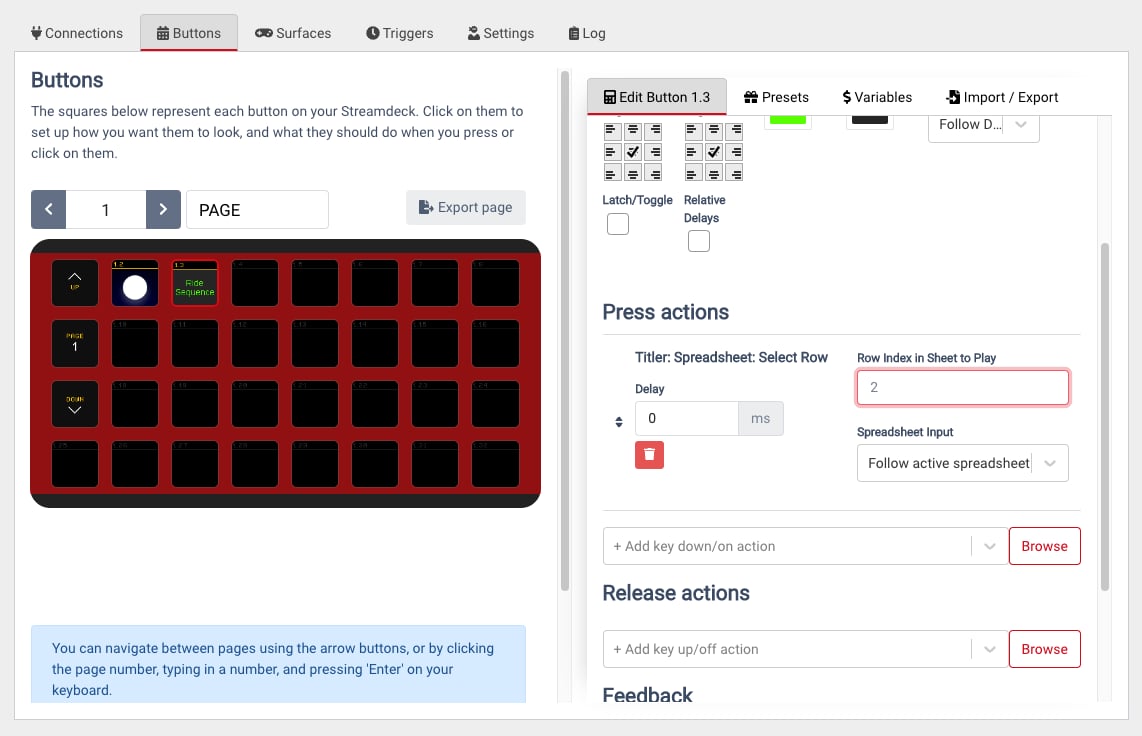
3. Configure any additional properties for the action.

   <div align="left"><figure><img src="https://352477438-files.gitbook.io/~/files/v0/b/gitbook-x-prod.appspot.com/o/spaces%2FFCWMxradHcVjURnrXSYX%2Fuploads%2Fgit-blob-988ef1df88035ba10c48dfc9b6dee2227e53da48%2Fimage_5245.jpg?alt=media" alt="Action properties"><figcaption></figcaption></figure></div>
4. Enter the amount of delay from when the button is pressed (default in milliseconds).

   <div align="left"><figure><img src="https://352477438-files.gitbook.io/~/files/v0/b/gitbook-x-prod.appspot.com/o/spaces%2FFCWMxradHcVjURnrXSYX%2Fuploads%2Fgit-blob-a798f65ce9314b8b3c8030000a8b18caf28efdbb%2Fimage_6484.jpg?alt=media" alt="Delay"><figcaption></figcaption></figure></div>
5. Repeat for additional actions to stack.

Test by pressing **Test actions** to play live in the Program Monitor.

## Customizing a Regular Button

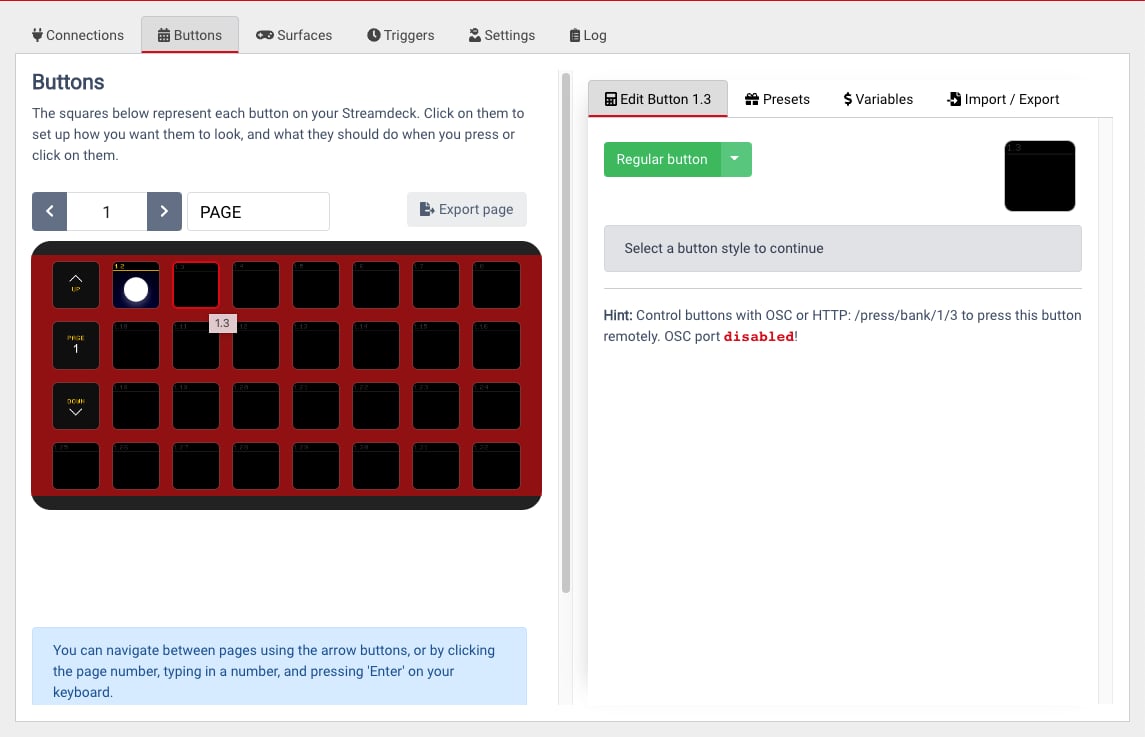
1. Select a blank/empty button in the Buttons Configuration Board.

   <div align="left"><figure><img src="https://352477438-files.gitbook.io/~/files/v0/b/gitbook-x-prod.appspot.com/o/spaces%2FFCWMxradHcVjURnrXSYX%2Fuploads%2Fgit-blob-5c4f62f6918c289fb19df6841e3d1e1fd44026c6%2Fimage_5270.jpg?alt=media" alt="Empty button selected"><figcaption></figcaption></figure></div>
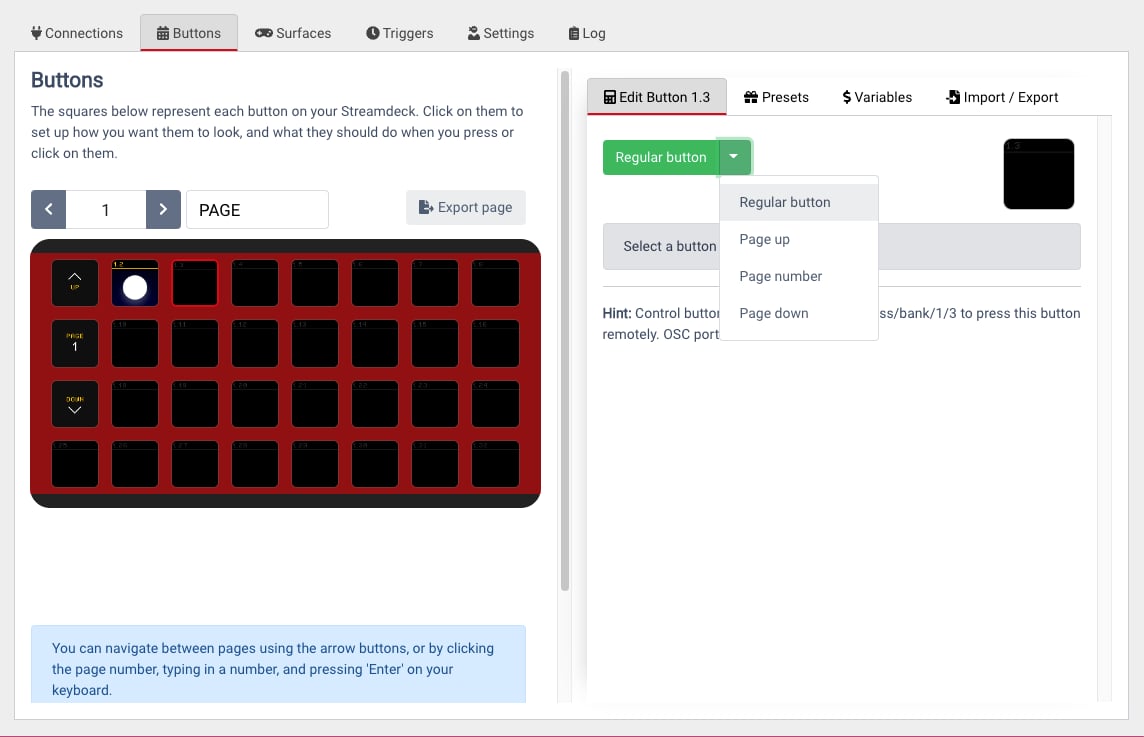
2. Select **Regular button** in the green dropdown.

   <div align="left"><figure><img src="https://352477438-files.gitbook.io/~/files/v0/b/gitbook-x-prod.appspot.com/o/spaces%2FFCWMxradHcVjURnrXSYX%2Fuploads%2Fgit-blob-bd45d846d8818bbe8b451a67ab8194b656fd97d5%2Fimage_5220.jpg?alt=media" alt="Regular button"><figcaption></figcaption></figure></div>
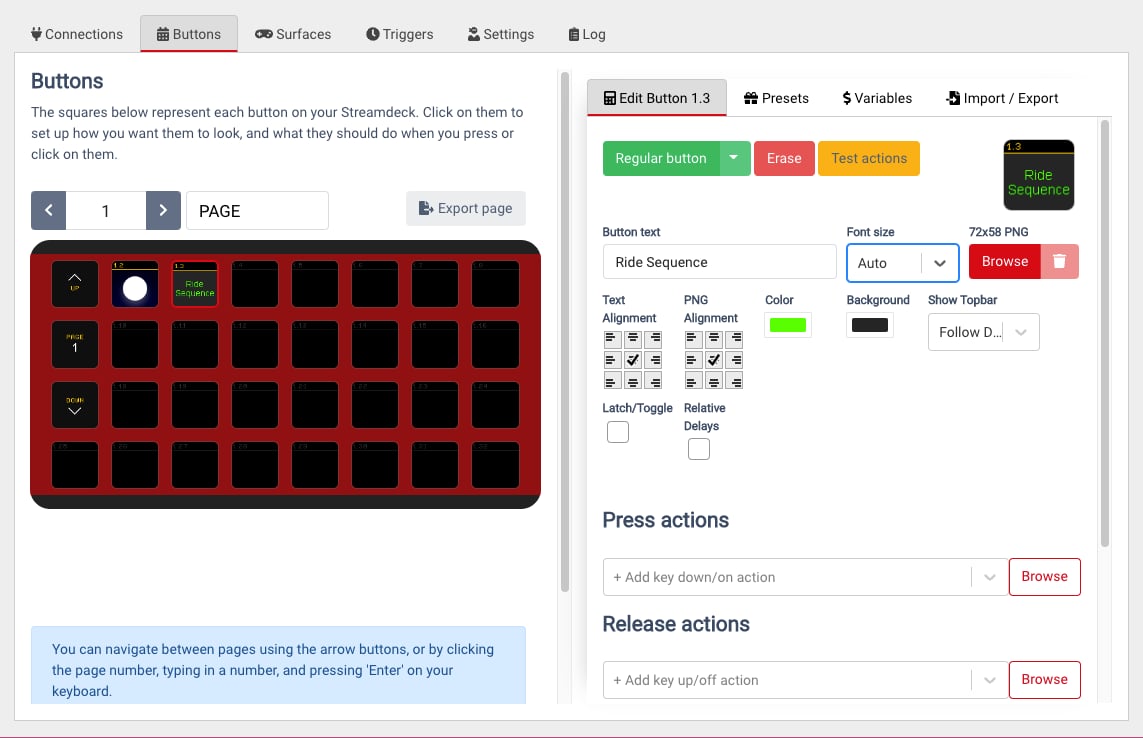
3. Customize by typing the Button Text, choosing a color, etc.

   <div align="left"><figure><img src="https://352477438-files.gitbook.io/~/files/v0/b/gitbook-x-prod.appspot.com/o/spaces%2FFCWMxradHcVjURnrXSYX%2Fuploads%2Fgit-blob-c61cfb576388b2e9be88a1a8b8666b1cbc4d3707%2Fimage_6434.jpg?alt=media" alt="Button customization"><figcaption></figcaption></figure></div>
4. Enter your desired action into **+ Add key down/on action**.

   <div align="left"><figure><img src="https://352477438-files.gitbook.io/~/files/v0/b/gitbook-x-prod.appspot.com/o/spaces%2FFCWMxradHcVjURnrXSYX%2Fuploads%2Fgit-blob-d9c08f68bd98e9f17b068d4f8e77306ece35db3e%2Fimage_899.jpg?alt=media" alt="Add action"><figcaption></figcaption></figure></div>

   Or **Browse and Add** from the Preset Actions under Titler.

   <div align="left"><figure><img src="https://352477438-files.gitbook.io/~/files/v0/b/gitbook-x-prod.appspot.com/o/spaces%2FFCWMxradHcVjURnrXSYX%2Fuploads%2Fgit-blob-4114d670070c548491e6e0361bf4b373aa7c8cfe%2Fimage_2056.jpg?alt=media" alt="Browse Titler"><figcaption></figcaption></figure></div>
5. Configure additional properties.

   <div align="left"><figure><img src="https://352477438-files.gitbook.io/~/files/v0/b/gitbook-x-prod.appspot.com/o/spaces%2FFCWMxradHcVjURnrXSYX%2Fuploads%2Fgit-blob-af849e563bd7c7c8402170b9484a6ed53c480c02%2Fimage_2003.jpg?alt=media" alt="Configure action"><figcaption></figcaption></figure></div>
6. Enter the amount of delay (default in milliseconds).

   <div align="left"><figure><img src="https://352477438-files.gitbook.io/~/files/v0/b/gitbook-x-prod.appspot.com/o/spaces%2FFCWMxradHcVjURnrXSYX%2Fuploads%2Fgit-blob-62b424a87c3975bdc42046114de6ceb2bd1a2744%2Fimage_7128.jpg?alt=media" alt="Delay"><figcaption></figcaption></figure></div>
7. Repeat for additional actions.

Test by pressing **Test actions**.

See [Spreadsheet Controller Operation](/control-your-show/chapter-index-4/tables-controller-with-companion.md) and [Assign buttons for project navigation](/control-your-show/chapter-index-4/assigning-buttons-for-project-navigation.md) for a full list of actions.


---

# Agent Instructions
This documentation is published with GitBook. GitBook is the documentation platform designed so that both humans and AI agents can read, navigate, and reason over technical content effectively. Learn more at gitbook.com.

## Querying This Documentation
If you need additional information that is not directly available in this page, you can query the documentation dynamically by asking a question.

Perform an HTTP GET request on the current page URL with the `ask` query parameter, and the optional `goal` query parameter:

```
GET https://captivatehelp.newbluelive.com/control-your-show/chapter-index-4/creating-multi-action-stacks-in-companion.md?ask=<question>&goal=<endgoal>
```

`ask` is the immediate question: it should be specific, self-contained, and written in natural language.
`goal` is optional and describes the broader end goal you are ultimately trying to accomplish on behalf of the user. GitBook uses it to tailor the answer towards what is most useful for that goal.

The response will contain a direct answer to the question and relevant excerpts and sources from the documentation.

Use this mechanism when the answer is not explicitly present in the current page, you need clarification or additional context, or you want to retrieve related documentation sections.