> For the complete documentation index, see [llms.txt](https://captivatehelp.newbluelive.com/llms.txt). Markdown versions of documentation pages are available by appending `.md` to page URLs; this page is available as [Markdown](https://captivatehelp.newbluelive.com/control-your-show/chapter-index-4/bitfocus-companion-setup.md).
# Set up Bitfocus Companion
Bitfocus Companion was designed for broadcasters who need to trigger preconfigured actions (or sets of actions) during a live production. It transforms the Elgato Stream Deck into a professional switchboard console for an increasing variety of hardware and software broadcast solutions and allows you to integrate Captivate with sophisticated, remote-operated action queues. Companion can be used independently from a Stream Deck surface via web buttons in your browser or mobile device.
Captivate provides rich, unique icons for button presets, and supports Companion’s feedback functionality for a dynamic, easily tailored workflow.
{% hint style="info" %}
Companion supports Bonjour auto-discovery (TXT `class=Captivate proto=ws`). Lead with discovery before falling back to manual config.
{% endhint %}
* [Launch Companion](#launch-companion)
* [Companion Configuration Settings](#companion-configuration-settings)
* [Setting up your Companion Application with Captivate](#setting-up-your-companion-application-with-captivate)
* [Disabling Stream Deck](#disabling-stream-deck)
The Companion application must be downloaded and installed on the machine running Captivate.
## Bypass MacOS Security
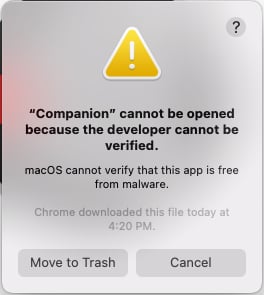
When installing Companion on macOS, you may be presented with a security warning:
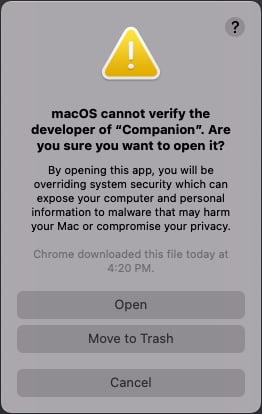
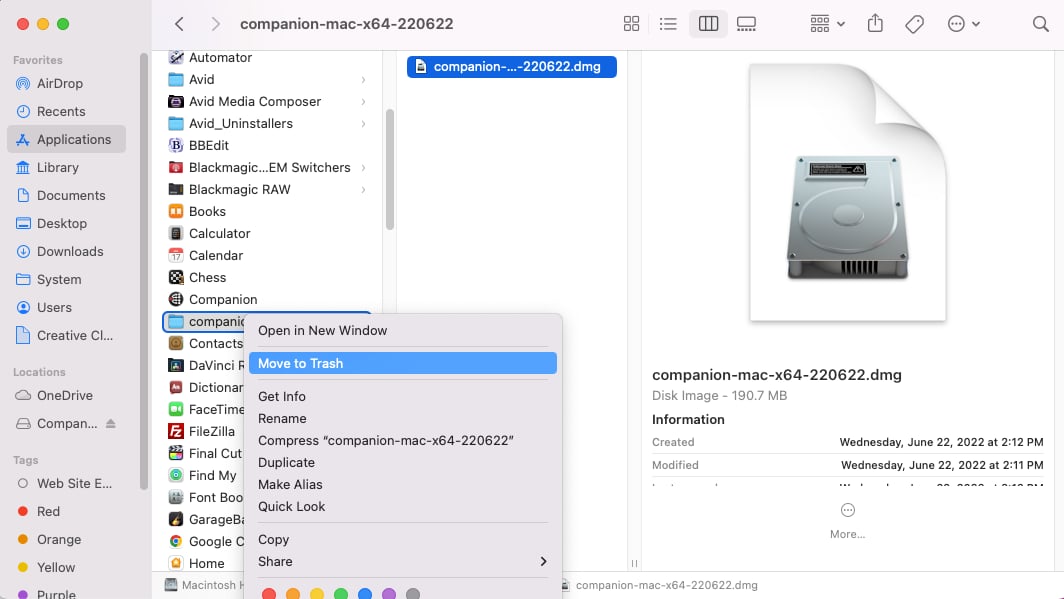
1. To bypass, right-click the Companion DMG file and click **Open**. A different version of the warning appears:
2. Click **Open** to proceed.
{% hint style="info" %}
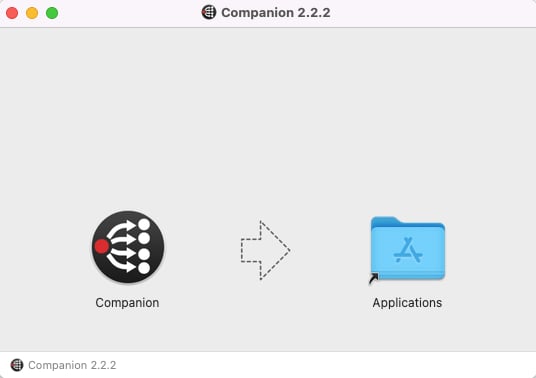
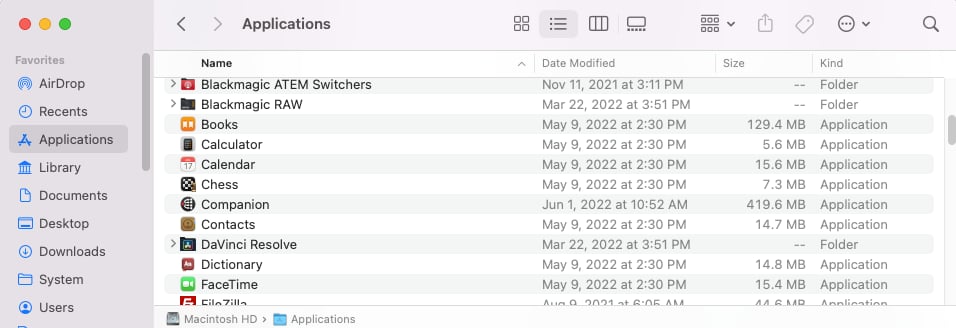
On Mac, drag the Companion icon into the Applications folder when prompted.
{% endhint %}
## Launch Companion
1. Open the Captivate project you would like to control with Companion.
2. Open Bitfocus Companion from your Applications folder (Mac) or Program Files (Win).
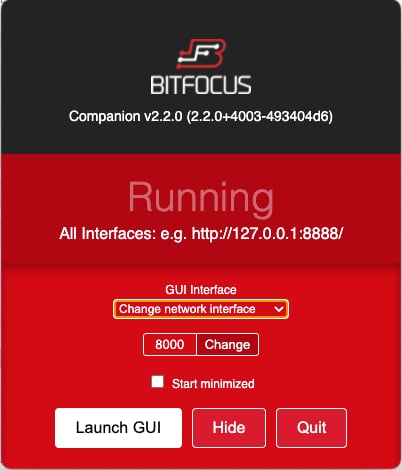
3. A small control window opens. Click **Launch GUI**.
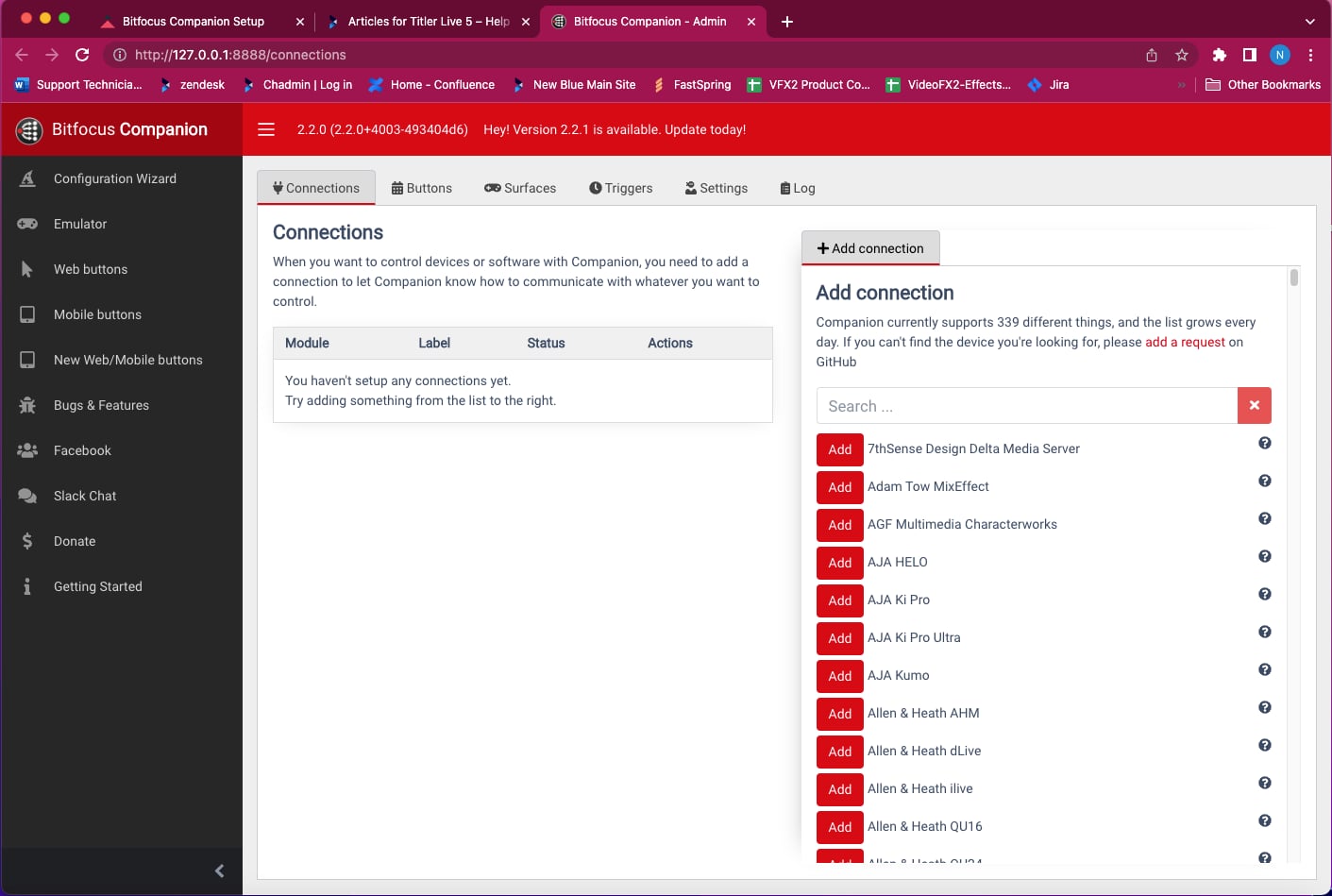
4. Bitfocus Companion Admin opens in your default browser.
## Companion Configuration Settings
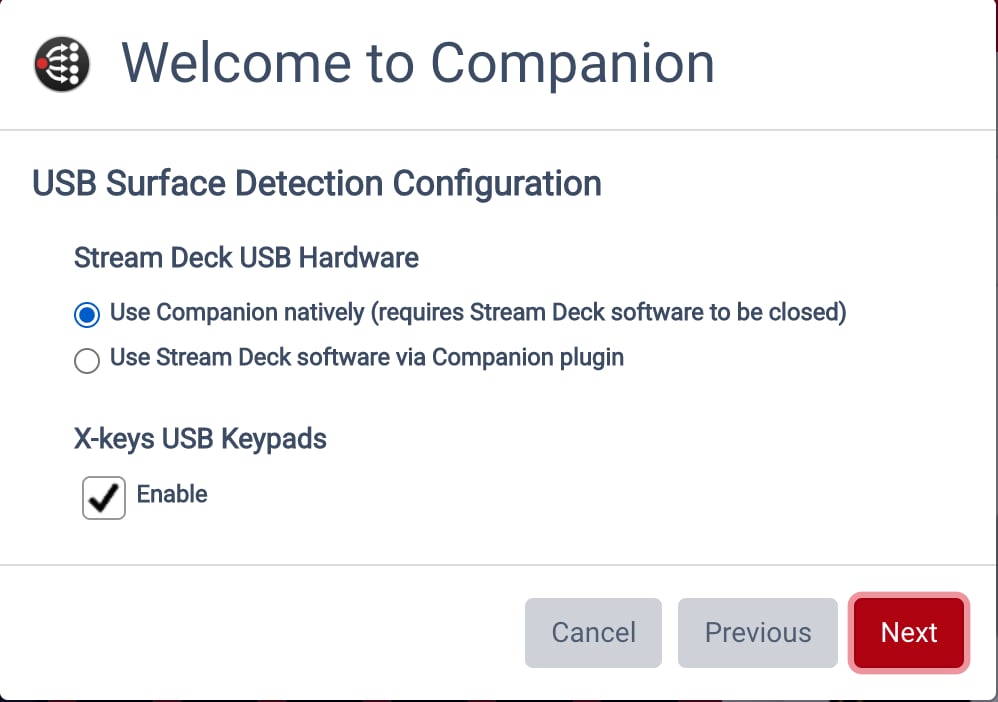
These settings let Companion detect your Stream Deck hardware, X-keys USB Keypads, and Remote Control Services.
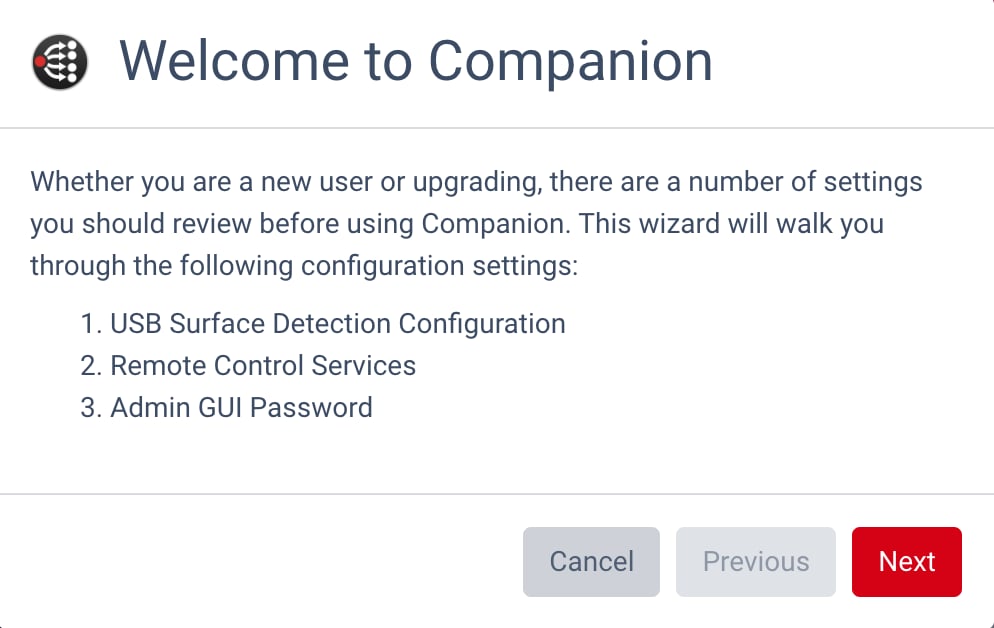
1. Run through the Configuration Wizard on the right side-bar menu. (Opens automatically for first-time users.)
2. Select **Use Companion Natively** (recommended) and enable X-Keys USB Keypads if desired. See [Disabling Stream Deck](#disabling-stream-deck) below if you use this option.
**📌 NOTE**\
If you need to assign Stream Deck buttons to other applications that don’t support Companion natively, enable the Companion Stream Deck plugin.
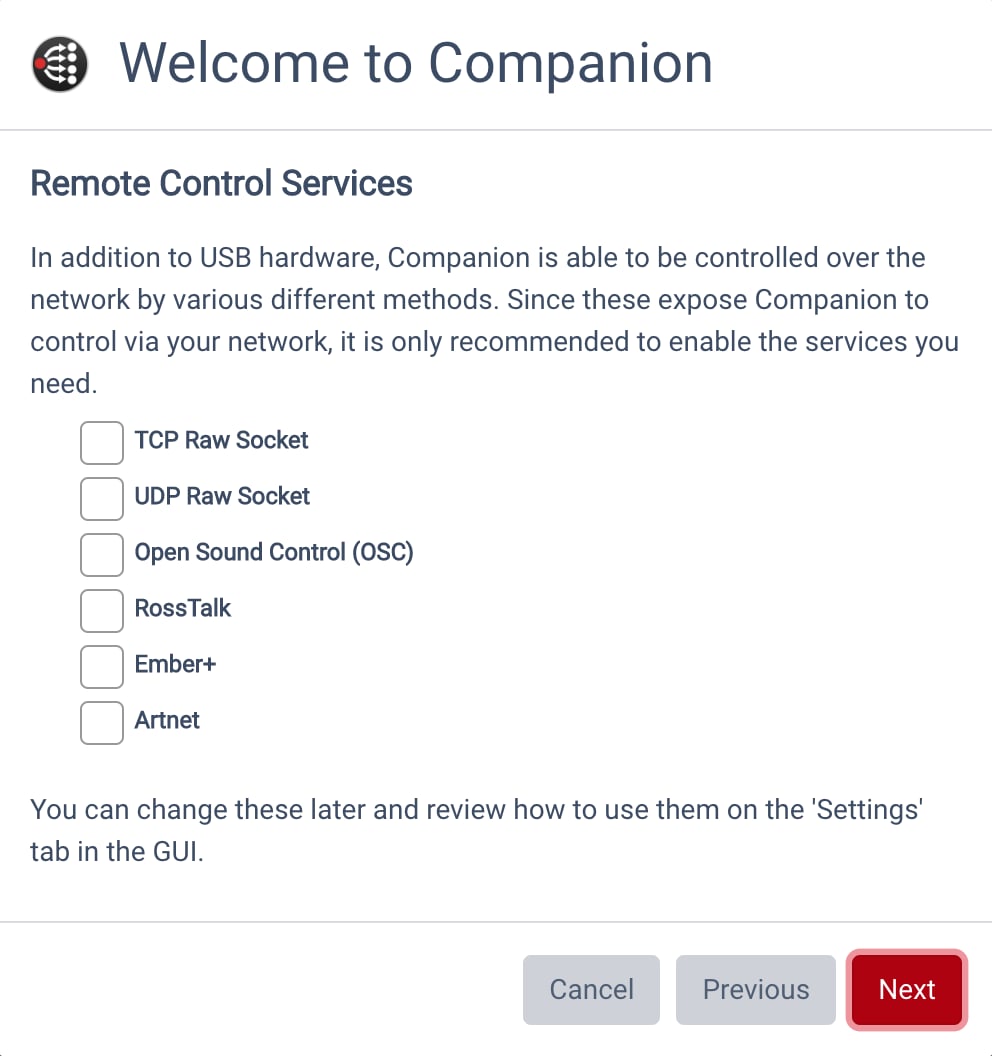
3. Click **Next** and choose the **Remote Control Services** you need.
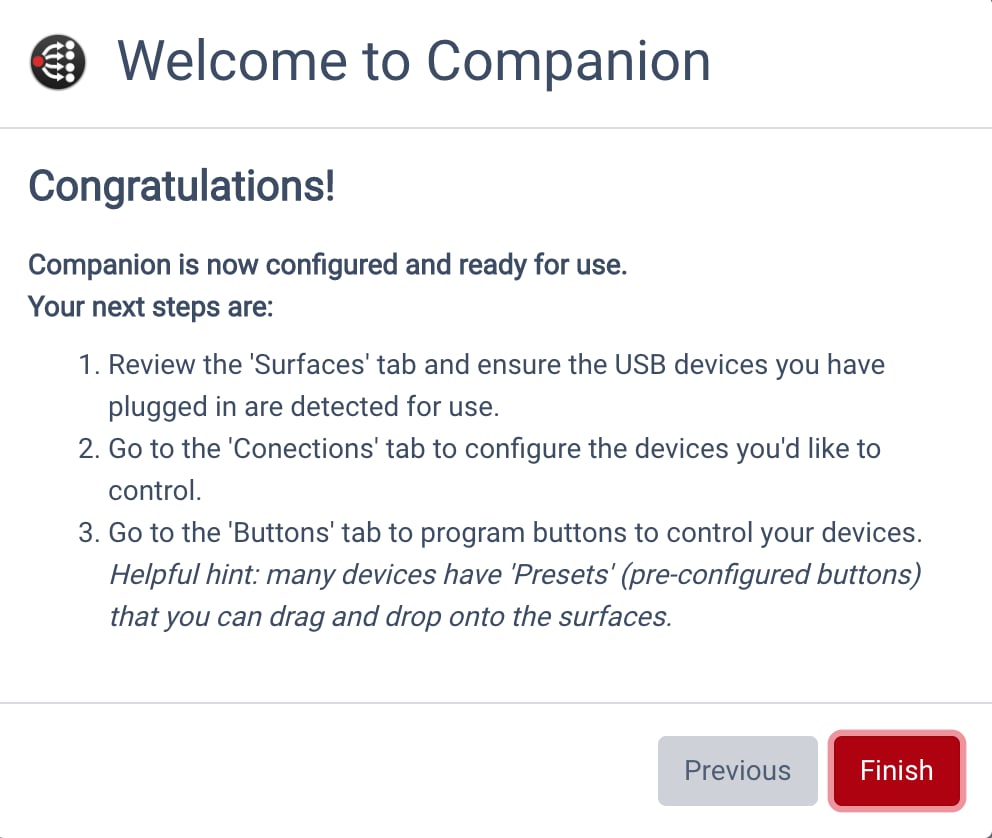
4. Finish by clicking **Next** and following the remaining instructions.
## Setting up your Companion application with Captivate
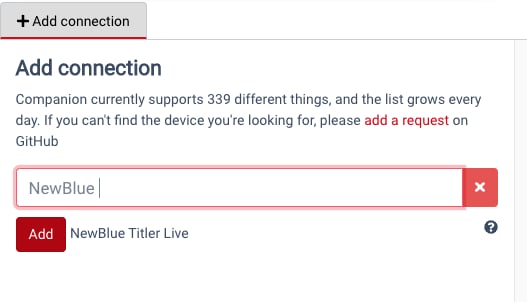
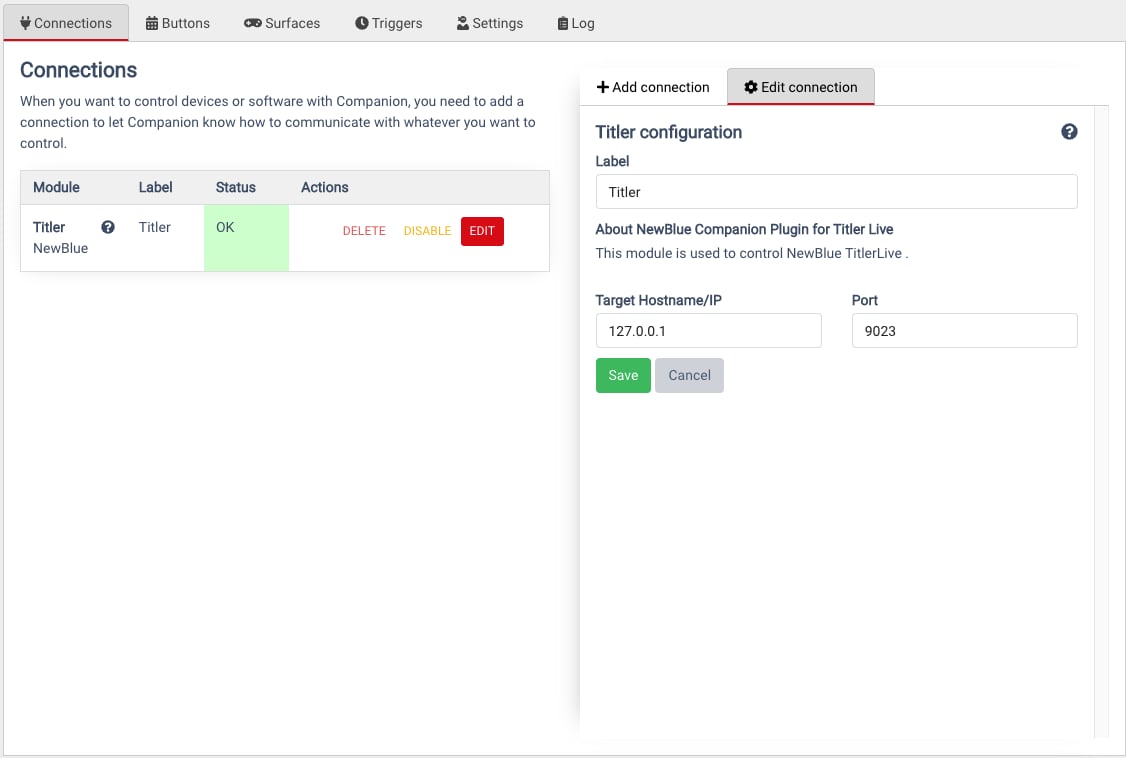
You land on the **Connections** tab with an **Add Connection** search bar.
1. Search for or scroll to **NewBlue Captivate**.
**📌 NOTE**\
Companion’s Bonjour auto-discovery will surface running Captivate instances automatically. If your instance does not appear, fall back to manual config.
2. Select **Add NewBlue Captivate**.
The connection should display OK on a green background in the **Status** column.
{% hint style="info" %}
If Disconnected, close Captivate and Companion. Be sure to open Captivate before reopening Companion.
{% endhint %}
## Disabling Stream Deck
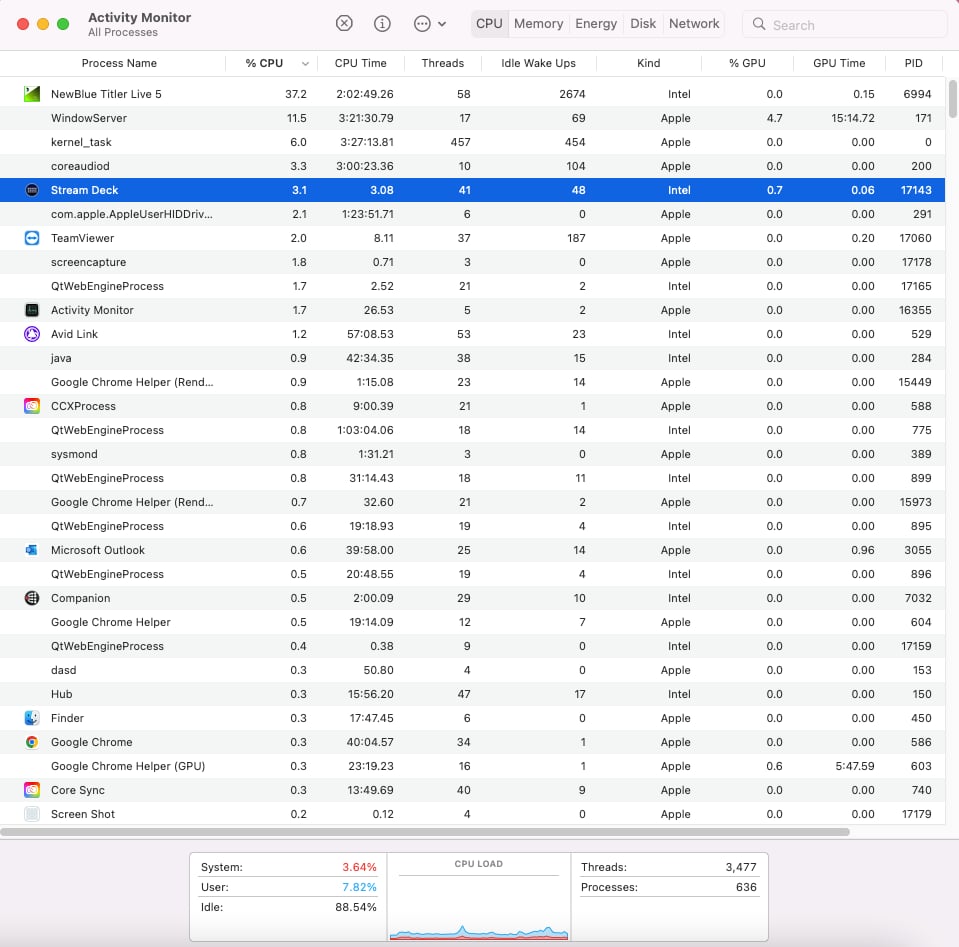
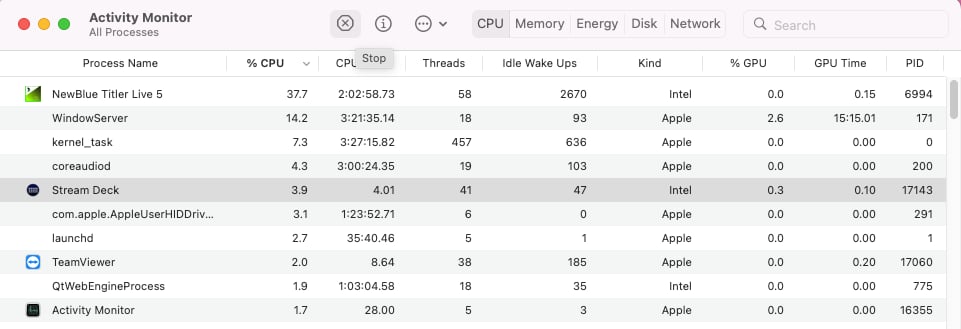
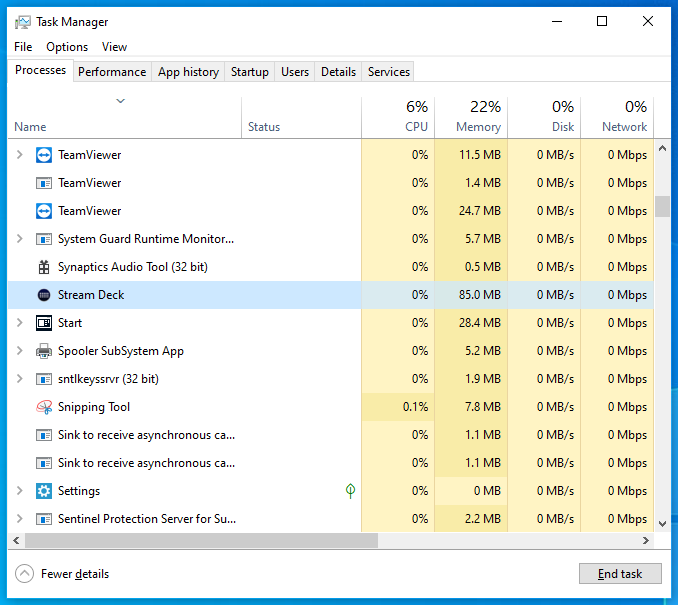
To give Companion full control of your Stream Deck hardware, disable the Stream Deck software. Simply closing the application doesn’t fully disable it — background processes continue. Use Activity Monitor (Mac) or Task Manager (Windows).
**On Mac:**
1. Search to open Activity Monitor.
2. Find and highlight StreamDeck.
3. Press the Stop button and choose Quit.
**On Windows:**
1. Search to open Task Manager.
2. Highlight StreamDeck.
3. Select **End Task**.
Next, see [Assign buttons for project navigation](/control-your-show/chapter-index-4/assigning-buttons-for-project-navigation.md).
---
# Agent Instructions
This documentation is published with GitBook. GitBook is the documentation platform designed so that both humans and AI agents can read, navigate, and reason over technical content effectively. Learn more at gitbook.com.
## Querying This Documentation
If you need additional information that is not directly available in this page, you can query the documentation dynamically by asking a question.
Perform an HTTP GET request on the current page URL with the `ask` query parameter, and the optional `goal` query parameter:
```
GET https://captivatehelp.newbluelive.com/control-your-show/chapter-index-4/bitfocus-companion-setup.md?ask=&goal=
```
`ask` is the immediate question: it should be specific, self-contained, and written in natural language.
`goal` is optional and describes the broader end goal you are ultimately trying to accomplish on behalf of the user. GitBook uses it to tailor the answer towards what is most useful for that goal.
The response will contain a direct answer to the question and relevant excerpts and sources from the documentation.
Use this mechanism when the answer is not explicitly present in the current page, you need clarification or additional context, or you want to retrieve related documentation sections.