> For the complete documentation index, see [llms.txt](https://captivatehelp.newbluelive.com/llms.txt). Markdown versions of documentation pages are available by appending `.md` to page URLs; this page is available as [Markdown](https://captivatehelp.newbluelive.com/control-your-show/chapter-index-1/recall-keypad.md).
# Recall Keypad
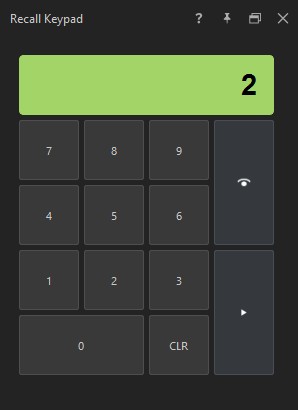
The **Recall Keypad** is an on-screen numeric pad that lets an operator type a short ID, see the matching item highlight in real time, and take it on air with a single press. Use it on shows where a touchscreen, a numeric keypad on the keyboard, or a tablet is the primary control surface and you want to recall items by number rather than by clicking a row.
## Before you start
The Recall Keypad ships only in Captivate builds that include live playout, and the dock is gated by a license entitlement. If your license does not include the entitlement, the View menu does not list **Recall Keypad** and the dock cannot be opened.
You can still work with the keypad without showing the dock. When the keypad’s match dispatcher is wired into another panel (such as the Values Grid), typing digits on the keyboard can trigger a recall even when the dock is hidden.
Read these first:
* [Create Shot Layouts](/control-your-show/chapter-index-1/creating-shot-layouts.md) — for the kind of item the keypad recalls.
* [Update variables in live graphic layers (Values Grid)](/control-your-show/chapter-index/values-grid.md) — for the row IDs the keypad matches against.
## Open the Recall Keypad
1. Open the **View** menu.
2. Choose **Recall Keypad**.
The Recall Keypad dock appears on the right side of the workspace and raises to the top of any other panels docked there. The dock is hidden the first time you open the project; once you open it, your layout remembers its visibility.
While the Recall Keypad is active, it also displays in the top bar for quick visibility and access.
To hide it, choose **View > Recall Keypad** again, or close the dock from its title bar.
## The keypad at a glance
The keypad shows a numeric pad plus three command buttons:
* **Digits 0–9** — Add a digit to the entry.
* **CLR** — Clear the entry and cancel any staged match.
* **Preview** (the eye button; **+** on the keyboard) — Cue the matched item without taking it on air.
* **Play** (the triangle button; **Enter** on the keyboard) — Take the matched item on air.
Above the keys, an LCD-style label shows the digits you have typed. When the entered number matches an item, the label turns green. If no match is found, the label stays in its idle color.
## Recall an item
1. Type the item’s number on the keypad, or on the keyboard’s number row or numeric pad.
The entered digits appear in the LCD label. As soon as the digits match an item, the label turns green.
2. Optional: press **Preview** (or `+` on the keyboard) to cue the matched item without taking it on air.
3. Press **Play** (or **Enter**) to take the item on air.
After **Play**, the keypad clears the entry and returns to its idle state, ready for the next recall.
**💡 TIP**
The keypad caps entries at five digits. A sixth keypress is ignored with no on-screen warning, so plan numbering schemes that fit within five digits.
## Keyboard shortcuts inside the dock
When the Recall Keypad dock is visible, Captivate routes the following keys to the keypad before any other shortcut:
* **0–9** — Append a digit.
* **Enter** or **Return** — Play the matched item.
* **+** — Preview the matched item.
* **.** (period) — Clear the entry.
The spacebar is **not** captured by the keypad. Pressing space continues to fire the standard play hotkey for whatever is selected in the Project List, so your existing space-to-take muscle memory keeps working with the keypad open.
## Coexistence with Instant Search
The Recall Keypad and [Instant Search](/control-your-show/chapter-index/select-with-instant-search.md) can both be enabled on the same project. When the Recall Keypad dock is visible, it consumes number keys first; when it is hidden, Instant Search handles typed input as usual.
## Related
* [Create Shot Layouts](/control-your-show/chapter-index-1/creating-shot-layouts.md)
* [Shot Launcher mode](/control-your-show/chapter-index-1/shot-launcher-mode.md)
* [Select graphic layers and spreadsheet data with Instant Search](/control-your-show/chapter-index/select-with-instant-search.md)
* [Update variables in live graphic layers (Values Grid)](/control-your-show/chapter-index/values-grid.md)
---
# Agent Instructions
This documentation is published with GitBook. GitBook is the documentation platform designed so that both humans and AI agents can read, navigate, and reason over technical content effectively. Learn more at gitbook.com.
## Querying This Documentation
If you need additional information that is not directly available in this page, you can query the documentation dynamically by asking a question.
Perform an HTTP GET request on the current page URL with the `ask` query parameter, and the optional `goal` query parameter:
```
GET https://captivatehelp.newbluelive.com/control-your-show/chapter-index-1/recall-keypad.md?ask=&goal=
```
`ask` is the immediate question: it should be specific, self-contained, and written in natural language.
`goal` is optional and describes the broader end goal you are ultimately trying to accomplish on behalf of the user. GitBook uses it to tailor the answer towards what is most useful for that goal.
The response will contain a direct answer to the question and relevant excerpts and sources from the documentation.
Use this mechanism when the answer is not explicitly present in the current page, you need clarification or additional context, or you want to retrieve related documentation sections.